
AI photo prompts for profile pictures can turn one plain selfie into a clean, bright photo that looks good on WhatsApp, Instagram, LinkedIn, or any app where your face is the first thing people see. You do not need a studio, a photographer, or any editing skill. Upload your own photo to Gemini or ChatGPT, paste a clear prompt, and the app makes a new version that still looks like you. Before you start, check you have the latest app version and the official help page.
At a glance
A profile picture is a small square photo, so your face has to be clear, well lit, and easy to recognise. AI photo prompts for profile pictures work best when you start with a sharp front-facing photo in daylight and tell the app exactly what to change and what to keep. The prompts here keep your face, skin tone, and hairstyle the same while they change the background, the light, and the outfit. Each result takes a few minutes.
Quick Overview
| Topic | Details |
|---|---|
| Topic | AI photo prompts for profile pictures |
| Category | Ai Photo Prompt |
| App or Tool | Gemini app or ChatGPT app (web or phone) |
| Skill Level | Beginner, no editing experience needed |
| Time Needed | 10 to 15 minutes for your first photo |
| Media Needed | 1 clear front-facing photo of yourself |
| Cost or Free Features | Free with a Google account or a free ChatGPT account, within daily image limits |
What you will make
You will make five styles from the same photo, so you can pick the one that fits. A LinkedIn photo needs calm light and a plain background. A WhatsApp DP can be warmer and more relaxed. An Instagram photo can carry a little more colour. AI photo prompts for profile pictures let you try all of these without five new photos.
| Idea | Best for | Photo needed |
|---|---|---|
| Clean studio portrait | LinkedIn, job profiles, work apps | Front-facing photo |
| Golden hour outdoor look | Instagram, WhatsApp DP | Clear selfie in daylight |
| Soft pastel background | Instagram, dating apps, personal profiles | Front-facing photo, neutral face |
| Formal blazer headshot | LinkedIn, company profile, CV | Chest-up photo |
| Bright travel style photo | Instagram, Facebook, WhatsApp DP | Upper-body photo |
With AI photo prompts for profile pictures, one good selfie is enough for all five looks.
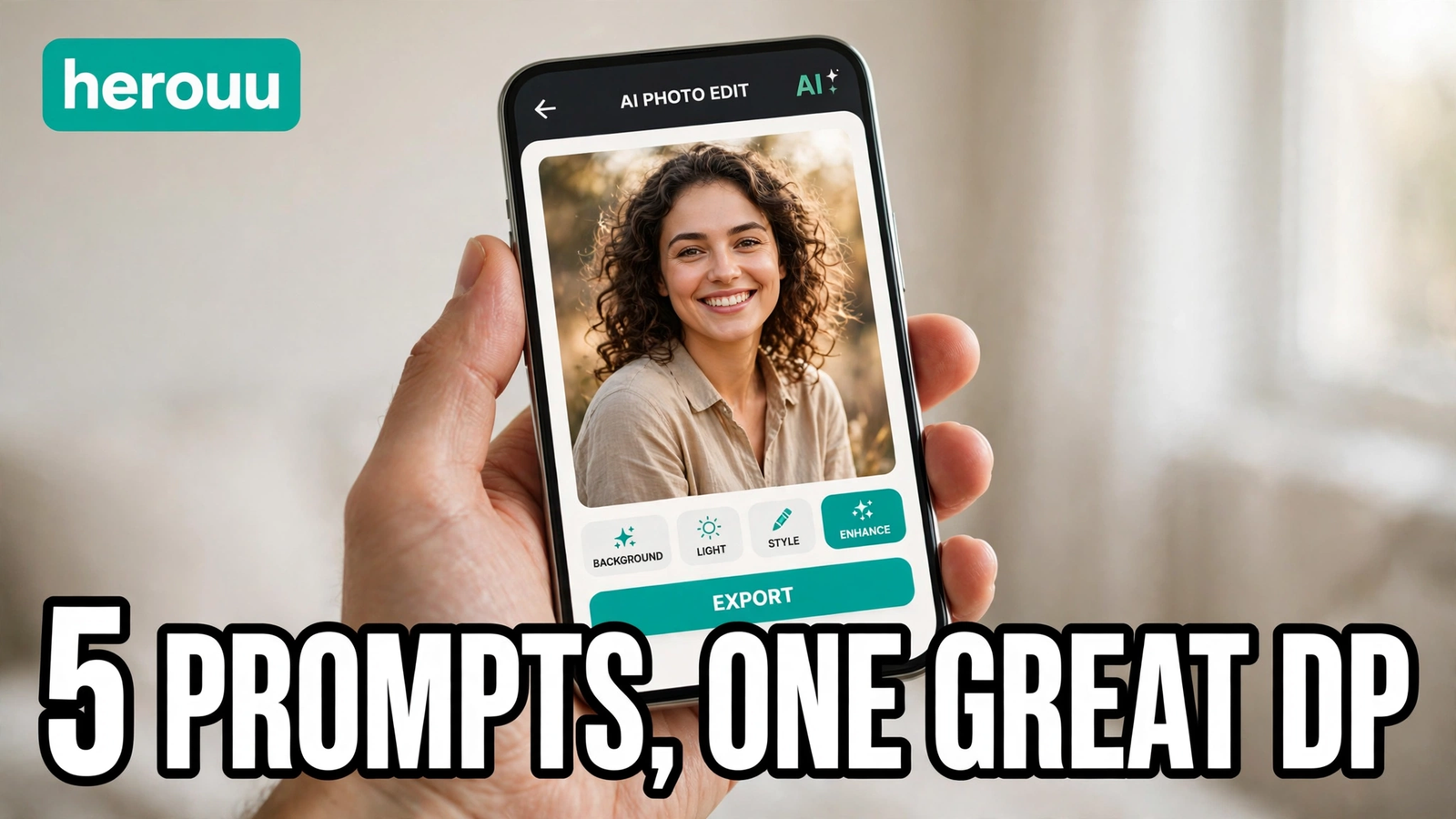
Before you start
Before you try AI photo prompts for profile pictures, pick one photo where your face is sharp, your eyes are open, and the light falls evenly on your face. Daylight near a window works better than a dark room. Remove any heavy filter first, because a filtered photo gives the app the wrong starting point. Use only your own photo. Google’s help page says photo editing in the Gemini app is for users aged 18 or older.
| Requirement | What you need |
|---|---|
| Phone or computer | Android phone, iPhone, or browser |
| Account | Google account or a free ChatGPT account |
| Photo | One clear front-facing photo |
| Internet | Stable connection |
| Storage | Free space to save the result |
Steps: use AI photo prompts for profile pictures in Gemini and ChatGPT
Step 1: Open Gemini or ChatGPT
Open the Gemini app or the ChatGPT app on your phone, or the website in your browser, and sign in. Start a fresh chat for this photo, so old instructions stay out of your edit.
Step 2: Choose your best photo
AI photo prompts for profile pictures start with a good photo, so pick the clearest front-facing one you have. Your face should fill much of the frame, with both eyes visible and nothing covering it.
Step 3: Upload the photo
In Gemini, tap the plus button next to the message box and choose the photo from your gallery. In ChatGPT, tap the plus button and attach it the same way. Wait until the photo shows.
Step 4: Copy a prompt
Scroll to the prompt ideas below and pick the style you want. Copy the full prompt, including the line that keeps your face the same. Without that line, the app may change your face.
Step 5: Paste and send
Paste the prompt into the message box and send it. The app will take a few seconds to a few minutes to make the new image. When it appears, open it full screen and check the face, eyes, hair, and hands.
Step 6: Ask for a fix
If one thing is wrong, do not start over. AI photo prompts for profile pictures work best when you fix one thing at a time, so reply in the same chat with one clear fix.
Step 7: Use a square crop
Most profile pictures show as a square, so ask for a 1:1 square crop in your prompt, or crop the result yourself after you save it. Check that your face is centred.
Step 8: Save and set it
Download the version you like, or save it to your phone gallery from the app. Then open WhatsApp, Instagram, or LinkedIn and set it as your profile picture. Check it at the small size others will see.
5 profile picture prompt ideas
These five prompts are written for AI photo prompts for profile pictures and work in both Gemini and ChatGPT. Replace the words in square brackets with your own details. Keep the first line about your face as it is.
Use my uploaded photo and keep my face, skin tone, hairstyle, and age exactly the same, with no beautification. Create a head-and-shoulders studio portrait against a grey background, wearing a dark blue shirt, with a friendly smile. Use soft daylight. Square 1:1 crop for a profile picture. No text, no watermark, no distorted face.
Use my uploaded photo and keep my face, skin tone, and smile exactly the same, with no beautification. Create a warm golden hour portrait of me in a park, wearing a cream kurta, with sunlight on my face. Keep it realistic. Square 1:1 crop for a profile picture. No text, no watermark, no distorted face.
Use my uploaded photo and keep my face, skin tone, hairstyle, and age exactly the same, with no beautification. Create a bright portrait against a peach wall, wearing a white t-shirt, with a relaxed smile. Use even daylight. Square 1:1 crop for a profile picture. No text, no watermark, no cartoon look.
Use my uploaded photo and keep my face, skin tone, and hairstyle exactly the same, with no beautification. Create a professional headshot of me in a charcoal blazer over a plain light shirt, against a blurred office background. Use calm light and a gentle, confident expression. Keep it realistic for a work profile. Square 1:1 crop for a profile picture. No text, no watermark, no distorted face.
Use my uploaded photo and keep my face, skin tone, and smile exactly the same, with no beautification. Create a bright travel portrait of me near a beach at sunset, wearing a light blue shirt, with warm light on my face. Keep it realistic. Square 1:1 crop for a profile picture. No text, no watermark, no distorted face.
Try one prompt first and look at the result. If it gives you a good photo, save it right away, because the free image limits in both apps can change. When you change the outfit or the place in AI photo prompts for profile pictures, change only one detail at a time.
Tips
Write the prompt the way you would explain it to a person. Name the change, what must stay the same, and the format.
Do not use words like beautiful or perfect in your prompt. These words push the app to change your face, and the result stops looking like you.
AI photo prompts for profile pictures need good light, so take your starting photo in daylight with the light on your face, not behind you.
Keep the same chat open while you fix a photo, so each follow-up builds on the last result.
Check the small details before you post the photo. Look at the ears, the hairline, the teeth, and any text on clothes.
Save two or three versions and compare them at profile picture size. A photo that looks great full screen can still look flat once it shrinks to a small circle.
Common Problems
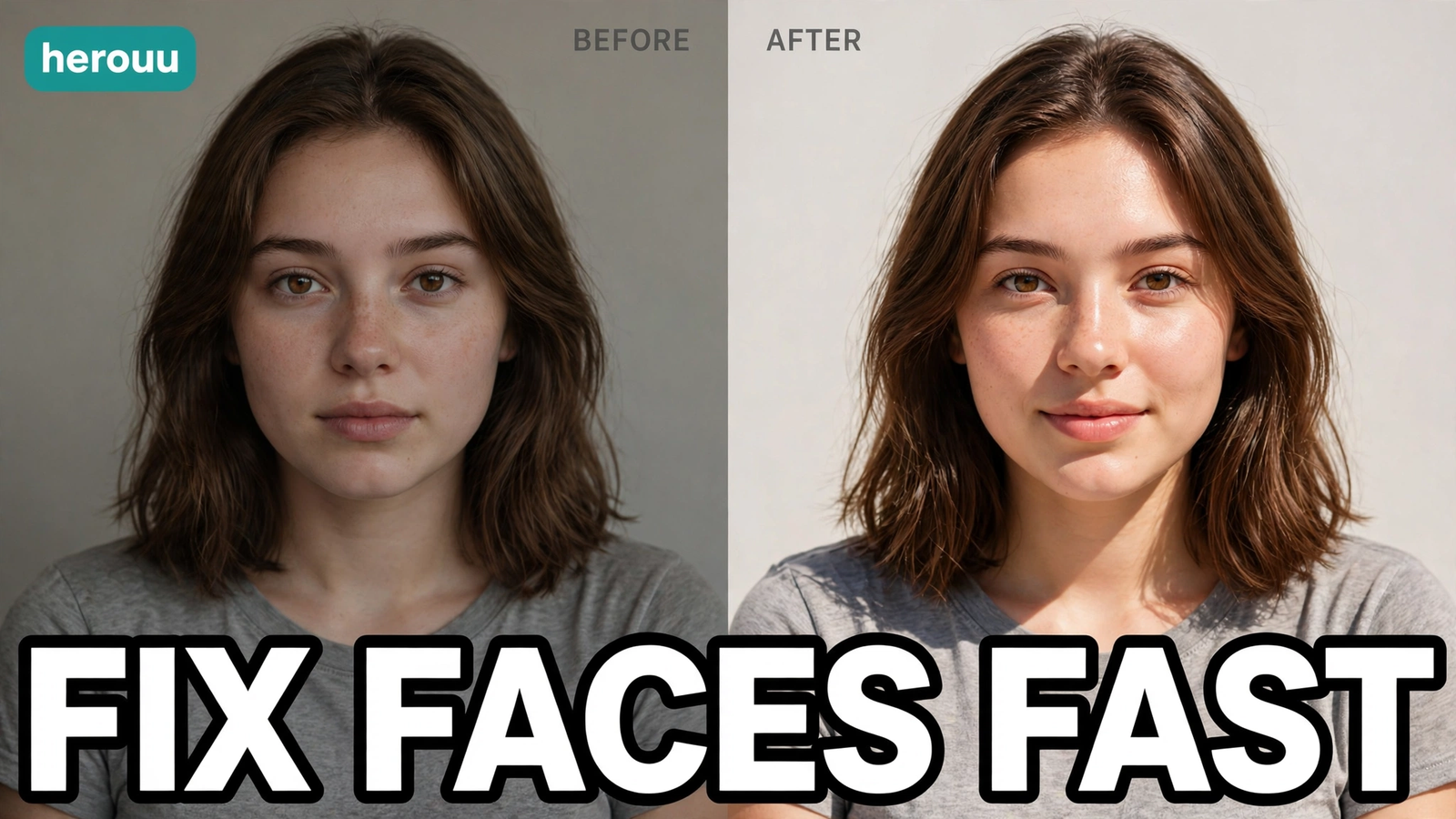
Most problems with AI photo prompts for profile pictures come from a vague prompt or a weak starting photo.
| Problem | Likely cause | Fix |
|---|---|---|
| The face looks like someone else | The prompt did not lock the face | Use a sharper photo and a face-lock line |
| The photo looks over-smoothed or plastic | Words like beautiful or flawless in the prompt | Remove praise words |
| The background looks fake | The prompt asked for too many changes at once | Change one thing at a time |
| The app refuses the edit | The photo or prompt may break safety rules | Use only your own photo and keep the request simple |
| The result is blurry or low quality | The uploaded photo was small or low quality | Upload the largest original photo |
| The free limit runs out | Daily image limits apply on free accounts | Wait until the limit resets, or try the other app |
FAQ
These are the questions people ask most about AI photo prompts for profile pictures.
Can I use AI photo prompts for profile pictures on WhatsApp?
Yes, you can. Make a square 1:1 photo with your face clear and centred, save it to your phone, and set it as your WhatsApp DP. WhatsApp shows the photo as a small circle, so check that your face is still easy to see at that size.
Are Gemini and ChatGPT free for making profile pictures?
Both apps let you make images on a free account, but each one has a daily image limit. Neither company publishes a fixed number for it, so it can change. If you reach the limit, wait for it to reset or try the other app.
Will the AI photo look exactly like me?
It should look like you if your starting photo is clear and your prompt keeps your face, skin tone, and age the same. The result is still a new image made by AI, so it may differ in small ways. Always compare it with your real photo first.
What size should a profile picture be?
A square 1:1 photo works best for most apps, because WhatsApp, Instagram, and LinkedIn all crop profile pictures into a square or a circle. Ask for a 1:1 crop in your prompt, and keep your face in the centre so nothing gets cut off.
Why does my face change in the AI photo?
Your face changes when AI photo prompts for profile pictures are vague or use words like beautiful or perfect, which push the app to reshape your features. A dark or blurry starting photo also makes the app guess. Use a sharp daylight photo and name what must stay the same.
Can I use these prompts for a LinkedIn photo?
Yes, you can, and the studio portrait and blazer headshot prompts in this guide are made for that. Use calm light, a plain background, and a simple outfit. Do not use an edited photo for an ID card or passport.
Is it safe to upload my photo to Gemini or ChatGPT?
Your photo is stored in your chat history, and you can review or delete it from your account activity controls. Do not upload photos of other people without their permission, and do not upload ID cards, passports, or bank documents. Check the app’s privacy help page.
How many times can I retry a prompt?
You can retry AI photo prompts for profile pictures as many times as your daily image limit allows, but it is better to fix the result in the same chat than to start over each time. Reply with one clear change, and the app will adjust the photo you have.
What if Gemini or ChatGPT refuses my prompt?
The app may refuse a prompt that breaks its safety rules, such as a photo of someone else or a fake image of a real person doing something they did not do. Use only your own photo, keep the request simple, and check the app’s help page if it keeps happening.
Conclusion
AI photo prompts for profile pictures are the easiest way to get a bright, clean photo of yourself without a studio or a new camera. Pick one clear photo, copy one prompt, and try it today. Then try more AI photo prompts for profile pictures in the Ai Photo Prompt category on herouu.buzz.
Related reading
More guides on AI photo prompts for profile pictures:
- AI Photo Prompts for Sunset Pictures: Easy Golden Hour Guide
- AI Photo Prompts for Graduation Pictures: Easy Bright Guide
- AI Photo Prompts for Solo Portraits: Easy Natural Guide
- AI Photo Prompts for Baby Pictures: Easy Cute Guide
- Ai Photo Prompt category
About herouu
herouu.buzz shares free templates, photo prompts, and video editing ideas for everyday creators, including AI photo prompts for profile pictures. Every guide is written in simple English, with steps you can follow on your phone and prompts you can copy and use right away.
Disclaimer
This guide to AI photo prompts for profile pictures is based on the official Gemini and ChatGPT help pages and on guides written about those apps. App features, free limits, and menu names can change, so check the official help page before you rely on a step. It is not an official Google or OpenAI statement.
Sources
- Google Gemini Apps Help, support.google.com/gemini — creating and editing images, including the 18 or older rule.
- OpenAI ChatGPT Images help, help.openai.com — uploading a photo and using the Select tool.
- Google Cloud documentation, docs.cloud.google.com — Gemini image editing steps and the 50 MB request size limit.
- gHacks, ghacks.net — Gemini photo editing steps and age limits.
- TechPilot, techpilot.ai — ChatGPT photo editing steps and limits.
- EditsPrompts, editsprompts.com — prompt structure, face-lock line, and 1:1 crop.
- Details not officially announced: exact daily image limits for free accounts are not published as numbers.