
A VN shake effect template adds a short, punchy camera shake to your video at the exact moment you want it, so a beat drop, a jump, or a punch lands harder. This guide shows you how to build one in VN Video Editor, with the quick FX Shake effect and with manual keyframes, and how to use a ready-made template that already has the shake built in. It is for beginners who edit short videos on a phone. VN changes its menus between versions, so check the FX panel and the official VN help page if a name looks different.
At a glance
A VN shake effect template is a ready-made VN project, or a set of steps, that puts a short shake into your video. The shake lasts only a fraction of a second, usually 0.2 to 0.5 seconds, and sits on a beat drop or an impact moment. The fast way uses the Shake effect in the FX tab. The manual way uses position keyframes, which gives you full control over the strength and direction. Both ways are free in VN. Pick one short clip, add the shake at one moment, preview it, and export.
Quick Overview
| Topic | Details |
|---|---|
| Topic | VN shake effect template |
| Category | Vn Code Template |
| App or Tool | VN Video Editor |
| Skill Level | Beginner |
| Time Needed | 15 to 25 minutes |
| Media Needed | 1 to 3 short video clips |
| Cost or Free Features | Free in VN, no paid feature needed |
What you will make
A shake video is a short clip where the frame jumps or trembles for a moment, then settles back to normal. It works best on high-energy videos, because the shake matches the music and the movement already in the clip. A VN shake effect template like this is best used once or twice in a 15-second reel. Shake every second and viewers get tired of it fast.
| Shake video idea | Best for | Clips needed |
|---|---|---|
| Beat drop shake | Dance reels, music edits | 1 clip, 10 to 15 seconds |
| Jump cut shake | Travel, gym, and action clips | 2 clips, 3 to 5 seconds each |
| Punch impact shake | Comedy, fight scenes, and memes | 1 clip, 5 to 8 seconds |
| Transition shake | Moving from one scene to the next | 2 clips, 4 to 6 seconds each |
| Slow motion shake | Sports shots and bike rides | 1 slow motion clip, 8 to 12 seconds |
Before you start
You need the VN Video Editor app from the official app store, updated to the latest version, because effect names and menu positions change between versions. Pick clips shot in good light, because a shake on a dark or blurry clip looks messy. Keep at least 500 MB of free storage for preview and export. A song with a clear beat helps a lot, since the shake should land exactly on a beat or an impact. Listen once and note where the beat drops. That is where your VN shake effect template shake will go.
| Requirement | What you need |
|---|---|
| Phone | Android or iPhone with VN installed |
| App version | Latest VN from the official app store |
| Storage | At least 500 MB free space |
| Clips | 1 to 3 short clips, shot in good light |
| Audio | A song or sound with a clear beat |
| Skill | Basic VN skills, such as trimming and adding clips |
How to build a VN shake effect template in VN
Steps 1 to 3 set up the project. Steps 4 and 5 cover the quick FX Shake route. Steps 6 and 7 cover the manual keyframe route. Step 8 shows how to use a ready-made VN shake effect template that already has the shake built in.
Step 1: Start a new project and add your clips
Open VN and tap the plus button to start a new project. Choose your clips from the gallery in the order you want them, then tap the tick. Set the video size to 9:16 for Reels and Shorts. Trim each clip so only the best part stays, and cut out the dull seconds at the start and end.
Step 2: Find the beat or impact moment
Play the clip with the sound on and watch the timeline. Mark the exact time where the beat drops or where the action hits, such as a jump landing or a punch. Tap the playhead to move it to that exact frame, and zoom in on the timeline with two fingers so you can see the frames clearly.
Step 3: Split the clip at the shake point
Tap the clip on the timeline to select it, then move the playhead to the beat moment you found. Use the split tool to cut the clip at that point. Now you can apply the shake to the small section after the split instead of shaking the whole clip, which keeps the rest of the video calm.
Step 4: Add the Shake effect from the FX tab
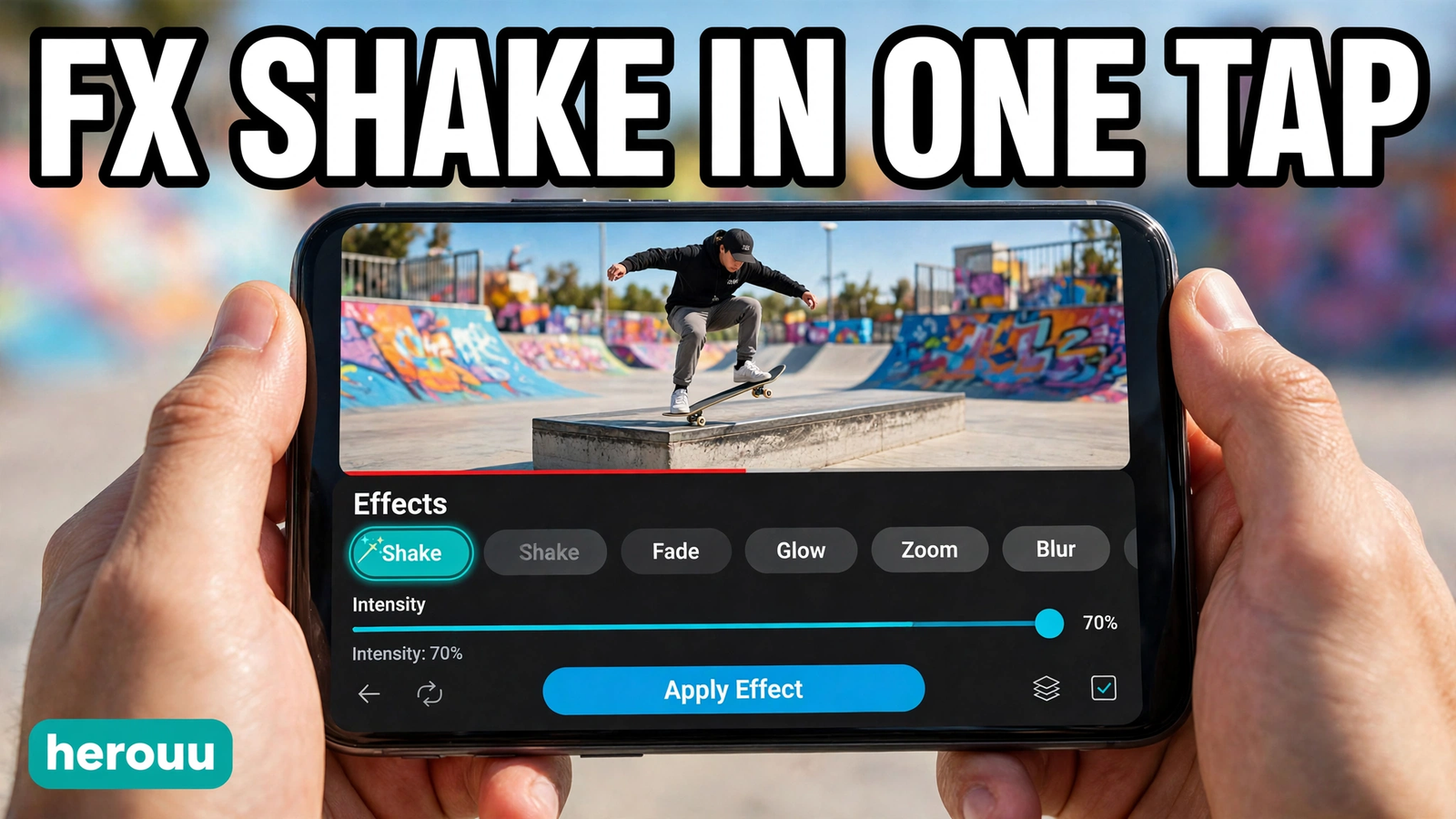
Select the small clip section after the split, then open the FX tab at the bottom of the screen. Look for the Shake effect in the list, and scroll through it if you cannot see it at once, because the order changes between VN versions. Tap Shake to apply it, then preview it right away.
Step 5: Shorten the effect and check the strength
Drag the edges of the effect on the timeline so it lasts only 0.2 to 0.5 seconds. A short burst feels like an impact, while a long shake feels like a mistake. Play the video from a few seconds before the shake so you can judge it in context. If it feels too wild, undo it and try the manual method below.
Step 6: Build the shake by hand with position keyframes
If the FX Shake effect is too strong or too weak, or you cannot find it in your version, use keyframes. First, scale the clip slightly, to about 105 to 110 percent, so small position moves do not show empty edges. Move the playhead to the beat moment and add a keyframe on the position setting. Move forward one or two frames and shift the clip a tiny amount left, then right, then slightly up, then down. End with a keyframe that returns the clip to its normal, centred position.
Step 7: Preview the keyframe shake and smooth it out
Play the clip and watch the shake closely. The moves should be small and fast, like a quick tremble, not big jumps across the screen. If one move looks too big, tap that keyframe and reduce the shift. If the shake feels slow, move the keyframes closer together. Keep the total shake under half a second.
Step 8: Use a VN code template that already has shake built in
Some creators share a shake template as a VN Code, which is a QR-style code image. Save the code image to your phone, open VN, and tap the scan icon. Choose the saved code image from your gallery, or scan it from another screen, and VN loads the template project. Tap Use Template, then replace the sample clips with your own clips. The shake, cuts, and timing stay in place. This guide does not share a VN code, because codes belong to their creators and change often. Use a code only from a creator you trust, and make sure it is made for VN.

5 shake template ideas to copy
These five ideas are original starting points. Each VN shake effect template idea below is a short plan you can copy, change to match your own video, and build in VN with the steps above.
Beat drop shake for a dance reel: one 12-second dance clip, a VN shake effect template shake for 0.3 seconds exactly on the bass drop, then a quick zoom in on the dancer.
Gym lift shake: one 8-second clip of a heavy lift, add a 0.4-second shake at the moment the weight locks out, with the music beat landing on the same frame.
Travel jump shake: two 4-second clips, one before a jump and one after landing, with a VN shake effect template shake of 0.3 seconds at the cut to hide the jump between the two shots.
Comedy punch shake: one 6-second funny clip, a 0.2-second shake on the punchline moment, then hold the frame still for one second so the joke lands.
Bike ride shake: one 10-second slow motion clip of a bike passing the camera, a gentle 0.5-second shake as the bike crosses the frame, then a smooth settle back to normal.
Tips
Use the shake only where the video already has energy, such as a beat drop, a jump, or a fast move. A shake on a slow, calm clip looks like a mistake. Keep the shake short, since half a second is the upper limit for most reels and 0.2 to 0.3 seconds often works best. Scale the clip a little before you add keyframes, or the edges of the frame will show empty black bars when the clip moves. Place the shake exactly on a beat, not a few frames early or late, because even a small timing error is easy to spot. Preview at full screen, not just in the small editing preview, because the shake looks stronger on a big screen. A VN shake effect template works best when you save a copy of your project before export, so you can change the shake later without starting over.
Common problems and fixes
Most shake problems come from timing, strength, or the wrong clip section. This table covers the fixes for a VN shake effect template that does not look right.
| Problem | Likely cause | Fix |
|---|---|---|
| Shake effect missing from the FX tab | VN version is old, or the effect name changed | Update VN from the official app store, search the FX list again, and check the official VN help page |
| Shake lasts too long | Effect applied to the whole clip | Drag the effect edges to shorten it to 0.2 to 0.5 seconds |
| Black edges appear during the shake | Clip moves beyond the frame | Scale the clip to 105 to 110 percent before adding keyframes |
| Shake looks too wild | Position moves are too large | Reduce each keyframe shift to a tiny amount and preview again |
| Shake lands off the beat | Playhead was not on the exact beat frame | Zoom in on the timeline, move the playhead to the beat, and move the effect or keyframes to match |
| VN code does not scan | Code image is cropped, blurry, or made for an old VN version | Use a clear, full screenshot of the code, update VN, and try again |
| Exported video looks shaky all over | Shake was added to the full clip by mistake | Split the clip, keep the shake on the small section only, and remove it from the rest |
Frequently asked questions
What is a VN shake effect template?
A VN shake effect template is a ready-made VN project, or a set of steps, that adds a short camera shake to a video at a chosen moment. It saves time because the timing, cuts, and shake strength are already set. You only replace the sample clips with your own clips and export the video.
Is the shake effect free in VN?
Yes, the Shake effect in the FX tab and the keyframe tools are free in VN. You do not need a paid plan to add a shake to your video. With a VN shake effect template, the shake tools inside VN itself are free to use, though a template shared by a creator may ask for a follow on their own page.
How long should a shake effect last?
A shake should last 0.2 to 0.5 seconds in most short videos. Shorter shakes feel like an impact, while longer shakes feel messy and can make viewers dizzy. Place the shake exactly on a beat drop or an impact moment, then let the video settle back to a steady frame right after.
Where is the Shake effect in VN?
Open your project, select the clip, and tap the FX tab at the bottom of the screen. Look for Shake in the FX list. In a VN shake effect template workflow, the name and position can change between VN versions, so scroll through the list if you do not see it at once. If it is still missing, update VN and check the official VN help page.
Can I add a shake without the FX effect?
Yes, you can build a shake by hand with position keyframes. Scale the clip to about 105 to 110 percent first, add keyframes around the beat moment, and shift the clip a tiny amount left, right, up, and down. A VN shake effect template built this way gives you full control over the strength, so finish with a keyframe that returns the clip to its normal position.
Why does my video show black edges when it shakes?
Black edges appear when the clip moves beyond the frame during the shake. The fix is simple. Scale the clip slightly, to about 105 to 110 percent, before you add the shake. The extra size gives the clip room to move without showing empty space at the edges. In a VN shake effect template, this one step prevents the most common visual glitch.
How do I use a VN code for a shake template?
Save the creator’s VN code image to your phone. Open VN, tap the scan icon, and choose the saved image from your gallery. VN loads the template project. Tap Use Template and replace the sample clips with your own clips. The shake and timing stay in place. Use codes only from creators you trust.
Can I use a shake effect on photos?
Yes, but photos need movement first. A still photo with a shake looks odd unless you add a slow zoom or a pan as well. Turn the photo into a short clip with a zoom, then add a short shake on the beat. A VN shake effect template on a photo works best under half a second, or the photo will look like it is vibrating.
Will a shake effect work on Instagram Reels and YouTube Shorts?
Yes, a shake works well on both, because both are vertical short video formats. Export your video in 9:16 at 1080p, keep the shake short and on the beat, and preview it before you post. A clean, well-timed shake from a VN shake effect template can make a reel feel more energetic and help it stand out in the feed.

Conclusion
A VN shake effect template is a simple way to add energy to a short video without learning a complex editor. Start with the quick FX Shake route, and try the keyframe method when you want more control. Pick one idea from this guide, build it with your own clips, and check the timing on the beat. Then browse the VN Code Template category on herouu.buzz for more editing ideas to try next.
Related reading
These guides use the same VN skills as a VN shake effect template, so they are a good next step.
- VN Mask Effect Template: Easy Mask Transition Guide — https://herouu.buzz/vn-mask-effect-template-guide/
- VN Glitch Effect Template: Easy Glitch Video Guide — https://herouu.buzz/vn-glitch-effect-template-guide/
- VN Speed Ramp Template: Easy Fast Slow Guide — https://herouu.buzz/vn-speed-ramp-template-guide/
- VN Freeze Frame Template: Easy Stop Motion Guide — https://herouu.buzz/vn-freeze-frame-template-guide/
- Browse all VN templates in the category — https://herouu.buzz/category/vn-code-template/
About herouu
herouu.buzz shares free templates, photo prompts, and video editing ideas for everyday creators, including every VN shake effect template guide in the VN Code Template category. Every guide is written in simple plain English so you can follow it on your phone and finish a video the same day.
Disclaimer
This information is based on the official app help pages and this guide as written. VN features, effect names, and menu positions may change with app updates, so verify the steps from the official VN app or help page before you start.
Sources
- M4 Editor — VN slow motion template guide, which describes the Shake effect in VN’s FX tab: https://m4editor.com/vn-slow-motion-template-download-for-instagram-reels-smooth-60fps-cinematic-guide-m4-186/
- CapCut — How to add camera shake in CapCut, used here only for the general keyframe shake method, not as a VN page: https://www.capcut.com/features/how-to-add-camera-shake-in-capcut-capcut-workflow
Note: the exact name and position of the Shake effect may differ between VN versions, and this is not officially announced as a fixed menu name. Check the FX panel in your VN app and the official VN help page for the latest version.