
A CapCut 3D zoom template turns one still photo into a short video that seems to move toward you. The subject grows larger while the background drifts back, and the flat photo starts to feel like a real scene. This guide is for everyday creators in India who want that moving photo look for Reels, TikTok, and WhatsApp status. You only need the CapCut app and one good photo. Check the official CapCut help page for the latest app version, because menu names can change.
At a glance
A CapCut 3D zoom template is a ready made edit that adds depth and motion to a still photo. CapCut guesses which parts of your photo are near and which are far, then moves those layers at different speeds. Your face or a cup in front grows bigger while the background moves away, like a camera gliding through the scene.
You have two ways to get this look. The quick way is to open a CapCut 3D zoom template, pick your photo, and let CapCut do the work in about two minutes. The second way is to build it yourself with the built in 3D Zoom effect under Style. It takes longer, but you control the music and timing.
This effect works on photos, not video clips. A clip already has its own movement, so adding 3D Zoom gives a strange result or CapCut may refuse it. One sharp photo with a clear subject beats five busy ones, so pick a portrait, a pet, or food with a plain background.
Quick Overview
| Topic | CapCut 3D zoom template |
|---|---|
| Category | Capcut Template |
| App or Tool | CapCut mobile app |
| Skill Level | Beginner |
| Time Needed | 5 to 15 minutes |
| Media Needed | 1 to 3 photos of the same subject |
| Cost or Free Features | Free in most versions; some templates and 3D Zoom Pro may be Pro, so check the template page first |
What you will make
A CapCut 3D zoom template suits many kinds of photos. The table shows five simple ideas, what each one suits, and how many photos you need.
| 3D zoom photo idea | Best for | Photos needed |
|---|---|---|
| Birthday portrait push in | Birthday Reels and status | 1 photo |
| Travel landmark reveal | Holiday and trip posts | 1 photo |
| Pet close up | Funny pet Reels | 1 photo |
| Food plate zoom | Food and cafe pages | 1 photo |
| Couple photo slow push | Anniversary Reels | 2 to 3 photos of the same couple |
A single photo is enough for most versions of a CapCut 3D zoom template. Some ask for two or three photos of the same subject, taken from different distances. Three unrelated photos will break the flow and make the video jumpy.
Before you start
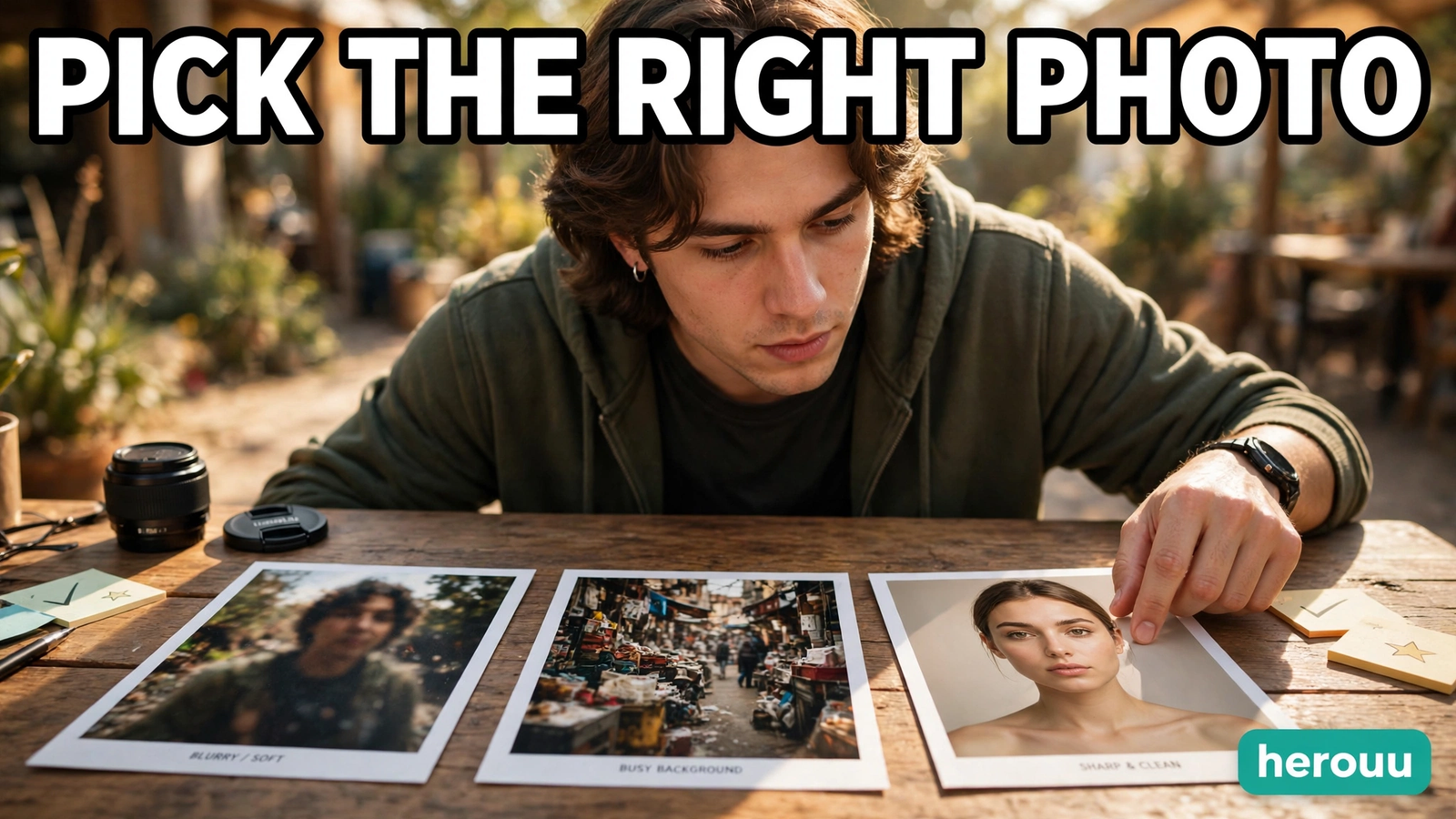
Get these things ready before you open CapCut. First, pick your best photo: sharp, well lit, with one clear subject and space between the subject and the background. A daylight photo works better than a dark indoor shot, so CapCut can see the edges of your subject. Second, use the photo in full quality. A photo sent through WhatsApp in low quality will look soft after the zoom, and no edit can fix that. Third, update CapCut from your app store. An old version is the most common reason people cannot find the Templates tab or the 3D Zoom effect. Fourth, keep at least 500 MB free for processing and export. Fifth, think about sound: a CapCut 3D zoom template may bring its own music, while a project you build yourself starts silent.
| Requirement | What you need |
|---|---|
| Phone | Android or iPhone with CapCut |
| App version | Latest version from the app store |
| Photo | 1 to 3 sharp, well lit photos |
| Free storage | At least 500 MB free |
| Internet | Needed to browse and download templates |
| Account | CapCut account for some templates |
Steps: make your 3D zoom photo video
Follow these steps to make your first CapCut 3D zoom template video. Steps 1 to 4 cover the quick template route, steps 5 to 7 cover the built in effect, and step 8 covers export. You only need one route, so pick the one that suits you.
Step 1: Open Templates
Open CapCut and tap Templates at the bottom. If you do not see the tab, update the app first, because it moves around between versions.
Step 2: Search for 3D zoom
Search for “3D zoom” and watch three or four previews before you pick one. The speed and push of a CapCut 3D zoom template varies a lot. Some push in slowly, some rush toward the subject. Pick the pace that matches your photo and song.
Step 3: Choose your photo
Tap Use template and choose your photo. Most versions need only one photo. Some ask for two or three of the same subject, so pick them in the order you want them to appear. Use shots of the same person or place, not three different subjects.
Step 4: Check the preview
Let CapCut generate the preview. The push should travel toward your subject’s face or the key object, not drift into empty sky or a corner. If it looks wrong, try a different CapCut 3D zoom template or a photo with a clearer subject.
Step 5: Start a new project
For the project route, tap New project instead. Select your photos and tap Add. They land on your timeline in the order you picked them. Tap the first clip so the editing tools appear.
Step 6: Apply 3D Zoom
Scroll the bottom toolbar sideways until you see Style, then tap it. On smaller phones Style hides off the edge, so keep scrolling. Tap 3D Zoom and let CapCut process it. Some versions also show a 3D Zoom Pro variant. Try the free one first and check whether Pro asks for payment.
Step 7: Set the timing
Tap the checkmark to save the effect, and repeat it for each photo on your timeline. Set your canvas to 9:16 for Reels and TikTok, and drag the edges of each clip to set how long it stays on screen. Two to three seconds per photo feels calm.
Step 8: Export at 1080p
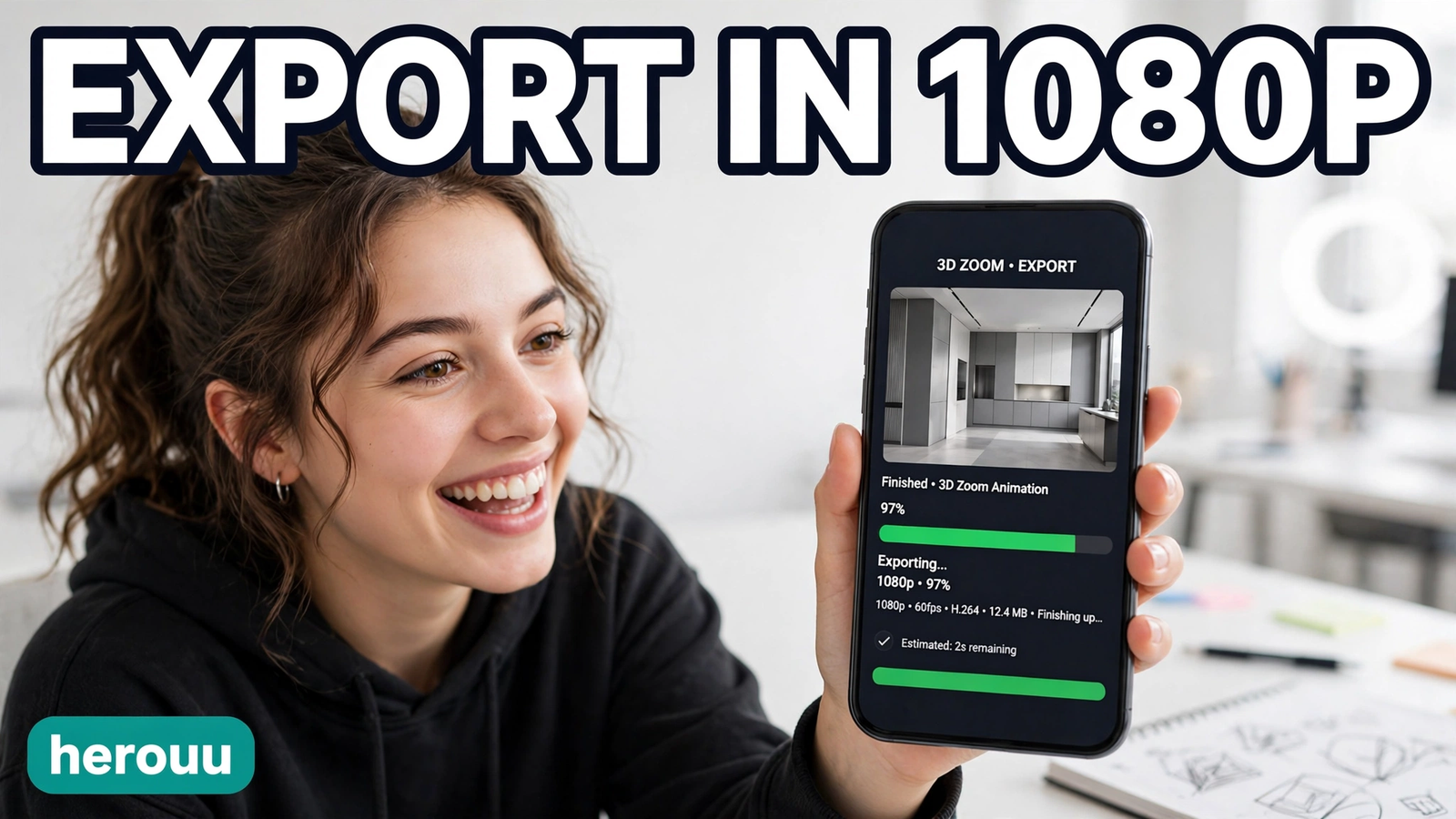
Tap export at the top right, choose 1080p, and wait for CapCut to finish. The depth effect breaks down fast at low resolution, so a blurry export undoes the one thing this effect is good at. Save the video and check it before posting.
5 original CapCut 3D zoom template ideas
Copy one idea, open CapCut, and try it with your own photo.
1. Birthday portrait
Birthday portrait with a CapCut 3D zoom template: one smiling birthday photo, slow push toward the face, party song, and a short “Happy Birthday” text on screen.
2. Travel landmark
Travel landmark 3D zoom: one photo of a temple, beach, or mountain, gentle push toward the landmark, calm music, and the place name in plain text.
3. Pet close up
Pet close up with a CapCut 3D zoom template: one clear photo of your pet looking at the camera, slow push toward the eyes, a playful song, and no text.
4. Food plate
Food plate 3D zoom: one top down photo of a thali or cafe dish, steady push toward the main dish, warm light, and the dish name in simple text.
5. Couple photo slow push
Couple photo slow push with a CapCut 3D zoom template: two or three photos of the same couple, one after another, each with a slow push, a soft song, and a short date or place line.
Tips
Use a photo where the subject stands out. A bright kurta against a plain wall works better than a busy market, because CapCut can find the edges more easily. If your photo is busy, crop it tighter.
Keep the push gentle. A slow, small zoom looks premium and calm, while a fast, hard zoom can look gimmicky and make viewers feel dizzy. If your CapCut 3D zoom template lets you change the intensity, pick the softer setting first.
Match each photo to your song. If the beat changes every two seconds, set each photo to about two seconds so the change lands on the beat. A photo that stays on screen for five seconds while the music rushes ahead feels out of step.
Add text after the effect, not before it. Text added first can move with the photo and look stretched. Finish the zoom, then add your words on top, and keep them short.
Export your video at 1080p and check it on your phone before posting. Watch it once with sound on and once with sound off. The zoom should feel smooth, the subject should stay sharp, and the text should be easy to read.
Try one idea first. Make a single photo video, share it with a friend, and notice what people look at. If they watch the face, use a closer portrait next time. If they ask about the place, use a wider travel photo.
Common problems and fixes
| Problem | Likely cause | Fix |
|---|---|---|
| Templates tab is missing | Old CapCut version | Update CapCut from the app store and reopen it |
| No 3D Zoom in Style | Old version, or not offered in your region | Update the app, then search the Effects browser for 3D Zoom. If it is still missing, use a template instead |
| Push moves to the wrong spot | The photo has no clear subject or the background is busy | Use a photo with one clear subject and crop it tighter |
| Video looks blurry after export | Low quality photo or low export setting | Use the original full quality photo and export at 1080p |
| Effect looks shaky or jumpy | Too many unrelated photos in one template | Use photos of the same subject and keep each clip to two or three seconds |
| CapCut asks for payment | The template or 3D Zoom Pro is a Pro feature | Pick a different free CapCut 3D zoom template or use the free 3D Zoom effect. Check the template page before you start |
| Zoom looks too fast or too strong | The template has a fast preset | Pick a slower template or lower the intensity if the template allows it |
Frequently asked questions
Is the CapCut 3D zoom template free to use?
Most 3D zoom templates in CapCut are free, and the basic 3D Zoom effect under Style is free in most versions. Some templates and 3D Zoom Pro may need a Pro plan, and the template page shows this before you apply it. Check first so you do not lose work to a paywall.
How many photos do I need for a CapCut 3D zoom template?
One good photo is enough for most versions of a CapCut 3D zoom template and for the built in effect. Some ask for two or three photos of the same subject. Do not use three unrelated photos, because the video will jump between subjects.
Where is 3D Zoom in CapCut?
Open a new project, add a photo, and tap the clip. Scroll the bottom toolbar sideways to Style, tap it, and choose 3D Zoom. If you cannot see Style, scroll the toolbar or update the app. You can also search “3D zoom” in the Templates tab.
Does 3D Zoom work on videos in CapCut?
No, 3D Zoom works on photos, not on video clips. A clip already has its own movement, so the effect has no still frame to split into layers. If you apply it to a video, CapCut may refuse it or give a strange result. Use it only on still photos.
Why does my 3D zoom look blurry?
The most common reason is a low quality photo, often one saved from WhatsApp in compressed form. The zoom makes every soft edge bigger, so a small flaw becomes easy to see. Use the original photo from your camera roll and export at 1080p.
What is the difference between 3D Zoom and 3D Zoom Pro in CapCut?
Both add depth and motion to a photo, but 3D Zoom Pro appears in some versions as a stronger variant. CapCut has not published a full list of the differences, so check the effect page in your own app. Try the free one first.
Can I use the CapCut 3D zoom template for Instagram Reels?
Yes, it works well for Reels. Set your canvas to 9:16 before you export, keep each photo on screen for two to three seconds, and export at 1080p. Add music or text in CapCut, then share the saved video to Instagram from your phone.
Why does the zoom move toward the wrong part of my photo?
CapCut guesses the depth of your photo, and it can guess wrong when there is no clear subject or two objects sit at the same distance. A busy background or a group of people can confuse it. Use one subject in the centre and crop tighter.
Can I add music and text to a 3D zoom video?
Yes, you can add both. Some templates already include music and text layers, which you can change or remove. In your own project, add music from the Audio menu and text from the Text menu after the effect. Keep the text short.
Conclusion
A CapCut 3D zoom template is one of the easiest ways to make a still photo feel alive. Pick one sharp photo, try the template route first, and move to the project route when you want more control. Try one of the five ideas above today, then browse the Capcut Template category on herouu.buzz for more simple guides like this one.
Related reading
- CapCut Split Screen Template: Easy Side by Side Guide — https://herouu.buzz/capcut-split-screen-template-guide/
- CapCut Blur Effect Template: Easy Blur Background Guide — https://herouu.buzz/capcut-blur-effect-template-guide/
- CapCut Auto Captions Template: Easy Subtitle Guide — https://herouu.buzz/capcut-auto-captions-template-guide/
- CapCut Green Screen Template: Easy Chroma Key Guide — https://herouu.buzz/capcut-green-screen-template-guide/
- Browse all guides in this category — https://herouu.buzz/category/capcut-template/
About herouu
herouu.buzz shares free templates, photo prompts, and video editing ideas for everyday creators. Every guide is written in simple plain English, with steps you can follow on your phone.
Disclaimer
This information is based on official app help pages and this guide as written. CapCut features, template availability, and menu names may change with app updates and may vary by version and region. Please verify the latest steps from the official CapCut app or help page before you start.
Sources
- Viral Video Website — CapCut 3D Zoom Template — https://viralvideo.website/capcut-3d-zoom-template/
- Create That — How to Zoom in on CapCut — https://www.createthat.ai/blog/how-to-zoom-in-on-capcut
- VideoProc — How to Zoom in on CapCut for PC and Mobile — https://www.videoproc.com/video-editor/how-to-zoom-in-on-capcut.htm
Details not officially announced: CapCut has not published a full list of differences between 3D Zoom and 3D Zoom Pro, or a fixed list of which templates are free in every region. Check the template page and the official CapCut help page in your own app for the latest status.