
AI Photo Prompts for Sunset Pictures turn an ordinary evening photo into a warm golden hour picture, even when you missed the real sunset. This guide shows you how to use AI Photo Prompts for Sunset Pictures in Gemini and ChatGPT on your phone, with five original prompts you can copy and try today. You only need one clear photo. The steps work with the free versions of both apps.
At a glance
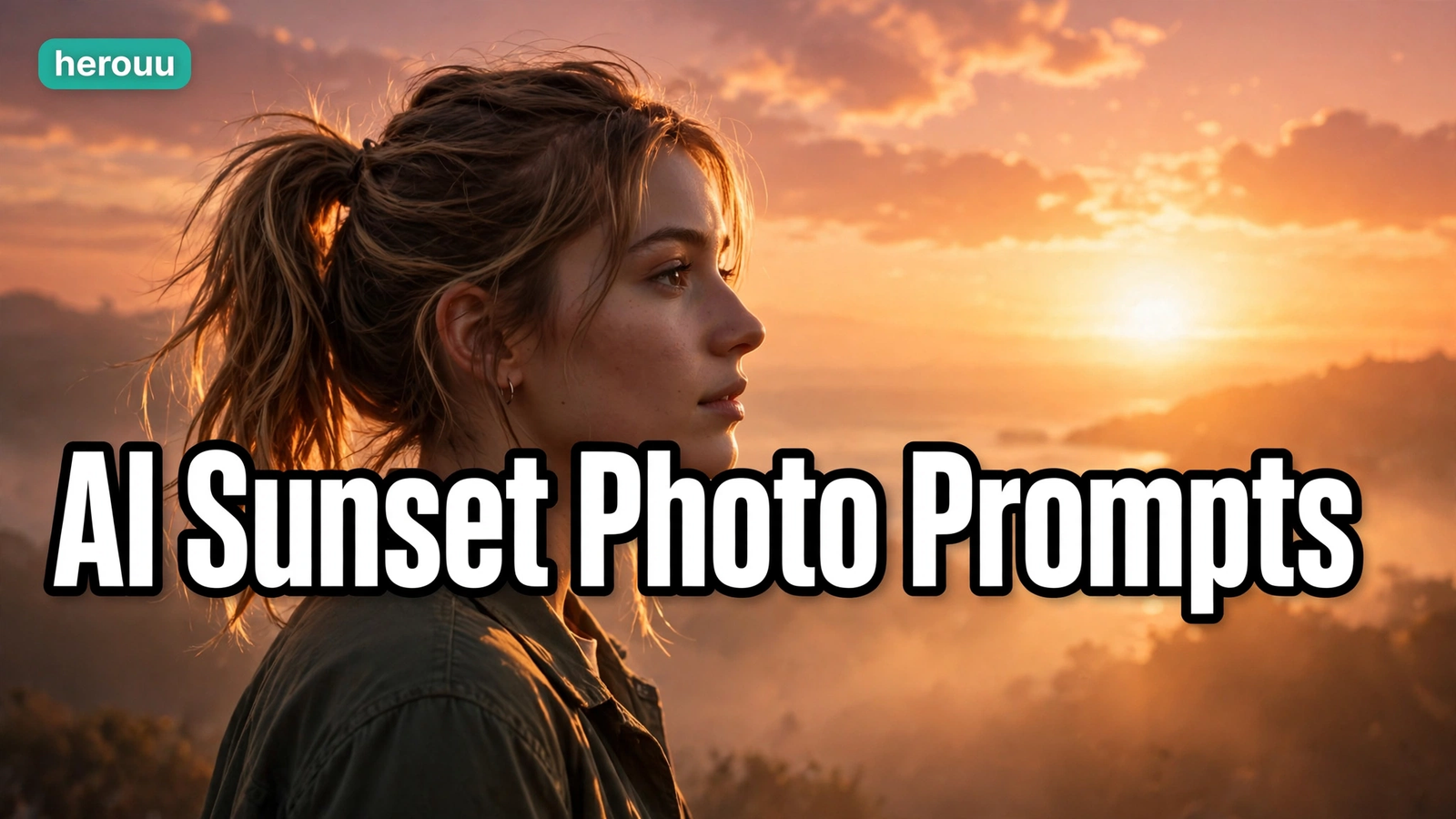
Golden hour is the short time just before the sun sets, when the light turns soft, warm, and orange. But golden hour lasts only a short while, and most of us reach a good spot too late. AI Photo Prompts for Sunset Pictures fix that. You upload your own photo, paste a prompt, and the app relights the picture as if the sun was low behind you.
Quick Overview
| Topic | Details |
|---|---|
| Topic | AI Photo Prompts for Sunset Pictures |
| Category | Ai Photo Prompt |
| App or Tool | Google Gemini app or ChatGPT app |
| Skill Level | Beginner |
| Time Needed | About 10 to 15 minutes |
| Media Needed | One clear photo |
| Cost or Free Features | Free versions include image editing; exact free limits are not announced |
What you will make with AI Photo Prompts for Sunset Pictures
These AI Photo Prompts for Sunset Pictures give you five kinds of pictures. A portrait suits a profile picture, while a wide scene suits a travel reel cover.
| Idea | Best for | Photos needed |
|---|---|---|
| Warm sunset portrait | Profile picture, Instagram post | One close photo |
| Golden hour beach scene | Travel post, reel cover | One full photo |
| Sunset city street | Street style post | One photo with space |
| Couple at sunset | Anniversary post, couple reel | One photo of two people |
| Silhouette against the sky | Artistic post, story background | One photo, clear outline |
Before you start
A good result from AI Photo Prompts for Sunset Pictures starts with a good photo. The AI can change the light, but it cannot fix a blurry or very dark picture. Choose a photo where the face is clear and the light falls evenly.
Use only photos you have the right to use: your own photos, or photos of family and friends who said yes. Do not upload a photo of a stranger, and do not ask the AI to copy a real celebrity.
| Requirement | What you need |
|---|---|
| Phone | Android or iPhone with the Gemini or ChatGPT app |
| Account | Free Google account for Gemini, or free OpenAI account for ChatGPT |
| Photo | One clear photo, face visible, saved on your phone |
| Internet | A stable connection, as image generation takes a minute or two |
| Storage | Free space to save the final picture |
| Permission | Your own photo, or one you have permission to edit |
How to use AI Photo Prompts for Sunset Pictures in 7 steps
Follow these steps in order to use AI Photo Prompts for Sunset Pictures. They work in both Gemini and ChatGPT.
Step 1: Open the app
Open the Gemini or ChatGPT app on your phone and sign in. Start a fresh chat so the app does not mix your sunset edit with an old conversation.
Step 2: Upload your photo
Tap the plus or attach button and pick your photo from your gallery. Wait until the photo appears in the chat box before you type anything.
Step 3: Paste one prompt
Copy one prompt from the list below and paste it into the chat, right after your photo. Change only the words in square brackets.
Step 4: Send and wait
Press send and wait for your AI Photo Prompts for Sunset Pictures result. Image generation can take a few minutes. Do not send the same prompt again while the first one is still running.
Step 5: Check the result
Look at the result closely before you share it. Check the face first, then the hands, then any text on clothes.
Step 6: Ask for one small fix
If something is wrong, reply in the same chat with one small correction, such as “Keep the face exactly the same, only make the sunset warmer.” Change one thing at a time.
Step 7: Save your picture
When you are happy with your AI Photo Prompts for Sunset Pictures result, save it to your phone. In Gemini, tap the picture and choose download or save. In ChatGPT, open the picture under Images and save it.
5 original AI photo prompts for sunset pictures
These five prompts are original, written for this guide. Each one keeps the person the same and changes only the light and the scene.
1. Warm sunset portrait
Use this for a warm portrait or a profile picture. A low sun sits behind you and the background stays calm.
Use the uploaded photo. Keep the same person, face, pose, and clothes the same. Place the person outdoors at golden hour, with a low warm sun behind them. Add a soft golden glow on the hair and a calm blurred sunset sky. Photorealistic, natural skin texture, no text, no logo.
2. Golden hour beach scene
Use this for a holiday or travel picture. It moves your photo to a beach at sunset.
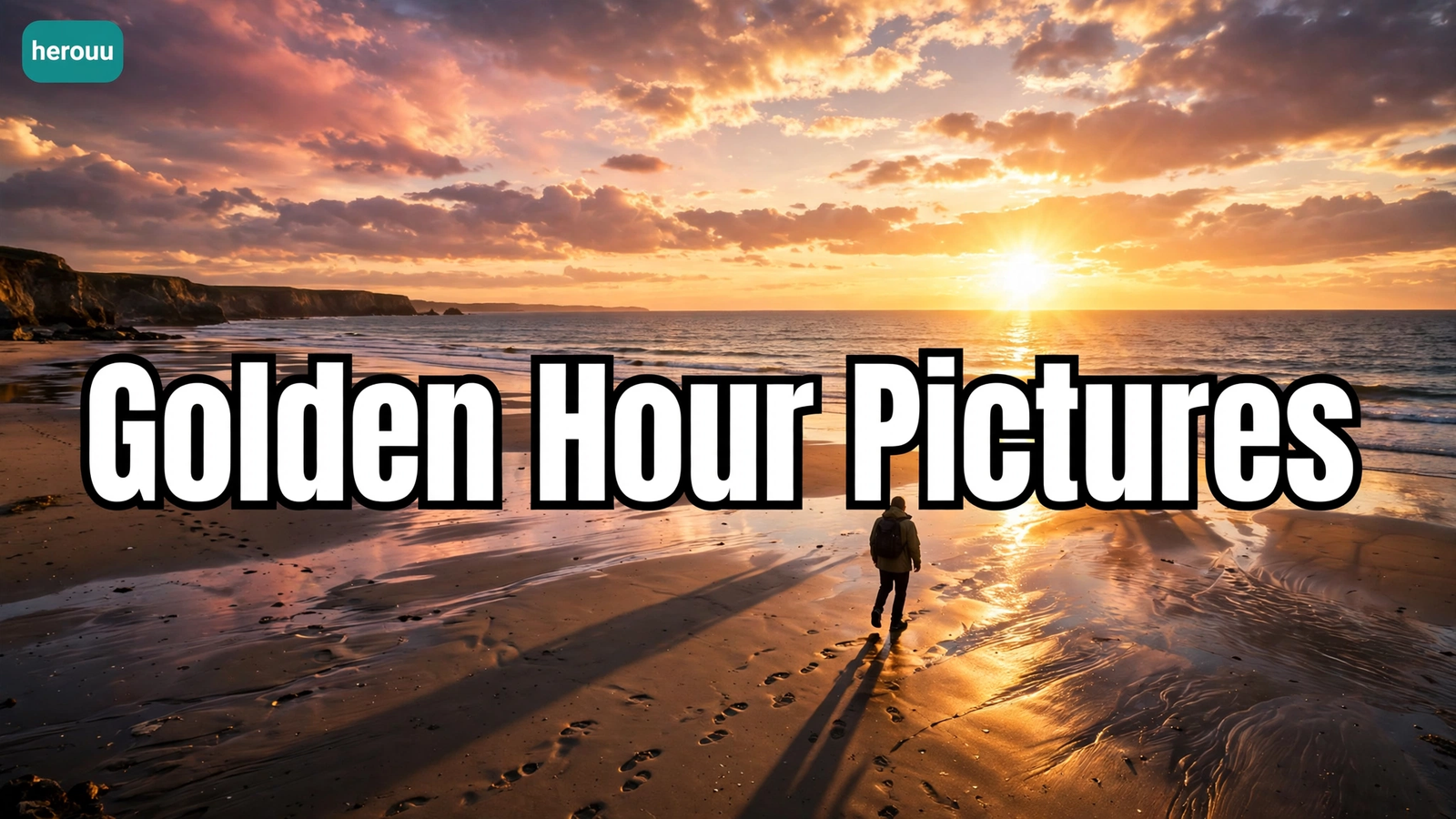
Use the uploaded photo. Keep the same person, face, pose, and clothes the same. Place the person on a quiet beach at sunset, standing near the water, with the low sun over the sea. Add warm orange light on the sand and soft waves. Photorealistic, natural skin texture, no text, no logo.
3. Sunset city street
Use this for a stylish evening picture in a city. The sun sits low between buildings.
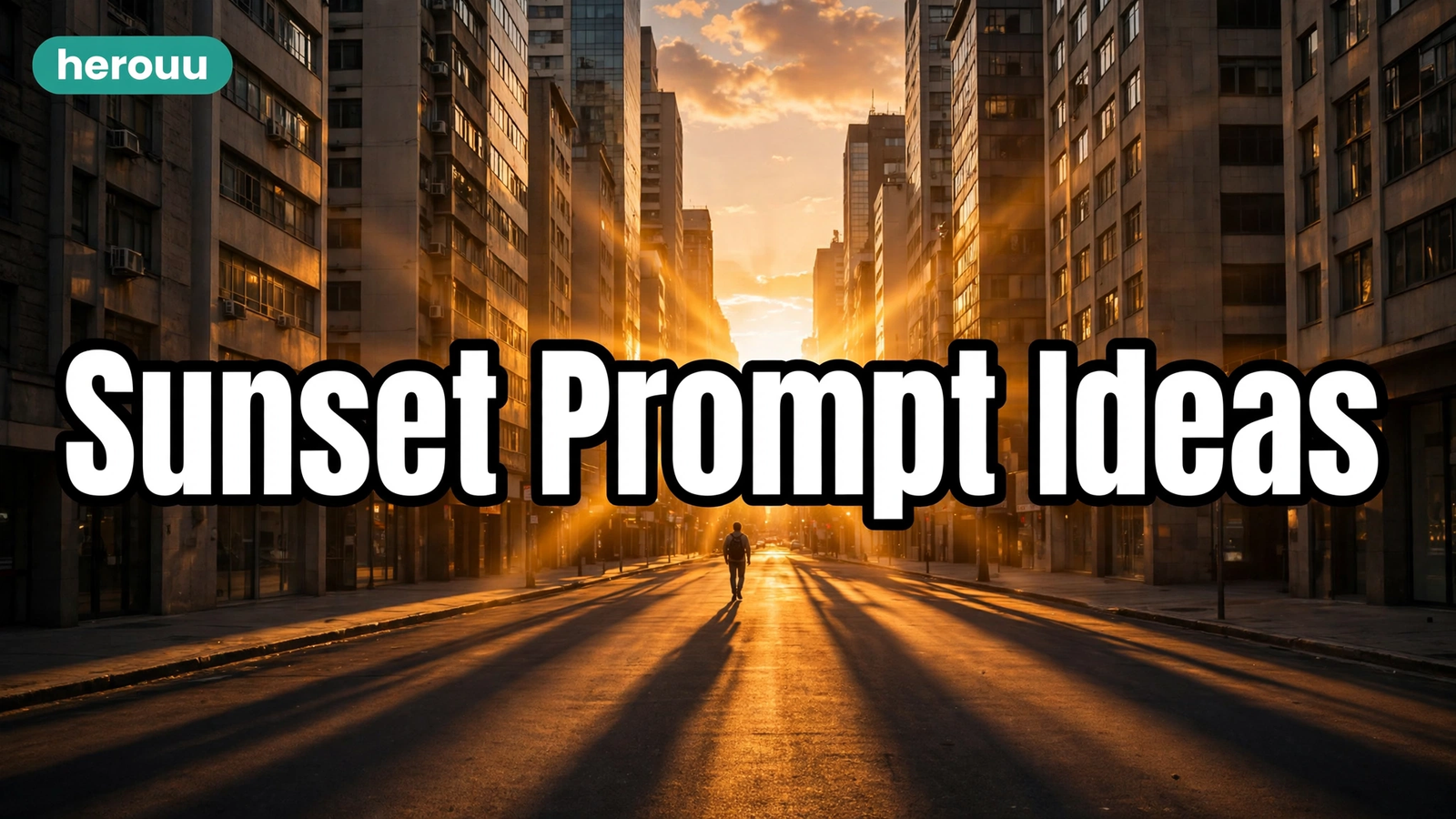
Use the uploaded photo. Keep the same person, face, and clothes the same. Place the person on a city street at sunset, with the low sun shining between tall buildings. Add warm golden light on the buildings and long shadows across the road. Photorealistic, natural skin texture, no text, no logo.
4. Warm sunset couple photo
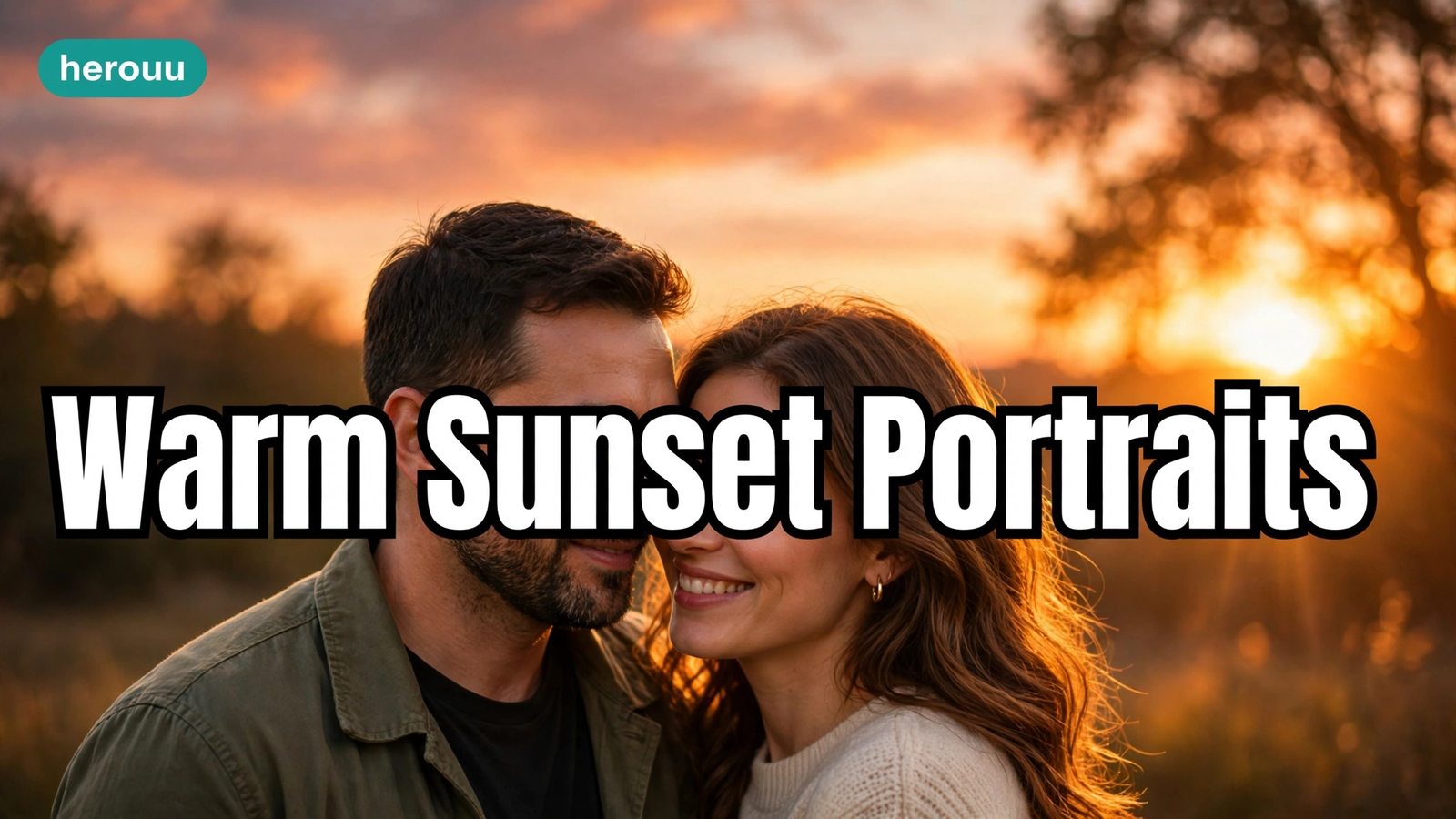
Use this for a couple photo or an anniversary post. Warm light falls from the side, so both faces stay clear.
Use the uploaded photo. Keep both people, their faces, poses, and clothes the same. Place the couple outdoors at golden hour, standing close together with a low warm sun to one side. Add soft golden light on their faces and a warm glow on the hair. Photorealistic, natural skin texture, no text, no logo.
5. Silhouette against a sunset sky
Use this for an artistic picture. The person becomes a dark shape against a bright sky.
Use the uploaded photo. Keep the same person, pose, and outline the same. Turn the person into a clear dark silhouette against a bright sunset sky in deep orange and pink, with the low sun near the horizon. Add a simple foreground such as a hill or a beach. Photorealistic, strong shape, no text, no logo.
6 tips for AI Photo Prompts for Sunset Pictures
Tip 1: Say where the sun is
A prompt that only says “sunset” often gives flat orange light with no direction. Say where the sun sits, such as low behind the person or low to one side.
Tip 2: Ask for natural skin, not orange skin
Sunset light is warm, but skin should still look like skin. Add “natural skin texture” to your prompt, so the app does not push the colour too far.
Tip 3: Change one thing at a time
When the first result is close but not right, fix only one thing in your next message. Change the sky, the warmth, or the background, but not all three together.
Tip 4: Start with a bright, clear photo
A photo taken in good daylight gives the best sunset edit. The app can see the face and clothes clearly.
Tip 5: Keep the background simple
A busy background fights with the sunset. A plain sky, a beach, or a soft blur lets the warm light stand out.
Tip 6: Make two versions and pick the better one
The same prompt can give a different picture each time. Make two versions of your favourite AI Photo Prompts for Sunset Pictures, compare them side by side, and keep the one with the better face and light. Two tries are enough.
Common problems with AI Photo Prompts for Sunset Pictures
The face looks different from my photo
The app redraws the whole picture instead of only changing the light. Reply in the same chat: “Keep the face exactly the same, only change the light to a warm sunset.”
The skin looks too orange
The app often pushes sunset colours too far when you use AI Photo Prompts for Sunset Pictures. Ask for “less orange, natural skin colour, soft warm light only.”
The picture looks flat and fake
A flat picture usually comes from a prompt that only says “sunset” and nothing else. Add the sun position, the shadow direction, and one small detail, such as haze.
The app refuses my request
Some requests are refused because of safety rules. Use your own photo and write a plain description of the scene.
I hit a limit and cannot make more pictures
Both Gemini and ChatGPT have free limits, and the exact number of free images is not officially announced. When you hit a limit, wait and try again later.
The background changed too much
The app sometimes changes the background more than you asked for. Name what must stay, such as “keep the same background, only change the light to sunset.”
Frequently asked questions
Can I make a sunset photo with AI for free?
Yes, you can. Both Gemini and ChatGPT let you edit a photo with a prompt on their free plans, and the AI Photo Prompts for Sunset Pictures in this guide work in both apps. The exact free number is not officially announced.
Which app is better for sunset photo prompts, Gemini or ChatGPT?
Both apps work well. Gemini is handy if you have a Google account, while ChatGPT keeps your pictures saved under Images. Try the same AI Photo Prompts for Sunset Pictures in both apps once, then keep the one that gives you the better face.
Will the AI keep my face the same?
Mostly, yes, but not always. Both apps redraw the whole picture, so small details can shift. To keep your face steady, start with a clear photo, add “keep the face exactly the same” to your prompt, and fix only one thing at a time.
What is golden hour, and when does it happen?
Golden hour is the short time before sunset, when the sun sits low and the light turns soft, warm, and orange. It lasts less than an hour, and the exact time changes with the season and your city. Check your weather app for the sunset time.
Can I use a sunset AI photo as my profile picture?
Yes, if it is your own photo and the result looks like you. Check the face, hands, and any text in the picture. If the face looks different from you, do not use it as a profile picture, because people may not recognise you.
Why does my sunset picture look too orange?
The app often pushes warm colours too far, especially when the prompt only says “sunset” with no other detail. Add “natural skin colour” and “soft warm light only” to your prompt, and ask for a muted warm colour in your next try.
Can I ask the AI to make me look like a celebrity at sunset?
No, you should not. Do not ask the AI to copy a real celebrity or a famous person, and do not upload a photo of someone else without their permission. Use your own photo and describe the scene you want instead.
How many times can I try the same prompt?
You can try one of these AI Photo Prompts for Sunset Pictures more than once, and the result will look a little different each time. Two tries are usually enough to pick a good version. Making many versions wastes your free limit, so save the best picture right away.
Do AI sunset photos have a watermark?
It depends on the app. Gemini edited images can carry an invisible watermark and sometimes a visible mark that shows the picture was made with AI. ChatGPT pictures are saved under Images without a visible mark. Be honest that it was made with AI.
Conclusion
AI Photo Prompts for Sunset Pictures are a simple way to get a warm golden hour photo without waiting for sunset. Pick one of these AI Photo Prompts for Sunset Pictures, upload your clearest photo, and try it today. Then browse the Ai Photo Prompt category.
Related reading
- AI Photo Prompts for Travel Pictures: Easy Bright Guide
- AI Photo Prompts for Wedding Pictures: Easy Bright Guide
- Festival AI Photo Prompts: Bright Festival Pictures Guide
Browse more ideas in the Ai Photo Prompt category.
About herouu
herouu.buzz shares free templates, photo prompts, and video editing ideas for everyday creators. Every guide uses simple words and steps you can follow on your phone. We never ask you to pay for a prompt.
Disclaimer
This guide to AI Photo Prompts for Sunset Pictures is based on the official Gemini and ChatGPT help pages, as checked on the day it was written. App features, buttons, and free limits may change, so verify the latest details in the official app or help page. Use only photos you have the right to use.
Sources
- OpenAI Help Center, “Images in ChatGPT” — https://help.openai.com/en/articles/11084440-images-in-chatgpt
- OpenAI, “Creating images with ChatGPT” — https://openai.com/academy/image-generation/
- Google Docs Editors Help, “Generate and edit images with Gemini in Google Slides and Vids” — https://support.google.com/docs/answer/16443280
- Google Cloud Documentation, “Edit images with Gemini” — https://docs.cloud.google.com/gemini-enterprise-agent-platform/models/capabilities/gemini-edit-images
- SendaFun — https://golden.sendafun.com/blog/golden-hour-ai-photo-prompts
- PromptCraft — https://promptcraft.shop/prompts/golden-hour-ai-photo-prompts/
- Lovino — https://lovino.ai/blog/10-ai-prompts-stunning-travel-photos
Not officially announced: the exact number of free image generations on the Gemini and ChatGPT free plans. The official help pages say limits apply but do not publish a number, so check inside your app.