
Format: Step-by-step guide with copy-ready prompts
Focus: festival AI photo prompts
Time needed: 10 to 20 minutes for one picture
Skill level: Beginner
Media needed: One clear photo of yourself, family, or a festival scene
Festival AI photo prompts can turn a simple phone photo into a bright, warm festival picture without a studio or a long edit. This guide shows you how to write a clear prompt, choose light and colour with care, and keep your face looking like you.
You can use it for Diwali, Navratri, Eid, Christmas, Holi, or a family celebration at home. It is written for everyday creators in India who want pictures that feel real, not stiff or overdone.
Before you start, check the latest version of your photo app and its official help page. App buttons and limits change often, and the help page is the best place to confirm what your version can do.
Quick Overview
| Topic | festival AI photo prompts |
|---|---|
| Category | Ai Photo Prompt |
| App or Tool | Gemini and ChatGPT are examples only. herouu is independent and not affiliated with either app. |
| Skill Level | Beginner |
| Time Needed | 10 to 20 minutes for one picture |
| Media Needed | One clear, well-lit photo |
| Cost or Free Features | Free features are usually enough to try a prompt, check the result, and make small changes. Paid plans may add more generations, but they are not needed to learn the method in this guide. |
What Makes Festival AI Photo Prompts Look Natural
A good festival prompt is specific, but not crowded. Start with the person or subject, then add the scene in one short line. After that, name the light, the colours, and the framing.
Light does most of the work in a festival picture. Warm diya light, soft evening light, or gentle string lights can make a photo feel festive without making the skin look orange. Name the light source, and say where it falls, such as on the face or from one side.
Colour should support the person, not hide them. One or two strong colours, like deep red, marigold yellow, or teal, work better than every colour at once. If the background is busy, ask for a soft, blurred background so the face stays clear.
Outfit is optional. Add it only if you want a change, and keep it simple, such as a plain kurta, a saree in one colour, or a festive shirt. A long outfit description often pulls attention away from the face.
Framing tells the app how close to stand. A head-and-shoulders portrait suits a profile picture. A half-body shot suits a greeting card. A wider shot suits a family scene, but it needs fewer details so no one looks small or blurred.
Finally, say what must stay unchanged. Ask the app to keep the face, skin tone, age, and expression the same. This one line protects the part of the photo that matters most, and it is the reason many festival AI photo prompts fail when it is left out.
Steps: From a Clear Photo to a Bright Festival Picture
Good festival AI photo prompts follow a simple order. If you skip a step, the app has to guess, and the result often looks wrong. Work slowly, and check each version before you change anything else.
- Choose a clear photo. Pick a photo with your face in focus, good light on your face, and no hand over your eyes. A front or three-quarter view works better than a side view or a very dark photo.
- Decide on one festival idea. Choose one scene, such as a diya portrait, a dance night, or a family evening. One idea keeps the picture calm and easy to read.
- Write the subject first. Name who is in the photo and what they are doing in one short sentence. Do not add five actions at once.
- Add light and colour next. Name the light and one or two colours. For example, say warm diya light and soft marigold tones, with a dark, blurred background.
- Set the framing. Say if you want a portrait, a half-body shot, or a wide group shot. Framing helps the app place people at the right size.
- Add the keep-the-face line. Tell the app to keep the face, skin tone, age, and expression recognizable, and to avoid extra fingers, watermarks, and text.
- Generate one version and compare it. Look at the face first, then the hands, then the background. If the face is right but the light is off, change only the light.
- Refine with one change at a time. Change the background, the colour, or the outfit in separate tries. When you change everything at once, you cannot tell which change helped.
- Save the best version. Keep the original photo and the best result side by side. Share only the version where the face still looks like you.
These festival AI photo prompts work best when you treat the first result as a draft. A short, clear second prompt often fixes a small problem better than a long new prompt.
Original Sample Prompts You Can Copy
Each prompt below is original and written for editing your own photo. Copy one, paste it with your photo, and change only the details that fit your festival. Each prompt asks the app to keep your face, skin tone, age, and expression recognizable, and to avoid extra fingers, watermarks, and text.
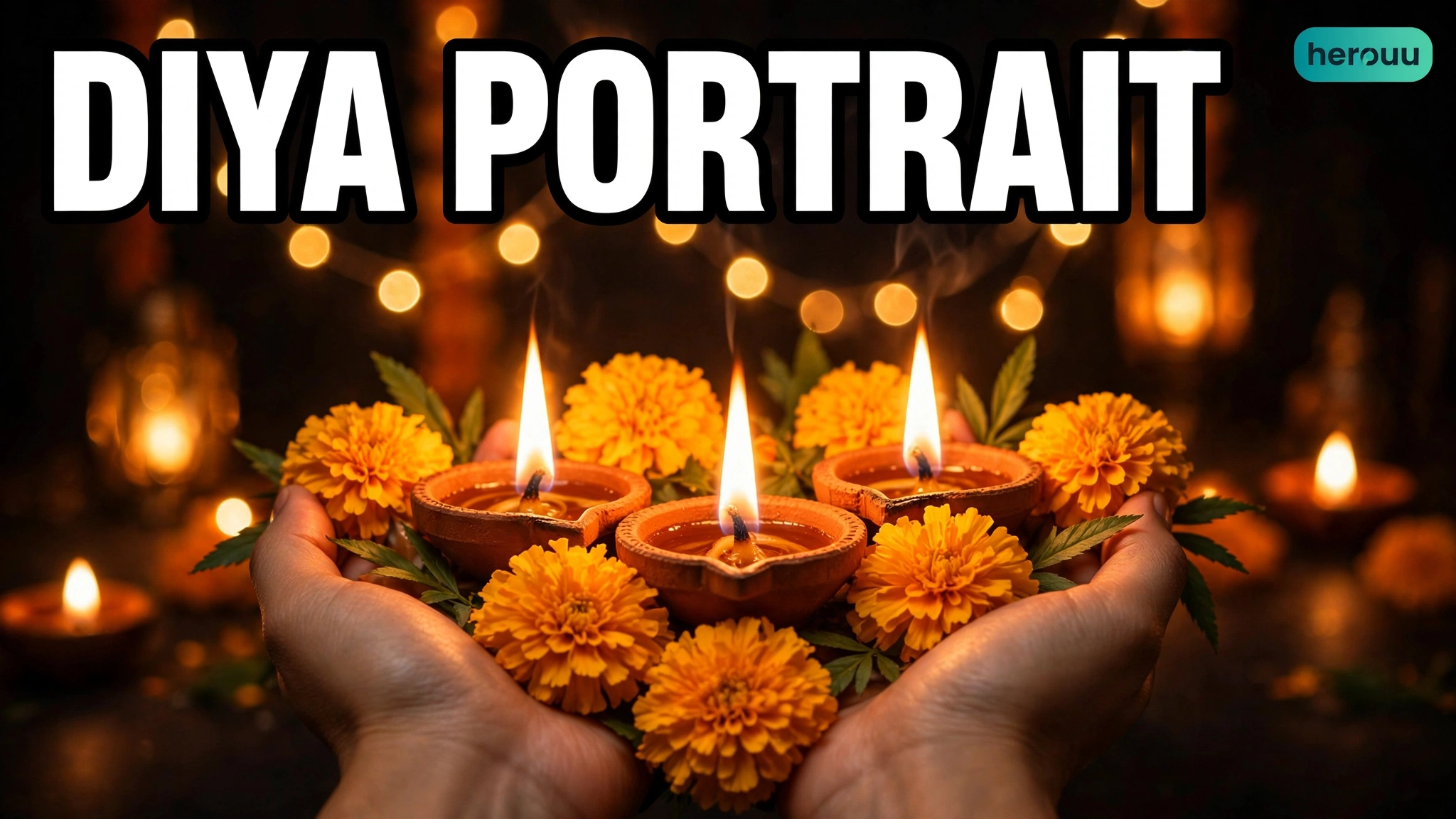
1. Diya Portrait
Edit this photo into a warm festival portrait. Keep the person’s face, skin tone, age, and gentle smile exactly recognizable. Place them near a row of small glowing diyas, with soft golden light on the face and a dark, blurred background with warm bokeh. Use a head-and-shoulders frame, natural skin texture, and calm festive colours. Avoid extra fingers, watermarks, and text.
Word count: 61
2. Dance Night Photo
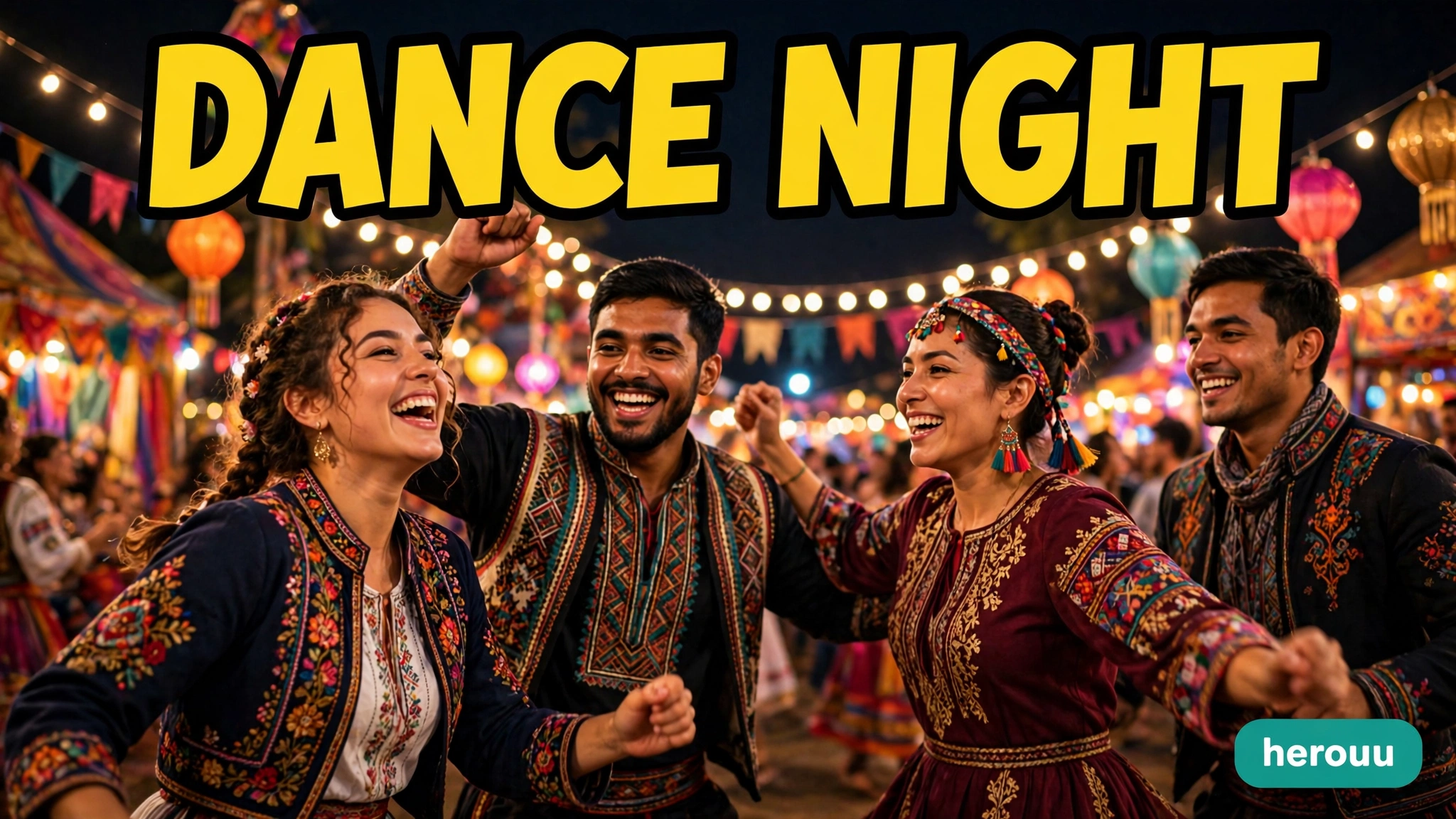
Edit this photo into a joyful festival dance night scene. Keep the person’s face, skin tone, age, and happy expression exactly recognizable. Show them mid-dance under warm string lights, with a soft blurred crowd and festive lights in the background. Use natural movement, clear hands, and rich but balanced colours. Avoid extra fingers, watermarks, and text.
Word count: 56
3. Family Festival Photo
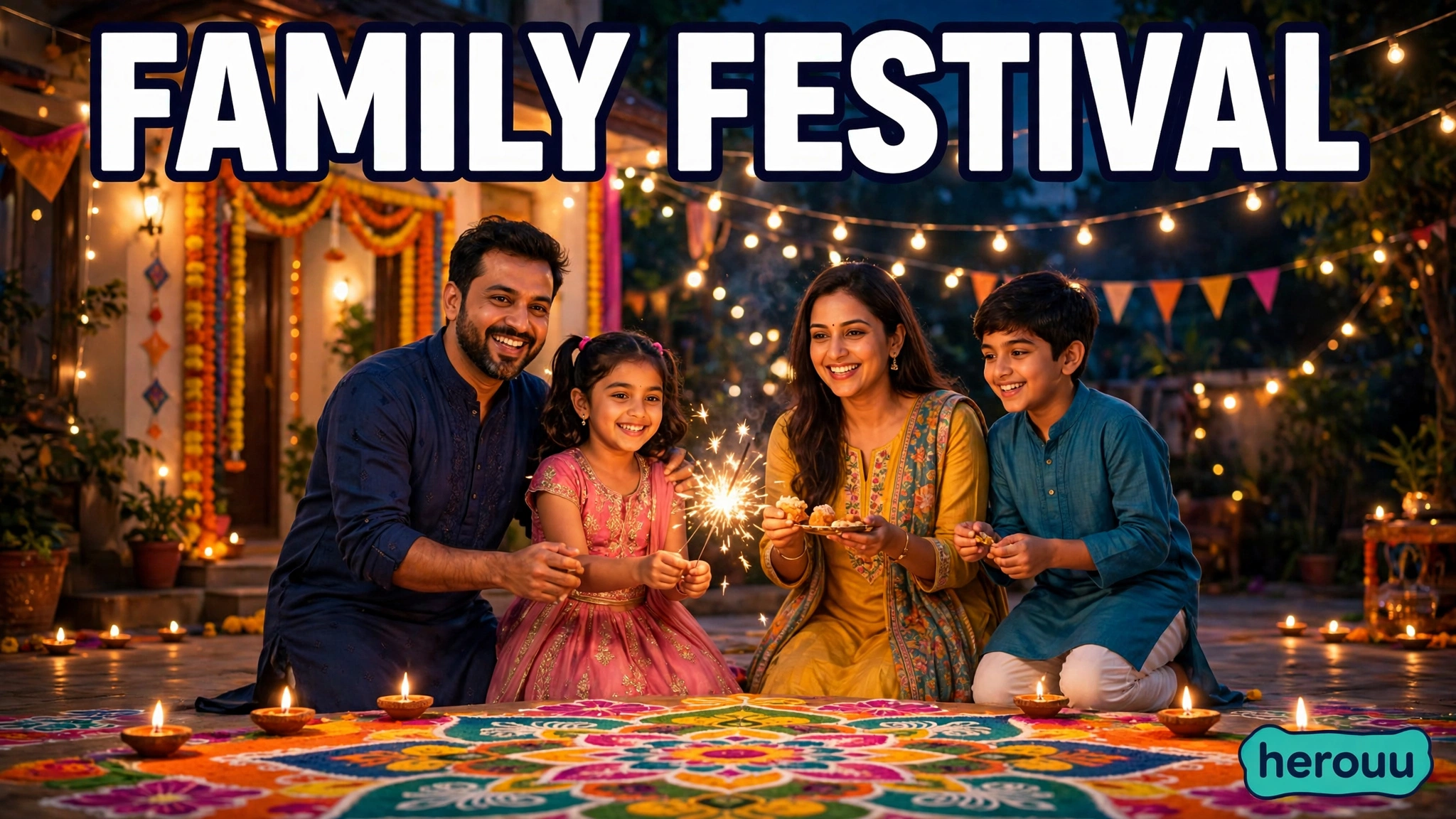
Edit this photo into a warm family festival evening scene. Keep each person’s face, skin tone, age, and natural expression exactly recognizable. Place the family together in a bright home courtyard with diyas, string lights, and soft evening light. Keep the group balanced, with clear faces and natural spacing. Avoid extra fingers, watermarks, and text.
Word count: 55
4. Rangoli and Diya Scene
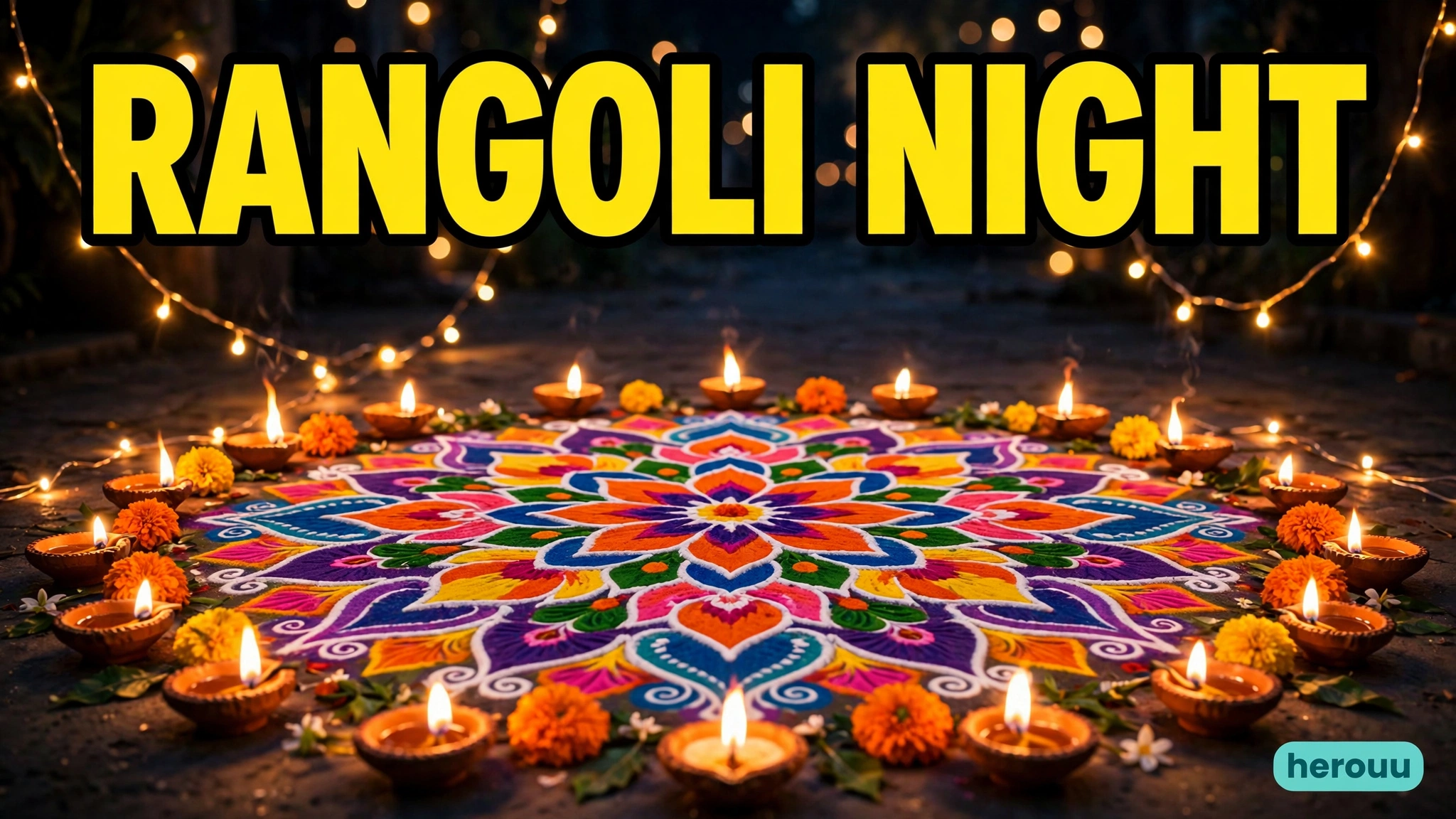
Edit this photo into a colourful rangoli and diya scene. Keep the person’s face, skin tone, age, and calm expression exactly recognizable. Show them seated near a neat, symmetrical rangoli with small glowing diyas around it, under soft evening light. Keep the colours rich but clean, with a tidy background. Avoid extra fingers, watermarks, and text.
Word count: 56
5. Couple or Group Festival Photo
Edit this photo into a bright couple or group festival photo. Keep each person’s face, skin tone, age, and relaxed expression exactly recognizable. Place the group close together in front of warm festival lights, with soft golden light on every face and a clean, blurred background. Keep outfits simple, hands natural, and spacing even. Avoid extra fingers, watermarks, and text.
Word count: 60
Try one prompt first, then save the version you like. If a prompt gives a good face but a busy background, copy it again and change only the background line. Small, clear changes are easier to control than a fresh, long prompt.
Practical Tips for Better Festival Pictures
Small habits make a big difference. These festival AI photo prompts work best when the photo, the light, and the wording all point in the same direction.
- Use daylight as a base. A photo taken near a window in daylight gives the app a clean face to work from, even if the final picture is set at night.
- Keep the background simple. A plain wall, a courtyard, or a soft blur helps the face stand out. A busy market scene often makes faces smaller and less clear.
- Name one outfit change only. If you want a new outfit, name it in one short phrase and keep the rest of the prompt the same. Two outfit changes in one prompt often clash.
- Check hands at full size. Hands are where small errors show first. Zoom in before you share, and ask for clear, natural hands if you see extra fingers.
- Keep skin tones honest. Ask for natural skin texture and the same skin tone as the original. Avoid words like flawless or perfect, which often make skin look plastic.
- Save prompts that work. Keep a short note of the prompt, the app, and the result. A prompt that works for a diya portrait will often work again with a new festival scene.
Common Problems and Fixes
Most problems come from a vague prompt, a dark photo, or too many changes at once. The table below gives a quick fix for each common issue, so you can try again without starting from scratch.
| Problem | Fix |
|---|---|
| Face looks different | Use a clearer, front-facing photo. Add the keep-the-face line, and remove outfit or background changes for one try. |
| Skin looks too orange | Change warm light to soft warm light, and add natural skin tone and natural skin texture to the prompt. |
| Extra fingers or odd hands | Ask for clear, natural hands, and avoid asking for complex hand poses. Try a simpler pose if the error repeats. |
| Text or a watermark appears | Add avoid text and watermarks to the prompt. If text still appears, generate again with a simpler background. |
| Picture looks too busy | Remove one detail, blur the background, and keep only one or two strong colours in the scene. |
| Colours look dull | Name one strong colour, such as marigold yellow or deep red, and add soft festival lights to lift the scene. |
These festival AI photo prompts are a starting point, not a promise of a perfect result every time. If a result is close, change one thing and try again, rather than writing a brand-new prompt.
Frequently Asked Questions
These answers cover the questions new creators ask most often about festival AI photo prompts, from choosing a photo to sharing the final picture safely.
1. What are festival AI photo prompts?
Festival AI photo prompts are short, clear instructions you give to a photo app to turn your own photo into a festival picture. These festival AI photo prompts describe the person, the scene, the light, and what must stay the same, so the result looks festive but still like you.
2. Do I need a paid app to try them?
No, a free plan is usually enough to try one or two pictures and learn the method. Start with a clear photo and one prompt, then check the result before you decide if you need more generations or a paid plan.
3. Which photo works best?
A bright, front-facing photo with your face in focus works best, and festival AI photo prompts cannot fix a very dark or blurred original. Avoid sunglasses, hands over the face, and heavy filters, because they hide the details the app needs to keep.
4. Can I use these prompts for Diwali and Navratri?
Yes, you can change the scene words to fit Diwali, Navratri, Eid, Christmas, or Holi, while keeping the rest of the prompt the same. For Navratri, name dance and bright colours, and for Diwali, name diyas and warm evening light.
5. How do I keep my face looking like me?
Use a clear original photo, and festival AI photo prompts should always include a line asking the app to keep your face, skin tone, age, and expression recognizable. If the face changes, try again with fewer scene changes and a simpler background.
6. Why do hands sometimes look wrong?
Hands are hard for photo apps to draw, especially in dance or group poses with many people. Ask for clear, natural hands, keep the pose simple, and zoom in at full size before you share the picture, and check fingers carefully.
7. Can I use these prompts for a family or group photo?
Yes, but keep the group small and the scene simple, so every face stays clear. Festival AI photo prompts for groups work best with a wide, balanced frame, soft light on every face, and a blurred background, for bright festival pictures.
8. What if the colours look too strong?
Remove one colour, change bright light to soft light, and ask for balanced, natural colours in your next try. A picture with one strong colour and soft light often looks more premium than a picture with every colour at full strength.
9. Is it safe to share an edited festival photo?
Share only pictures of yourself or people who have agreed to be in the photo, and festival AI photo prompts should never be used to copy another person’s face without permission. Check the final picture at full size, and keep your original photo private.
Conclusion
Festival AI photo prompts work best when you start with a clear photo, name one scene, and protect your face with a simple keep-the-face line. Try one prompt from this guide today, check the face and hands at full size, and keep the version that still looks like you.
Then browse the Ai Photo Prompt category on herouu for more simple guides, and try festival AI photo prompts again with a new festival scene.
Related Reading
Keep learning with more festival AI photo prompts and clear prompt guides from herouu. These guides cover the basics, simple patterns, and fixes for pictures that look almost right.
- How to Write a Clear AI Photo Prompt That Matches Your Idea
- Five Simple AI Photo Prompt Patterns for Everyday Pictures
- How to Fix an AI Photo That Looks Almost Right
- Browse all Ai Photo Prompt guides
About herouu
herouu writes simple, original guides for creators who make short videos and AI images. Every guide is written in plain English, with practical steps you can try at home, without jargon or long theory.
Disclaimer and Sources
Disclaimer: This information is based on official app help and this guide. App features may change, so verify details from the official app or help page before you rely on a feature or limit.
Sources: