
At a glance
What this guide does: Shows you how to build a VN glitch effect template in the VN app, using the built-in Glitch and RGB effects, so your reels and shorts get that sharp, broken-screen look in a few minutes.
Best for: Reels, Shorts, and TikTok videos, dance clips, gaming clips, and funny transition moments.
Time needed: About 10 to 15 minutes for your first edit.
Cost: Free in VN, with no watermark. Some advanced filters are Pro, so check the FX panel on your phone.
Introduction
A VN glitch effect template is a ready style you build once in VN and reuse on any clip: a short burst of RGB colour split, digital noise, and a quick shake that makes a cut feel sudden and fun. This guide shows the steps in order, five original looks you can copy, and the fixes for the problems most beginners hit. Check the FX panel in your VN app before you start, because effect names can change a little with each app update.

Quick overview
| Topic | Detail |
|---|---|
| Guide | VN glitch effect template |
| Category | Vn Code Template |
| App | VN Video Editor (Android, iOS, Windows, Mac) |
| Skill level | Beginner |
| Time needed | 10 to 15 minutes |
| Media needed | 1 to 3 of your own video clips |
| Cost | Free, no watermark; some advanced filters are Pro |
What you will make
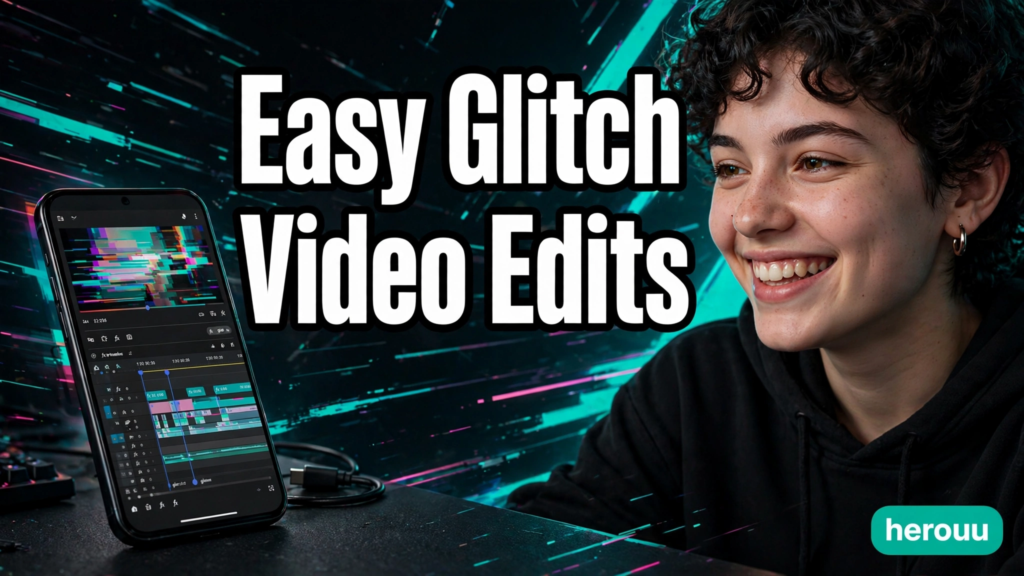
A VN glitch effect template is not one single effect. It is a mix of small breaks in the picture: colours splitting into red and cyan, thin noise lines, a frame that jumps sideways for a split second. Used for half a second on a beat, it wakes the viewer up. The five looks in this VN glitch effect template each use the same tools in a different way, so you learn the tools once and get five styles out of them.
| Look | Best for | Clips needed |
|---|---|---|
| Quick beat glitch | Dance and music reels | 1 clip |
| RGB split portrait | Selfie and fashion reels | 1 clip |
| Glitch cut transition | Scene changes | 2 clips |
| Noise flash intro | Gaming and tech videos | 1 clip |
| Soft retro glitch | Travel and vlog moments | 1 to 2 clips |
Before you start
You need the VN app installed from the Play Store or App Store, and one or two video clips of your own saved on your phone. Shoot in good light if you can, because glitch effects hide detail, and a dark clip turns into a muddy mess once noise is added. You do not need any paid pack for the basic VN glitch effect template: the FX panel in VN includes Glitch and RGB effects in the free version, though a few advanced filters sit behind Pro. If an effect name looks different on your phone, it is probably the same tool under a new name after an update, so open the FX panel and look under Glitch and RGB first.
How to use a VN glitch effect template in the VN app
Follow these steps in order to build your VN glitch effect template. The golden rule from VN’s own guides is to finish your cuts and timing first, then add effects last.
- Open VN and tap the plus button to start a new project.
- Pick your clip or clips from your gallery and tap the arrow to open the timeline.
- Set the ratio for your platform. Use 9:16 for Reels, Shorts, and TikTok.
- Trim each clip. Drag the ends to cut the boring parts, and split the clip where you want the glitch to land.
- Tap the small box between two clips if you want a transition, and pick Glitch from the transition list. Set its length to about 0.3 seconds.
- Move the white playhead to the exact frame where the glitch should start. A beat drop or a jump in the music is the best spot.
- Tap the clip, then tap FX in the bottom toolbar. This opens the effects panel.
- Open Basic Effects, then tap Glitch. Pick Noise 01 for a classic digital noise burst. Drag its edges on the timeline to make it last about 0.3 to 0.5 seconds.
- Add an RGB effect on the same spot. Open FX, then Basic Effects, then RGB, and pick RGB 01. Keep it short, about 0.2 seconds, so the colour split flashes instead of lingering.
- Tap the effect layer and lower its strength if the look feels too harsh. A lighter glitch often looks more professional than a full-strength one.
- Preview the whole clip. Watch the glitch moment twice: once for the picture, once for the sound.
- Add music or a short sound effect on the glitch frame if you want extra punch, then export. VN can export in up to 4K at 60fps on supported phones, but 1080p at 30fps is enough for most reels and keeps the file small.
Save the finished project as a draft in VN before you export. That draft is your reusable VN glitch effect template: next time, open it, swap in new clips, keep the same effects in the same places, and export again. You never need to rebuild the timing from scratch, and your VN glitch effect template is ready for the next video too.
5 VN glitch effect template ideas
These are five original looks for your VN glitch effect template, ready to build in VN. They are descriptions, not codes or downloads. Copy the idea, open VN, and build it with the FX tools above.
Quick beat glitch: one clip, one 0.4 second Noise 01 burst on the music beat, plus a 0.2 second RGB 01 flash on the same frame. Best for dance and lip-sync reels where the cut must land on the sound.
RGB split portrait: one selfie clip, RGB 01 kept at low strength for the full clip, with two short Noise 01 bursts where you blink or turn your head. Best for fashion and makeup reels that need a stylish edge without hiding your face.
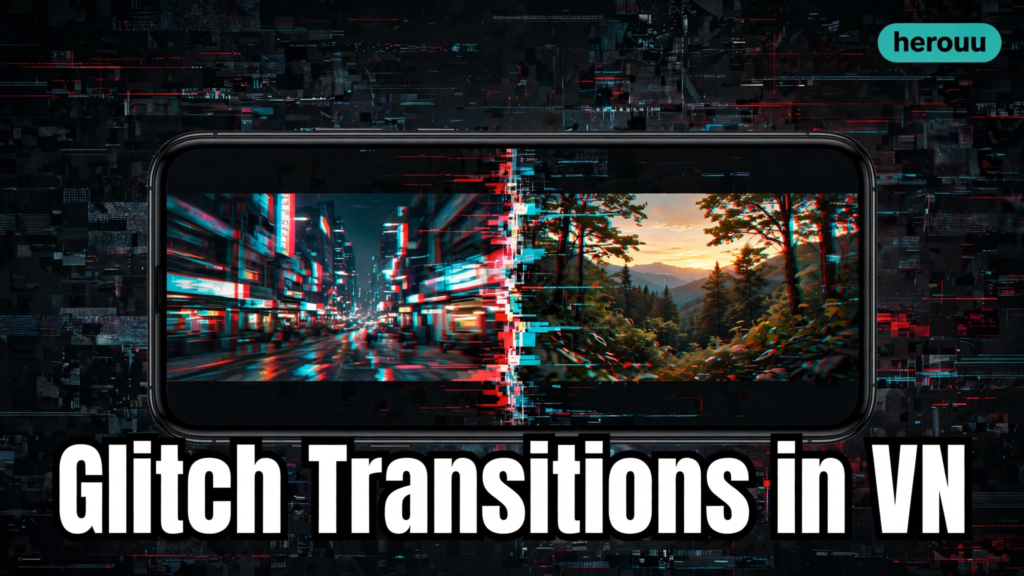
Glitch cut transition: two clips, a Glitch transition of 0.3 seconds between them, then a 0.3 second Noise 01 burst at the start of the second clip. Best for before and after videos, outfit changes, and location jumps.
Noise flash intro: one clip, a 0.5 second Noise 01 burst in the first second, a quick zoom-in keyframe, and a short sound effect on the flash. Best for gaming clips and tech videos where the first second must grab attention.
Soft retro glitch: one or two travel clips, a light Noise 01 burst of 0.3 seconds at each scene change, plus a warm filter at low strength over the whole video. Best for travel and vlog moments where you want a retro feel without a harsh digital look.
Tips for a clean glitch edit
- Keep every glitch in your VN glitch effect template short. A burst of 0.2 to 0.5 seconds feels sharp. Anything over one second starts to look like a mistake, and viewers swipe away.
- Put the glitch on a beat, not in the middle of a sentence. Open the music track, find the drum hit or bass drop, and drag your effect to that exact frame.
- Use one strong glitch per video, and two at most. Three or four bursts in a 15 second reel make the edit feel noisy instead of stylish.
- Lower the effect strength before you lengthen it. A soft glitch that lasts 0.4 seconds looks better than a full-strength glitch that lasts 0.2 seconds, and it is easier on the eyes.
- Check your text after adding the effect. If you have a caption or a title on the same frame as the glitch, the noise can tear the letters apart. Move the text one frame earlier or later so it stays readable.
- Export a test copy of your VN glitch effect template first and watch it on your phone, not just inside VN. Effects sometimes look stronger on the exported file than in the preview, and a 15 second test saves you from re-editing the full video.

Common problems and fixes
These are the problems beginners report most with a VN glitch effect template, with the likely cause and the fix for each.
The glitch effect does not show in the FX panel.
Likely cause: your VN version is old, or the effect sits under a different name. Fix: update VN from the Play Store or App Store, then open FX, Basic Effects, and look under Glitch and RGB. Restart the app if the panel still looks empty.
The exported video looks more glitchy than the preview.
Likely cause: the effect strength was high and the export sharpened it further. Fix: reopen the project, lower the strength of the Noise and RGB effects, and export again at 1080p.
The glitch lands on the wrong frame.
Likely cause: the effect layer was placed by eye instead of on the playhead. Fix: zoom into the timeline with two fingers, move the playhead to the exact beat, and drag the effect layer so its first frame lines up with it.
The video lags while you edit.
Likely cause: long 4K clips and several effect layers strain an older phone. Fix: trim the clips first, keep the glitch layers short, and close other apps. Export at 1080p if the lag stays.
The glitch hides the subject’s face.
Likely cause: a full-screen noise burst over a close-up shot. Fix: shorten the burst to 0.2 seconds, lower its strength, or split the clip and put the glitch on the frame just before the face appears.
Frequently asked questions
What is a VN glitch effect template?
A VN glitch effect template is a saved VN project style that adds short digital glitches, like RGB colour split and noise bursts, to your clips. You build the timing once with VN’s FX tools, save the project as a draft, and reuse it by swapping in new clips.
Is the glitch effect free in VN?
Yes, the basic Glitch and RGB effects you need for a VN glitch effect template are free to use in the FX panel, and VN exports without a watermark. A few advanced filters in VN sit behind Pro, so if an effect asks you to upgrade, pick a free Glitch or RGB option instead.
How do I add a glitch effect in VN?
Open your project, move the playhead to the frame you want, tap the clip, then tap FX and open Basic Effects. Pick Glitch, choose Noise 01, and drag its edges to set the length. Add RGB 01 on the same spot for the colour split look.
How long should a glitch effect last?
Keep each burst in your VN glitch effect template between 0.2 and 0.5 seconds. That is long enough for the eye to catch the break, and short enough to feel sharp. Anything over one second usually looks like a rendering mistake rather than a style choice.
Can I use a VN glitch effect template for Instagram Reels?
Yes. Set the project ratio to 9:16, keep the glitch short and on a music beat, and export at 1080p. The vertical format and the fast effect suit Reels, Shorts, and TikTok, where the first two seconds decide whether someone keeps watching.
Why does my glitch effect look too harsh?
The strength is probably too high, or the burst lasts too long. Lower the effect strength in the FX panel and shorten the layer to 0.2 seconds. A lighter glitch often looks more professional, and you can always add a second short burst later.
Does VN have a glitch transition?
Yes, a VN glitch effect template can start with the Glitch option in VN’s transition list. Tap the box between two clips, pick Glitch, and set the length to about 0.3 seconds. It works well for outfit changes and scene jumps, and you can add a Noise burst after it.
Can I save a glitch style and reuse it?
Yes. Save the finished project as a draft in VN instead of deleting it after export. Open the draft next time, replace the clips with new ones, keep the effects where they are, and export again. That is the simplest way to reuse a VN glitch effect template.
Do I need a QR code or template code for this?
No. This guide builds the look with VN’s own FX tools, so there is nothing to scan and no code to paste. If a video online offers a glitch template code, it comes from that creator, not from herouu, and you should check it yourself before using it.
Will a glitch effect work on photos in VN?
Yes, you can add Glitch and RGB effects to photo clips on the timeline in the same way. Keep the burst short, about 0.3 seconds, and use two or three photos in a row if you want a fast slideshow with a glitch feel.
Conclusion
A VN glitch effect template is one of the fastest ways to make a plain clip feel modern: a short noise burst, a flash of RGB split, and a cut that lands on the beat. Build one of the five looks above today, save the project as a draft, and reuse your VN glitch effect template on your next reel. When you are ready for more, browse the Vn Code Template category on herouu for more free VN guides.
Related reading
Browse more free VN guides in the Vn Code Template category.
About herouu
herouu shares free templates, photo prompts, and video editing ideas for creators. Every guide is written in simple English so you can follow it on your phone and finish a real edit the same day.
Disclaimer
This guide is based on VN’s official help pages and the app as described at the time of writing. App features and effect names can change with updates, so check the FX panel in your VN app if a step looks different. Always use your own clips and photos.
Sources
- VN official Filters page, vlognow.me — https://vlognow.me/blog/features/filters/
- VN official blog, Create Viral Effect Video in 10 Minutes, vlognow.me — https://vlognow.me/blog/features/cawcut-vn-mask/
- VN Video Editor, Google Play listing — https://play.google.com/store/apps/details?id=com.frontrow.vlog
- How to Use CapCut and VN Video Editor Transitions Like a Pro, Adilo — https://adilo.com/blog/capcut-vn-video-editor-transitions-guide/
Details not officially announced: the full list of Glitch effect names in the current VN version, and whether every Glitch effect is free or Pro. Effect names can vary by version, so this guide names the two effects confirmed on VN’s official blog (Noise 01 and RGB 01) and tells readers to check the FX panel.