
A VN text effect template helps you add big, moving words to a short video without starting from a blank timeline. This guide is for everyday creators in India who make Reels, Shorts, and status videos on a phone. You will learn how to open one in VN, change the words and clips, and export a finished video. Check the latest VN app version first, because menus can change.
At a glance
A VN text effect template is a ready-made VN project where the text style, timing, and movement are already set. Open it in VN, replace the clips and words with your own, and export the result. It suits birthday wishes, song lyrics, quotes, shop offers, and travel clips. You need your own clips, a few short lines, and about 20 to 30 minutes. Most text tools in VN are free, though some fonts and packs may need a payment.
Quick Overview
| Topic | Details |
|---|---|
| Topic | Text effects and animated text in VN |
| Category | Vn Code Template |
| App or Tool | VN Video Editor (Android and iOS) |
| Skill Level | Beginner |
| Time Needed | 20 to 30 minutes for the first video |
| Media Needed | 2 to 6 short clips or photos, plus 3 to 6 short lines of text |
| Cost or Free Features | VN is free for basic editing, text, and export; some fonts and packs may be paid |
What you will make
You will make a short vertical video where the words appear, move, and leave in time with your clips. A good VN text effect template keeps the words short so people can read them in one glance.
| Text effect idea | Best for | Clips needed |
|---|---|---|
| Big bold title | Birthday, name, and announcement videos | 2 to 3 clips |
| Word-by-word lyrics | Song and shayari reels | 3 to 5 clips |
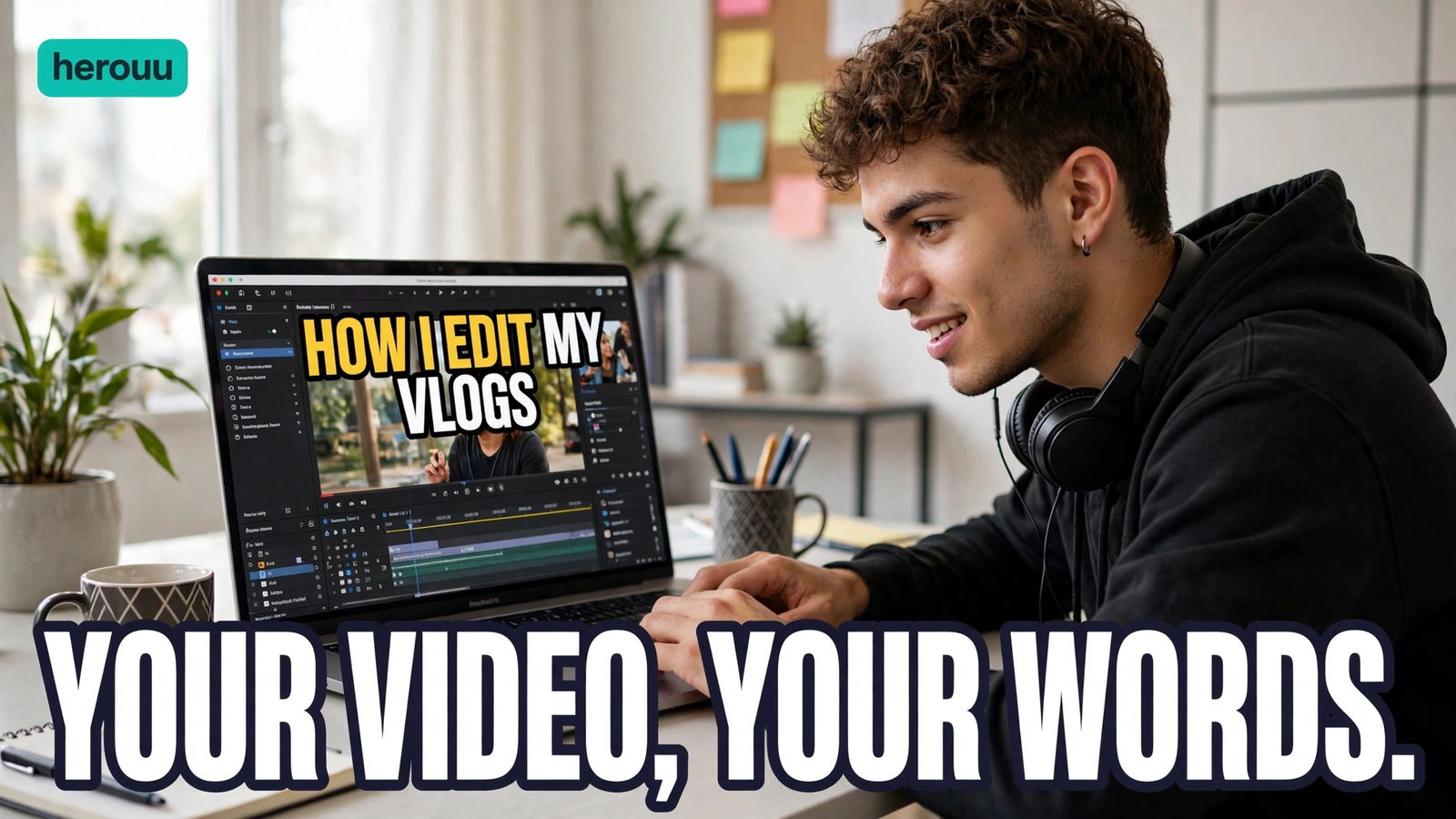
| Clean lower third caption | Vlogs, shop videos, and how-to clips | 2 to 4 clips |
| Pop-up word highlights | Offers, tips, and funny lines | 3 to 4 clips |
| Slow fade quote | Motivation, wishes, and travel videos | 2 to 3 photos or clips |
Before you start
Start with VN installed and updated from the Play Store or App Store. VN is also known as VlogNow, made by Ubiquiti Labs. Free up at least 500 MB so the export does not stop.
Write your words in a notes app first, three to five words per line, and check the spelling once. A spelling mistake in a big title is the first thing people notice. If your video has a song, pick it first and note where the beat falls. Shared templates vary in availability. A VN text effect template that worked last month may not be shared now, and the app publishes no fixed list of them. Never pay a stranger for a code or a file.
| Requirement | What you need |
|---|---|
| Phone | Android or iPhone with VN installed and updated |
| Storage | At least 500 MB free space |
| Clips | 2 to 6 short clips or photos, vertical 9:16 if possible |
| Text | 3 to 6 short lines, checked for spelling |
| Internet | Needed to download the app and some fonts; editing works offline |
| Export | 1080p is a good choice for Reels and Shorts |
Steps to use a VN text effect template
Follow these steps in order. Trim first, then add text, because text in VN sits on its own track and does not move when you trim a clip below it.
Step 1: Open VN and start a new project
Open VN and tap the plus button for a new project. Choose your clips in the order you want them, then tap the arrow to reach the timeline. For a shared VN text effect template, use the scan or import option and let it load fully first.
Step 2: Set the video size to vertical
Tap the ratio setting and choose 9:16 for Reels, Shorts, and status videos. If your clips are horizontal, pinch to fit them so the main subject stays in the middle.
Step 3: Trim the clips and set the order
Tap a clip and drag its ends to trim it to about two to four seconds. Tap and hold a clip to move it if the order feels wrong. Trim any slow clip now, because later changes shift your text timing.
Step 4: Add your first text layer
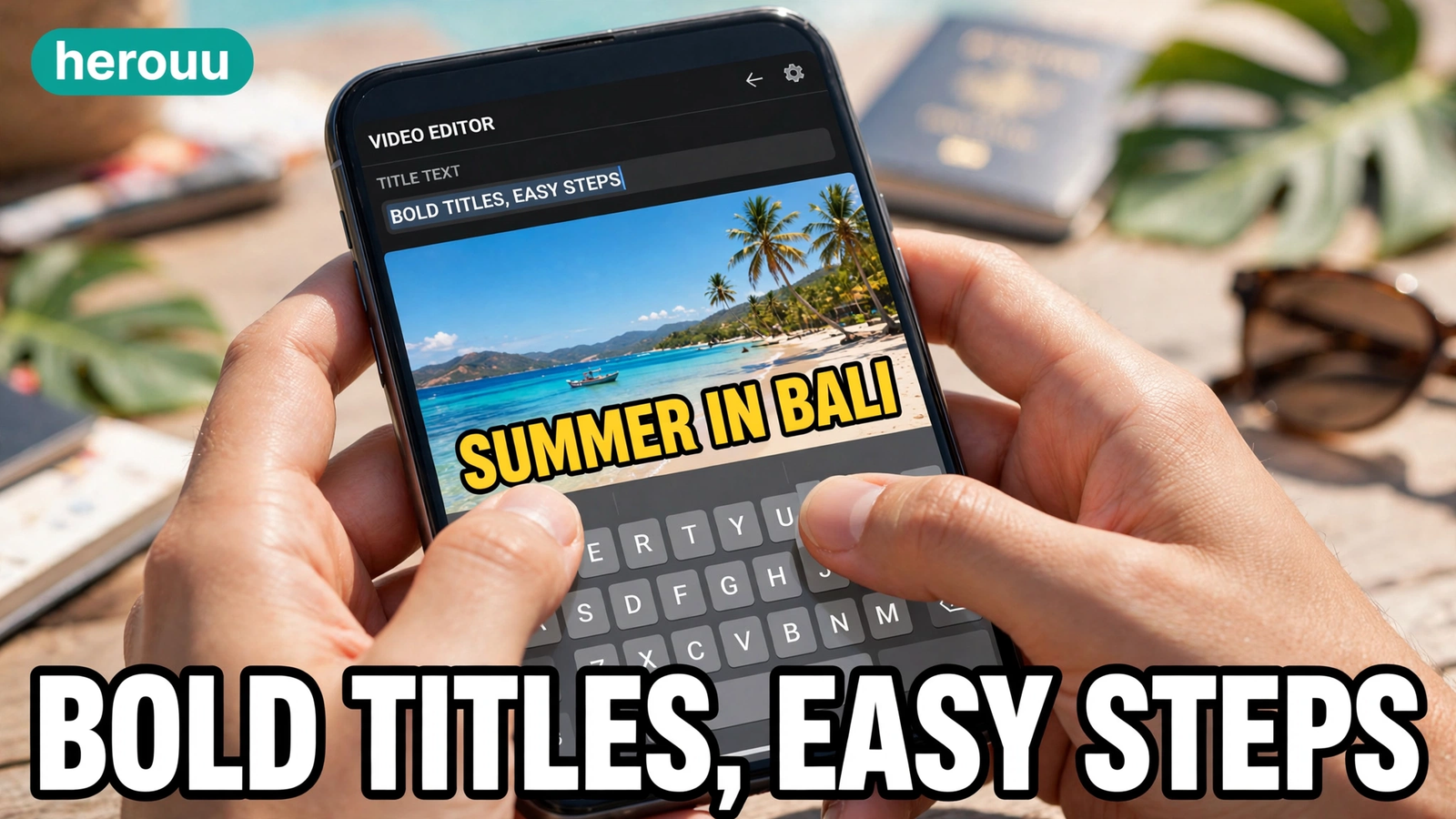
Move the playhead to where the first line should appear and tap the Text button, marked with a T. Long-press it if your version shows a menu, and pick Heading for a big title. Type your first line, tap the tick, then drag the layer ends to set its length.
Step 5: Pick a font, size, and colour
Tap the text layer, then the font option, shown as Aa. Pick a bold, simple font that stays readable on a small screen. Thin fonts blur after Instagram or YouTube compress the video. Keep the words in the safe middle area. White with a dark shadow works on most clips.
Step 6: Add the animation
With the text layer selected, open the Animation tab. Pick an entrance effect such as Fade, Slide, or Zoom, and a simple exit effect, so the words do not vanish in a sudden jump. Keep the animation to about half a second to one second. For moving words, add a keyframe at the start and one at the end.
Step 7: Copy the style to the other lines
Do not style every line from scratch. Once the first line of your VN text effect template looks right, use the same font, size, colour, and animation for the next lines, and change only the words and timing. If the words sit over a bright clip, add a shadow or a dark background box. Read each line out loud as you play the video. If you cannot finish it, make it stay longer or shorten the words.
Step 8: Preview, export, and save
Play the whole VN text effect template video with sound on and once with sound off. Check that every line is spelled right, sits inside the safe area, and leaves on time. Fix any line that covers a face. Then tap Export, choose 1080p and 30 frames per second, and save the video to your gallery. Keep the VN project saved, so you can fix a mistake later.
5 VN text effect template ideas
These five ideas are original starting points. They are not shared codes, files, or download links. Change the words to fit your clips and your song. Keep each line short, and let one idea carry one video.
Big birthday title: Happy Birthday, Aarav! Show the name in large bold letters for two seconds, then add one short wish line below it.
Song lyric line: one short lyric line per clip, timed to the beat, with the key word in a bright colour.
Shop offer pop-up: Flat 20 percent off today. Pop the offer in the centre for two seconds, then show the shop name in small text below.
Travel quote fade: Slow mornings, new places. Fade the words in over a calm travel clip, hold them for three seconds, then fade out.
How-to caption: Step one, wash the rice. Place a short step line at the bottom of each clip so viewers can follow without sound.
Tips
Use one font for the whole video, and use size and colour to show what matters most. Two or three fonts in a 20 second video look untidy.
Test your VN text effect template video on your own phone before you post it. Watch it at arm’s length. If you have to squint or pause, the text is too small or the words are too long.
Match the text colour to the mood of the clip, but keep contrast first. Yellow text looks bright on a dark clip and vanishes on a sunny beach clip. When in doubt, use white text with a dark shadow.
Time the text to the sound. Put the first word on a beat, not in the quiet gap before it. Listen to the song twice before you place the text. A line on the beat feels planned, while a late line feels like a mistake.
Save your best text style and reuse it. After you finish a video you like, keep the project in VN and copy the font, colour, and animation.
Common Problems
A VN text effect template can still go wrong, mostly from timing, size, or a clip trimmed after the text was placed. Check the table below before you export.
| Problem | Likely cause | Fix |
|---|---|---|
| Text looks blurry after upload | Thin font, small size, or heavy compression | Use a bold font, bigger text, and export at 1080p |
| Text is cut off at the edges | Words sit too close to the top or bottom | Move the text into the middle third |
| Text disappears too fast | The text layer is too short | Drag the text layer longer, or cut a few words |
| Text does not match the clip after trimming | Text sits on its own track and does not move with the clip | Trim clips first, then place the text again |
| Animation feels too fast or jumpy | Entrance and exit effects are too long or too strong | Use a short fade or slide under one second |
| Template text sits in the wrong place | The shared project was made for a different screen size or app version | Update VN, then move the text by hand |
FAQ
Is a VN text effect template free to use?
VN is free to download, and its basic text tools and export options are free to use in normal editing. Some fonts and extra packs inside the app may need a payment, so check the price shown inside the app before you buy anything.
How do I add text effects in VN Video Editor?
Open your VN text effect template project, move the playhead to the right place, and tap the Text button marked with a T. Type your words, pick a font and colour, then open the Animation tab to add a fade, slide, or zoom effect.
Can I animate text in VN without a template?
Yes, you can. Add a text layer to your VN text effect template, open the Animation tab, and pick an entrance and exit effect. You can also add keyframes to move the text slowly. Keep the movement small, because a big swing looks messy.
Where do I get a VN text effect template?
Creators share VN projects through the app, often with a scan code or a project file. Herouu does not host a template file for this guide. Open a shared project, replace the clips and text, and check it before you post it.
How long should text stay on screen in a reel?
In a VN text effect template, most short lines need two to three seconds on screen, so people can read without pausing. A single big word can work in one to two seconds. If a line has more than five words, give it three seconds.
Why does my VN text look blurry after I post it?
Blur in a VN text effect template usually comes from a thin font, small text, or compression on upload. Use a bold font, make the words bigger, and export at 1080p. Avoid placing text over a busy part of the clip.
What is the best font size for VN text on Reels?
There is no one fixed size, because it depends on your video size and the length of the words. Make the main line large enough to read at arm’s length on a phone. Test it on your own phone and make it bigger if you need to pause to read it.
Can I use a VN text effect template for YouTube Shorts?
Yes, you can. Use the same vertical 9:16 size and the same short lines for Shorts. Shorts and Reels both show text in the middle of the screen, so keep your words away from the top and bottom edges where buttons and captions can cover them.
Do I need to pay for VN to export a video with text?
No, you do not need to pay for a basic export of a VN text effect template in VN. The free version lets you edit, add text, and export your video. Some fonts and packs may be paid, so check if a style shows a price tag.
Conclusion
A VN text effect template gives you a fast start, but the words and the timing are what make the video work. Keep your lines short, use one bold font, and place each line where people can read it in one glance. Try a VN text effect template from this guide today, then browse the VN Code Template category on herouu.buzz for more guides like this one.
Related reading
- VN Shake Effect Template: Easy Shake Video Guide
- VN Mask Effect Template: Easy Mask Transition Guide
- VN Glitch Effect Template: Easy Glitch Video Guide
- VN Birthday Template Guide
- VN Code Template Category
About herouu
herouu.buzz shares free templates, photo prompts, and video editing ideas for everyday creators, written in simple English with clear steps you can follow on your phone.
Disclaimer
This guide is based on the official VN app help pages and widely used creator guides. VN features, menu names, prices, and free limits can change with app updates. Check the latest VN app version or its official help page before you buy a font or pack.
Sources
- VN Video Editor text styles guide
- Add Text in VN Video Editor
- How to Use VN Video Editor in India: Beginner Guide 2026
- VN Template guide
- VN app listing and features
Not officially announced: no fixed list of shared VN text effect templates, no fixed price list for fonts or packs, and no fixed font size for Reels.