
AI photo prompts for college pictures turn a plain campus photo into a bright, shareable portrait in a few minutes. You upload a photo you already took, write a short prompt, and the AI app rebuilds the picture around your face. This guide shows you how, using Google Gemini and ChatGPT. You do not need editing skills, a laptop, or a paid plan. Check the app’s help page first, because menus change often.
At a glance
At a glance: AI photo prompts for college pictures need one clear photo, the Gemini or ChatGPT app, and a short prompt. Pick an idea, upload the photo, paste the prompt, and check it first. Most edits take two to five minutes.
Quick overview
| Item | Detail |
|---|---|
| Topic | AI photo prompts for college pictures |
| Category | Ai Photo Prompt |
| App/Tool | Google Gemini, ChatGPT |
| Skill Level | Beginner |
| Time Needed | 5 to 10 minutes per photo |
| Media Needed | 1 clear photo per edit |
| Cost/Free Features | Free plans available |
What you will make with AI photo prompts for college pictures
These six ideas cover most of college life, and each of these AI photo prompts for college pictures starts from a photo you have. Pick the idea that matches your photo.
| Idea | Best for | Photos needed |
|---|---|---|
| Campus lawn group shot | Friends, freshers week | 1 group photo |
| Library study portrait | Profile photo, study posts | 1 solo photo |
| Fest night photo | Instagram, fest memories | 1 to 2 photos |
| Graduation-style cap toss | Farewell posts | 1 group photo |
| Canteen candid | Casual stories, reels cover | 1 photo |
| Sports day action shot | Team posts, sports day | 1 action photo |
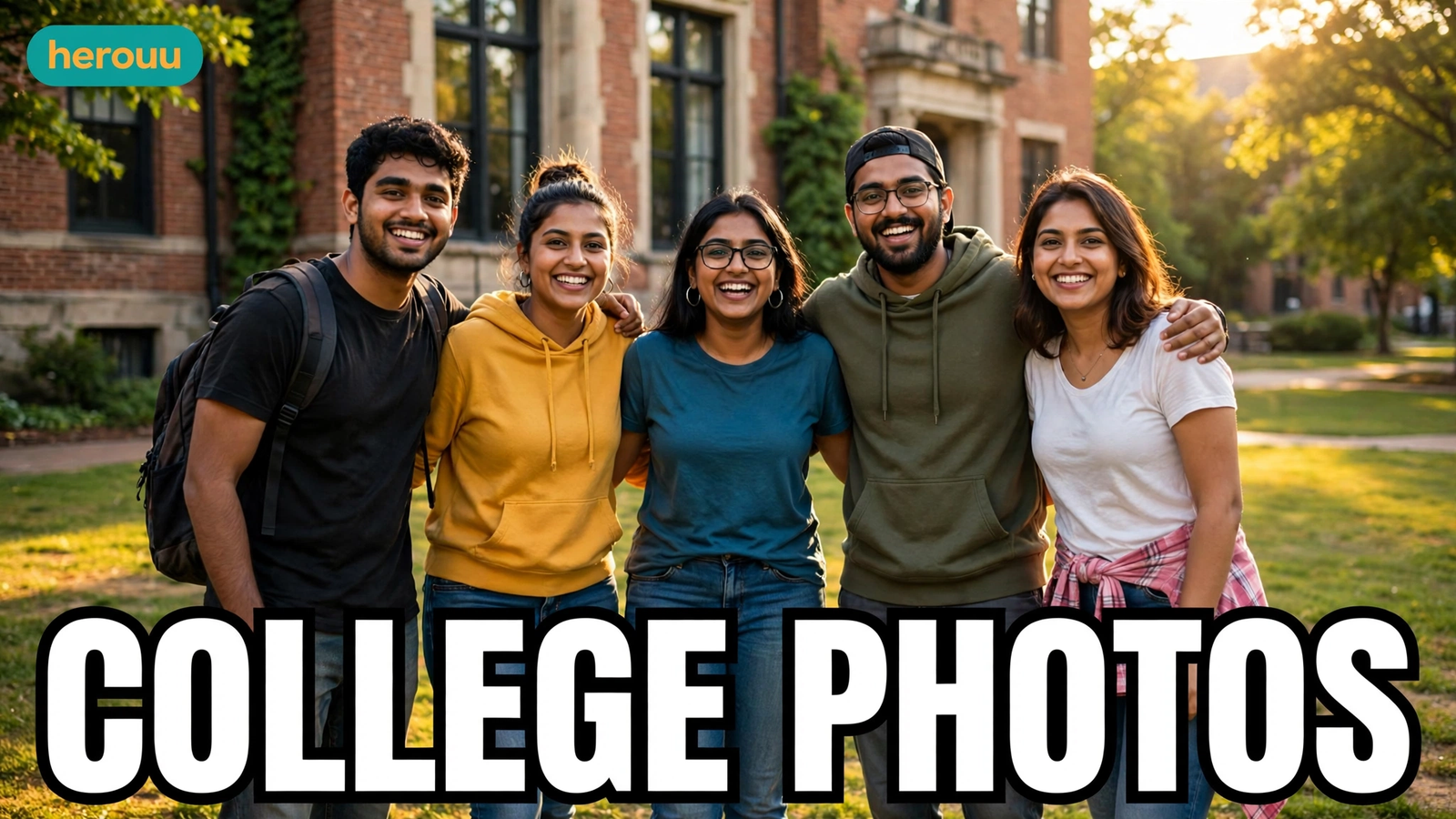
Stand on the lawn with the college building behind you.
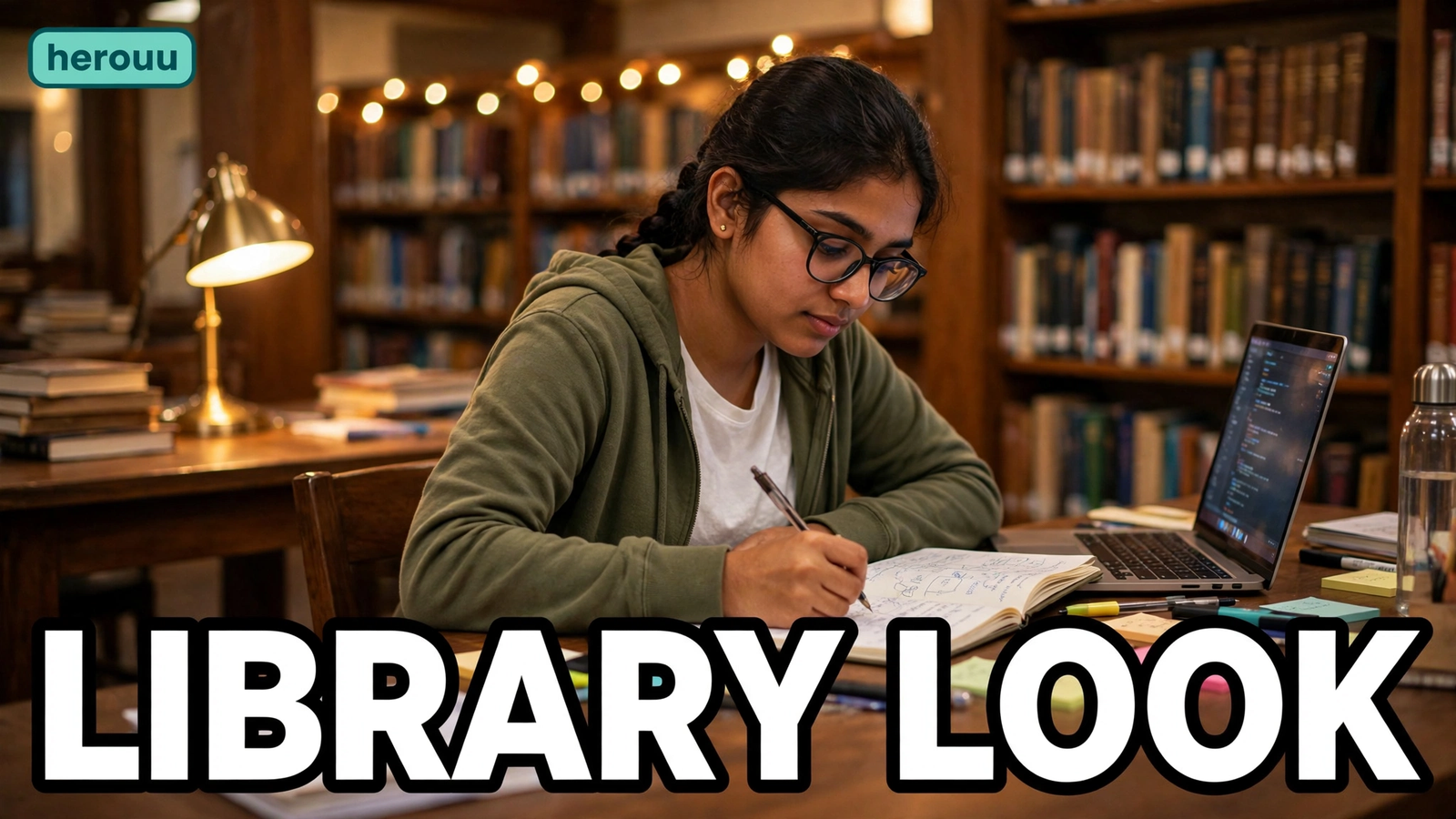
A library shot works well as a profile photo.
Fest photos are often dark. The AI brightens faces and adds warm string lights.
One group photo in gowns and a cap toss prompt gives you the classic shot.
A canteen photo feels real because nobody is posing.
Action shots blur easily. The AI sharpens the player, brightens the ground, and keeps the movement natural.
Before you start
Before you use AI photo prompts for college pictures, install the latest Gemini or ChatGPT. Older versions may hide the image tools or show different menus. If the image option does not appear, check the app’s help page.
Use only photos you took yourself, or photos your friends agreed to share. AI tools can change faces, so get a clear yes from everyone in a group photo before you post it. Keep the original saved.
Pick a photo taken in daylight with faces clearly visible. A dark photo gives the AI little to work with. Free plans have daily limits.
| Requirement | What you need |
|---|---|
| Phone | Android or iPhone with a recent OS |
| App | Gemini or ChatGPT, latest version |
| Internet | Stable mobile data or Wi-Fi |
| Photo | Clear, front-facing, good light |
| Storage | At least 500 MB free space |
| Account | Google account, OpenAI account |
How to use AI photo prompts for college pictures step by step
Follow these steps in order. They work for any of the AI photo prompts for college pictures in this guide.
- Pick one clear photo: sharp faces, even light, every face visible.
- Open Gemini, sign in, and tap the plus icon near the prompt box.
- Upload your photo. Pick it from your gallery and wait for it to attach.
- Write one clear prompt: the scene, the light, and the mood.
- Add a lock line. Start with “Keep my face, features, and skin tone exactly as in the uploaded photo.”
- Name the style. Say photorealistic if you want the photo to look real.
- Send the prompt. Tap send and wait. The picture usually appears in under a minute.
- Zoom in on faces and hands. AI tools often get hands wrong.
- Ask for one small fix in the same chat, like “make the light warmer.”
- Try a second version of the same prompt.
- Save the best result. Long press the image in Gemini or tap download in ChatGPT.
- Share it with a note. If the photo is heavily edited, say so in the caption.
Once you have done it twice, it takes under ten minutes, and you can reuse the same AI photo prompts for college pictures all year.
5 original AI photo prompts for college pictures to copy
These AI photo prompts for college pictures are written for real campus photos. Copy one, paste it into Gemini or ChatGPT, and change only the details that do not match.
Campus lawn group shot:
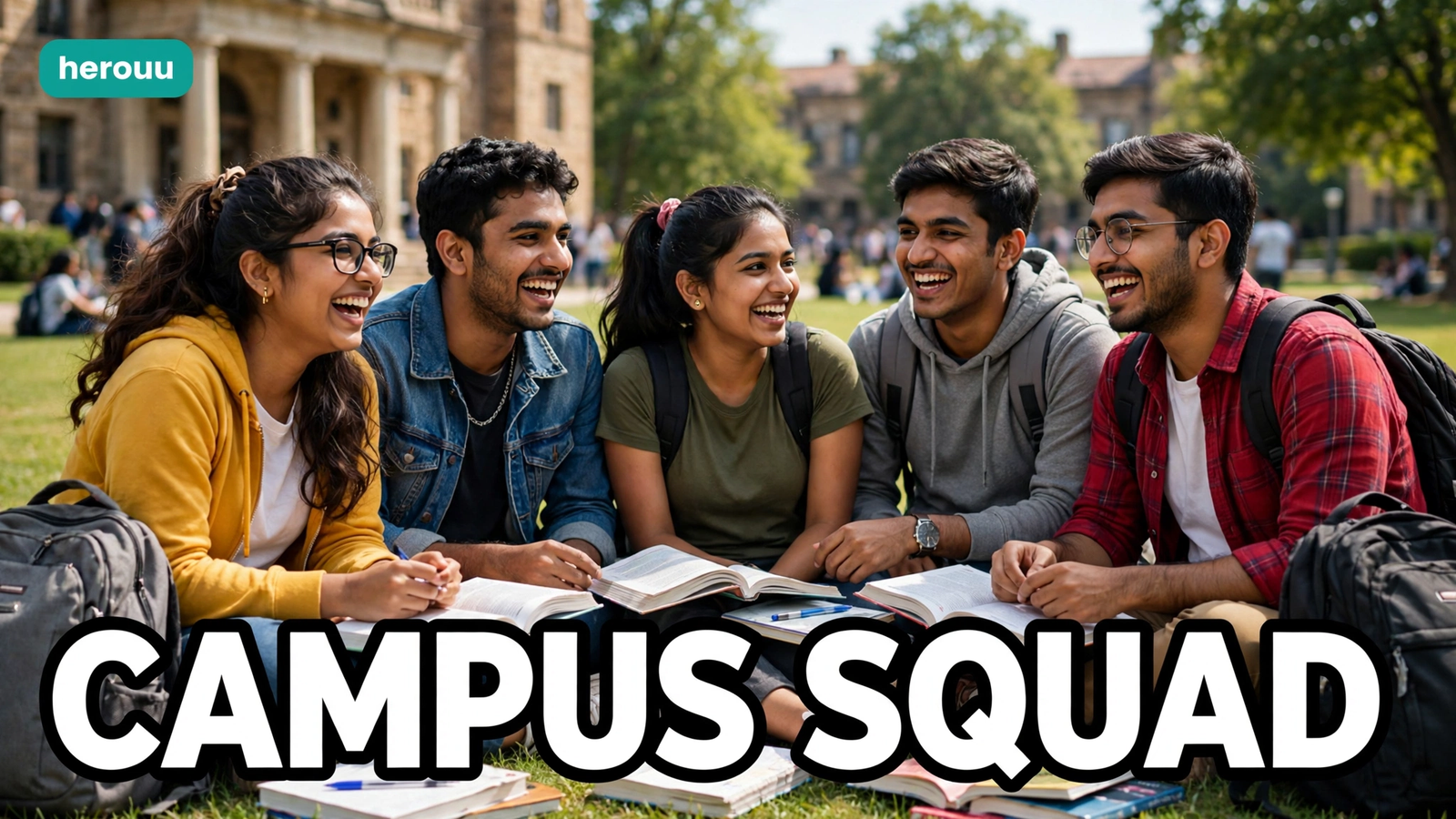
Use the uploaded group photo and do not change any face, smile, or skin tone. Show us sitting on the grass in front of our red brick college building, books open on our laps, morning sun on our faces. Make it look like a real phone photo, sharp and bright.
Library study portrait:
Use the uploaded photo and keep my face, hair, and skin tone unchanged. Show me at a library window table with a stack of notes and tall shelves behind me in soft focus. Use gentle daylight from the window and a quiet, focused mood. Keep it photorealistic.
Fest night photo:
Use the uploaded photo and keep every face unchanged. Show us at our college fest at night, stage lights glowing behind us, a happy crowd softly out of focus, and confetti in the air. Keep our clothes and smiles the same. Make the faces bright and sharp.
Graduation-style cap toss:
Use the uploaded group photo and keep every face unchanged. Show us in black graduation gowns on the lawn, throwing our caps high into a bright blue sky, laughing, with the college clock tower behind us. Use strong daylight and keep the photo realistic.
Canteen candid:
Use the uploaded photo and keep my face, hair, and skin tone unchanged. Show me at a steel canteen table with a small glass of chai, friends chatting softly out of focus beside me, and warm evening light coming through the window. Keep it candid and photorealistic.
Save the prompts you like best and reuse the ones that already gave you a good face.

Tips that make your college photos look real
These tips come from using AI photo prompts for college pictures again and again.
Start with daylight. Morning light near a window gives the AI clean light.
Fix one thing per message. Five changes at once often break something fine.
Keep the lock line in every prompt, or the AI may slowly change your face.
Ask for the light by name. “Warm golden hour light” beats “nice light” every time.
Make two versions and compare. Generate the same AI photo prompts for college pictures twice.
Do not smooth the skin too much. Heavy smoothing looks like a cartoon.
Common problems and fixes
Most bad results from AI photo prompts for college pictures come from a weak photo or a vague prompt.
| Problem | Likely cause | Fix |
|---|---|---|
| Face looks different | Prompt did not lock the face | Add a lock line and retry |
| Extra fingers or odd hands | AI struggles with hands | Ask for hands holding a book |
| Blurry or soft result | Low quality original photo | Use a sharper daylight photo |
| Background looks fake | Too many details in prompt | Shorten the background to one scene |
| App says limit reached | Free daily limit used up | Wait until tomorrow or try the other app |
| Colours look washed out | Vague light description | Name the light, like golden hour light |
If none of these fixes work, try a different original photo. The AI can only improve what the camera captured.

Frequently asked questions
These questions come from what students actually search about AI photo prompts for college pictures.
Are AI photo prompts for college pictures free to use?
Yes, you can start for free. Gemini and ChatGPT both let free users create and edit images, and these prompts cost nothing to copy. Free plans do have daily limits, and the exact number is not published, so check inside the app.
Which app is best, Gemini or ChatGPT?
Both work well, so pick the one you already use. Gemini is handy if you use Google apps, and its Nano Banana image model edits your photo from a plain sentence. ChatGPT is strong at following long, detailed prompts and editing parts of an image.
Can I use AI photo prompts for college pictures with a group photo?
Yes, group photos work, but keep the group small, four to six people at most. Upload one clear photo where every face is visible, and add a lock line. Large groups often come back with a changed face or an extra person.
Will the AI keep my face the same?
Mostly, yes, if you tell it to. Start your prompt with a lock line: keep your face, features, and skin tone exactly as in the uploaded photo. Even then, check the result closely, because small changes to eyes or smile are common.
How do I write a good prompt for a college photo?
Use this order for AI photo prompts for college pictures: lock the face, name the scene, describe the light, and name the style. For example, say “keep my face the same, campus lawn at golden hour, warm light, photorealistic.” Short, clear sentences beat long lists.
Can I use these prompts for my Instagram profile picture?
Yes, the library portrait and the solo campus shot work well as profile pictures. Use a clear, front-facing photo and ask for a clean background so your face stays the focus. Crop the result to a square and check it at small size first.
Why do hands look wrong in AI photos?
AI image models still struggle with hands, especially when fingers overlap. A hand can come back with an extra finger or a bent thumb. The fix is simple: ask for hands holding a book or a cup, or crop the photo.
Is it okay to post AI edited photos of my friends?
Yes, if your friends agree. Tell them the photo is AI edited before you post it, and share it first so they can say no. Never post an edited photo of someone who asked you not to, and never use an AI edit to place someone somewhere new.
Do AI photo prompts for college pictures work on old photos?
Yes, they work on old photos as long as faces are clear. Scan the old print in good light first, then upload the clean copy. The AI can brighten a faded photo, but it cannot invent missing detail, so a very blurry photo will stay blurry.
Conclusion
AI photo prompts for college pictures make your campus memories look their best without learning photo editing. Pick one photo, try one prompt from this guide, and check the faces before you share it.
Related reading
More AI photo prompts for college pictures and related guides:
- AI Photo Prompts for Group Pictures
- AI Photo Prompts for Graduation Pictures
- AI Photo Prompts for Profile Pictures
- AI Photo Prompts for Solo Portraits
- AI Photo Prompts for Engagement Pictures
About herouu
herouu.buzz shares free templates, photo prompts, and video editing ideas for everyday creators. Every guide is written in simple English for your phone. You will find AI photo prompts for college pictures and more in the Ai Photo Prompt category.
Disclaimer
This guide is based on the official Gemini and ChatGPT help pages. App menus, features, and free limits can change, so check the official app or help page for the latest details.
Sources
- Google Gemini Help, Edit images from the web in Gemini in Chrome
- Engadget, How to generate AI images using ChatGPT
- Lilach Bullock, Can ChatGPT Generate Images?
- Editing by Vikas, College Freshers AI Photo Editing Prompt 2026
- Prompts for Photos, Realistic Young Woman on Campus Walkway
Note: exact free daily limits are not officially published. The two prompt sites above were checked for topic coverage only. All five prompts here were written for this article.