
AI video editing for gym reels turns long, shaky workout clips into short, clean reels in a few minutes. You film your sets as usual, and the app cuts the pauses, lines the clips up with the music, and adds captions for you. This guide shows the full process on your phone. App menus change, so check the official help page.
At a glance
AI video editing for gym reels turns footage into a 30 to 60 second reel. Film each set in short clips, let AutoCut trim the rest, add captions and music on the beat, then export in 9:16.
Quick Overview
| Item | Details |
|---|---|
| Topic | AI video editing for gym reels |
| Category | Ai Video Editing |
| Apps | CapCut and VN |
| Time needed | 20 to 30 minutes |
What you will make with AI video editing for gym reels
You will make a vertical 30 to 60 second reel that shows a workout. Each move gets a few seconds, cuts land on the beat, and short captions give the move, weight, and reps. With AI video editing for gym reels, you can post the same workout in different styles without filming again.
Before you start
AI video editing for gym reels needs good clips more than a good app. The AI can cut pauses and match beats, but it cannot fix a dark video or a move out of frame. Film every clip vertically, in 9:16.
You need a phone, CapCut or VN, and 5 to 8 vertical clips. Check gym rules first.
How to edit your gym reel step by step
AI video editing for gym reels follows the same order: pick clips, auto cut, sync to music, add captions, then export.
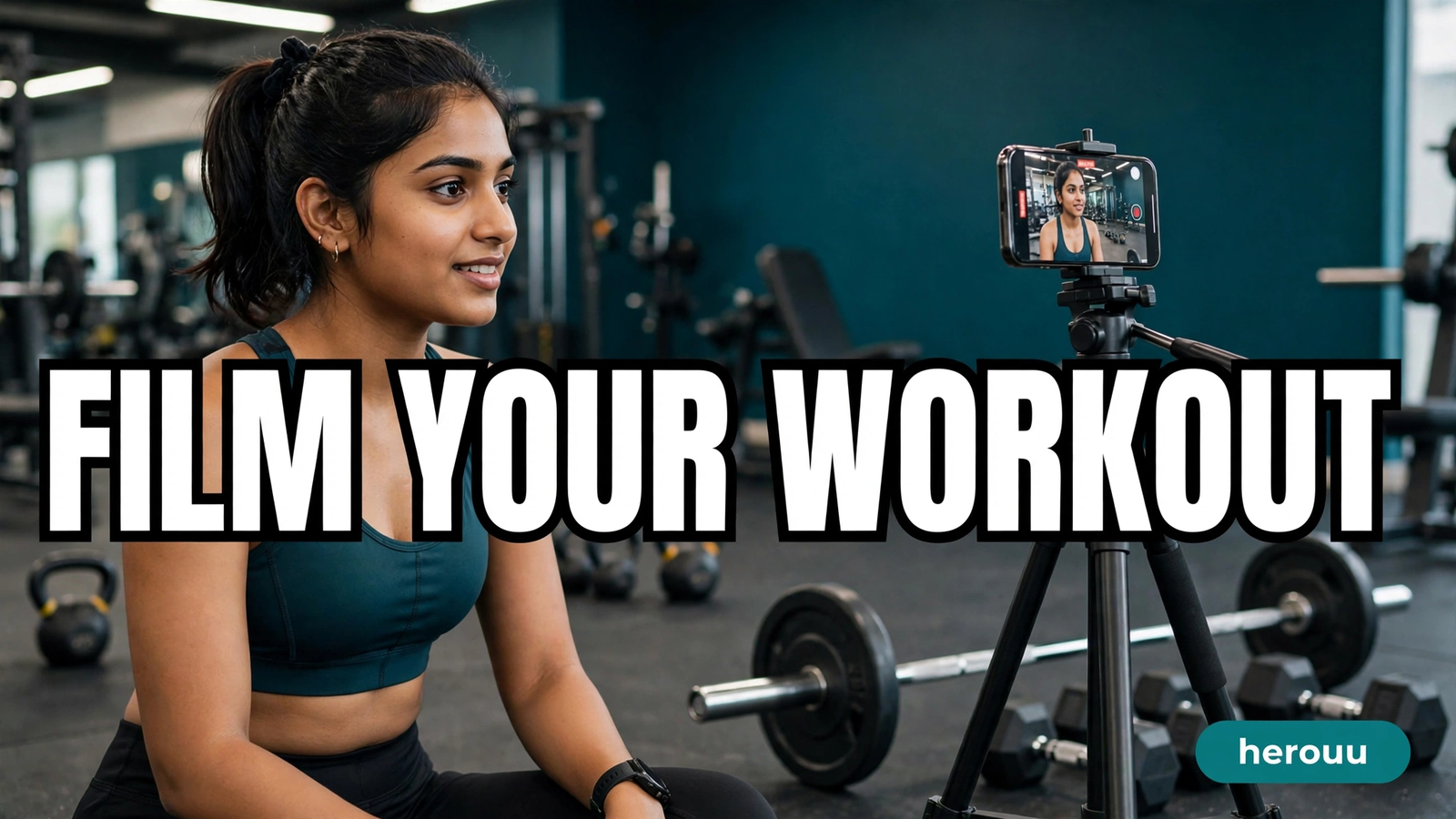
- Film each set: one move at a time. Keep the phone at chest height. For push-ups, place it low.
- Pick your best clips: watch each clip once. Keep clips with clear form and good light. Delete shaky clips or ones where the bar blocks your face.
- Start a new 9:16 project: open CapCut or VN, set the canvas to 9:16, and import the clips in order.
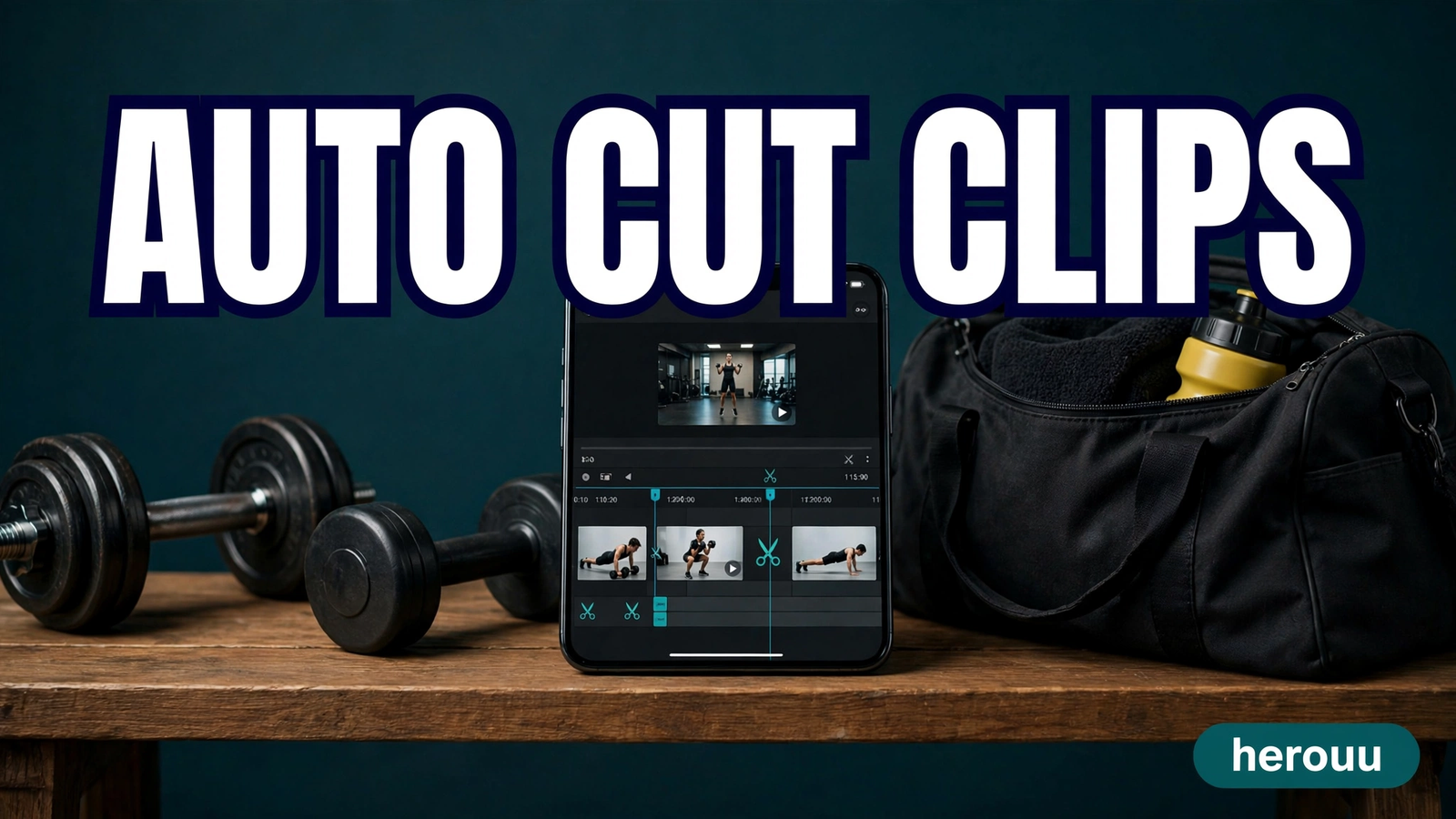
- Let AutoCut make the first cut: AI video editing for gym reels starts with an auto cut. In CapCut, tap AutoCut and pick your clips. In VN, open AutoCut, pick a BeatsClip template, and add your clips.
- Trim the clips by hand: keep two to four seconds per move and cut on the rep. Delete clips that hide the move.
- Sync the music to the beat: pick a track with a clear, steady beat. In VN, BeatsClips marks each beat. In CapCut, the beat marker tool shows the downbeats.
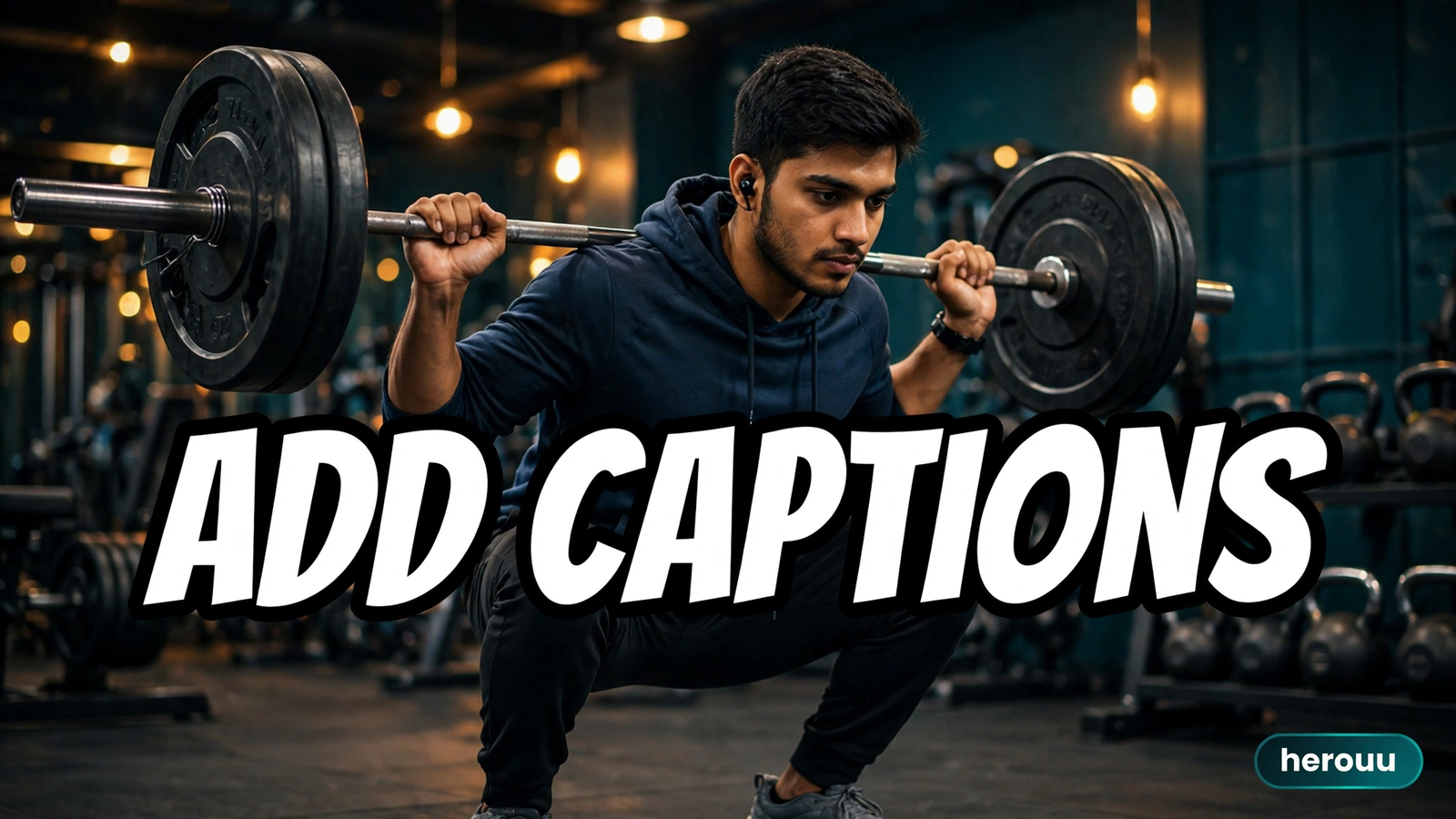
- Add captions and text: AI video editing for gym reels is at its best when the viewer can follow it on mute. In CapCut, open Captions, tap Auto Captions, pick the language, and tap Generate. Read every caption, fix the weights by hand, and add one text line per move, such as Squat, 60 kg, 8 reps.
- Export and post: export at 1080 by 1920 pixels and 30 frames per second. Watch the export once and check no clip ends mid-rep.
Prompt ideas for gym reels
Copy a prompt and paste it into Gemini, ChatGPT, or any text AI app.
Thirty second workout reel script
Write a 30 second gym reel script for [squat, bench press, deadlift]. Start with a hook. One line per move with weight and reps.
Voiceover to on-screen captions
Turn my workout voiceover into short on-screen captions. I said: [paste your voiceover text]. One idea per caption, no caption over 6 words.
Short AI intro clip for your reel
Make an 8 second vertical video of a quiet gym in morning light, a barbell rack, slow push in, warm colours, no text on screen.
Beat plan for your music
Make a beat plan for a 45 second gym reel with 6 clips: [list your 6 moves]. How long is each clip?
Reel caption and hashtags
Write an Instagram caption for a gym reel about [full body workout for beginners]. Two short sentences, one asking viewers to save it. Add 8 hashtags about gym reels.
Worked example: a 30 second leg day reel
Here is one full reel, made with AI video editing for gym reels, so you can see how the steps fit together. It uses six clips and one song, and it takes about 20 minutes from filming to posting.
Film the clips in this order. Keep the phone in one place for each set, and film two seconds before and after every set so the auto cut has room to work.
| Clip | Move | Length |
|---|---|---|
| Warm-up walk | Walking to the rack | 3 seconds |
| Squat, wide shot | Full squat, side view | 4 seconds |
| Squat, close shot | Bar and shoulders | 3 seconds |
| Leg press | Feet on the plate | 4 seconds |
| Walking lunge | Two steps forward | 4 seconds |
| Stretch | Seated hamstring stretch | 3 seconds |
Open CapCut or VN and start a 9:16 project with the six clips in order. Run AutoCut first and let it cut the pauses. In this example, AI video editing for gym reels cut the walk to the rack down to two seconds and kept the full squat, which is what you want.
Next, add the music. Pick a track with a steady beat and mark the beats. Put the wide squat on the first strong beat, the leg press on the drop, and the stretch on the last soft beat. If a clip ends mid-rep, drag its edge back by half a second.
Add captions last. Use Auto Captions for any voice, then add one text line per move by hand, such as Squat, 60 kg, 8 reps. Check every weight, because the app often mishears numbers. Export at 1080 by 1920 pixels and 30 frames per second, watch the export once, and post it.
Tips for better gym reels
- Film the hardest rep first. Open with your best lift. Viewers decide in two seconds.
- Keep the camera in one place per set. For a second angle, film from the other side.
- Show the full move once. Put one wide shot first.
- Keep text and faces away from the edges.
- AI video editing for gym reels lets you post the same workout twice: a fast montage, then a slow form reel.
- Film the bar from the side for squats and deadlifts. A side view shows the full move, and AI video editing for gym reels cuts it cleanly because the bar path is easy to see.
- Save a copy of the auto cut before you trim by hand. If you cut too much, you can go back to the saved version instead of starting again.
Common problems and fixes
- AutoCut removes your best rep: drag the clip edge back.
- Captions mishear weights: mute the music and retry.
- Music drowns your voice: lower the music.
- Captions cover the weight plates: move the captions to the middle of the frame and make them shorter.
- AutoCut cuts the music early: trim the song, not the clips, so the last rep lands on the final beat.
- Export looks soft or blurry: check you exported at 1080 by 1920 pixels, and film again if the original clip was dark.
Frequently asked questions
What is AI video editing for gym reels?
AI video editing for gym reels means using AutoCut, auto captions, and beat sync to turn workout clips into a short reel. The app trims pauses and writes captions from your voice. You film the workout and check the cut.
Which app is best for gym reels?
CapCut and VN both work well on a phone, and both are free to start. CapCut has AutoCut and auto captions on the home screen. VN has AutoCut, BeatsClips, and auto captions. Try one app for two reels before you switch.
How long should a gym reel be?
Keep a gym reel between 30 and 60 seconds. That length fits one workout or one move with a clear start and finish. Instagram says reels longer than 3 minutes are not recommended to new audiences, so a short reel reaches more people.
Do I need a paid plan?
No, a basic reel works with free tools in CapCut and VN. AutoCut, auto captions, and beat tools are available without paying, but some AI features may sit behind a paid plan, and free features can change by version and region. Check the app.
Can AI video editing for gym reels fix shaky footage?
It can help a little, but it cannot fix badly shaky clips. Some apps have a stabilise option for small shakes. For big shakes, film again with the phone on a bench or tripod. Steady footage helps AutoCut find clean cut points.
How do I add captions to a gym reel?
Open Captions in CapCut or VN, tap Auto Captions, pick the language and tap Generate. The app writes captions from your voice. Then read each line and fix move names, weights, and rep counts. Keep captions big and short, in the middle of the frame.
What music should I use for a gym reel?
Use a track with a clear, steady beat and no slow intro. Fast, even beats suit workout montages, and beat markers in VN and CapCut make the sync easy. Only use music you have the right to post, such as app or Instagram music.
Why does AI video editing for gym reels cut my best rep?
The auto cut looks for pauses, and the pause at the top or bottom of a rep can look like dead time. Film two seconds before and after each set, and check the timeline. Drag the clip edge to bring it back.
Can I use Veo to make a gym reel?
Veo can make short AI video clips, such as an 8 second gym scene, but it does not edit your real workout footage. Use it for a short intro only, then cut to your clips. Availability depends on your plan and country.
Conclusion
AI video editing for gym reels is a simple way to post more often without hours on the timeline. Film short clips, let AutoCut cut them, add captions and music, and check the export before you post. Try one reel, then a second.
Related reading
About herouu
herouu is a free guide site for everyday creators. We write simple guides for VN, AI photo prompts, CapCut, and AI video editing.
Disclaimer
This guide is about video editing, not workout advice. It does not tell you what to lift or how much. App features can change, so check the official help page. Ask a trainer first.
Sources
- CapCut, Auto Captions
- CapCut, AI Video Cut Guide
- VN, BeatsClips Project Guide
- Google Cloud, Generate videos from text
- Influencer Marketing Hub, Instagram Video Sizes
Not officially announced: some AI features may be paid, and Veo availability varies.