
A VN green screen template lets you film yourself in front of a green cloth and swap that green background for a beach, a city street, or any photo you like. You need no studio and no paid app. VN is free to download, and its Chroma tool removes the green colour in a few taps. This guide shows the full method, from setting up your shot to exporting the finished reel, plus five ready ideas to try today. Menu names can change with updates, so check the official VN help page if a button looks different.
At a glance: A VN green screen template is a ready plan for a short video filmed against green, with the background replaced in VN using Chroma. It suits reels, Shorts, reaction videos, and product clips. You need the VN app, a green cloth or wall, even light, and your own background photo or video. One video takes 20 to 30 minutes.
Quick Overview
| Topic | VN green screen template |
|---|---|
| Category | Vn Code Template |
| App or Tool | VN Video Editor (VlogNow) |
| Skill Level | Beginner |
| Time Needed | 20 to 30 minutes for one short video |
| Media Needed | Your own green screen clip and a background photo or video |
| Cost | VN is free to download; Chroma works in the free app |
What You Will Make With a VN Green Screen Template
A VN green screen template is a simple plan you can reuse. Film against green, let VN remove it, and your subject lands on a new scene, so the result looks like a beach or studio shoot from your own room. Every idea below uses the same steps.
| Idea | Best For | Clips or Photos Needed |
|---|---|---|
| Beach holiday reveal | Travel and lifestyle reels | Green clip + beach photo |
| City night talk | Vlogs and opinion reels | Green clip + city video |
| Product on a clean backdrop | Small business and shop reels | Product clip + plain background |
| Gaming reaction | Gaming and funny reels | Reaction clip + gameplay |
| Festival greeting | Festival and family reels | Green clip + festive photo |
You can swap the background in any VN green screen template idea for your own photo. The subject stays the same, only the scene changes.
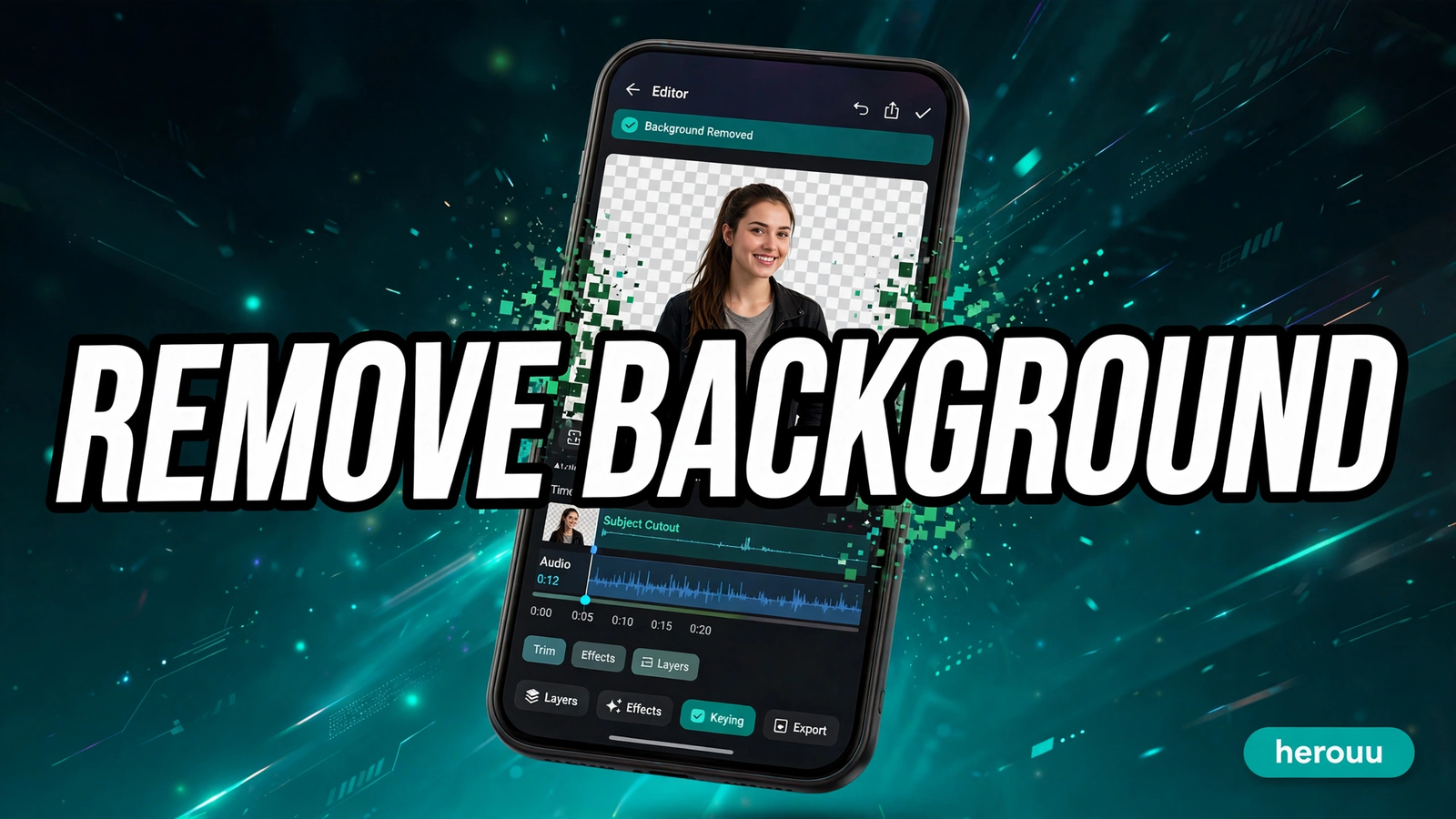
Before You Start
Good recording matters more than fancy editing in a VN green screen template. A clean recording keys well, while a messy one leaves green edges and holes.
You need the VN app, a green cloth, bedsheet, or painted wall, and a phone stand or tripod. A tripod keeps the shot steady, and steady footage keys far more cleanly.
Light the green background evenly with daylight or two lamps, one on each side. Shadows and folds cause most bad keys, so smooth wrinkles first. Stand one metre from the cloth so your shadow stays off it.
Do not wear green, and skip shiny green jewellery. Anything green turns transparent with the background, so pick white, black, red, or blue. Check phone storage too, since the clip and the export both need free space.
Steps to Make a VN Green Screen Template Video
Follow these steps in order to build your VN green screen template video. The edit takes about 15 minutes once your clip is recorded.
- Open VN and start a new project. Tap the plus button, choose New Project, then pick Video.
- Add your new background first, such as a beach scene, on the main track, not on top.
- Set the canvas size: tap Original and choose 9:16 for a reel or Short, or 16:9 for YouTube.
- Stretch the background clip to the full video length.
- Delete the black end card VN adds at the end of a new project.
- Add your green screen clip as an overlay. Tap the plus icon above the timeline, then pick your clip.
- Make the overlay fill the screen by dragging its corners or pinching to zoom.
- Select the overlay clip on the timeline so it shows a yellow border.
- Open Chroma from the bottom toolbar.
- Pick the green colour by dragging the picker onto a clean green area, away from your body and shadows.
- Adjust Intensity slowly. It controls how strongly the colour is removed, so move it a little at a time until the background is gone but your edges stay whole.
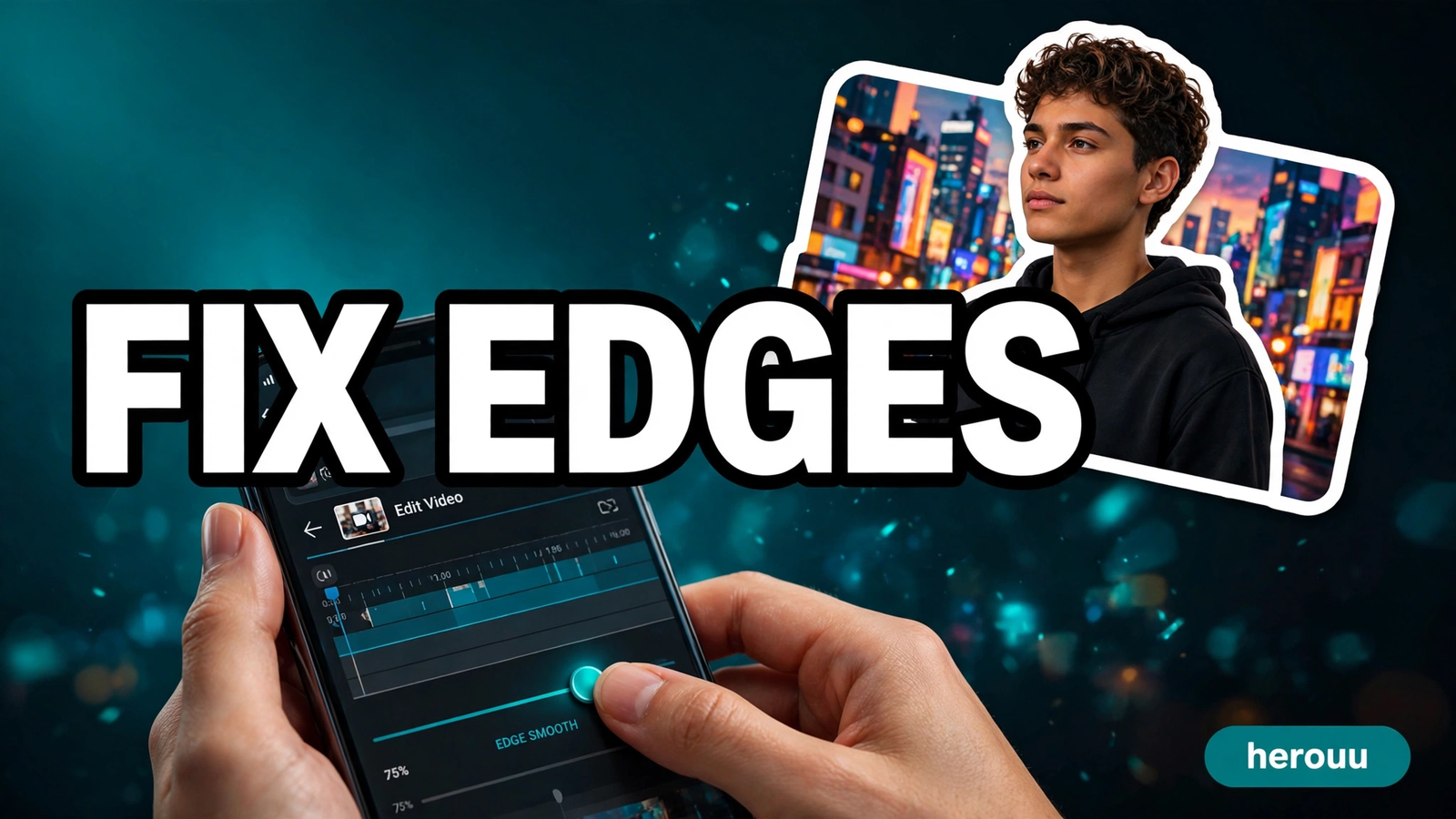
- Adjust Spill to clean the edges. It removes the green tint on skin, hair, and clothes, so move it slowly until the outline fades. VN’s help page says to adjust both sliders gradually and preview over your background.
- Play the full clip of your VN green screen template. Look for green patches, flicker, or see-through edges. If you find a patch, open Chroma again and pick a cleaner green spot.
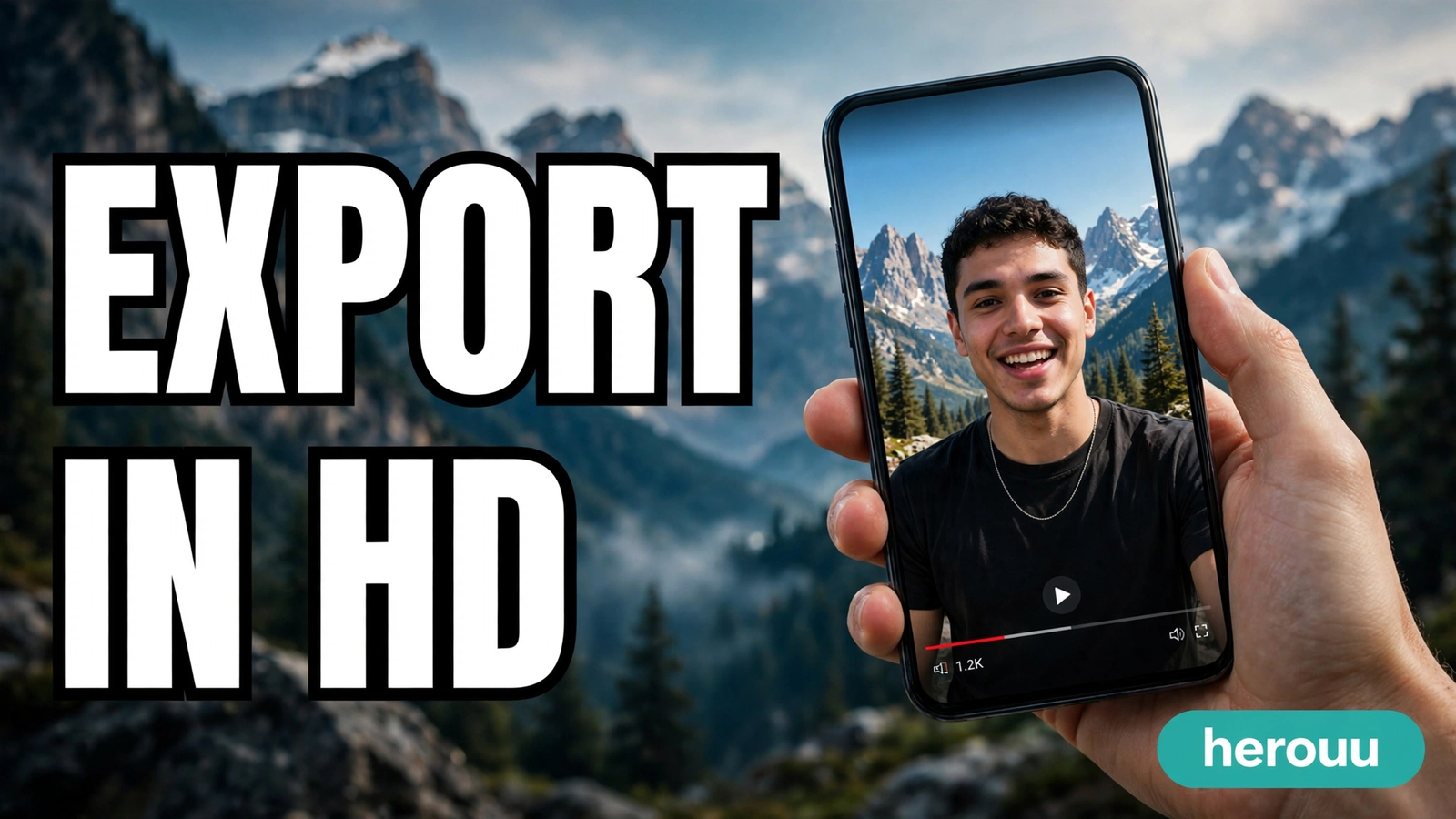
- Export the video. Tap the export arrow at the top right, pick your resolution and frame rate, then tap Export.
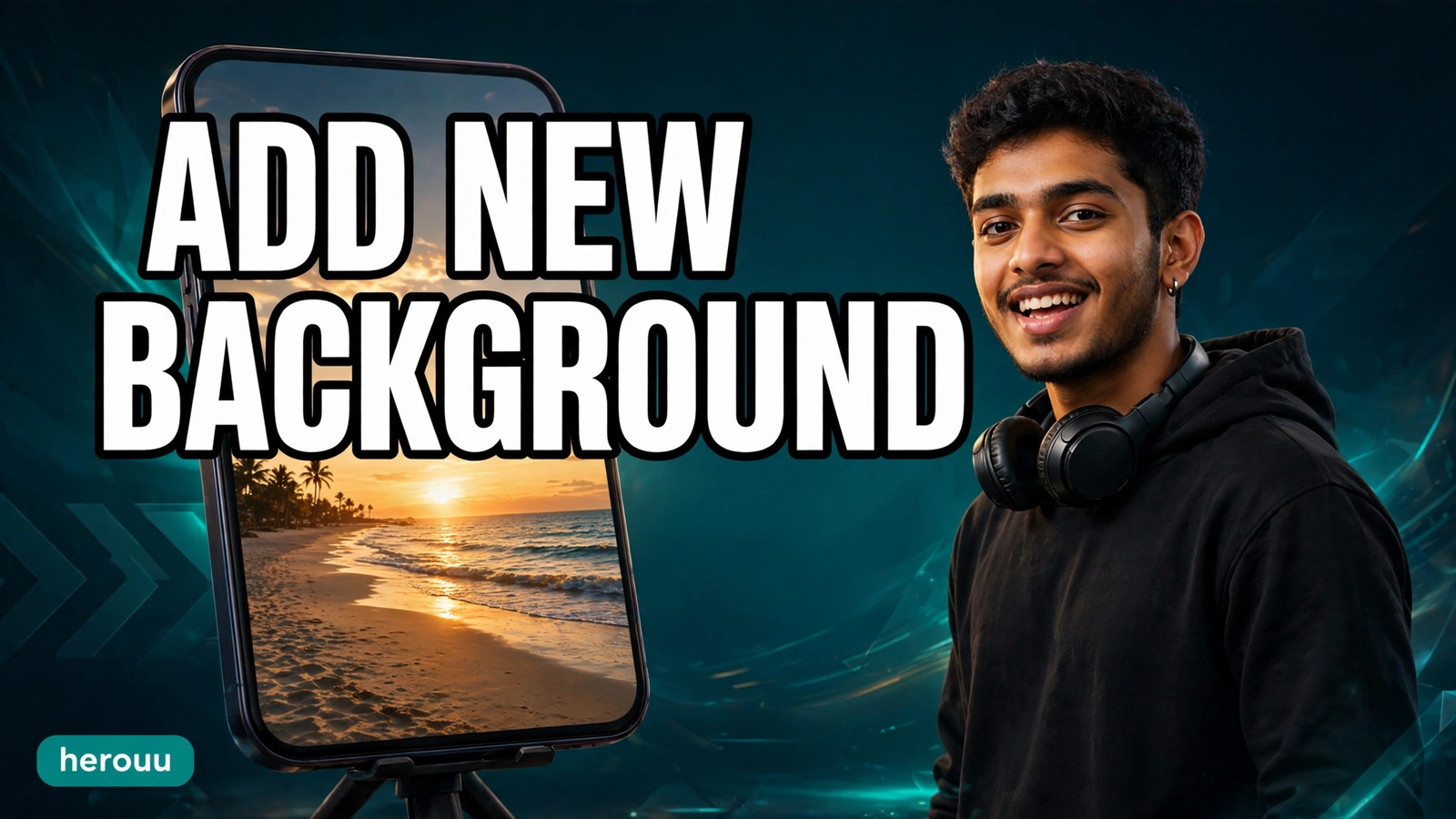
Your original clip stays safe. VN’s help page says Chroma changes apply only inside the project, and Chroma runs on your device, so it works without internet once the app and clips are on your phone.
VN Green Screen Template Ideas
Five original plans. Each copy box holds what to record, which background to use, and which settings to try.
1. Beach Holiday Reveal
A sunny beach appears behind you, so home looks like a holiday.
Beach holiday reveal: 1 clip of you waving for 10 seconds against green. Background: your own beach photo or video. In VN, beach on the main track, your clip as overlay, Chroma to remove green, Intensity near 70, Spill near 40. Title: Wish You Were Here. Export in 9:16.
2. City Night Talk
City lights glow behind you as you speak.
City night talk: 1 clip of you talking for 20 to 30 seconds against green. Background: your own night city video or photo. Use this VN green screen template plan in VN: city video on the main track, your clip as overlay, Chroma to key out the green, Intensity near 75, Spill near 45. Keep your face lit. Export in 9:16.
3. Product on a Clean Backdrop
Your product sits on a tidy shelf background, neat and ready to buy.
Product on a clean backdrop: 1 clip of your product turning for 12 seconds against green. Background: your own plain wall or shop shelf photo. In VN, background on the main track, product clip as overlay, Chroma to remove green, Intensity near 80, Spill near 50. Keep it centred. Add your real shop name. Export in 9:16.
4. Gaming Reaction
Your face cam sits in a corner over your gameplay.
Gaming reaction: 1 clip of your face reacting for 20 seconds against green. Background: your own gameplay recording. Use this VN green screen template plan in VN: gameplay on the main track, your clip as a small overlay in one corner, Chroma to remove green, Intensity near 70, Spill near 40. Title: My Reaction. Export in 9:16 or 16:9.
5. Festival Greeting
You wave as lights and decorations glow behind you.
Festival greeting: 1 clip of you waving for 10 seconds against green. Background: your own festive photo with lights or decorations. In VN, festive photo on the main track, your clip as overlay, Chroma to remove green, Intensity near 70, Spill near 40. Add greeting text for 3 seconds. Export in 9:16.
Tips for Clean Green Screen Results
These tips fix the problems creators hit most often in a VN green screen template.
- Record a 5 second test clip first and key it out in VN. If it looks clean, your lighting is right.
- Light your face and the screen separately. A lamp on your face and lamps on the cloth stop the two from fighting.
- Keep long hair tied back. Flyaway hair is the hardest part of any key, since thin strands mix with green.
- Stand about one metre from the screen. The space cuts the green bounce on your shoulders.
- Sample green from the middle of the screen, where the colour is flat and even, not a corner or fold.
- Export a 5 second test first and watch it in your gallery. If the edges look clean, export the full clip.
Common Problems and Fixes
These fixes cover the most common VN green screen template problems.
| Problem | Likely Cause | Fix |
|---|---|---|
| Green patches stay behind you | Uneven light, wrinkled cloth | Smooth the cloth, light the dark side, sample again |
| Hair or edges go see-through | Intensity set too high | Lower Intensity, raise Spill slowly |
| Green outline around your body | Green light bouncing back | Stand further back, raise Spill |
| Black area behind you after keying | Background on the wrong track | Background on main track, green clip as overlay |
| Video looks dull after export | Low export resolution or frame rate | Export again at higher resolution |
| Clip lags while you edit | Too many layers or a long clip | Remove extra layers, edit in shorter parts |
Frequently Asked Questions
Do I need a real green screen for a VN green screen template?
No, you do not need a shop bought screen. A plain green bedsheet, a green wall, or green chart paper works if the colour is even and the light is flat. The key is one solid colour with no pattern, so smooth the surface first.
Is the Chroma tool free in VN?
Yes, Chroma is part of the free VN app, and you can use it without paying. VN also has extra paid features, and the exact list can change with updates, so check the app itself before you plan a video around a feature.
Why does my green screen look patchy after I apply Chroma?
Patchy results in a VN green screen template come from uneven light on the cloth. One side is brighter, so VN removes green in one place and leaves it in another. Add a second lamp on the dark side and smooth out folds.
Can I use a blue screen instead of green in VN?
Yes, you can. Chroma removes the colour you pick, so it works with a blue screen too. Green is the usual choice because phone cameras record green cleanly and it stands apart from skin tones. Avoid blue clothes with a blue screen.
Does VN change my original video when I use Chroma?
No, it does not. VN’s own help page says Chroma changes apply only inside the VN project, and the original video stored on your phone stays as it is. You can always go back to the original clip and start again.
Can I use Chroma without internet?
Yes, you can. VN’s help page says Chroma runs locally on your device, so it works without an internet connection. You still need the app installed and your clips saved on the phone. Export also works offline, though sharing the video later needs internet.
What size should I pick for Instagram Reels?
Pick 9:16 for reels and Shorts, because that is the full vertical phone screen. Pick 16:9 for YouTube videos watched on a wide screen. Set the canvas size before you add your clips, so the background and overlay both fit the frame from the start.
Why does my subject look like it has a green glow?
That glow is spill, when green light from the screen bounces onto your skin and clothes in a VN green screen template. Stand further from the screen, light your face, and raise Spill until the glow fades. A little spill is normal.
Can I add more than one green screen clip in a project?
Yes, you can. Add each green screen clip as its own overlay and apply Chroma to each one separately. This works for a reaction video with two people, or a product plus a face clip. Keep overlays low, since each adds work for your phone.
Conclusion
A VN green screen template is a simple way to make your videos look filmed anywhere in the world. Record against an evenly lit green background, add your new scene on the main track, and let Chroma remove the green with careful Intensity and Spill. Try the beach reveal first, since it needs only one photo and one clip, then browse the VN category on herouu.buzz for more VN green screen template guides.
Related Reading
These guides go well with this VN green screen template:
- VN Retro Film Template: Easy Vintage Look Guide
- VN Colour Grading Template: Easy Colour Look Guide
- VN Blur Effect Template: Easy Blur Background Guide
- VN Neon Effect Template: Easy Neon Glow Guide
- CapCut Green Screen Template: Easy Green Screen Guide
About herouu
herouu is a free guide site for everyday creators. We write simple step by step guides in our own words, with our own images.
Disclaimer
This guide follows the official VN help page. App menus can change with updates, so check the official VN app or help page if a button looks different. Always use your own photos and videos.
Sources
- VN Help Center, Chroma Key
- VN Video Editor, How to Use Cutout in VN Video Editor
- VN Video Editor, How To Remove Green Screen in VN Video Editor
Details not officially announced: VN has not published which exact export resolutions and frame rates appear on every phone, so this guide tells you to pick them in the export menu. No template code or download link is given for this VN green screen template because VN has not published one.