
AI video editing for birthday videos turns a phone full of party clips and photos into a short, sweet film in less than an hour. This guide is for parents, friends, and everyday creators in India who want a clean birthday video without a heavy editing app. You will use CapCut on your phone, pick a template, and finish with music and text. Before you start, check you have the latest app version from your official app store, because button names can change.
At a glance
AI video editing for birthday videos is a simple way to make a party film from clips you already have. CapCut arranges your photos and clips, adds music, and suggests captions, so you choose moments instead of cutting every second by hand. Pick your best 10 to 20 clips and keep the video under one minute.
Quick Overview
| Topic | Details |
|---|---|
| Topic | Birthday video made with AI help in CapCut |
| Category | Ai Video Editing |
| App or Tool | CapCut mobile app, free version |
| Skill Level | Beginner |
| Time Needed | 30 to 60 minutes |
| Media Needed | 10 to 20 photos or clips, one birthday song |
| Cost or Free Features | Free templates, auto captions, music library, and basic effects; some items need a paid plan |
What you will make
You will make one short birthday video that opens with the birthday person, moves through party moments, and ends with a wish. One clear idea beats five ideas mixed into the same minute, so choose the idea that fits your clips and stick to it.
| Video idea | Best for | Clips needed |
|---|---|---|
| Photo memory reel | Parents and grandparents | 12 to 15 old and new photos |
| Party highlights reel | Friends and family groups | 8 to 12 short party clips |
| Birthday wish video | Long-distance family | 5 to 8 short wish clips |
| Cake and candle moment | A short share on WhatsApp or Instagram | 3 to 5 clips of the cake and candles |
| Milestone birthday film | 18th, 50th, or 60th birthdays | 15 to 20 photos across the years |
Before you start
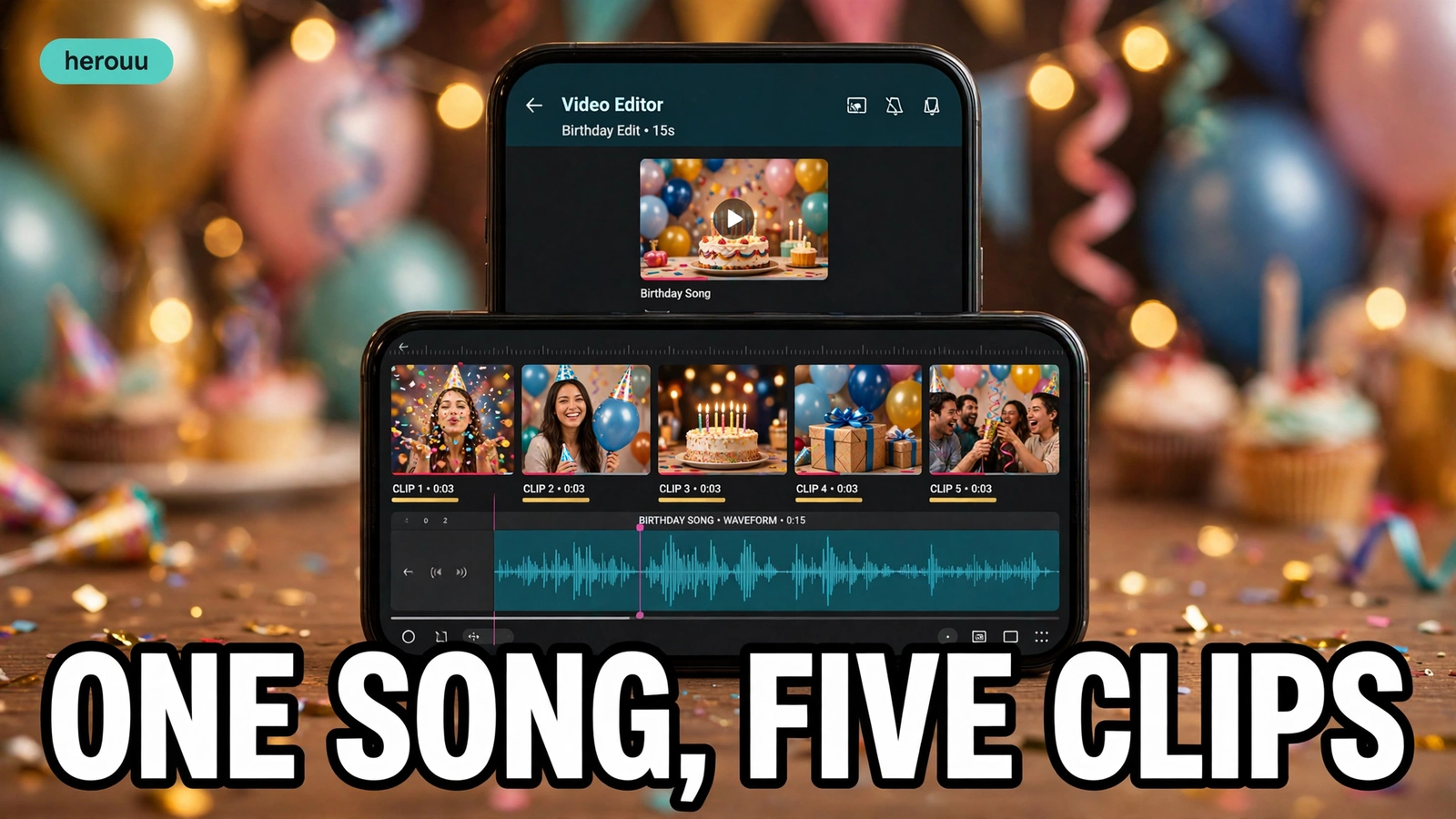
Gather clips before you open the editor. Save favourites into one album, so you are not searching mid-edit. Delete blurry shots and near-duplicates now, so the video does not repeat the same face three times in a row.
Check storage too. A one-minute video in 1080p needs little space, but the app also keeps a working copy of your project. If clips come from different phones, ask for the original files, not screen recordings, because compressed copies look soft.
| Requirement | What to check |
|---|---|
| Phone | Android or iPhone with CapCut |
| Storage | At least 1 GB free |
| Clips | Your own photos and videos, portrait 9:16 |
| Internet | Needed for templates, music, and AI tools |
| Music | A track from the CapCut library, or your own audio |
AI video editing for birthday videos works best with short, bright clips. If a clip is dark or shaky, keep it short or drop it, because the tools cannot rescue a shot where the birthday person is out of frame.
Steps for AI video editing for birthday videos
Follow these steps in order, and preview after step five, when timing is still easy to fix.
Step 1: Open CapCut and start a new project
Open CapCut, tap New Project, and pick clips from your album in the order you want them. Tap Add. You can move clips later if the story feels wrong.
Step 2: Set the size to 9:16
Tap the video on the timeline, find the ratio setting, and choose 9:16, the vertical size for Reels, Shorts, and WhatsApp Status. Skip it and your video may export with black bars or a cropped face.
Step 3: Trim each clip to two or three seconds
Tap a clip and drag its edges to cut the dull start and end. Keep the laugh, the candle blow, or the hug, and cut the rest. Aim for 30 to 60 seconds in total.
Step 4: Try Auto Cut or a birthday template
For a fast start, tap Auto Cut on the home screen, choose your clips, and let the app build a first cut with music and transitions. Or open the Templates tab, search for “birthday”, preview a few, and tap Use Template. Replace each placeholder with your own photo or clip, and check for a Pro label first, since some premium templates need a paid plan to export without a watermark.
Step 5: Add music and match the beat
Tap Audio, then Sounds, and search the built-in music library for a happy birthday tune. Listen to the whole track first. Then move a clip so the cake shot or a big smile lands on a beat. One good match near the middle and one at the end is enough.
Step 6: Add auto captions for the wishes
If anyone speaks a wish, tap Text, then Auto Captions, choose the spoken language, and tap Generate. CapCut writes captions that follow the speech, and you can tap one to fix a wrong word. Keep captions to two short lines in a bold font with a dark outline, so they stay readable over party lights. With no speech, add one text line with the name and age instead.
Step 7: Add one filter, one effect, and simple text
Pick one light filter, so skin tones still look natural. Add a simple effect only at the celebration moment, such as confetti when the cake arrives, and put the name, age, and date on the opening clip. Too many effects make the video look busy.
Step 8: Preview, export, and save
Watch the full video twice, once with sound and once without, and check that no face is cut off, no caption has a spelling mistake, and the music does not drown out a wish. Tap Export, choose 1080p, and share a copy with one family member before you post it widely.
5 birthday video workflow ideas
Use one plan as a starting point, then change the clips to fit your own party. AI video editing for birthday videos works best with a clear plan, because the tools follow your clips and do not choose the story for you.
Memory reel workflow for AI video editing for birthday videos: pick 12 photos from different years, oldest first, add one cheerful song, keep each photo on screen for two seconds, and end with a recent photo and Happy Birthday.
Party highlights workflow: choose 10 clips of dancing, games, and laughter, trim each to two seconds, place the cake cutting in the middle, add a light filter, and export in 1080p.
Birthday wish workflow: record five short wish clips from family members, place them in order, add auto captions in the spoken language, fix wrong names, and finish with a group photo and the date.
Cake moment workflow for AI video editing for birthday videos: film the candles, the song, and the first slice in three short clips, keep the real sound, add the name in bold text, and share the 20 second cut on WhatsApp first.
Milestone birthday workflow: gather 15 photos from childhood to today, group them by decade, add one slow song, use a gentle fade between groups, and close with a recent family photo and a thank you line.
Tips
AI video editing for birthday videos saves time, but a few small choices decide whether the video feels warm or messy.
- Start with the face, not the room. Open on the birthday person smiling, because the first two seconds decide whether people keep watching.
- Use your own music with care. A track from the CapCut library is the safe choice, since copied songs can get muted when you share the video.
- Keep text big and short. Names, ages, and one wish line are enough, since long sentences are hard to read while the video moves.
- Save a copy first. Duplicate the project before you try a new template, so you can go back if it looks worse.
- Watch it on a phone. Most family members will see it there, so check text size and faces first.
- In AI video editing for birthday videos, export once in 1080p and check the file before you post it, because a second export can change the colours.

Common Problems
Most birthday edits hit the same few problems. AI video editing for birthday videos still needs a human eye at the end, so watch the whole video before you blame the app.
| Problem | Likely cause | Fix |
|---|---|---|
| Video looks blurry after export | Low quality clips or a low export setting | Use original clips and export at 1080p |
| Music is louder than the wishes | Music track level is too high | Lower the music and raise the clip audio |
| Captions spell a name wrong | Auto captions misheard the word | Tap the caption and type the correct name |
| Template shows a watermark | The template needs a paid plan | Pick a free template for AI video editing for birthday videos or remove the Pro effect |
| Faces get cut off on the sides | Wrong ratio or a tight crop | Set 9:16 and reframe each clip |
| App slows down during editing | Low storage or too many clips | Free up space and use under 20 clips |
FAQ
Is AI video editing for birthday videos free in CapCut?
Yes, the basic tools are free in CapCut. Templates, auto captions, the music library, and 1080p export are available without paying. Some templates, effects, and export settings carry a Pro label and need a paid plan, so check each item before you use it.
How long should a birthday video be?
Keep it 30 to 60 seconds for Instagram, YouTube Shorts, or WhatsApp. Short videos made with AI video editing for birthday videos hold attention better and are easier to edit. Save a longer version only for family viewing, where people know everyone in the clips.
Can I make a birthday video with only photos?
Yes, photos work well for AI video editing for birthday videos. Pick 12 to 15 sharp photos, keep each on screen for about two seconds, and add music and one text line. Mix old and new photos so the video tells a small story.
Do I need experience for AI video editing for birthday videos?
No, you do not need editing experience. CapCut templates and Auto Cut handle the cutting and timing, and auto captions write the spoken words for you. Your job is to choose good clips, check name spellings, and watch the final video before sharing it.
Which is better, Auto Cut or a template?
Auto Cut is better with many clips and a quick first cut with music. A template is better for AI video editing for birthday videos when you want a set style, such as confetti or a vintage look. Try Auto Cut first, and switch to a template only if the first cut misses the mood.
How do I add a birthday song without copyright trouble?
Use a track from the CapCut built-in music library, which is made for AI video editing for birthday videos. Avoid songs copied from other apps, because they can be muted when you share the video. Check the rules in the app before you post it.
Why does my exported video look different from the preview?
In AI video editing for birthday videos, the preview plays at a lower quality to keep editing smooth, while the export uses your chosen resolution. If the export looks worse, check you picked 1080p and used original files. Compressed clips sent over chat often look soft after export.
Can I edit a birthday video on a computer?
Yes, CapCut also has a desktop and web editor. Templates made for mobile may not open on a computer, so check that first. The phone app is faster for AI video editing for birthday videos, because your photos are already on the phone.
What size should I export a birthday video in?
For AI video editing for birthday videos, export in 9:16 vertical size at 1080p for Reels, Shorts, and WhatsApp Status. This size fills a phone screen with no black bars. Use a higher resolution only if your clips were filmed in 4K and your phone has storage for the larger file.
Conclusion
AI video editing for birthday videos turns party clips into a film your family will watch again. Pick one idea, gather your best clips, and finish one short video today. Then browse the Ai Video Editing category on herouu.buzz for your next celebration.
Related reading
- AI Video Editing for Dance Reels: Easy Step by Step Guide
- AI Video Editing for Fitness Reels: Easy Step by Step Guide
- AI Video Editing for Vlogs: Easy Step by Step Guide
- AI Video Editing for Wedding Videos: Easy Step by Step Guide
- Ai Video Editing Category
About herouu
herouu.buzz shares free templates, photo prompts, and video editing ideas for everyday creators. Our guides on AI video editing for birthday videos help you make good videos on your phone, with clear steps and honest notes about free tools.
Disclaimer
This guide is based on the official CapCut app and help pages as we found them, and features, button names, and free limits may change. Check the official CapCut app or help page for the latest steps, and use only your own photos, clips, and music you have the right to share.
Sources
- CapCut, How to Make Birthday Video with Pictures and Music
- CapCut, Top 5 AI Birthday Video Makers
- CapCut, CapCut Auto Cut
- CapCut, Happy Birthday Video Maker
- CapCut, Top 7 Birthday Video Templates
No template code, download link, price, or release date is stated here, because none was officially announced. Where a feature may differ by version or region, check the official app or help page.