
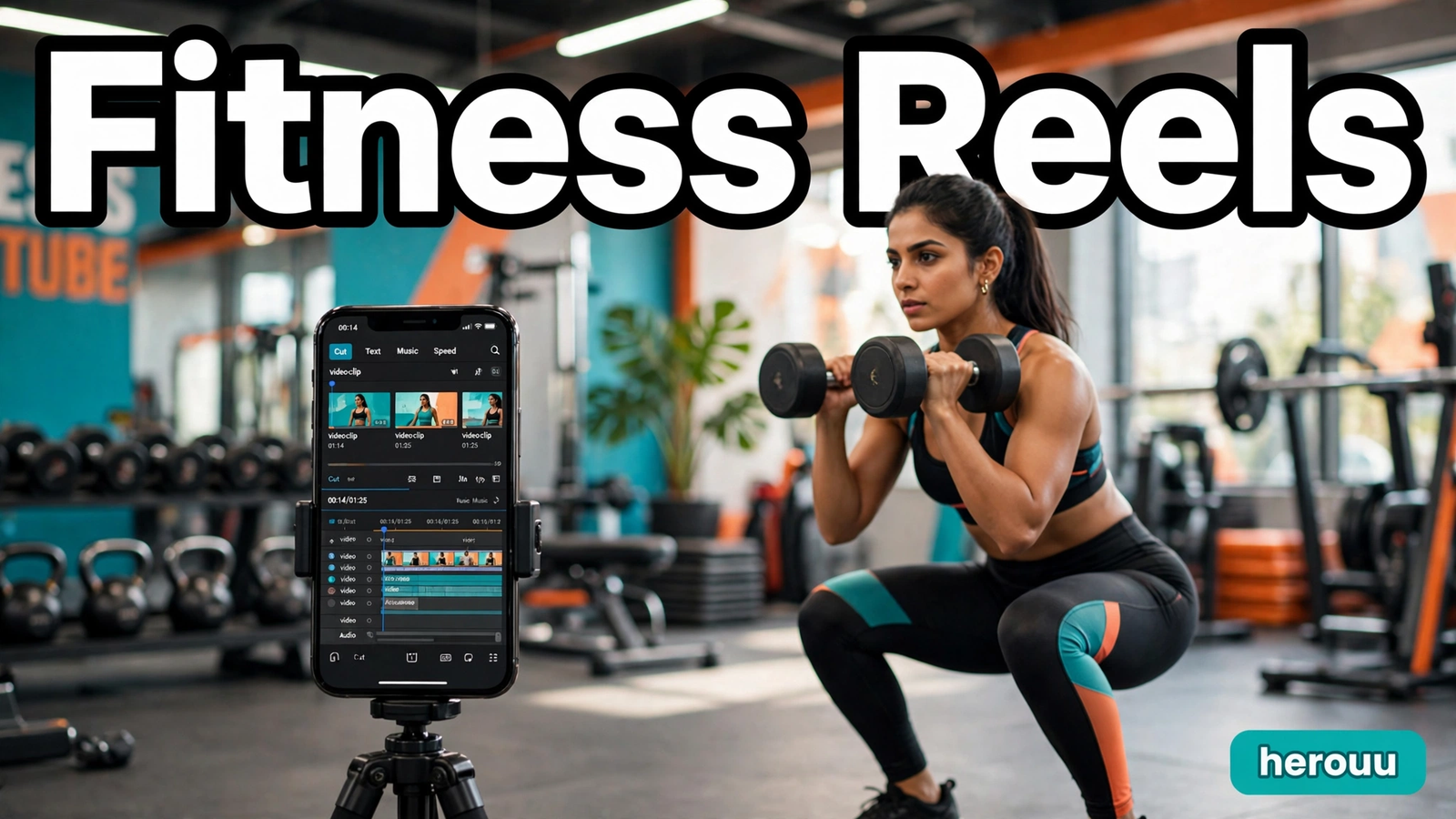
AI video editing for fitness reels can turn a long, shaky gym recording into a sharp 30-second reel people actually finish watching. You pick your best clips, let the app add captions and cut on the beat, then export in vertical 9:16 for Instagram Reels. This guide shows the full workflow in CapCut and VN, five reel ideas to copy, and the fixes for common problems. App screens change often, so check the official help page if a button looks different.
At a glance
- Film your workout in short clips, then let AI handle the slow parts: captions, silence removal, and beat-synced cuts. That is ai video editing for fitness reels.
- CapCut and VN both offer auto captions, beat sync, and vertical export free, with no watermark in VN.
- Keep reels between 15 and 60 seconds, and put the best rep in the first 3 seconds.
- Use your own clips and music from the app library, and check the music terms before you post.
- Export in 9:16 at 1080×1920, watch once, then post.
Quick Overview
| Topic | AI video editing for fitness reels |
|---|---|
| Category | Ai Video Editing |
| App / Tool | CapCut app or VN app, phone or web |
| Skill Level | Beginner |
| Time Needed | 20 to 40 minutes for one reel |
| Media Needed | 3 to 6 short workout clips from your own session |
| Cost / Free Features | Free in both apps. Auto captions, beat sync, and basic templates are free. Exact limits are not published. |
What you will make
You do not need a full workout video or a camera crew. A few short clips from one gym session are enough for several kinds of reels with ai video editing for fitness reels.
| Reel idea | Best for | Clips needed |
|---|---|---|
| 30-second workout circuit | Daily posts | 4 to 5 exercise clips |
| Form tip reel | Teaching one move | 2 to 3 clips of the same move |
| Before and after progress reel | Progress posts | 2 clips, old and new |
| Morning workout routine | Routine content | 4 clips, warm-up to finish |
| Gym motivation reel | High-energy posts | 5 to 6 short action clips |
Before you start
| What you need | Why it matters |
|---|---|
| CapCut app or VN app, signed in | Both apps cut, caption, and sync clips |
| Your own workout clips | Use only clips you filmed, or ones you have permission to use |
| 1 to 2 GB free storage | Projects and exports need room |
| A phone tripod or a steady surface | Steady clips beat handheld footage |
| Earbuds or a quiet spot | You need to hear the audio to check captions |
Film each exercise as its own short clip, 5 to 15 seconds long, and say the exercise name out loud if you plan to add captions. Wipe the lens first, and film in the same bright spot for every clip. In ai video editing for fitness reels, check one clip before you film the rest, because a wrong setting early on ruins the whole set.
How to edit a fitness reel with AI
The steps below work in CapCut and VN. Menu names change with updates, so use the closest matching option. These steps use ai video editing for fitness reels in both apps.
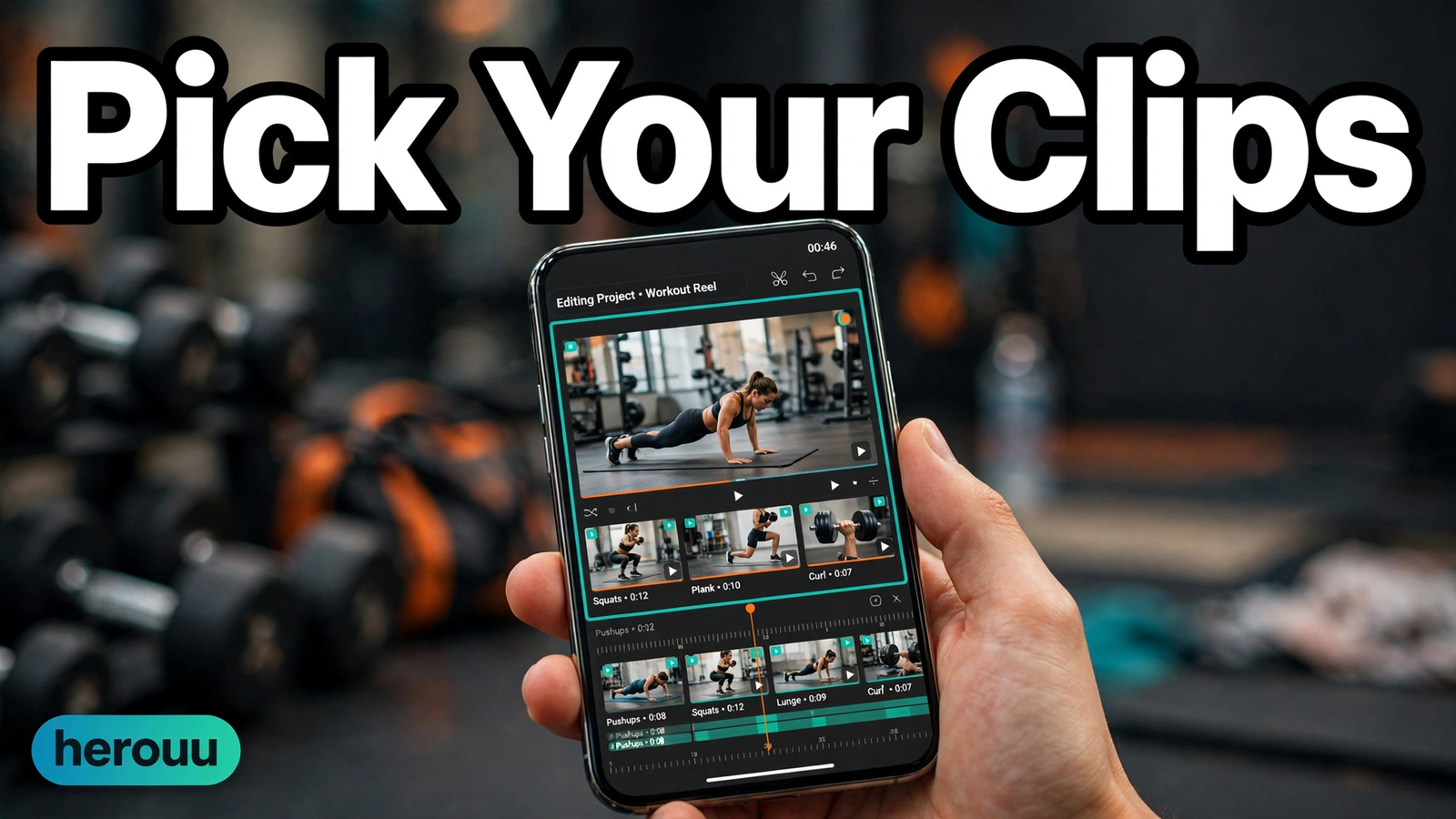
- Pick your best clips. Choose 3 to 6 clips from one workout, keep only the reps with good form and clear light, and delete the rest.
- Start a new project. Open CapCut or VN, tap New Project, and import your clips, strongest first.
- Set the canvas to 9:16. Choose the vertical ratio before you cut anything, so nothing gets cropped. In CapCut this is under Canvas or Format, and in VN under Ratio.
- Trim each clip to the best seconds. Cut off the walk-in, the rest between sets, and the fumbling at the end. For ai video editing for fitness reels, keep each clip 2 to 5 seconds, with only the rep on screen.
- Remove silences and dead air. In VN, Auto Captions can also detect and remove filler words and silent parts. In CapCut, use silence removal or delete quiet gaps by hand.
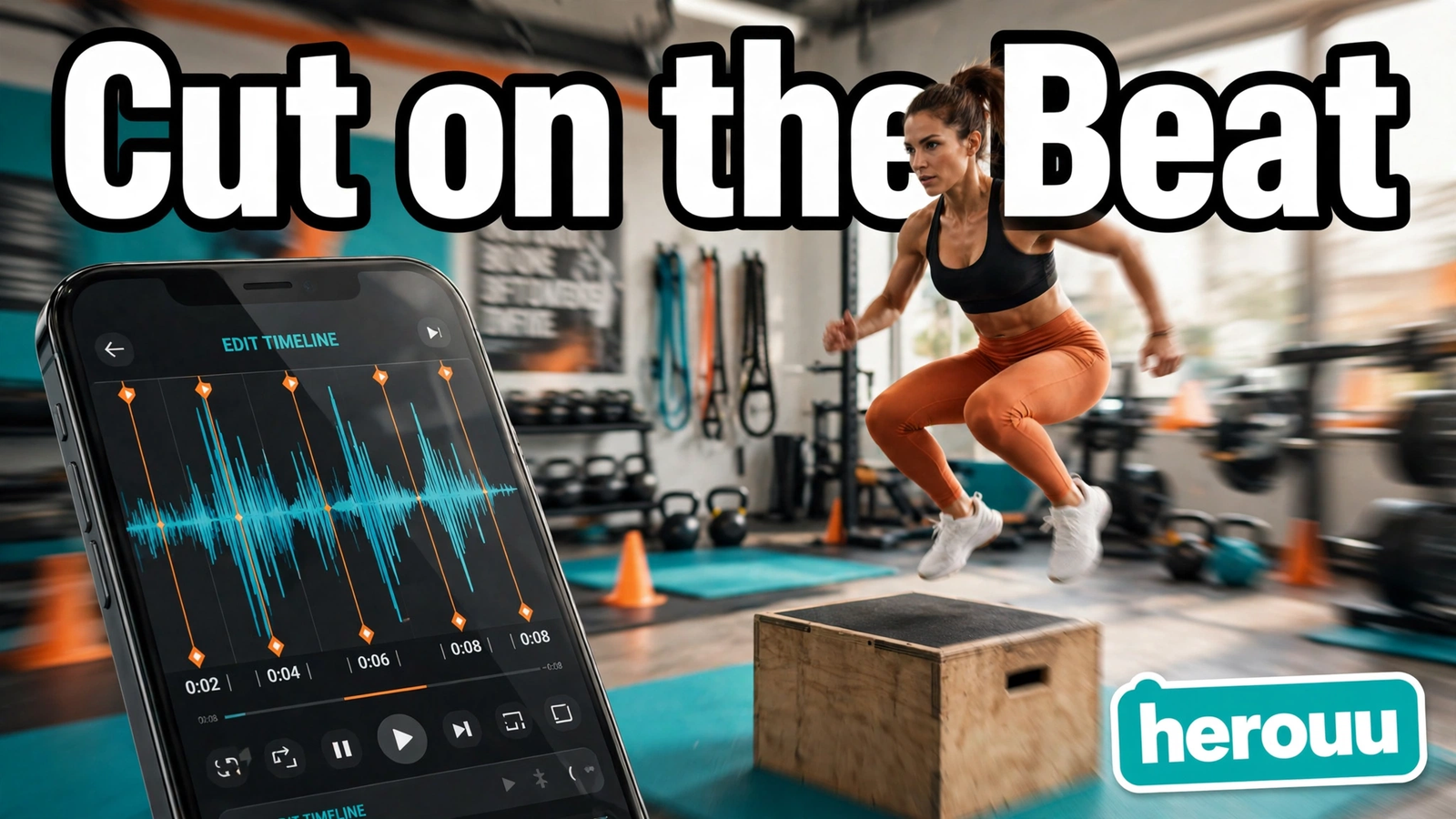
- Add your music first, then beat sync. Pick a track from the app library, then run Beat Sync in CapCut or add beat markers in VN. Drag each cut to land on a beat marker.
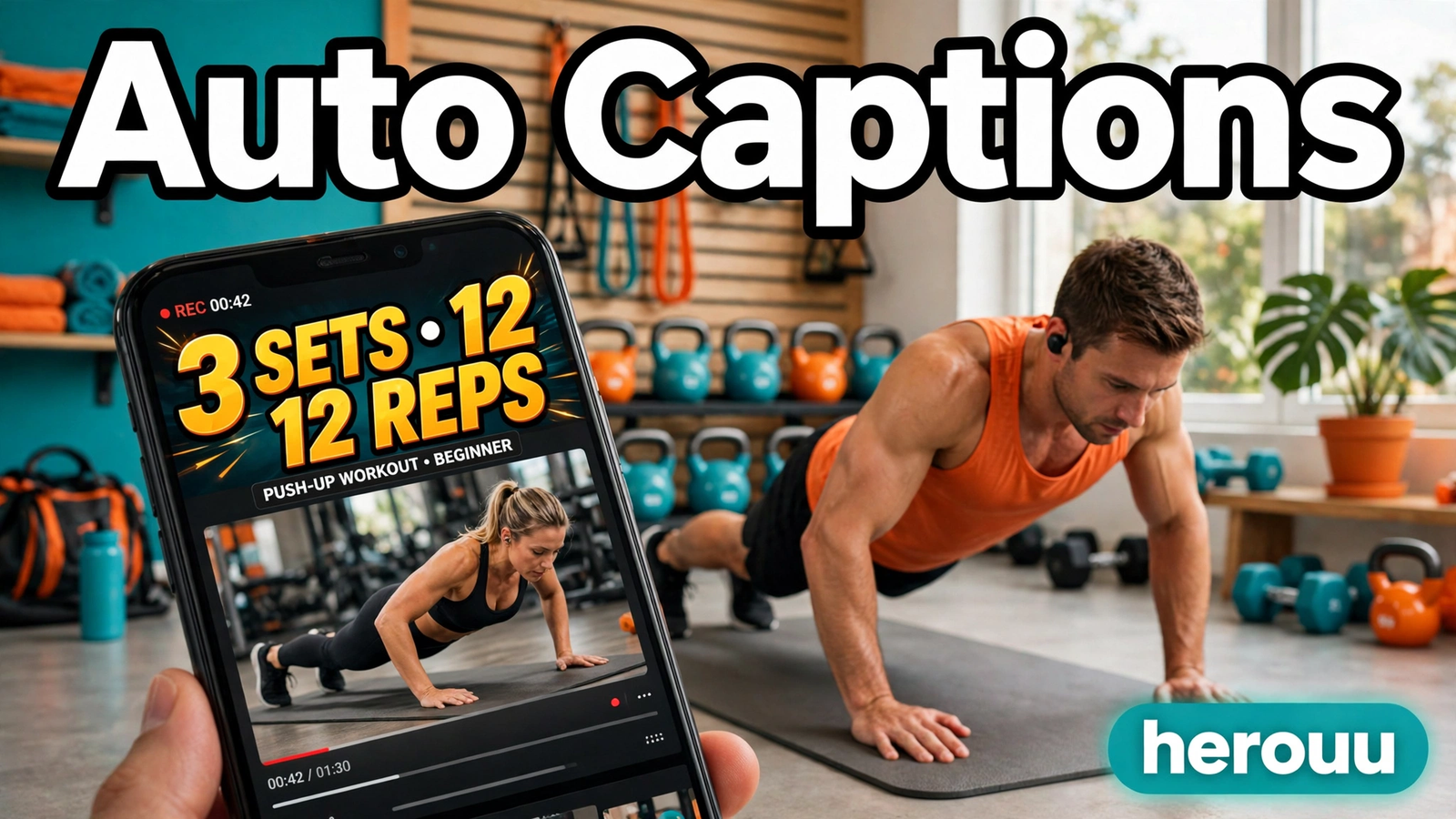
- Generate auto captions. In CapCut tap Text, then Auto captions, and pick your language. In VN, open Auto Captions and generate subtitles from the audio. Check every line, because gym noise often changes a word.
- Add big on-screen text for sets and reps. Put short text like “3 sets, 12 reps” over the clip where the exercise starts. Keep it short and bold, inside the safe area so the Reels buttons do not hide it.
- Add one transition per cut, at most. A simple cut or a quick zoom works best for ai video editing for fitness reels. Too many flashy transitions make the workout hard to follow.
- Preview the whole reel with sound on. Watch it once and check the captions, the beat cuts, and the text. Fix anything off now, not after you export.
- Export in 9:16 at 1080×1920 and post. Pick 1080p and 30fps for a clean file that uploads fast. VN can export up to 4K at 60fps, but most reels do not need it.
Try the same clips in both apps once and compare. If a step looks different, check the official help page.
AI Video Editing for Fitness Reels: 5 Copy-Paste Ideas
Copy one idea, follow its clip order, and change only the bracketed words to match your workout. Each of these ai video editing for fitness reels ideas gives you the clip order, captions, and music timing.
Clips: squats, push-ups, lunges, plank, jumping jacks. Keep each clip 4 to 5 seconds. Add auto captions with the exercise name, then big text that reads “5 moves, 30 seconds, no equipment”. Cut each change on a music beat, and end with a 2-second clip of you catching your breath. Export in 9:16 for Reels.
Film the same move three times: one full rep, one close-up of the feet or grip, and one slow-motion rep. Use ai video editing for fitness reels auto captions to add your spoken tip, then add your own cue, like “Knees track over toes”. Keep it under 30 seconds, cut on the beat only between angles, and end with the move at full speed.
Clips: warm-up stretch, first exercise, water break, last exercise, cool-down stretch. Add auto captions that name each part, and big text with the time, like “6 AM workout”. Use a calm track, cut gently on the beat, and keep each clip 5 to 6 seconds. Export in 9:16 for Reels.
Place your old clip first and your new clip second, both showing the same exercise from the same angle. Add text that reads “Week 1” over the first and “Week 8” over the second, with one beat cut between them. Add auto captions only if you speak. Keep it under 20 seconds.
Clips: walk into the gym, heaviest lift, fastest cardio burst, chalk hands, final rep. Use ai video editing for fitness reels beat sync to cut every clip on a strong beat, add big text like “Show up every day”, and keep each clip 2 to 3 seconds. Pick an upbeat track from the app library, export in 9:16, and watch it once with sound.
Tips that make your fitness reels look pro
These tips come from how the apps behave when you use ai video editing for fitness reels every week. Small habits matter more than any effect.
- Film every clip in the same spot with the same light. Mixed light makes the reel look patched together.
- Put the hook in the first 3 seconds. Show the heaviest rep or the final result first. Viewers decide fast.
- Keep captions short and big. Two or three words per line is enough, and the text must be readable on a small phone screen.
- Cut on the beat only where it helps. A cut on every beat feels frantic in a slow stretch clip.
- Save one project as your ai video editing for fitness reels template. Keep your caption style, text size, and export settings in a copy of your best reel, then swap in new clips.
- Post the reel, then watch your own numbers. Check which reels people finish and which they skip, and repeat the style people finish.
Common problems and fixes
Most failed reels come from the clips, the captions, or the export settings. Work through this ai video editing for fitness reels table before you refilm anything.
| Problem | Likely cause | Fix |
|---|---|---|
| The reel looks blurry after upload | Low export resolution or a weak clip | Export at 1080p, and film in good light |
| Captions spell exercise names wrong | Gym noise confuses the transcription | Edit each caption line by hand before export |
| Cuts land off the beat | Beat markers were set on the wrong track | Re-run beat sync after changing the music, then drag cuts to the markers |
| Text is hidden behind Reels buttons | Text placed too close to the edges | Keep text in the middle safe area, away from the edges |
| The file is too large to upload | 4K export or a very long reel | Export at 1080p and 30fps, and trim under 60 seconds |
| The music sounds different after export | Preview and export use different audio levels | Export once, play it on your phone, and adjust the music volume |
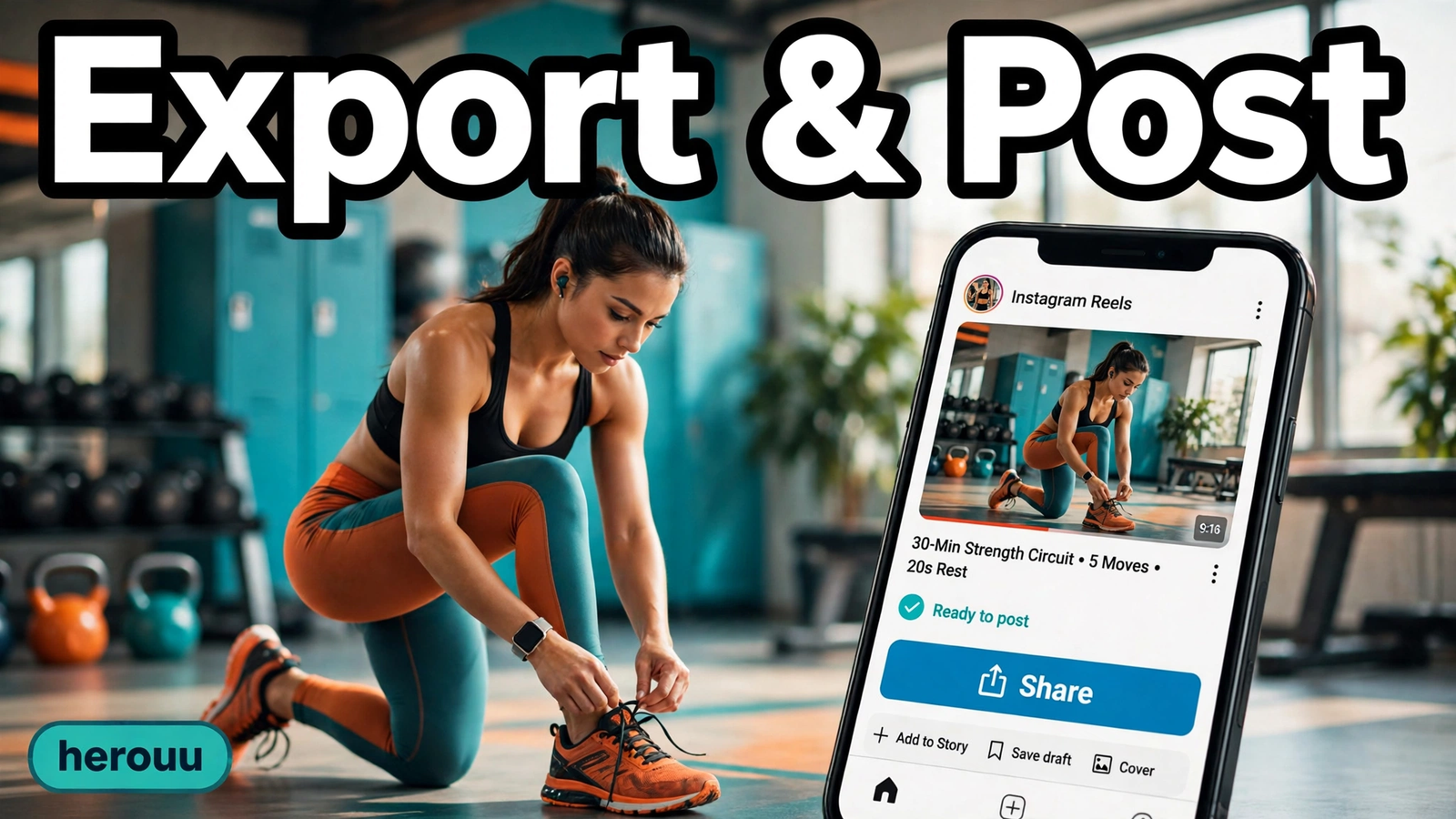
Frequently asked questions
Is ai video editing for fitness reels free?
Yes, the core tools are free in both CapCut and VN. Auto captions, beat sync, trimming, and 9:16 export cost nothing in the free versions, though some styles may need a paid plan. The exact free limits are not published.
Which app is better for fitness reels, CapCut or VN?
Both work well, and neither wins every time. CapCut has AutoCut, which turns long footage into short clips, plus a large music library. VN is free with no watermark and has BeatsClip templates and auto captions that also remove silences. Try the same clips in both.
How long should a fitness reel be?
Keep your ai video editing for fitness reels clips between 15 and 60 seconds. Short reels hold attention better, and Instagram Reels can run up to 90 seconds. If your reel runs past a minute, cut the weakest clip instead of speeding everything up.
Do I need to film in 4K for a good fitness reel?
No. A sharp 1080p clip in good light looks better than a shaky 4K clip, and it uploads faster. VN can export up to 4K at 60fps, but 1080p at 30fps is enough for Reels and Shorts. Spend your effort on light and steady filming.
Why do my auto captions get exercise names wrong with ai video editing for fitness reels?
Gym noise is the usual cause. Music, fans, and talking confuse the transcription, so words like squat or lunge come out wrong. Film in a quieter corner, say the exercise name clearly, and read every caption line before you export.
Can I use any song I like in my fitness reel?
Not safely. Songs from outside the app can cause a mute or a takedown on Instagram, so use music from inside the CapCut or VN library and check the music terms. If you want a specific song, check the platform’s music library for Reels first.
How do I cut my reel on the music beat?
For ai video editing for fitness reels, add the music first, then run Beat Sync in CapCut or add beat markers in VN. The app places markers at each beat. Drag each clip to line up with a marker, then play it back. Nudge any cut that feels off a frame at a time.
What is the best export setting for Instagram Reels?
Export in 9:16 vertical at 1080×1920, 1080p, and 30fps for a clean file that uploads fast. That size matches the Reels format, so nothing gets cropped. Save the project first, then export, and watch the file once before you post it.
Can ai video editing for fitness reels work with old clips?
Yes, as long as the old clips are sharp and well lit. Import them into a new project, trim them to the best seconds, and run the same caption and beat sync steps. Old clips in a different ratio may need cropping to 9:16, so check the edges.
Conclusion
AI video editing for fitness reels turns the workout clips you already film into short, clean reels without spending an evening in an editing app. Pick your best clips, add auto captions, cut on the beat, export in 9:16. Try the 30-second circuit idea first, then browse the Ai Video Editing category.
Related reading
These ai video editing for fitness reels guides use the same idea: your own clips, one workflow, and a check before you post.
- AI Video Editing for Instagram Reels
- AI Video Editing for YouTube Shorts
- Morning Routine Reel Editing
- Browse all video editing guides in the Ai Video Editing category
About herouu
herouu is a free resource for everyday creators. It shares ai video editing for fitness reels and simple guides for VN, CapCut, and AI apps, in plain English for phone users.
Disclaimer
This guide is based on the official CapCut and VN help pages and app store listings available at the time of writing. Features, limits, and menu names may change, so verify the latest details in the app.
Sources
- CapCut, CapCut Auto Cut guide
- CapCut, Beat Detection Workflow
- VN, Google Play listing
- VN, App Store listing
- AI in Asia, CapCut for Beginners
- BlitzCut AI, Video Editing App for Fitness Coaches
Details not officially announced: the exact free-plan limits for CapCut and VN auto captions and AutoCut are not published.