
AI video editing for dance reels helps you turn raw dance clips into a clean, beat-matched reel without spending hours on the timeline. This guide is for beginners, hobby dancers, and small creators in India who shoot on a phone and want a reel that looks neat and feels in rhythm. You will use CapCut and its AI tools, and you can follow every step on a phone. App menus change between versions, so check the official CapCut help page if a button looks different on your phone.
At a glance
AI video editing for dance reels works best when you plan the song first and let the AI handle the first rough cut. Pick one song, shoot short clips for each part of the dance, and let CapCut Auto Cut place the first cuts on the beat. Then check the cuts yourself, fix the ones that land late, add captions, and export in vertical 9:16 at 1080p.
Quick Overview
| Topic | Details |
|---|---|
| Topic | AI video editing for dance reels |
| Category | Ai Video Editing |
| App or Tool | CapCut mobile or desktop |
| Skill Level | Beginner |
| Time Needed | 30 to 45 minutes |
| Media Needed | 5 to 10 short dance clips and one song |
| Cost or Free Features | Free to install and edit; Auto Cut and auto captions included, while some AI features may be marked Pro |
What you will make
A dance reel is a short vertical video, usually 15 to 30 seconds long, where each cut lands on a beat of the song. For AI video editing for dance reels, pick one idea below, shoot the clips for it, and follow the steps in this guide.
| Reel idea | Best for | Clips needed |
|---|---|---|
| Hook in the first two seconds | New dancers | 1 hook clip, 4 to 6 dance clips |
| One song, three outfits | Outfit change reels | 3 outfit clips, 1 ending clip |
| Slow build to a drop | Songs with a clear beat drop | 4 slow clips, 3 fast clips |
| Mirror and duet style | Dancers filming at home | 6 to 8 clips, one spot |
| Practice to performance | Learners showing progress | 2 practice clips, 4 performance clips |
Before you start
You need the CapCut app on your phone or computer, your dance clips in your gallery, and one song you have the right to use. Use your own recording or a song from the CapCut music library. Do not use a song from an unknown site. Shoot all clips in vertical 9:16, in the same light, and keep the camera still so the cuts look clean. Keep your clips in one folder, so AI video editing for dance reels stays quick. Free up 1 GB before you export.
| Requirement | What you need |
|---|---|
| Phone | Android or iPhone with CapCut installed and updated |
| Computer (optional) | CapCut desktop for a bigger screen |
| Clips | 5 to 10 vertical clips, 2 to 5 seconds each |
| Song | One track from CapCut or your own recording |
| Storage | At least 1 GB free |
| Internet | Needed for the music library and AI tools |
CapCut Auto Cut is available on CapCut mobile and desktop, but not on CapCut Web, according to the official help page. For AI video editing for dance reels, use the mobile or desktop app, not the browser. The AI text-prompt mode is still rolling out, so it may not appear in your app yet. The Beat Sync route in this guide works without it.
How to do AI video editing for dance reels in CapCut
Follow these steps in order for AI video editing for dance reels. Do the AI pass first, then fix the timing by hand. The AI gives you a draft, and your eyes and ears give you the final cut.
Step 1: Import your dance clips and your song
Open CapCut and start a new project. Add your dance clips in order, then add your song to the audio track. Listen to the full song once before you cut anything. Note where the beat drops and where the energy changes, because those are the places your cuts should land in AI video editing for dance reels.
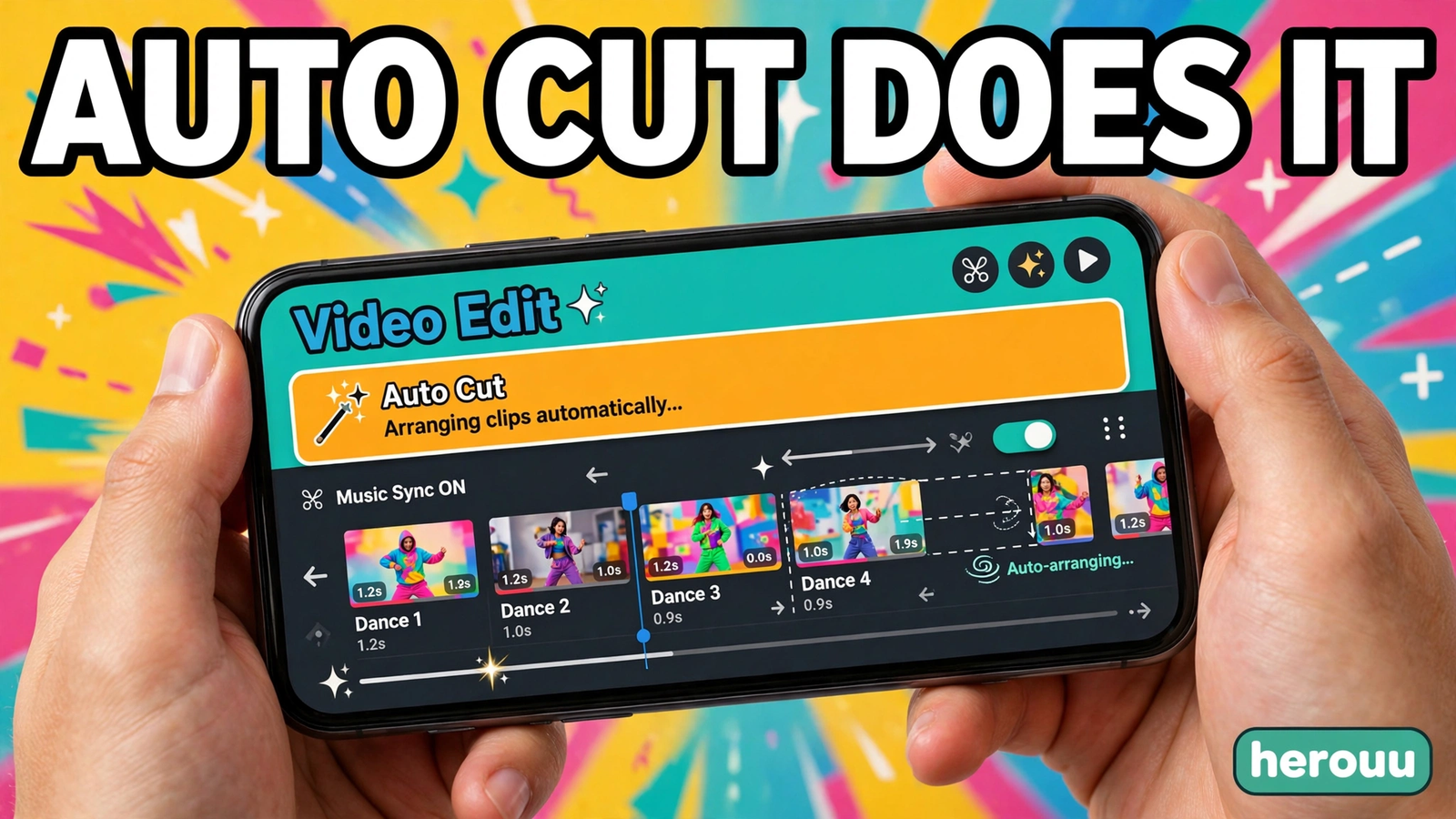
Step 2: Open Auto Cut and choose Beat Sync
Find Auto Cut in the AI tools area of the app. Its spot can change between versions, and it may appear as Beat Cut or Smart Trim. Choose Beat Sync as the cutting mode. This tells CapCut to cut your clips to the music beat, not to speech pauses. Speech Pause Detection suits talking videos, not dance reels.
Step 3: Let the AI build the first cut
Tap or click Generate and let CapCut study your clips and your song. This is the heart of AI video editing for dance reels: the app places cuts near the beats it detects. Wait for it to finish; do not close the app. Then play the full sequence once, with the sound on.
Step 4: Check every cut against the beat
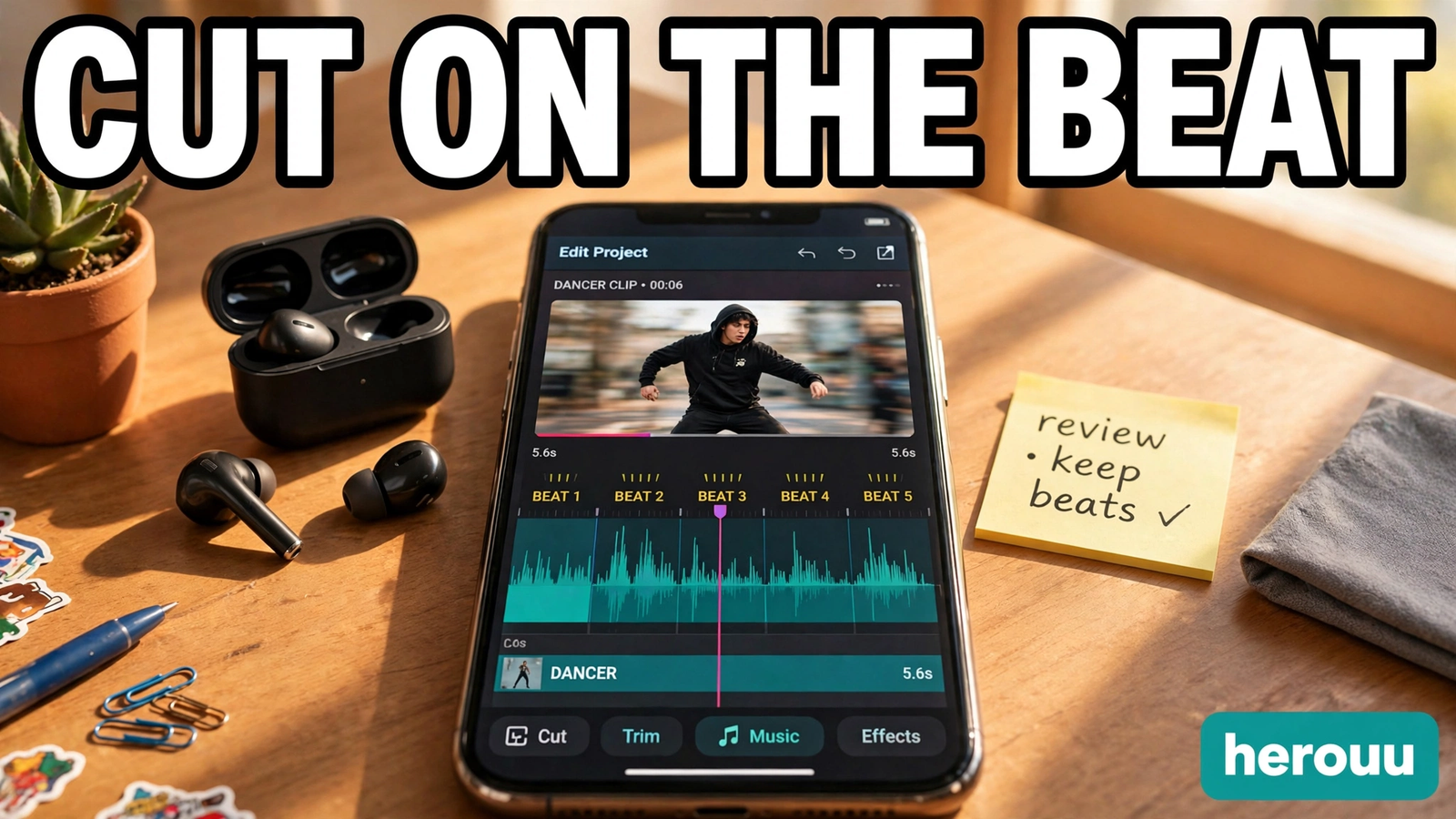
Play the draft again and watch the cut points. A good cut lands on a downbeat, the strong beat you can tap your foot to. If a cut lands late, drag the clip edge to the nearest beat marker. Tap the audio track, open Beat, and use Auto Beat to add markers, then snap each clip end to a marker and delete any that sits off the beat.
Step 5: Trim the weak moments and fix the order
Remove any clip that repeats the same move, and cut the half second where you step into frame by mistake. AI video editing for dance reels saves time, but it cannot tell which take looks best. Keep the sharpest take of each move and drop the rest. If two clips feel out of order, drag them into the right place.
Step 6: Add auto captions and on-screen text
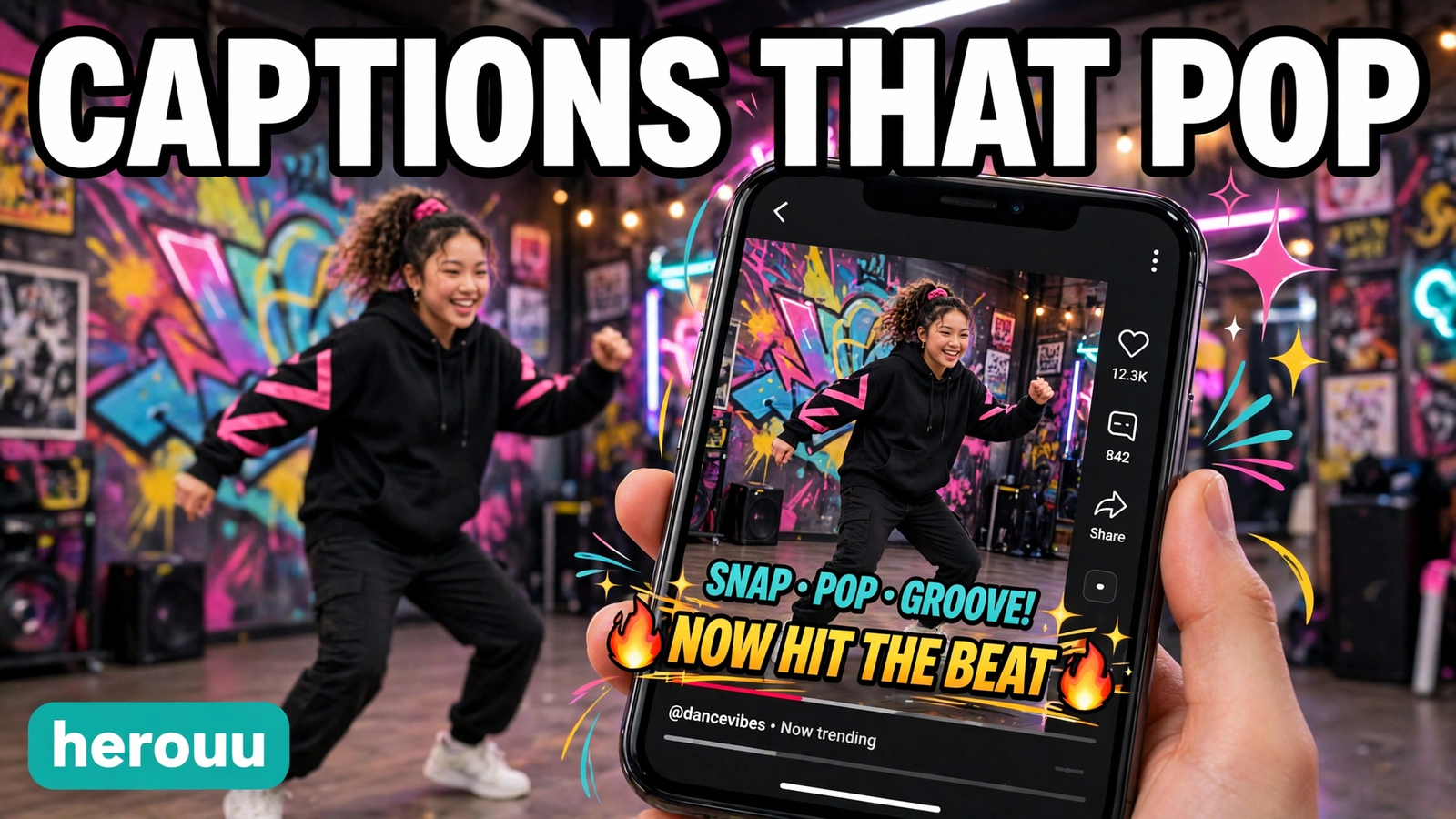
Open the captions tool and choose auto captions. CapCut can generate subtitles in 20 or more languages, so pick the language of your song. Read every caption and fix wrong words by hand, because auto captions often miss names and lyrics. In AI video editing for dance reels, keep text short, large, and clear of your face and feet.
Step 7: Add one speed ramp into the drop
Pick the clip just before the beat drop. Add a short speed ramp that slows the clip slightly, then returns to normal speed right on the drop. Keep it to about half a second, so the move still looks real. In AI video editing for dance reels, play the drop three times and check that the speed change and the cut land together.
Step 8: Export in vertical 9:16 at 1080p
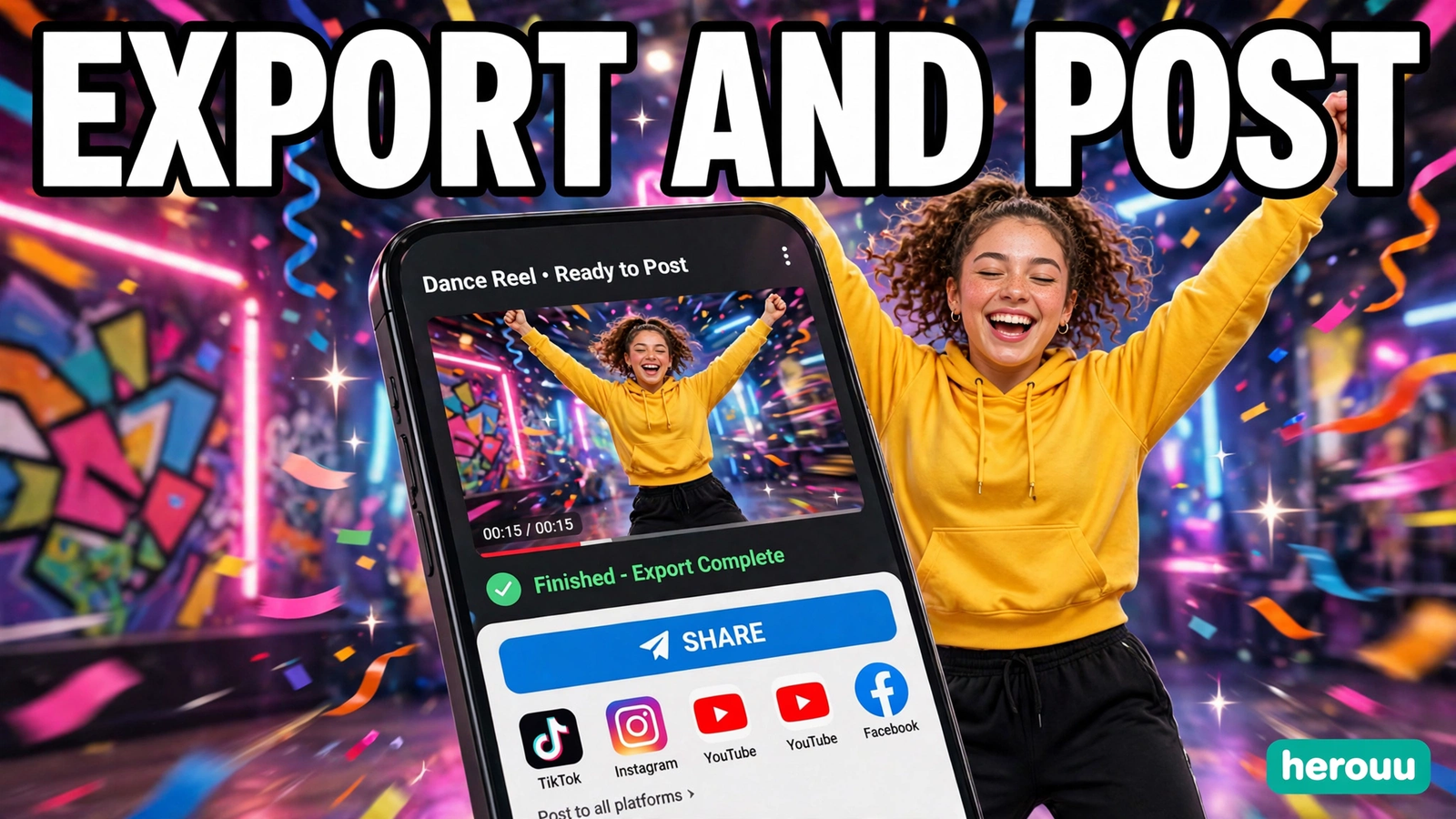
Tap Export and choose 1080p resolution with the frame rate your clips were shot in, usually 30 frames per second. Keep the aspect ratio at 9:16 for a reel. Watch the export finish fully before you close the app. Save the file to your gallery and play it once on your phone before you post it anywhere.
5 dance reel workflow ideas
Use these ideas as starting points. Each one is a short plan you can copy and keep while you edit. Change the song, the moves, and the order to fit your own style of AI video editing for dance reels.
Hook first dance reel: open with your sharpest move in the first two seconds, cut to the beat every two beats, and end on a freeze pose when the music stops.
Three outfit dance reel: shoot the same eight-count dance in three outfits, cut on the beat at each outfit change, and keep the camera in the exact same spot for all three takes.
Slow build dance reel: use slow wide shots for the intro, add a short speed ramp just before the drop, then cut fast on every beat for eight seconds after the drop.
Practice to performance dance reel: start with two shaky practice clips, cut to the beat as the music picks up, and finish with four clean performance clips in a row.
One room mirror dance reel: film six short clips in the same room with the same light, change only your angle or your move, and let the beat decide where each clip ends.
Tips
These tips for AI video editing for dance reels cover the parts of the edit where most beginners lose time.
First, shoot each move as its own clip instead of one long take. Short clips give Auto Cut clean pieces to work with.
Second, clap once on camera before the music starts. The clap leaves a clear spike on the timeline, so you can line up the first clip fast.
Third, film at chest height with space above your head and below your feet. A cut looks wrong when a foot or hand is cropped out.
Fourth, use only one speed ramp in a 30-second reel. One ramp at the drop feels sharp. Two or three ramps make the dance look wobbly and slow.
Fifth, add captions only where they add something, such as the song name or a move name. Too much text pulls the eye away from the dance.
Sixth, export a test copy at 1080p and watch it on your phone with sound. Small timing mistakes are easy to miss on a computer and obvious on a phone, and this last check makes AI video editing for dance reels look finished.
Common Problems
| Problem | Likely cause | Fix |
|---|---|---|
| Auto Cut is missing from the app | You are on CapCut Web, or your app version is old | Use the CapCut mobile or desktop app and update it |
| Cuts land off the beat | The app detected weak beats, or the song has a soft intro | Add beat markers by hand and drag each clip edge to the nearest marker |
| Captions have wrong words | Auto captions misheard the lyrics or the song language | Edit each caption by hand and pick the right caption language |
| Export looks blurry | Export resolution was set below 1080p | Export at 1080p and shoot new clips in good light |
| The reel feels slow | Too many long clips and no cut on the drop | Shorten the clips before the drop and add one fast cut right on it |
| The app crashes during export | Low free storage or a very long project | Free up at least 1 GB, close other apps, and export again |
If a problem keeps coming back, go back to step 4 and check the beat markers first. In AI video editing for dance reels, most timing problems come from a cut a few frames off the beat.
FAQ
Is AI video editing for dance reels free in CapCut?
CapCut is free to install, and the basic editing tools, Auto Cut, and auto captions are available in the app. Some AI features may carry a Pro label in some versions or regions. CapCut has not published one fixed list of free limits, so check your own app.
Can I use Auto Cut for a dance reel on CapCut Web?
No, Auto Cut is not available on CapCut Web, according to the official CapCut help page. It works on mobile and desktop only. Edit there, export the video, and use the web version only for viewing or sharing the finished file.
How long should a dance reel be?
For AI video editing for dance reels, 15 to 30 seconds works best. That length fits one song section, keeps the energy high, and gives you enough beats for five to ten clean cuts. Longer reels need more moves and more variety, or viewers stop watching before the end.
What is the best export setting for a dance reel?
Export in vertical 9:16 at 1080p, with the frame rate your clips were shot in, usually 30 frames per second. This matches how reels play on a phone and keeps the video sharp. Check the export screen first, because the app may remember a lower setting.
Why do my cuts feel late even after Auto Cut?
Auto Cut can miss a beat or place a cut a few frames late. In AI video editing for dance reels, check the draft with sound on and drag each clip edge to the nearest beat marker. A cut that lands even a little late makes the whole dance feel out of time.
Do I need a tripod to shoot a dance reel?
A tripod helps, but you do not need one for AI video editing for dance reels. You can rest your phone on a shelf, a stack of books, or any steady surface at chest height. What matters is that the phone does not shake and the framing stays the same across clips.
Can auto captions work on a dance reel with no speech?
Auto captions are made for speech, so a reel with only music may produce no useful captions or may invent words from the song. If your reel has no speech, skip auto captions and add short on-screen text by hand, such as the song name or the name of a move.
How many clips do I need for one dance reel?
Five to ten short clips are enough for a 15 to 30 second reel. Each clip should last two to five seconds. Fewer clips can feel slow, and more than ten can feel rushed on a fast song. In AI video editing for dance reels, shoot extra takes so you can drop the weakest ones.
What should I do if Auto Cut is not in my CapCut app?
First update CapCut from your app store. If Auto Cut still does not appear, it may be rolling out slowly in your region or version, and CapCut has not published an exact date for every account. You can still finish the reel by hand with beat markers and manual cuts, as shown in step 4.
Conclusion
AI video editing for dance reels gives you a fast first cut, and your own check on the beat gives you the finished reel. Try one of the five workflow ideas above with a song you like, fix the cuts by hand, and export at 1080p. Then browse the Ai Video Editing category on herouu.buzz for more simple guides to try next.
Related reading
- AI Video Editing for Fitness Reels: Easy Step by Step Guide
- AI Video Editing for Vlogs: Easy Step by Step Guide
- AI Video Background Removal: Easy Step by Step Guide
- CapCut Auto Captions Template: Easy Subtitle Guide
- Ai Video Editing category
About herouu
herouu.buzz shares free templates, photo prompts, and video editing ideas for everyday creators. The guides are written in simple plain English, with steps you can follow on your phone.
Disclaimer
This guide is based on the official CapCut help pages and the steps in this article. App features, menus, and free limits may change between versions and regions. Check the official CapCut app or help page for the latest details.
Sources
- CapCut Help, How to Use Auto Cut: https://www.capcut.com/help/how-to-use-auto-cut
- CapCut Ideas, Seedance 2.0 for Music Sync: https://www.capcut.com/ideas/seedance-2-0-for-music-sync
Not officially announced: the exact free limits for Auto Cut and auto captions, and the exact availability of the AI text-prompt mode by version and region. Check the official CapCut app or help page for your version.