
A CapCut beat sync template style edit makes your cuts land exactly on the music beat, so a simple reel feels like a music video. This guide shows you how to build it yourself in CapCut, with the built-in beat tools, your own clips and a song you can use. There is no single built-in template called beat sync, so you put the pieces together by hand. Check the official CapCut help page if a menu looks different.
At a glance
A CapCut beat sync template edit is a method, not a file you download. Pick a song, let CapCut mark the beats, then cut clips so each new clip starts on a beat. It works for travel, dance, birthdays, products and gym reels.
Quick Overview
| Item | Detail |
|---|---|
| Topic | CapCut beat sync template style edit |
| Category | Capcut Template |
| App/Tool | CapCut mobile app |
| Skill Level | Beginner |
| Time Needed | 25 to 40 minutes |
| Media Needed | Your own clips, one song |
| Cost/Free Features | Free beat tools and music; some items are Pro |
What you will make
A CapCut beat sync template style video cuts on the strong beats of a song. The first clip starts as the music starts, a new clip lands on each drop or drum hit, and the last clip ends as the song ends. Every cut has a reason. Pick the idea that matches the clips you already have, and use a song with a clear drum beat first, since slow songs hide the beat.
| Idea | Best for | Clips needed |
|---|---|---|
| Travel beat montage | A trip | 8 to 10 clips |
| Birthday beat reel | A birthday | 6 to 8 clips |
| Dance beat cut | A dance video | 5 to 7 clips |
| Gym beat reel | A workout | 6 to 8 clips |
| Product beat teaser | A product | 7 to 9 clips |
Before you start
Update CapCut from your app store first. Menu names move between versions. You do not need a paid plan for the core method. The beat tools sit in the standard editor, though CapCut moves features between free and Pro.
Use your own clips and a song you are allowed to use. Music from CapCut’s own library is the safe choice. A song from a streaming app may be blocked or muted when you post, because of copyright rules.
Use short clips of 2 to 4 seconds, shoot in daylight, and keep the phone steady.
| Requirement | Detail |
|---|---|
| Phone | Android or iPhone with CapCut |
| Free space | At least 500 MB free |
| Clips | Your own clips, 15 to 60 seconds |
| Song | One song from CapCut or your own file |
| Skill | Can trim a clip and add audio |
| Internet | Once, for music and filters |
How to make a CapCut beat sync template edit, step by step
Step 1: Open CapCut, tap New project, and pick your clips in order for your CapCut beat sync template video. Keep it under 60 seconds for a reel.
Step 2: Tap Audio, then Sounds, and pick a song from CapCut’s library. For your own song file, use the device files option. Tap the plus sign to add it.
Step 3: Drag the song to the start of the timeline. Trim the song to match your clips, or the clips to match the song, so both end together in your CapCut beat sync template edit.
Step 4: Tap the audio track, then tap Beat below the timeline. You will see Auto Beat and Manual Beat.
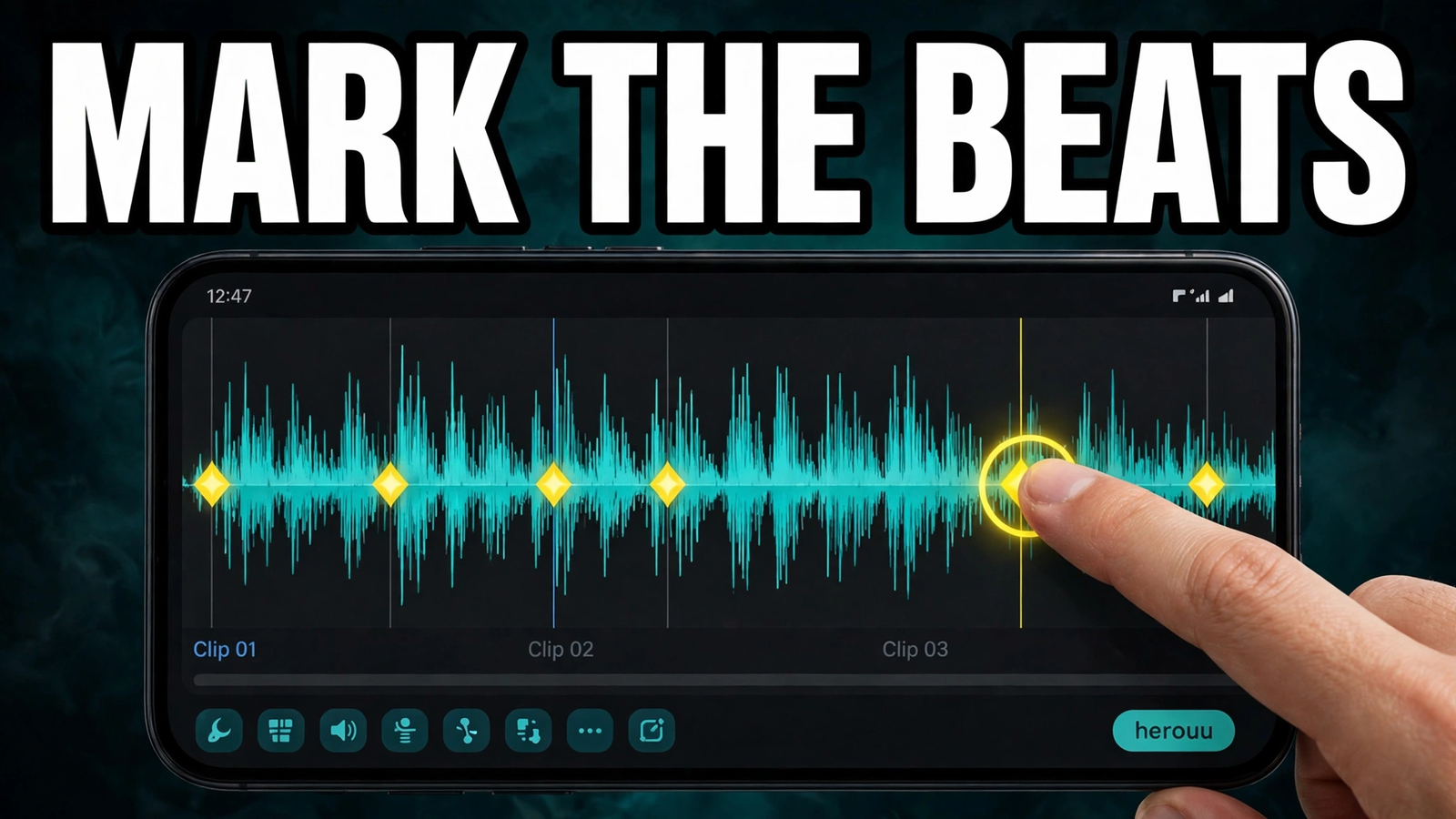
Step 5: Tap Auto Beat and let CapCut scan the song. Yellow markers appear on the waveform, one per beat. Wait for the scan to finish.
Step 6: Check the markers. Too many means rushed cuts, too few means a slow video. Some versions offer Light or Intense, or a sensitivity slider.
Step 7: Trim your clips to the markers. Move the playhead to a marker, tap the clip, and tap Split. Drag each clip end to the marker.
Step 8: Work through the song in order. Do the big moments first, the first beat, the chorus, and the drop, then fill in the smaller beats. This keeps a CapCut beat sync template edit on track.
Step 9: Add a beat by hand where CapCut missed one. With the audio track selected, tap Beat, then Manual, and tap Add Beat while the song plays. This fixes a CapCut beat sync template edit when the scan skips a clear drum hit.
Step 10: Delete any marker in the wrong place. Tap it and choose Remove. A wrong marker is worse than none.
Step 11: Play the whole video from the start with the sound on. Watch for clips that feel too long, or cuts a fraction early or late, and nudge each clip edge until the cut feels right. This last check makes a CapCut beat sync template edit look finished.
Step 12: Tap Export at the top right, pick 1080p and 30 frames per second, and save the video. Watch the exported file once before sharing.
CapCut beat sync template ideas you can copy
These five ideas are starting points, not files to download. Copy one, swap in your own clips and song. Each one uses the same CapCut beat sync template method above.
1. Birthday beat reel
Birthday beat reel: 6 clips of cake, candles, friends and dancing. Cut on every drum beat, keep each clip 2 to 3 seconds, add a flash on the chorus, and end on a group photo.
2. Travel beat montage
Travel beat montage: 9 clips of streets, food, a sunset and a train window. Cut on the strong beats, slow zoom on the sunset clip, longest clip over the drop.
3. Dance beat cut
Dance beat cut: 7 clips of one dance from two angles. Cut on every second beat, add a speed ramp on the spin, and match the biggest move to the drop.
4. Gym beat reel
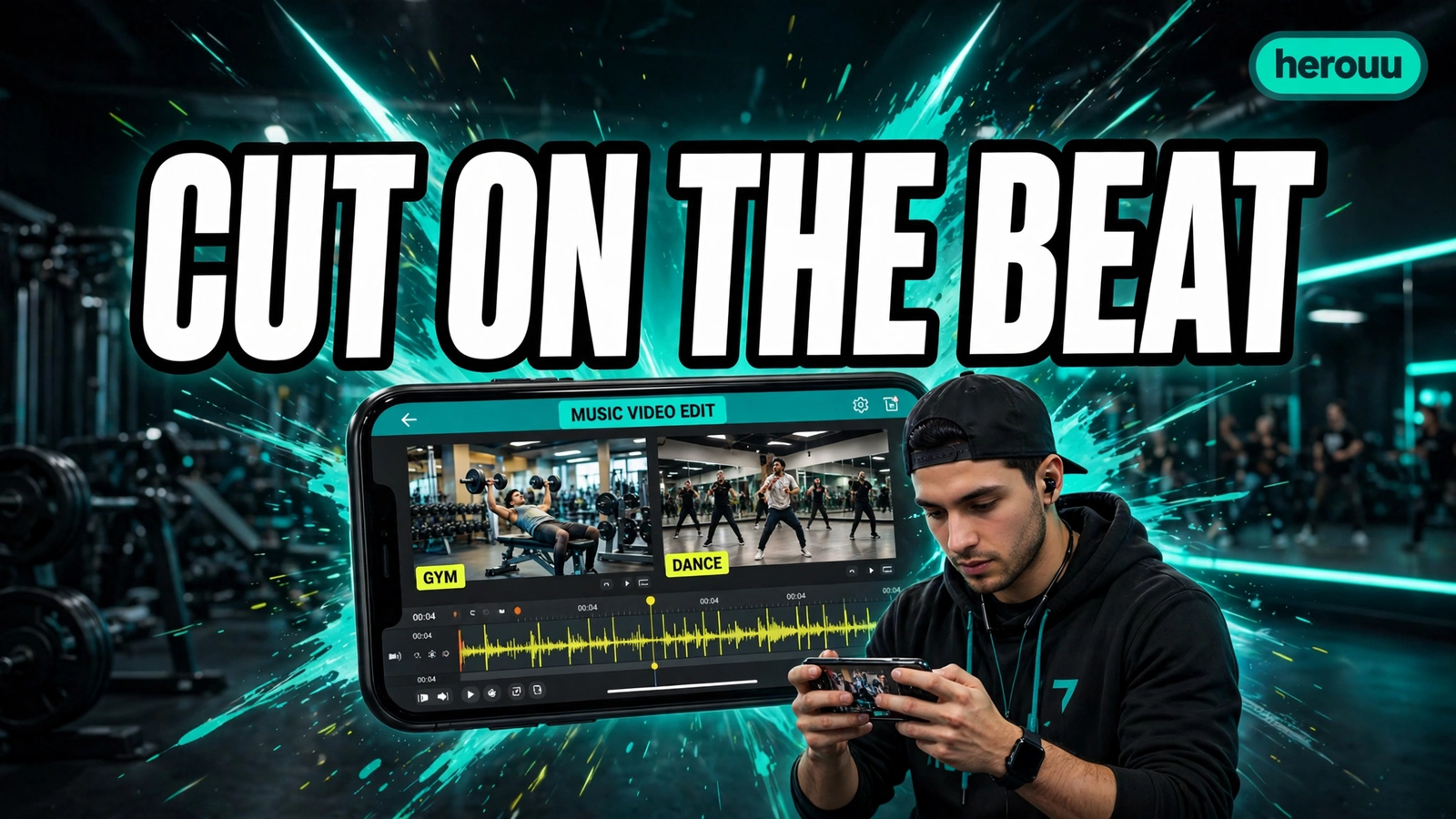
Gym beat reel: 8 clips of warm-up, lifts and cool-down. Cut on each beat, slow to 0.5x just before the drop, then snap back to normal speed on the hit.
5. Product beat teaser
Product beat teaser: 7 clips of a product from different angles, hands using it in two shots. Cut on the beat, add a text label on the third clip, and hold the final clip for two beats.
Tips that make a CapCut beat sync template edit feel natural
These habits make the edit feel musical, not mechanical.
First, cut on every second beat when the song is fast. Cutting on every beat feels frantic. Every second beat keeps the energy and gives each clip room to breathe.
Second, match the best clip to the drop. It is the loudest moment in the song, so save your strongest shot for it.
Third, keep the first clip a little longer than the rest. Viewers need a second to settle in. A two or three second opening clip works well.
Fourth, use speed ramps on the beat, not at random. Slow a clip down just before a drop, then snap back to normal speed on the hit.
Fifth, add transitions only on the big moments. A flash or dissolve on the chorus feels right.
Sixth, listen with earphones while you edit. Phone speakers hide small timing mistakes.

Common problems and fixes
Most problems with a CapCut beat sync template edit come from three things: a missed audio selection, wrong markers, or a blocked song.
| Problem | Likely cause | Fix |
|---|---|---|
| The Beat option does not appear | The audio track is not selected | Tap the audio bar until it highlights |
| Auto Beat places markers in the wrong spots | Soft or uneven beat | Use Manual Beat and tap Add Beat as it plays |
| Cuts feel rushed and jumpy | Too many markers, or cutting on every beat | Delete some markers, or cut every second beat |
| The video and music drift apart | A clip was trimmed after marking | Re-check markers after any trim |
| The exported video has no sound | The song was muted, or the file had a copyright block | Check the audio track volume, and use a CapCut library song |
| The song is muted after posting | Copyright rules | Use a CapCut library track, or a song you own |
Frequently asked questions
What is a CapCut beat sync template?
A CapCut beat sync template is not a file you download. It is a way of editing in CapCut where your video cuts land on the beats of a song. You use the Beat tools to mark the beats, then trim clips so each cut starts on a marker. It works for reels, dance, travel and product videos.
Is beat sync free in CapCut?
Yes, the core beat tools are free in the CapCut mobile app. You can mark beats with Auto Beat or Manual Beat, split clips on the markers, and export without paying. Some songs and effects carry a Pro tag, so skip those and use a free option.
How do I add beats to music in CapCut?
Add your song to the timeline, tap the audio track, then tap Beat in the toolbar. Choose Auto Beat and CapCut will scan the song and place yellow markers on the beats. If the scan misses a beat, use Manual Beat and tap Add Beat while the song plays. That is the core of any CapCut beat sync template edit.
Why is the Beat option missing in my CapCut app?
The Beat option only shows when an audio track is selected. If you tap a video clip or an empty part of the timeline, it will not appear. Tap the audio bar until it highlights, then look for Beat in the toolbar. If it is still missing, update CapCut, because the feature has moved between versions.
How many clips do I need for a beat sync video?
Six to ten clips work well for a 30 second reel. Fewer clips mean long dull stretches, and more clips mean very short shots. Start with eight clips of 2 to 3 seconds each, then adjust until the cuts match the strong beats.
Can I use my own song for beat sync in CapCut?
Yes, you can add a song file from your own device through the Audio menu. CapCut will scan it like a library song. A song you do not own may be muted or blocked when you post the video, so a track from CapCut’s library is the safer choice for a CapCut beat sync template edit.
What is the best song speed for a beat sync edit?
A song with a clear, steady drum beat works best, and medium speed songs are easiest for a first try. Very fast songs need cuts on every second beat, or the video feels frantic. Very slow songs have long gaps between beats, so use fewer, longer shots.
Does beat sync work on CapCut desktop?
Yes, the same idea works on desktop. Select the audio clip, open the Beat panel, and use Auto Beat to place markers on the waveform. The layout is different from the phone app, but the steps are the same: mark the beats, split clips on the markers, preview, then export.
Why do my cuts feel off even after using Auto Beat?
Auto Beat finds most beats, but it can miss one or place a marker slightly early or late. Listen with earphones and watch the waveform peaks, which are usually the drum hits. Delete wrong markers, add missing ones, and nudge each clip edge until the cut lands on the sound.
Conclusion
A CapCut beat sync template style edit is a simple skill that makes a big difference to a reel. Pick a song with a clear beat, let CapCut mark it, and cut your clips on the markers. Try one of the five CapCut beat sync template ideas above today, then browse herouu’s CapCut templates for your next edit.
Related reading
- CapCut Vintage Film Template: Easy Old Film Look Guide
- CapCut Glitch Effect Template: Easy Glitch Video Guide
- CapCut Slow Motion Template: Easy Slow Motion Guide
- CapCut Velocity Edit Template: Easy Velocity Edit Guide
- VN Beat Sync Template: Easy Beat Sync Guide
About herouu
herouu is a free guide site for everyday creators, with simple step by step guides for VN templates, AI photo prompts, CapCut templates and AI video editing.
Disclaimer
This guide is based on the official CapCut help pages and the steps as written here. CapCut changes its menus between versions, so check the official CapCut app or help page for the latest steps.
Sources
- CapCut help: How to Use Auto Cut
- EditLogic: How to Sync Video Clips to a Music Beat in CapCut
- Hollyland Creator Hub: How to Sync Audio to Video in CapCut
- Creatively Squared: How to add beats to music in CapCut
- TechTippr: How to Edit Videos That Cut to the Music Beat
Not officially announced: there is no official CapCut template file called “beat sync template” to download, and no official list of which beat features are free or Pro in each version. Check the official CapCut app or help page.