
A CapCut glitch effect template turns a plain clip into a video that looks like a broken TV signal, with colour splits, slices, and digital noise. This guide shows you how to build that look in CapCut on your phone, step by step, using the free effects already inside the app. You need no paid plan and no editing experience, just your own clips and about half an hour. Check the official CapCut help page for the latest app version.
At a glance
- What you make: a short vertical video with a CapCut glitch effect template look, using RGB split and scan lines
- App: CapCut mobile app (free version is enough)
- Time needed: 20 to 30 minutes
- Skill level: beginner
- Best for: dance reels, gaming clips, and attitude videos
- Honest note: CapCut has no single built-in template officially named “Glitch”. You build the look from glitch effects you find by searching in the app
Quick overview
| Topic | Details |
|---|---|
| Topic | CapCut glitch effect template |
| Category | Capcut Template |
| App or tool | CapCut mobile app |
| Skill level | Beginner |
| Time needed | 20 to 30 minutes |
| Media needed | 1 to 3 of your own clips, 9:16 vertical |
| Cost | Free effects used here; some carry a Pro badge |
What is a glitch effect in CapCut
A glitch effect makes your video look like a signal that is breaking up. The picture splits into red and cyan layers, thin slices slide sideways, and static flashes for a frame or two. It suits fast music and dance reels because the chaos matches the beat.
CapCut keeps glitch video effects inside Effects, under Video effects. Search for “Glitch” to see choices such as RGB Glitch and Digital Glitch. You can also search for “glitch transition” in the Templates tab.
Be clear about one thing: CapCut has not officially published a template with the exact name “Glitch”. Its resource pages talk about glitch video effects and a “Glitch Velocity” style, but no official page lists a template called “Glitch”. So this guide treats the CapCut glitch effect template as a look you build, not a single button. CapCut does not publish template codes, so never pay anyone for one.
Note for readers in India: CapCut has not been officially available on Indian app stores since 2020.
What you will make
Each CapCut glitch effect template idea below takes one clip.
| Idea | Best for | Clips or photos needed |
|---|---|---|
| RGB split dance glitch | Dance and music reels | 1 dance clip |
| Glitch on the beat drop | Song transitions and attitude reels | 2 clips |
| Retro VHS glitch | Throwback and 90s style videos | 1 old clip |
| Gaming glitch intro | Gaming clips and screen recordings | 1 gameplay clip |
| Glitch text reveal | Channel intros and announcements | 1 background clip |
Before you start
You need the CapCut app installed and updated, plus your own clips on your phone. Shoot or pick clips that are bright and sharp, because a glitch effect hides detail, and a dark blurry clip turns into a mess. Keep each clip short. In a CapCut glitch effect template, the glitch works best in short bursts, not across a whole minute.
Free up storage first. CapCut saves a copy of your project while you edit, and a 1080p export needs room.
| Requirement | What to check |
|---|---|
| Phone | Android or iPhone with CapCut |
| App version | Latest version |
| Clips | Your own videos, 9:16, bright and sharp |
| Storage | At least 500 MB free |
| Sound | A song you have the right to use |
How to make a CapCut glitch effect template video
Follow these steps to build your CapCut glitch effect template. The first pass adds a simple glitch, and later steps add timing.
- Open CapCut, tap New project, pick your main clip, and tap Add.
- Tap the clip, then tap Edit. Trim it to the best 10 to 15 seconds.
- Tap Effects, then Video effects.
- Tap the search bar and type “Glitch”, then tap an effect to preview it.
- Tap the tick mark to apply it. A purple bar appears above your clip.
- Drag the ends of the purple bar so the glitch covers only the beat.
- Tap the purple bar and lower the intensity to 60 to 70 percent.
- Split the clip where the glitch should hit hardest, on the beat.
- Tap the white square between two clips and pick a glitch transition. Keep it under half a second.
- Tap Text, type your words, then open Animation and pick a glitch animation style.
- Play the video from the start. Drag the purple bar until each glitch lands on a beat.
- Tap Export, pick 1080p and 30 fps, and save the video. Watch it once before posting.
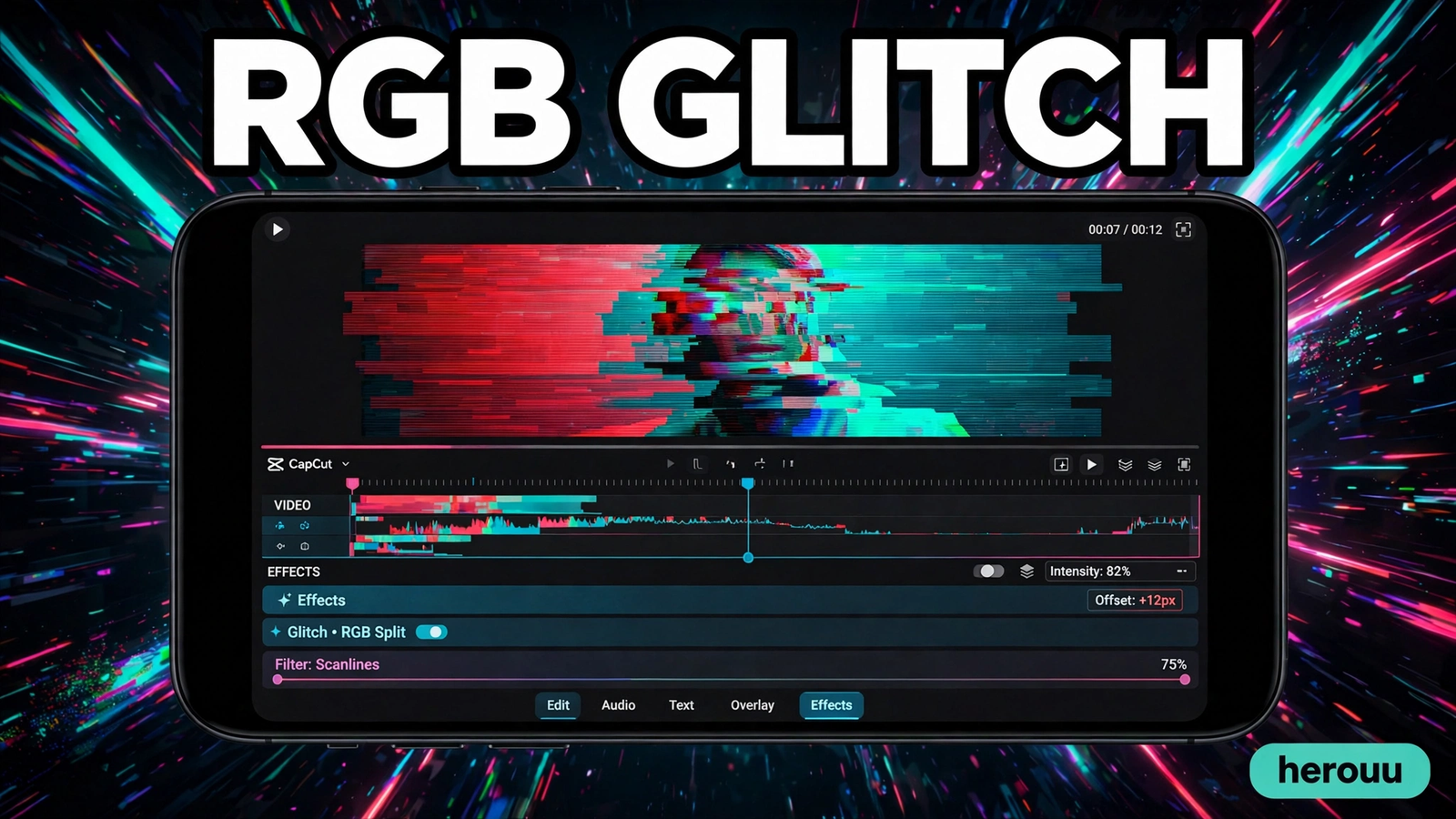
5 CapCut glitch effect template ideas to copy
1. RGB split dance glitch
This CapCut glitch effect template idea suits dance reels. The red and cyan split makes the dancer look like they are tearing out of the frame.
RGB split glitch on a dance clip. Apply the RGB Glitch effect for 2 frames on every snare hit, at 70 percent intensity. Keep the rest clean. Vertical 9:16.
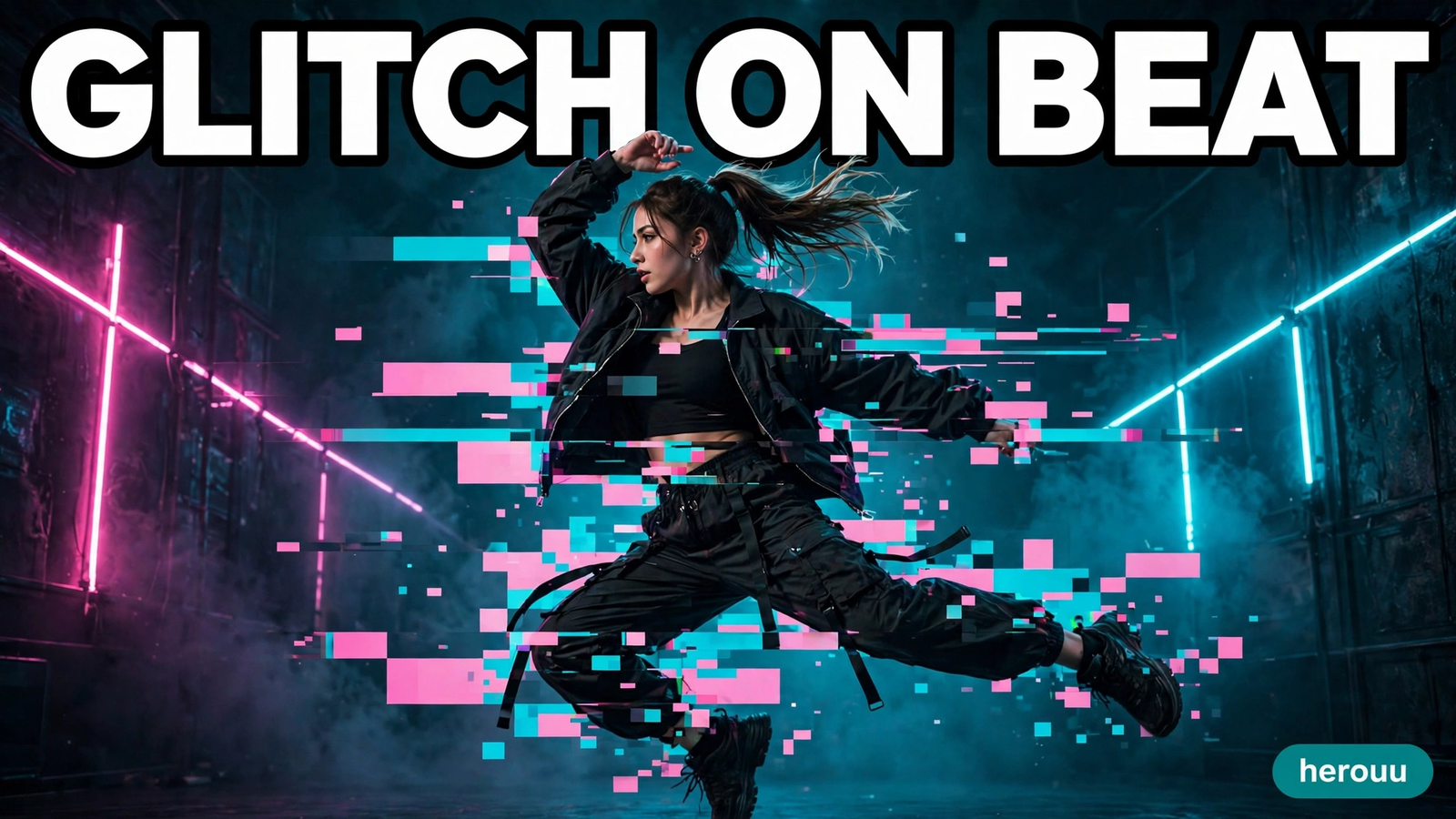
2. Glitch on the beat drop
This CapCut glitch effect template idea suits attitude reels. The video stays clean, then breaks apart when the bass drops.
Beat drop glitch. Keep the first clip clean, then add a Digital Glitch effect for 4 frames on the drop, with a zoom punch on the next clip. Vertical 9:16.
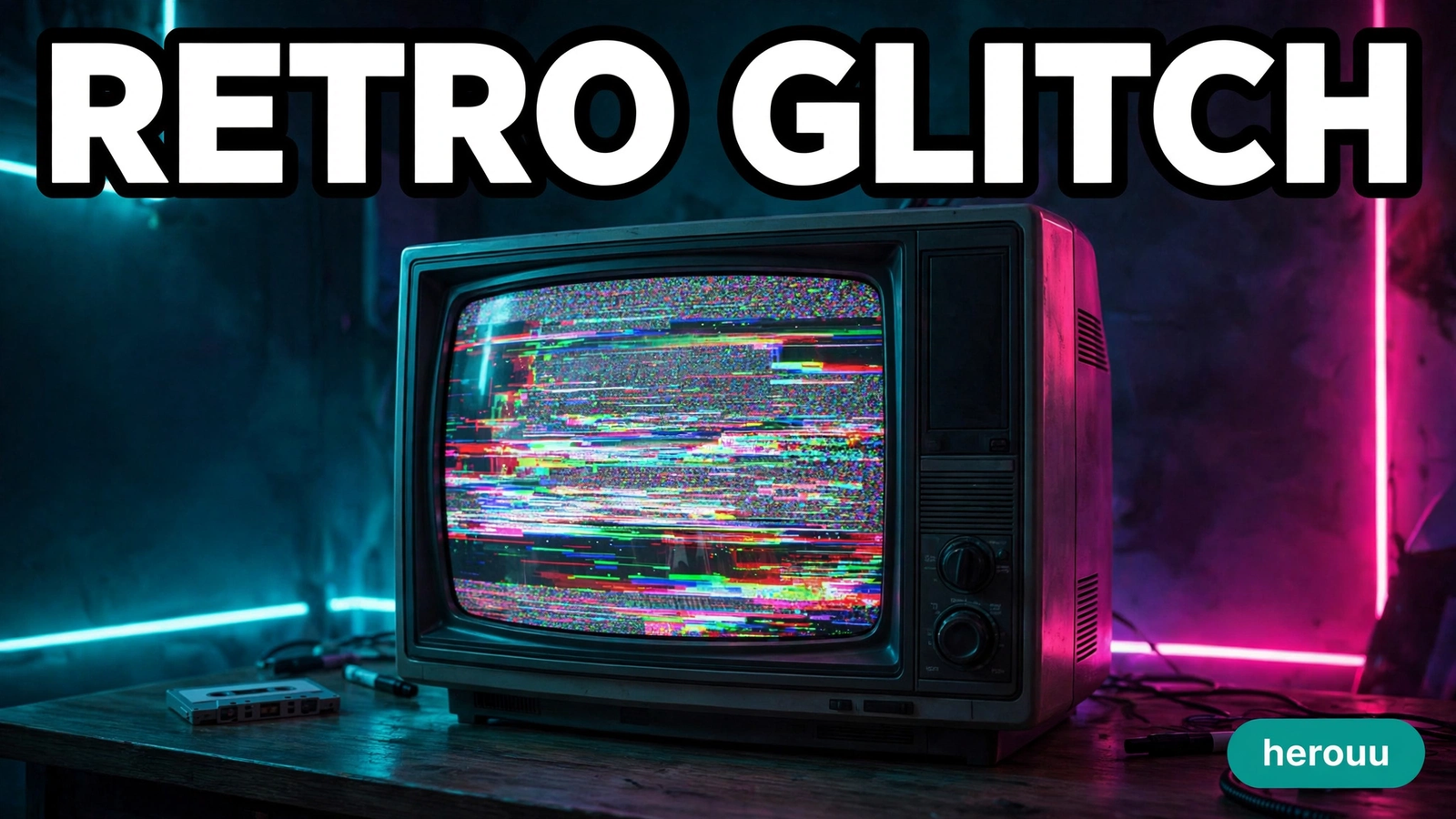
3. Retro VHS glitch
This CapCut glitch effect template idea suits throwback videos. Scan lines and static give an old TV feel without hiding the subject.
Retro VHS glitch. Add scan lines at 40 percent across a 10 second clip, with slight colour bleed and one short static burst. Keep the face clear. Vertical 9:16.
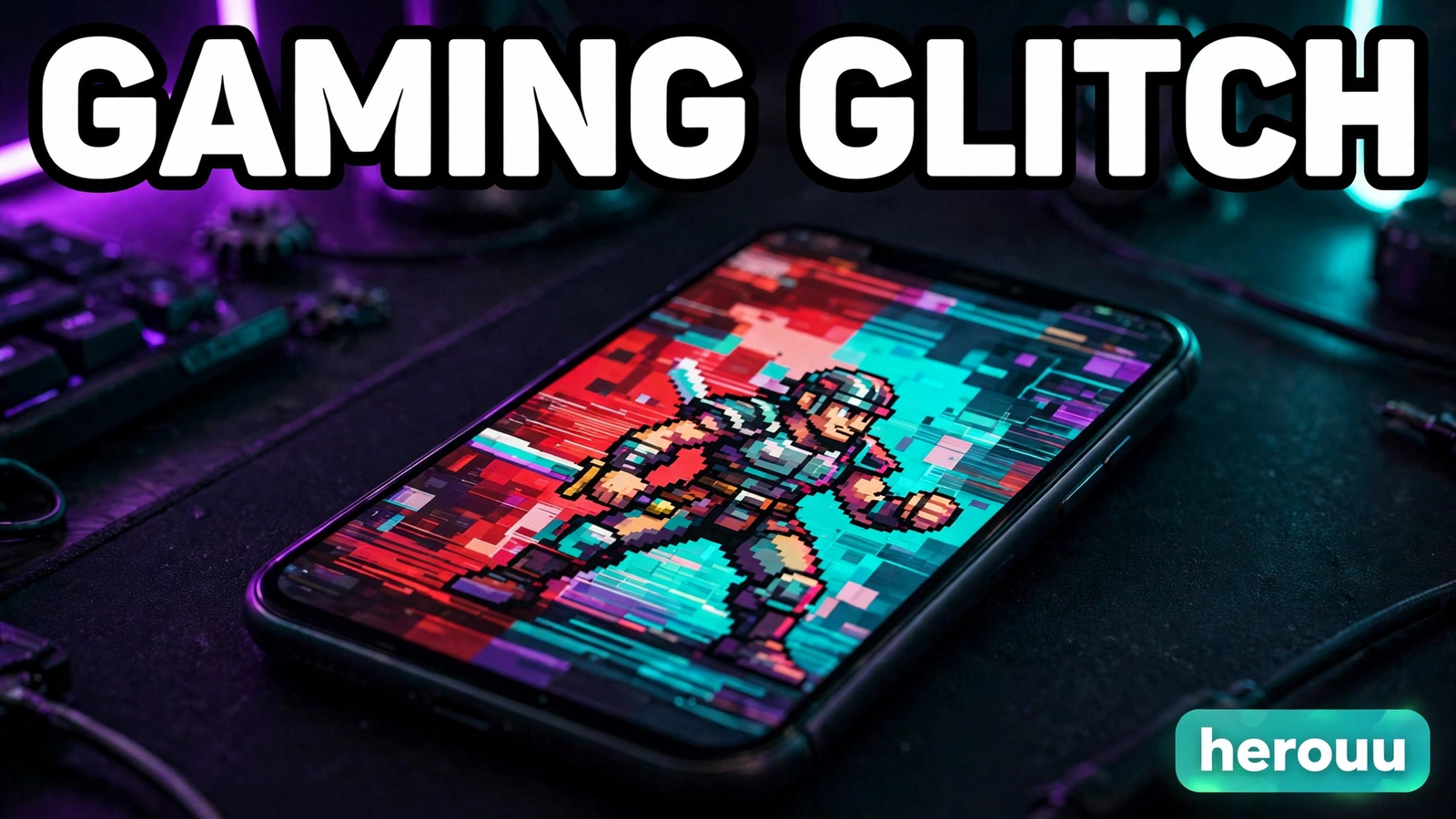
4. Gaming glitch intro
This CapCut glitch effect template idea suits gaming clips. A hard glitch at the start grabs attention before the gameplay settles down.
Gaming glitch intro. Start with a strong RGB Glitch at full intensity for 1 second, then cut to clean gameplay, with pixel blocks over the cut and glitch text. Vertical 9:16.
5. Glitch text reveal
This CapCut glitch effect template idea suits channel intros. The text scrambles into place, which fits tech and gaming topics.
Glitch text reveal. Put your text over a dark clip and add a glitch text animation so the letters scramble and settle. Keep the text on screen for 2 seconds after. Vertical 9:16.
Tips for a clean glitch video
Use the glitch like salt, not like the main dish. Short bursts on strong beats look sharp, while a constant glitch makes people stop watching. Two to four frames per hit is a good rule.
Match the glitch to the music. Open the audio waveform and place each glitch on a drum hit or a bass drop.
Keep the face readable in your CapCut glitch effect template. Glitch effects split colours and slice the frame, so they can hide expressions. If the face matters, keep the effect short.
Lower the intensity before you export. Effects look stronger on a small phone screen than after export, so drop it by about 10 percent if the video feels harsh.
Save your best setup as your own template. Once a glitch timing works, duplicate the project and swap the clips.
Export at 1080p and 30 fps for Reels and Shorts. Check the exported file before you post.
Common problems and fixes
Most CapCut glitch effect template problems come from timing or intensity.
| Problem | Likely cause | Fix |
|---|---|---|
| No glitch effect in search | Old app version | Update CapCut and check the official help page |
| Glitch covers the whole clip | Effect bar too long | Drag the ends of the purple bar to shorten it |
| Video looks too messy | Intensity too high, glitch too long | Cut the glitch to 2 to 4 frames and lower intensity |
| Glitch lands off the beat | Effect placed by eye | Drag the effect to the drum hit on the waveform |
| Export looks worse than preview | Preview differs from export | Export at 1080p and 30 fps, then watch the saved file |
| Effect has a Pro badge | That effect needs the paid plan | Pick a free glitch effect instead |
| App lags while previewing | Phone memory full or clip too long | Close other apps and split long clips |
FAQs
Is there a CapCut glitch effect template?
CapCut has glitch video effects and glitch templates made by creators, but it has not officially published a template with the exact name “Glitch”. Search “Glitch” in Effects, or search “glitch transition” in the Templates tab to find the closest ready-made options.
Is the CapCut glitch effect free?
Most glitch video effects in CapCut are free, including common RGB and digital glitch styles. A few carry a Pro badge and need the paid plan. If you see a Pro badge, pick a free one instead. The steps in this guide use free effects only.
How do I add a glitch effect in CapCut on mobile?
Open your project, tap Effects, then Video effects, and search for “Glitch”. Tap an effect to apply it, then drag the purple effect bar so it covers only the moment you want in your CapCut glitch effect template. Adjust the intensity and check the timing.
Which glitch effect is best for dance reels?
The RGB Glitch effect suits dance reels best, because the red and cyan split follows fast body movement well. Apply it for two frames on each snare hit and keep the rest clean. Lower the intensity to about 70 percent.
Can I use a glitch effect on photos in CapCut?
Yes. Place the photo on the timeline and apply a video effect the same way as for video. Set it to show for 2 to 3 seconds, add a short glitch at the start, and export it as a video for Reels or Shorts.
Why does my glitch video look messy?
A glitch looks messy when the effect runs too long or the intensity is too high. Shorten it to a few frames, lower the intensity to around 60 percent, and keep one clean second between bursts. Bright clips handle glitch effects better than dark ones.
How do I time a glitch effect to the beat?
Open the audio track and look at the waveform, where tall spikes mark drum hits. Drag the purple glitch effect bar so it starts on a spike. Play the video back and nudge the bar until the glitch and the beat land together in your CapCut glitch effect template.
Does CapCut have a glitch transition?
Yes. Tap the small white square between two clips on the timeline and search for a glitch or distortion transition. Keep it under half a second, and make sure the two clips sit next to each other with no gap.
Can I save my glitch edit as a template?
CapCut does not let you publish your own edit as a public template from the free app. You can duplicate your project inside CapCut and swap the clips each time, which works like a private template for your next video.
Conclusion
A CapCut glitch effect template is not one button, it is a small set of free effects used at the right moment. Pick a bright clip, add a short RGB or digital glitch on the beat, and export at 1080p. Try this CapCut glitch effect template with the RGB split dance idea first, then browse herouu.buzz for your next edit.
Related reading
- CapCut Mirror Effect Template: Easy Mirror Video Guide
- CapCut Freeze Frame Template: Easy Freeze Frame Guide
- CapCut Blur Effect Template: Easy Blur Background Guide
- CapCut Flash Effect Template: Easy Flash Transition Guide
- CapCut Velocity Edit Template: Easy Speed Effect Guide
About herouu
herouu.buzz shares free, simple guides for creators who make short videos and AI images. Every guide is written in plain English, tested in the app, and honest about what is free and what is not.
Disclaimer
This guide is based on the official CapCut help pages and the app as described here. Features and effect names can change, so check the official CapCut app or help page for the latest version.
Sources
- CapCut, Glitch Video Effects
- CapCut, Top 7 Glitch Effect Editors
- CapCut, Best Velocity CapCut Templates (mentions Glitch Velocity)
- Envato Tuts+, How to Make Glitch Effect Videos with CapCut
- Technobezz, Add Transitions in CapCut
Details not officially announced: CapCut has not officially published a template with the exact name “Glitch”, and no official template code or download link exists for it. Effect names here come from CapCut’s own resource pages; the list in your app may differ by version and region.