
A VN wedding template turns your wedding photos and clips into a soft, film-like video in a few minutes. You do not need editing experience. The template sets the timing, transitions, colour and text style, so you only add your own moments.
This guide shows you how VN templates work, how to apply one, and five original wedding template ideas you can build yourself. It also covers common problems and fixes. Menu names can change with updates, so check the official VN help page if a screen looks different.
At a glance: a VN wedding template is a ready-made edit for wedding photos and clips. Pick a template, add your own media, change the names and date, preview, and export. Most edits take 20 to 40 minutes.
Quick Overview
| Topic | Detail |
|---|---|
| Topic | VN wedding template for wedding photos and clips |
| Category | Vn Code Template |
| App/Tool | VN Video Editor (VN, also called VlogNow) |
| Skill Level | Beginner |
| Time Needed | 20 to 40 minutes |
| Media Needed | 8 to 20 wedding photos or clips, couple names |
| Cost/Free Features | VN app free, no watermark on exports per the official store listing; some templates may need a sign-in or paid plan, so check inside the app |
What you will make
A video made with a VN wedding template is short, gentle, and easy to share as a reel, a WhatsApp status, or a keepsake. The best edits do not try to show the whole day. They pick one feeling, such as the entry, the vows, or the dance.
You can make a 30-second reel, a one-minute highlight, or a slow slideshow for the reception screen. Pick a VN wedding template that matches your clips. A slow template suits vows and rings. A faster one suits the baraat and the dance floor.
| Idea | Best for | Clips/photos needed |
|---|---|---|
| Entry highlight | The bride or groom walking in | 6 to 8 clips, entry music |
| Vows and rings | A quiet, emotional share | 8 to 10 photos, close-ups |
| Haldi and mehndi | Fun family reels | 10 to 12 bright clips |
| Sangeet dance | A fast, joyful reel | 8 to 10 dance clips |
| Photo slideshow | A reception screen or gift | 15 to 20 photos |
Pick your clips before you open the template. Mark the ones you love, and keep a mix of wide shots, close-ups, and small details like hands, flowers, and shoes.
Before you start
Before you open a VN wedding template, gather what you need: the VN app, a stable internet connection, and your wedding photos or clips on the same phone. VN works on Android and iPhone, with a desktop version for Windows and Mac. Update the app first, because older versions sometimes refuse newer templates.
Free up storage first. A short wedding video can take a few hundred MB while you edit, and a full phone will stop the export halfway. Close other heavy apps and keep your phone charged.
Check the music. Templates often come with their own music, and it may not be licensed for a public post.
You also need the couple’s names spelt correctly, and the date if you plan to show it. Ask the couple before you share any video publicly.
| Requirement | What to check |
|---|---|
| Phone | Android or iPhone with VN updated |
| Internet | Stable connection to download the template |
| Storage | At least 1 GB free space |
| Media | 8 to 20 photos or clips, best quality |
| Details | Couple names spelt right, date confirmed |
How to use a VN wedding template in the VN app
Follow these steps to apply a VN wedding template. Each step is one clear action.
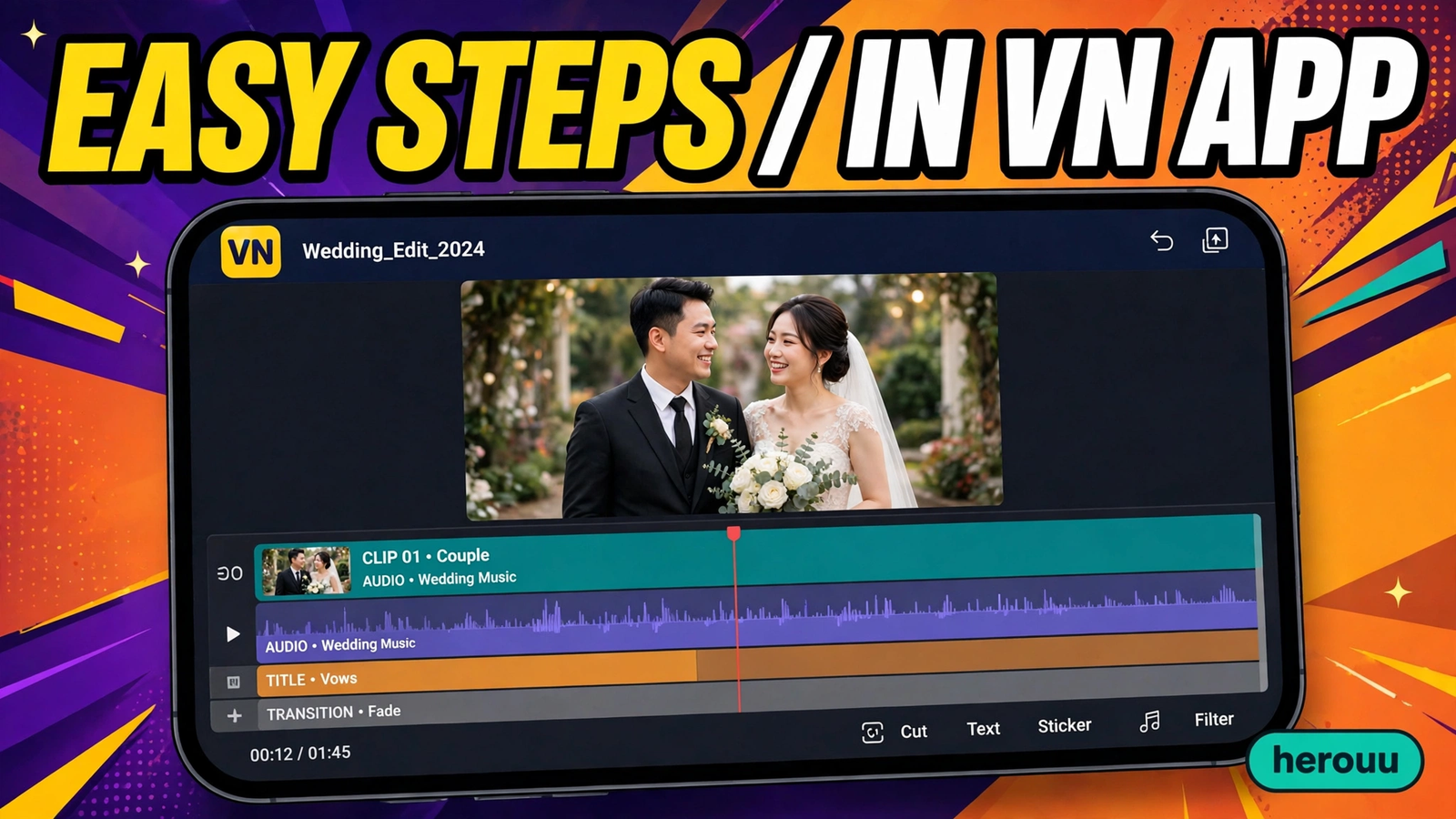
- Open the VN app on your phone and update it from your app store if an update is shown.
- Tap Discover at the bottom to open the template library.
- Search for wedding, or browse the recommended templates until one fits your mood.
- Tap a template to watch its preview once, and check how many photo and video slots it needs.
- Tap Download, then tap Use to start filling it.
- Select your own photos or videos for each slot, working from the first slot to the last.
- Tap Next when every slot is filled, then preview the video.
- Tap each text layer and replace the sample words with the couple’s names or the date.
- Tap each clip to adjust it with Replace, Filter, Crop, or Volume if a shot looks wrong.
- Tap Save to keep the project, then tap Export, pick your quality, and save the video to your album.
If you have a VN Code instead, open VN, tap the Scan icon, and point your camera at the code, or pick the saved code image from your gallery. VN shows a preview. Then tap Download, tap Use, and fill the slots the same way.
One warning from VN’s own help page: a VN Code depends on the creator’s file in their cloud storage. If the creator deletes it, the code stops working. So if a code fails, try an official template from Discover first.
Template ideas
These are five original wedding template ideas from herouu. Each VN wedding template idea below is a full edit plan for VN: the clips, the pace, the text, and the feeling. None needs a code from this site, and none is a file hosted on herouu.buzz.
The slow entry
Slow entry wedding edit: open with a wide shot of the venue, then the couple walking in. Hold each clip for 3 seconds. Use soft fades, warm tones, and one line of text with the couple names. End with a close-up of hands or rings. Best for 6 to 8 clips.
Slow cuts suit the entry. One line of text at the start is enough.
Vows in their own words
Vows wedding edit: use the real vow audio if you have it, and hold each shot for 4 seconds while the words play. Mix close-ups of faces with small details like flowers and rings. Keep the music low under the voices. Best for 8 to 10 photos.
Real vows carry more feeling than any song. Without clear audio, use a quiet instrumental track.
Haldi and mehndi colour
Haldi and mehndi wedding edit: fast 2-second cuts, bright warm colours, and close-ups of hands, flowers, turmeric and henna. Add quick zooms on laughing faces. Use a lively song and cut on the beat. Best for 10 to 12 bright clips.
Let the colour lead. Shorten shaky clips: two seconds looks energetic, five looks like a mistake.
Sangeet night energy
Sangeet wedding edit: start with the stage and lights, then cut fast between dance moves on the beat. Use 2-second clips and quick transitions. End with the whole group dancing. Add the couple names at the end only. Best for 8 to 10 dance clips.
Watch the preview with sound on. If a cut lands half a beat late, trim the clip a fraction.
The keepsake slideshow
Keepsake wedding slideshow: 15 to 20 photos in order, from getting ready to the farewell. Hold each photo for 3 seconds with a gentle zoom. Use one soft song throughout. Add the couple names at the start and a thank-you line at the end. Best for a reception screen.
Order matters more than effects. Put the photos in the order the day happened.
Tips
These tips will help your VN wedding template look finished, not rushed.
- Choose the template after you choose the clips. A slow template will fight fast dance footage, and a fast one will rush quiet vow photos.
- Use your best 10 clips, not all 100. If a clip is blurry or dark, leave it out.
- Keep skin tones natural. Too much warmth turns skin orange, too much cool turns it grey.
- Put names and dates on one card only. Names on every clip distract from the faces.
- Export a test first at a lower size and watch it fully. It catches a wrong name or a flipped photo.
- Save the project in VN before you export, so a failed export does not lose your work.
Common problems and fixes
Most VN wedding template problems have a simple cause.
| Problem | Likely cause | Fix |
|---|---|---|
| Template will not download | Weak internet, or the template file was removed | Move to strong Wi-Fi, then try an official template from Discover |
| VN Code shows an error | Wrong or expired code, or an old app version | Check the code, update VN, and try a different code |
| Export stops halfway | Phone storage full | Free at least 1 GB, close other apps, and export again |
| Video looks blurry | Low quality export or source photos | Export at high quality and use original photos |
| Music is missing after export | Music file did not download | Re-download on strong internet or use a track from inside VN |
| Clips feel out of order | Slots filled in the wrong order | Check each clip against your plan and use Replace to swap it |
Frequently asked questions
What is a VN wedding template?
A VN wedding template is a ready-made edit inside the VN Video Editor app, built for wedding photos and clips. It sets the timing, transitions, colour and text style in advance, so you only add your own media and names. You can find official templates under Discover in the app, or load a creator’s template with a VN Code.
Is a VN wedding template free to use?
The VN app is free to download, and its store listing says exports carry no watermark. Many official templates in Discover are free to use. Some templates, effects, or music may need a sign-in or a paid plan, and that is not officially confirmed for every template, so check the price inside the app before you start.
How do I find a VN wedding template in the app?
Open VN, tap Discover at the bottom, and search for wedding in the search bar. Browse the results and watch each preview once before you download. The preview shows the pace, the number of slots, and the style, so you can tell in seconds whether it fits your clips.
How many photos do I need for a VN wedding template?
Most wedding templates need 8 to 20 photos or clips, and the exact number depends on the template. The preview or the slot list shows how many it needs. A short reel works with 6 to 10 clips, while a keepsake slideshow needs 15 to 20 photos. Gather your media before you open the template.
Can I change the music in a VN wedding template?
Yes, you can change the music after the template loads. Tap the music or audio track in the editor and replace it with a track from inside VN or your own audio. Check the music licence before you post the video publicly, because template music may not be cleared for public sharing on every platform.
Can I change the text and names in a VN wedding template?
Yes, tap any text layer in the timeline or on the preview and type your own words. Change the couple’s names, the place, or the date to match the real wedding. Keep the text short, check the spelling twice, and keep it away from faces so names stay easy to read.
Why is my VN wedding template not working?
The most common causes are weak internet, an old app version, or a VN Code whose file was deleted by its creator. Update VN, move to strong Wi-Fi, and try an official template from Discover. If a shared code still fails, the code itself may have expired, so pick a different template instead.
Can I use a VN wedding template on my computer?
Yes, VN has an official desktop version for Windows and Mac, and it supports the same template workflow as the phone app. Install VN from the official website, open the template section, and follow the same steps. The phone app is easier for most people, but the desktop app helps with longer edits.
How do I export a VN wedding template video in high quality?
After your edit is ready, tap Save, then tap Export and choose Manual mode to adjust the resolution, frame rate, and bitrate. Pick the highest quality your phone handles well, such as 1080p, and save the video to your album. Watch the full export once before you share it.
Conclusion
A VN wedding template is the fastest way to turn wedding photos and clips into a video that feels warm and finished. Pick one idea from this guide, gather your best clips, and build it in VN today. Once your VN wedding template video is exported, browse the Vn Code Template category on herouu.buzz for more guides to try next.
Related reading
- VN Cinematic Template: Easy Cinematic Video Guide
- AI Photo Prompts for Wedding Pictures: Easy Guide
- CapCut Wedding Template: Easy Wedding Video Guide
- AI Video Editing for Wedding Videos: Easy Step by Step Guide
- VN Travel Template: Easy Travel Video Guide
About herouu
herouu.buzz shares free templates, photo prompts, and video editing ideas for everyday creators, written in simple English.
Disclaimer
This guide is based on the official VN help pages and store listing as checked in November 2026. Features and prices may change, so verify the latest steps from the official VN app or help page.
Sources
- VN Video Editor official help, How to Use VN Templates
- VN Video Editor official website
- VN Video Editor on Google Play
- VN Video Editor on the App Store
- CapCut, Wedding templates for video editing
Details not officially announced: whether any specific wedding template is free or paid inside VN, and how many official wedding templates are in Discover, are not published in one place, so this guide does not state them. Check inside the VN app before you download.