
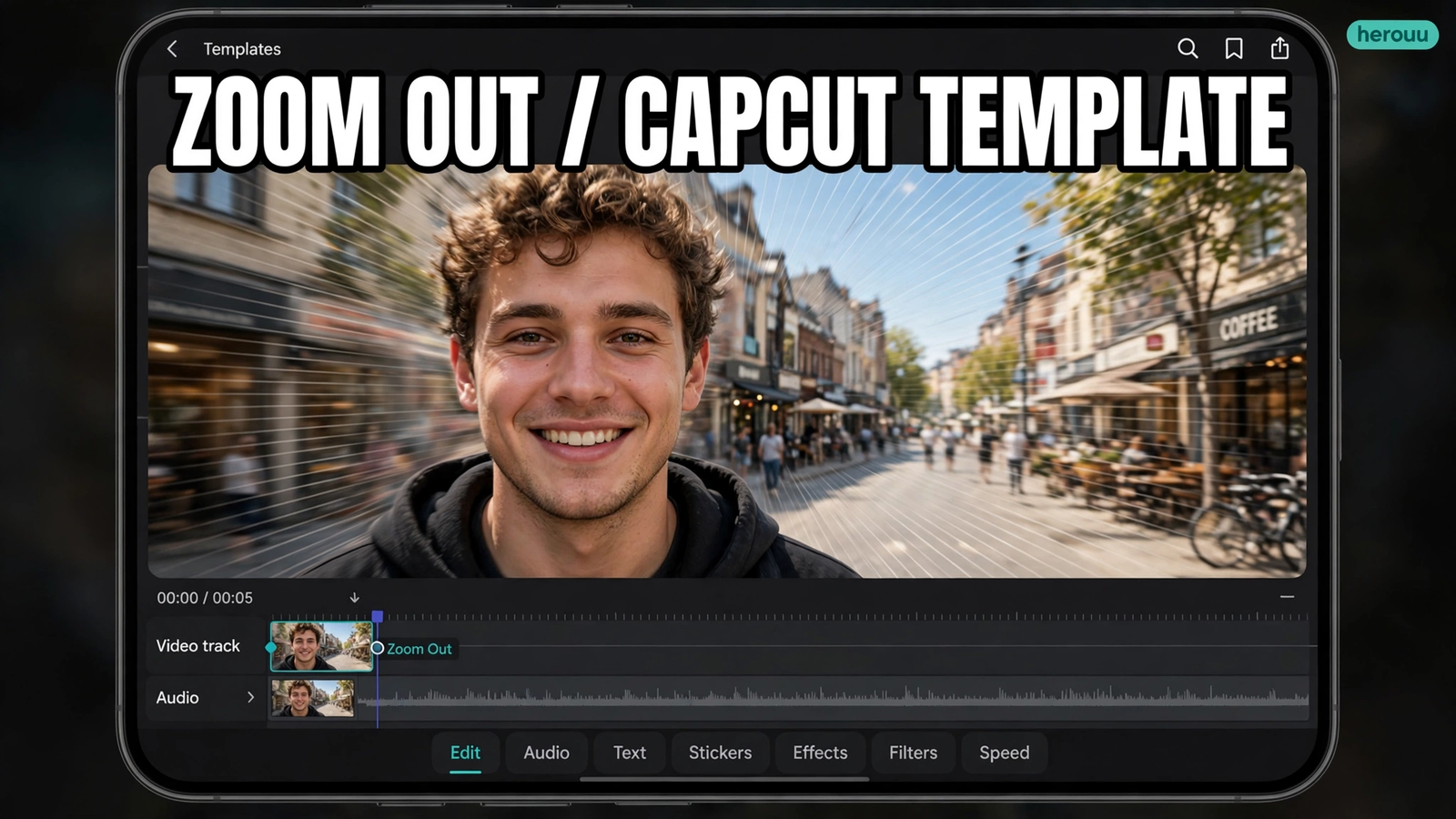
A CapCut zoom out template starts close on one detail and pulls back to show the full scene, and you can build one yourself in a few minutes. This guide shows the keyframe method step by step, five original template ideas you can copy, and the fixes for the problems that spoil most zoom out edits. Check the latest CapCut version before you start, because menu names can change.
At a glance
A zoom out starts tight on one detail, then opens up to show the whole scene. It works as an opening shot or a reveal. You can build it with two keyframes, or start from a ready-made template and swap in your own clips.
| Topic | CapCut zoom out template |
|---|---|
| Topic | CapCut zoom out template |
| Category | Capcut Template |
| App/Tool | CapCut mobile app or CapCut desktop |
| Skill Level | Beginner, no experience needed |
| Time Needed | 15 to 25 minutes first time, under 10 after that |
| Media Needed | 1 to 3 of your own clips or photos |
| Cost/Free Features | Keyframes, Scale, and the 3D Zoom effect are free; some templates may need a Pro plan |
What you will make
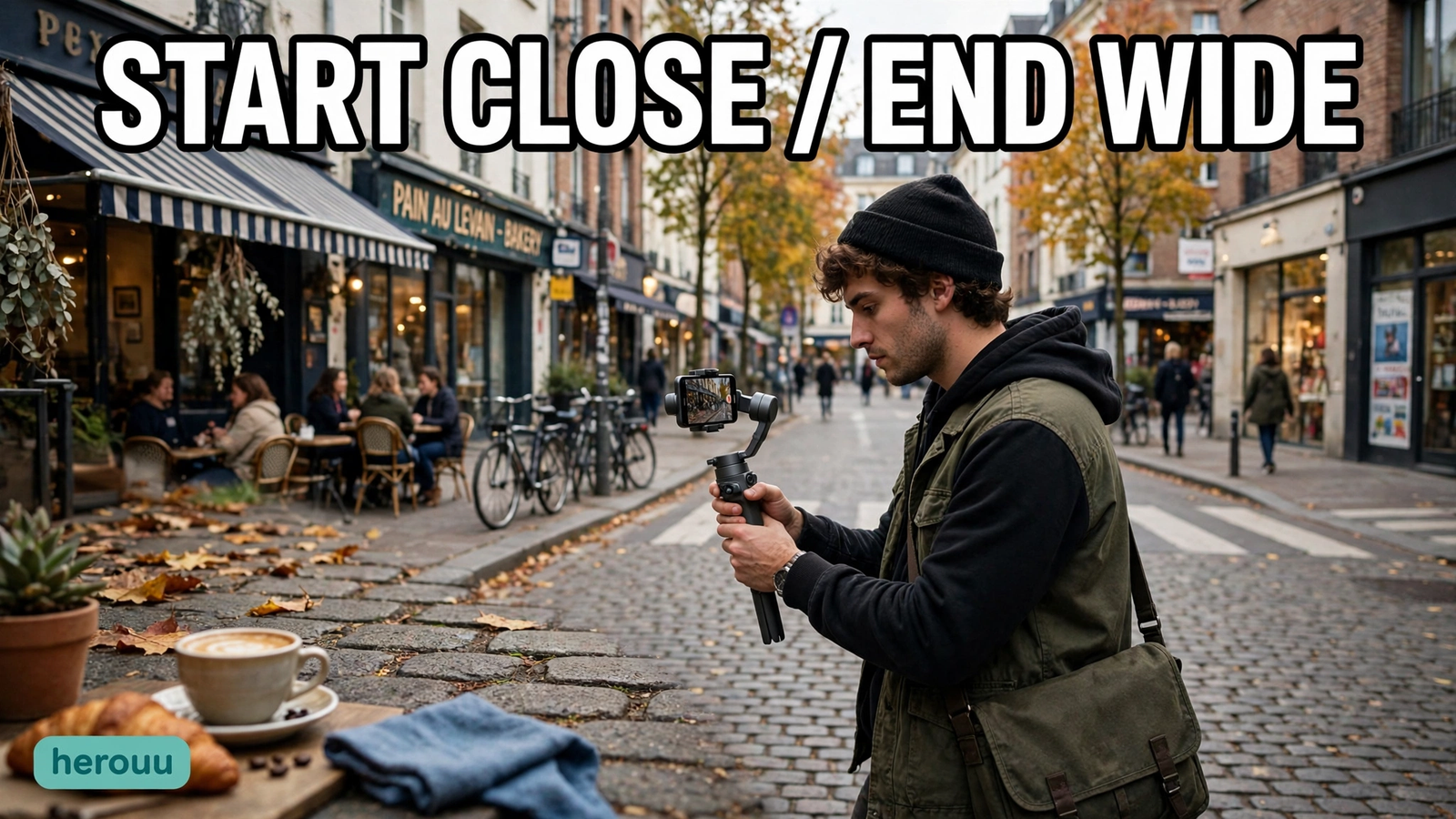
A good CapCut zoom out template turns a plain clip into a small reveal. The viewer sees a detail first, then gets the answer as the frame opens. That is why it works at the start of a reel, where the first two seconds decide whether someone keeps watching. Pick one idea and build it as a CapCut zoom out template with the steps below.
| Idea | Best for | Clips needed |
|---|---|---|
| Face to full scene | Travel and daily vlogs | 1 clip |
| Product detail to full product | Shop reels | 1 clip |
| One photo to a photo set | Birthday and festival posts | 3 photos |
| Street detail to city view | Travel reels | 1 clip |
Before you start
You need the CapCut app and one or two clips you shot yourself. Pick a clip where the main subject is clear and well lit. A dark or shaky clip will look worse after a zoom, because the movement makes every shake more visible.
One honest note for creators in India: CapCut has not been listed on Indian app stores since 2020, so many creators here use the desktop or web version. Check the official CapCut site for what is available where you are before you plan a CapCut zoom out template. If you cannot get CapCut, the same keyframe idea works in VN and most other phone editors.
Shoot in the same ratio as your final video. For reels and Shorts that is vertical 9:16. A horizontal clip squeezed into a vertical frame crops the sides and leaves less room to zoom. Also check storage first, because CapCut saves a copy of every clip you import. Record in 1080p if space is tight.
Know the difference between a template and an effect. A CapCut zoom out template is a ready-made edit with timing, music, and movement already set, and you only swap in your own clips. An effect, like the 3D Zoom effect, is one animation you add to your own clip.
How to make a CapCut zoom out template with keyframes
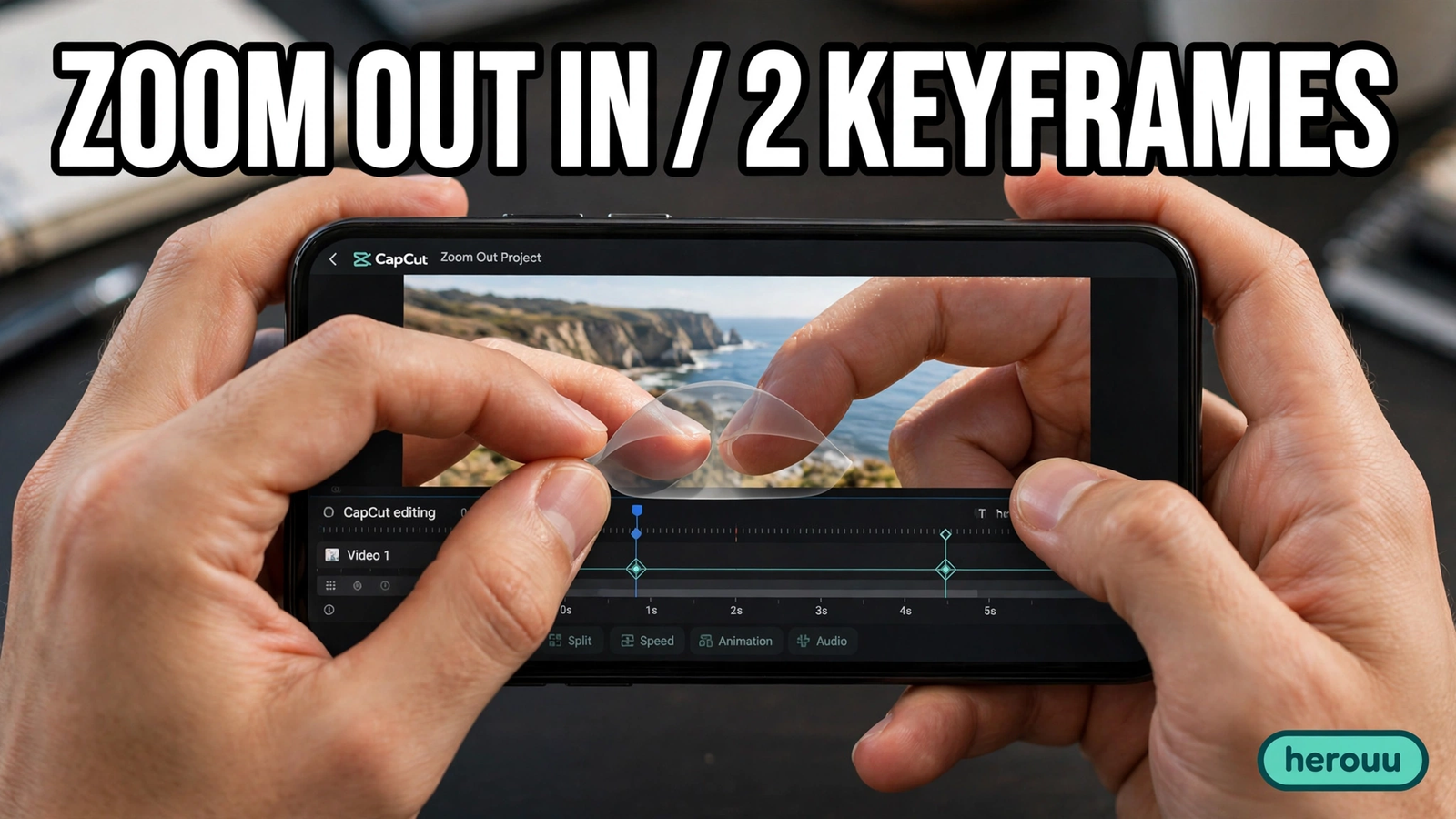
Keyframes are markers that tell CapCut how a clip should look at a certain moment. Set one at the start and another at the end, with a different size at each one, and CapCut fills in the movement between them. A CapCut zoom out template built this way is simply a pair where the first keyframe is big and the second one is small.
- Open CapCut, tap New project, pick your clip, and tap Add.
- Tap the clip on the timeline and drag the playhead to where the zoom should start.
- Tap the diamond keyframe icon above the timeline to lock in the starting size.
- Spread two fingers apart on the preview to zoom in. Keep the subject clear and away from the edge.
- Move the playhead forward two or three seconds to where the zoom should finish.
- Pinch two fingers together on the preview to zoom back out to the full scene. CapCut adds a second keyframe by itself. If the marker is missing, tap the diamond icon again.
- Drag the playhead back before the first keyframe and press play to watch the zoom.
- Change the speed by moving the keyframes: further apart for a slower zoom, closer together for a faster one.
- Tap the keyframe icon, then the graph icon beside it, to open the curve settings. Try Ease Out, which starts fast and slows down. If the subject has drifted off centre, drag the clip in the preview at the end keyframe.
- When the CapCut zoom out template looks smooth, tap Export, pick 1080p, and save the video to your phone.
Use a ready-made CapCut zoom out template instead
For a result in two minutes, a template does the keyframe work for you. Open CapCut, go to the Templates tab, and search for “Earth Zoom Out” or “zoom out”. Pick one with many uses, tap Use template, choose your photo or clip, and let CapCut build the edit. Preview it fully and check the end of the timeline for any extra clip the template added. Availability can vary by region, and some templates need a Pro plan, so if one asks you to pay, try another with a similar name.
You can also try the 3D Zoom effect. Select your clip, tap Effects, then Video effects, and search for 3D Zoom. It adds a ready-made zoom in a couple of taps, but you cannot control the start point, end point, or speed as precisely as with keyframes.
Template ideas
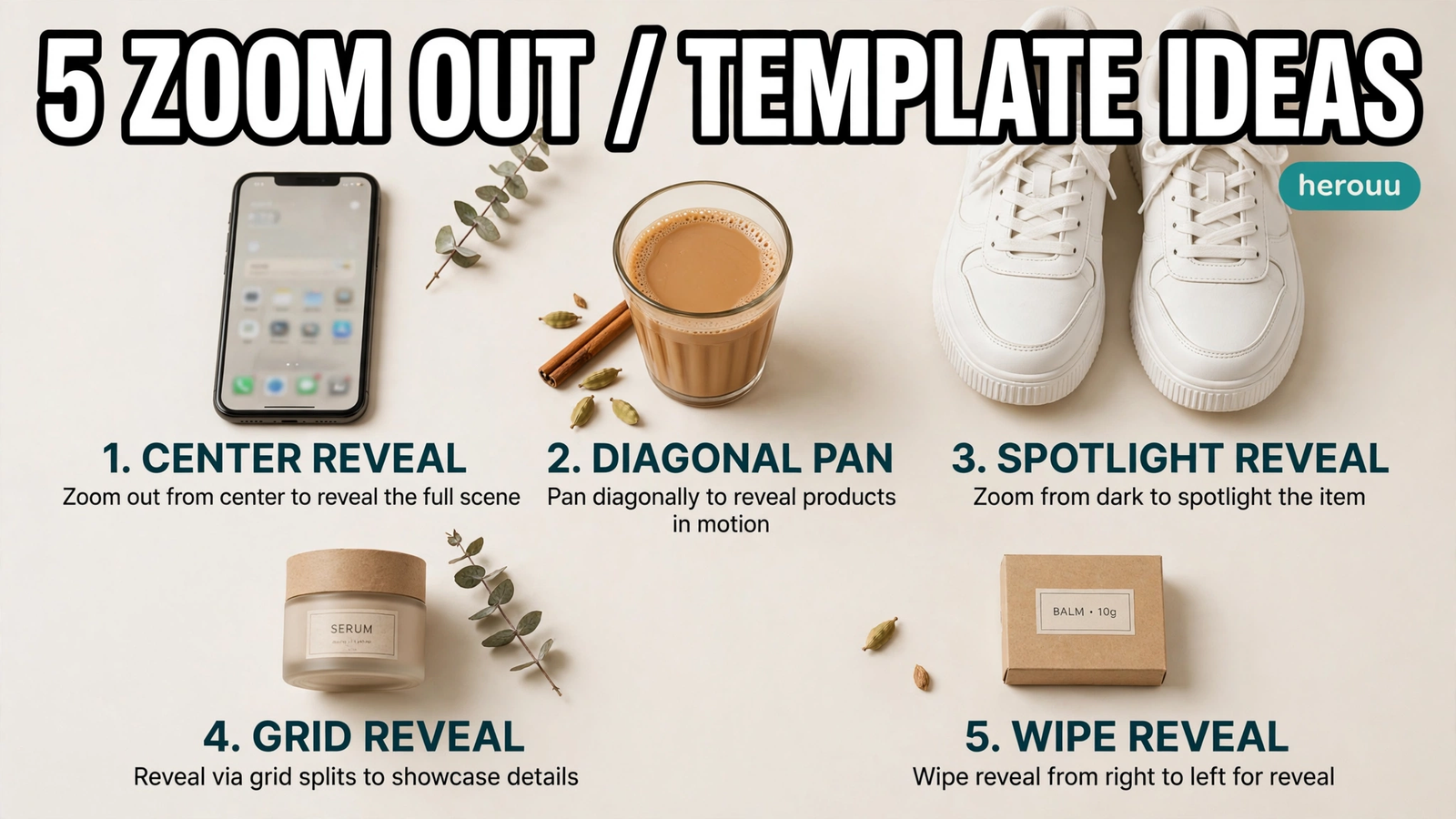
The five CapCut zoom out template ideas below are original. Each one tells you what to film, how the zoom should move, and how long the clip should be. Copy the idea you like and build it with the steps above. None of them needs a template code or a download link.
1. Face to full street
Face to full street: start tight on your face for 1 second, then zoom out over 2 seconds to show the whole street behind you. Film in daylight and use street sounds as the only audio. Best for travel vlogs.
2. Product detail to full product
Product detail to full product: start on the smallest detail, like a stitch, a label, or a texture, then zoom out over 2 seconds to show the whole product on a plain background. Use soft window light. Best for shop reels.
3. One photo to a birthday set
One photo to a birthday set: start zoomed in on the birthday person’s smile, then zoom out to show the full photo, then cut to two photos of the cake and the friends. Keep each photo on screen for 1.5 seconds. Best for birthday posts.
4. Cup to kitchen reveal
Cup to kitchen reveal: start close on a cup of chai with steam rising, then zoom out over 3 seconds to show the whole kitchen counter. Film from above and keep the cup in the centre. Best for food reels.
5. Shoes to full outfit
Shoes to full outfit: start tight on your shoes for 1 second, then zoom out over 3 seconds to show the full outfit against a plain wall. Keep the camera at waist height and time the zoom to finish on the beat. Best for outfit reels.
Tips
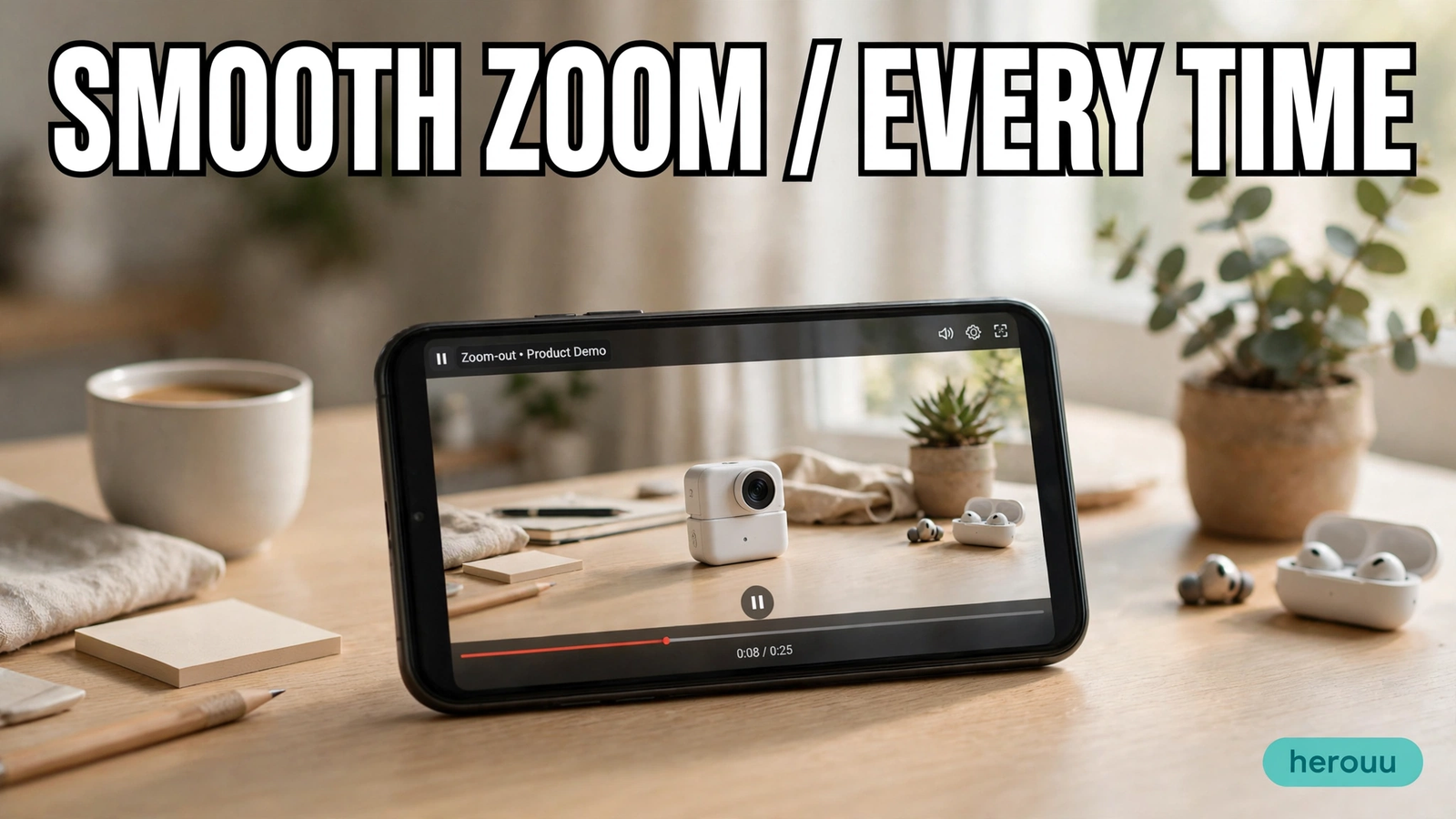
- Start the zoom closer than you think. Most first tries are too gentle. Zoom in until the subject fills most of the frame.
- Keep the zoom in your CapCut zoom out template to two or three seconds. A slow five-second zoom feels dull on a phone, and a half-second zoom feels like a jump cut.
- Put the subject in the centre at both ends of the zoom. If it drifts to a corner when zoomed out, the video looks like a mistake.
- Match the zoom to the music. A zoom that finishes on a beat feels planned, while one that ends halfway through a beat feels unfinished. Nudge the end keyframe until it lands on the beat.
- Use a CapCut zoom out template once per video, not on every clip. One zoom out at the start is a strong opening. The same move on four clips in a row looks repetitive, so save a second zoom for the final reveal.
- Export a test at 1080p before you post and watch it on your phone with the sound on. Small framing problems are much easier to spot on a phone screen than in the editing preview.
Common problems and fixes
These problems spoil a CapCut zoom out template most often.
| Problem | Likely cause | Fix |
|---|---|---|
| The zoom looks jumpy | Keyframes are too close together | Drag the keyframes further apart |
| The video is blurry at the start | The clip was zoomed in past its real resolution | Start the zoom less tight, or film in higher quality |
| The subject moves off centre | Only the Scale changed, not the Position | Drag the clip in the preview at the end keyframe until the subject is centred |
| Black bars appear at the edges | The clip was zoomed out below its original size | Do not pinch smaller than the full frame |
| The template asks for payment | That template needs a Pro plan | Pick a similar free template, or build the zoom with keyframes |
Frequently asked questions
Is a CapCut zoom out template free to use?
Yes, the keyframe method is free in CapCut, and so is the 3D Zoom effect. Many templates are free too, but some need a Pro plan. If a template asks you to pay, try a similar free one or build the zoom with keyframes instead.
How do I zoom out in CapCut on my phone?
To build a CapCut zoom out template on your phone, open a project and tap the clip. Move the playhead to the start of the zoom and tap the diamond keyframe icon. Pinch apart to zoom in, move the playhead forward, then pinch together.
What is the difference between a zoom out template and a zoom in template?
A zoom out template starts close on a detail and pulls back to show the full scene. A zoom in template starts wide and moves closer to a detail. Use a zoom out to show where something is, and a zoom in to focus on a detail.
Can I make a zoom out template with photos instead of video?
Yes, photos work well. Add a photo to the timeline, set it to 2 or 3 seconds, and use the same keyframe steps. Start zoomed in on one part of the photo and end on the full photo so the slideshow feels like a video.
Why does my zoom out look shaky?
The clip itself was probably shaky, and the zoom in a CapCut zoom out template makes every small shake bigger. Film with both hands or rest the phone on a table. CapCut has a stabilise option, but it cannot fix very shaky clips.
How long should a zoom out last in a reel?
Two to three seconds is right for a CapCut zoom out template in most reels and Shorts. Shorter than one second feels like a jump, and longer than four seconds feels slow. For an opening shot, keep it near two seconds.
Does CapCut have a one-tap zoom out effect?
Yes, the 3D Zoom effect adds a ready-made zoom in a couple of taps. A CapCut zoom out template built from it is the fastest option, but you cannot set the exact start point, end point, or speed. For full control, use keyframes instead.
Can I use a zoom out template for a business or product video?
Yes, a CapCut zoom out template works well for products because it starts on a detail and ends on the whole product. Start on a stitch, a label, or a texture, then pull back to the full product. Keep the light soft.
Why is there a black border after I zoom out?
You zoomed out past the original size of the clip, so the edges showed the black background behind it. Pinch back in until the video fills the whole frame again. If the clip is horizontal and your project is vertical, some cropping is normal.
Conclusion
A CapCut zoom out template is one of the simplest edits that still looks professional, because two keyframes are all it takes. Start with the face to full street idea or the product detail idea, keep the zoom to two or three seconds, and watch the export on your phone before you post. Then browse the Capcut Template category on herouu.buzz.
Related reading
- CapCut 3D Zoom Template: Easy 3D Zoom Guide
- CapCut Slow Motion Template: Easy Slow Motion Guide
- How to Pick a CapCut Template That Fits Your Clips
- CapCut Velocity Edit Template: Easy Velocity Guide
- CapCut Photo Slideshow Template: Easy Slideshow Guide
About herouu
herouu is a free resource for everyday creators. We publish simple, original guides for CapCut, VN, AI photo prompts, and AI video editing, with copy-ready ideas for your own videos. Every guide is written in plain English.
Disclaimer
This guide is based on CapCut’s official help pages and the guide as written. App features, menu names, and free and paid features can change, so please verify the latest details from the official CapCut app or help page. No specific template link or code is promised here.
Sources
- CapCut, Earth Zoom Out Video
- CapCut, Free Zoom Animation Effects Templates
- CapCut Guide, How to Zoom In and Out in CapCut: Keyframes, Freeze and Pan
- The CupCut, How To Zoom Video On CapCut 2025
- Video Wizard Tools, How to Use Keyframes in CapCut Mobile & Desktop
Details not officially announced: no official CapCut help page lists every free zoom out template by name, so this guide names no specific template links or codes. Names and availability change by region, so search the Templates tab in your own CapCut app.