
A VN cinematic template is the fastest way to give a short phone video a movie look without learning a full editing course. You pick a template that already has the pacing, colour and transitions set, swap in your own clips, and finish with a few small touches.
This guide shows you how to pick the right clips, apply a VN cinematic template, fix the colour, add letterbox bars, and export a clean final video, using the free VN app and your own footage. Check that your VN app is updated first, because menu names can change between versions.
At a glance
A VN cinematic template is a ready-made editing layout in the VN app with preset transitions, beat markers, text styles and filter effects. You replace the sample clips with your own videos, and the template keeps the movie-style pacing. The cinematic feel comes from slow movement, warm or teal colour, soft light, and a wide frame. No camera or paid app is needed. A phone, a few steady clips, and 30 to 45 minutes are enough.
Quick Overview
| Topic | Detail |
|---|---|
| Topic | VN cinematic template for a movie look |
| Category | Vn Code Template |
| App/Tool | VN Video Editor (Android and iPhone) |
| Skill Level | Beginner |
| Time Needed | 30 to 45 minutes for the first video |
| Media Needed | 6 to 10 short video clips from your phone |
| Cost/Free Features | Free app with no watermark; templates, filters and LUTs included |
What you will make
A cinematic video is not about expensive gear. It is about how the video feels. Slow movement, calm pacing, and steady colour make a normal clip look like a scene from a film. The five ideas below all work with a VN cinematic template.
| Idea | Best for | Clips needed |
|---|---|---|
| Golden hour walk | Travel and evening reels | 6 clips of walking, streets and sky |
| Slow morning at home | Daily life and calm reels | 7 clips of tea, light and windows |
| City lights at night | Night reels and urban edits | 6 clips of roads, signs and people |
| Hills and road trip | Travel and weekend trips | 8 clips of roads, hills and sky |
| Quiet portrait film | Birthdays and personal reels | 5 clips of one person in soft light |
Before you start
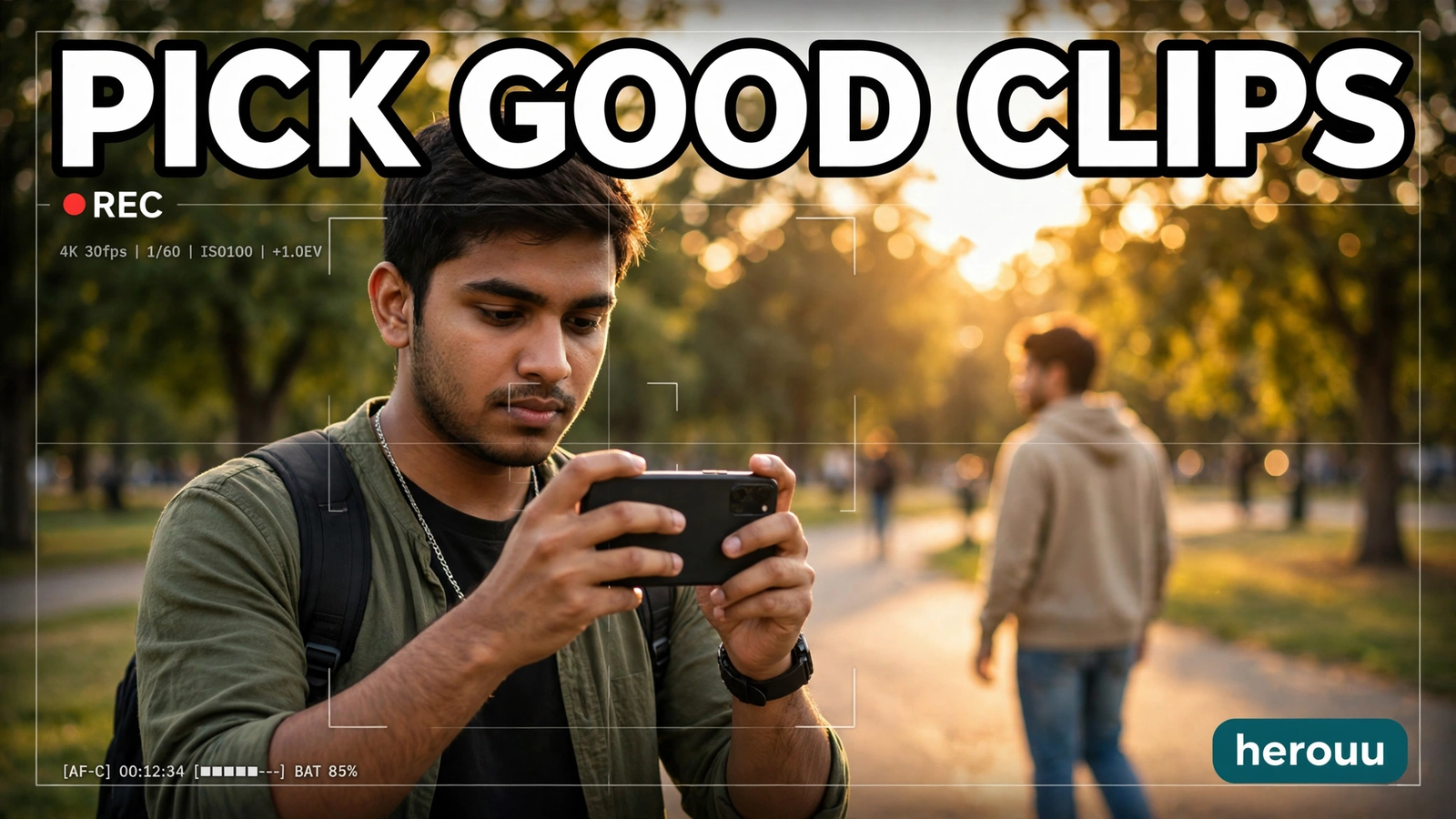
Get your clips ready before you open VN. A VN cinematic template cannot fix shaky or dark footage, so the shooting matters more than the editing. Hold the phone steady, walk slowly, and shoot in good light. Morning and evening light give the warm, soft look this style needs.
Check that you have enough free space, because video projects and exports take room. Close other heavy apps before you export. Keep clips short. Two to four seconds per clip is plenty, and short clips keep the edit moving.
| Requirement | What you need |
|---|---|
| Phone | Android or iPhone with the VN app installed |
| App version | Latest VN version from the Play Store or App Store |
| Storage | At least 1 GB free space for the project and export |
| Clips | 6 to 10 steady clips, 2 to 4 seconds each |
| Music | A calm track from VN’s music library |
| Internet | Needed to download templates and some music |
How to use a VN cinematic template
Follow these steps in order to use a VN cinematic template. Each step is one clear action, so you can pause after any step and come back later.
- Open the VN app and tap the Discover icon at the bottom of the screen.
- Browse the recommended templates or search for cinematic, film, or travel.
- Watch the VN cinematic template preview once and check the mood, speed, and number of clips it needs.
- Tap Download on the template you like, then tap Use to start filling it.
- Pick your own clips for each slot, in the order you want them, then tap Next.
- Watch the full preview. If a clip feels wrong, tap it and use Replace to swap it.
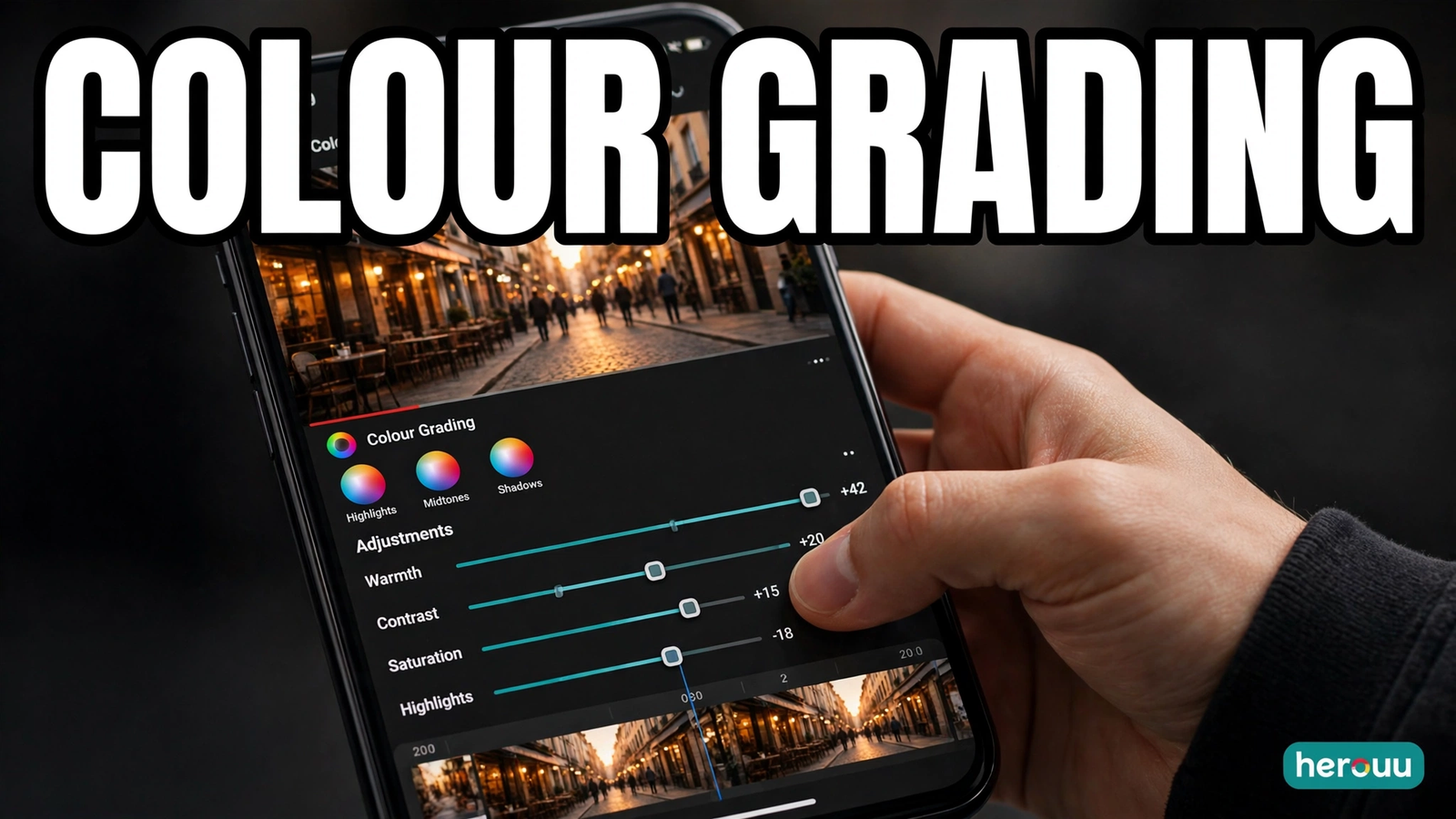
- Tap a clip and open Filter. Pick a warm or film-style filter for your VN cinematic template and use it on every clip.
- Tap a clip and open Adjust to set brightness, contrast, and saturation a little lower than default.
- Add a slow zoom to one or two key clips. Tap the clip, open keyframes, and set a gentle push-in from start to end.
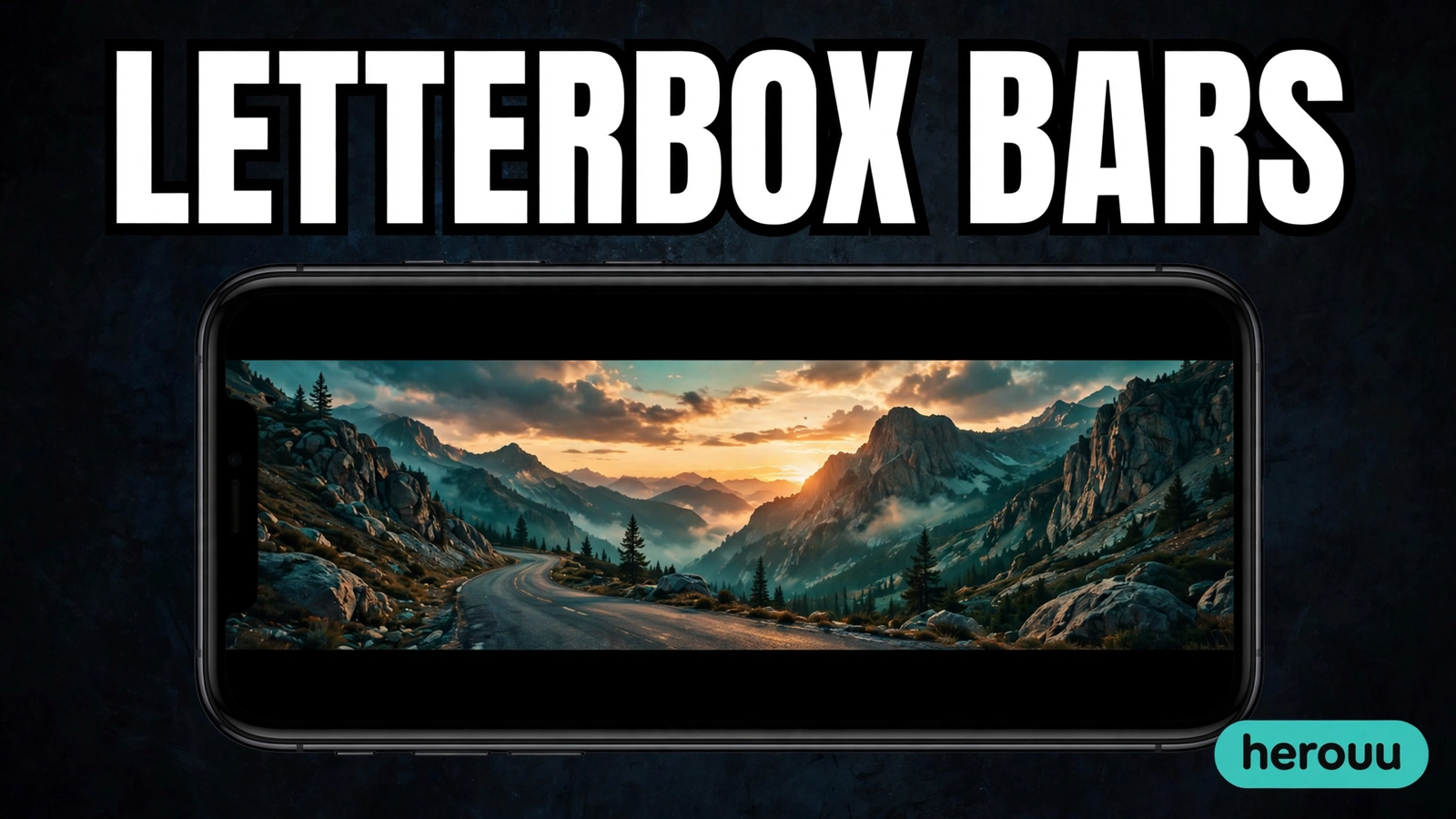
- Add black bars at the top and bottom for the wide movie shape. VN does not publish a one-tap letterbox button, so use a black overlay image or sticker bar at the top and bottom, and check the preview.
- Tap the music track and check the timing. Move a clip slightly so each cut lands on a beat or a quiet moment.
- Tap Save to store the project in Projects on the home screen, so you can change it later.
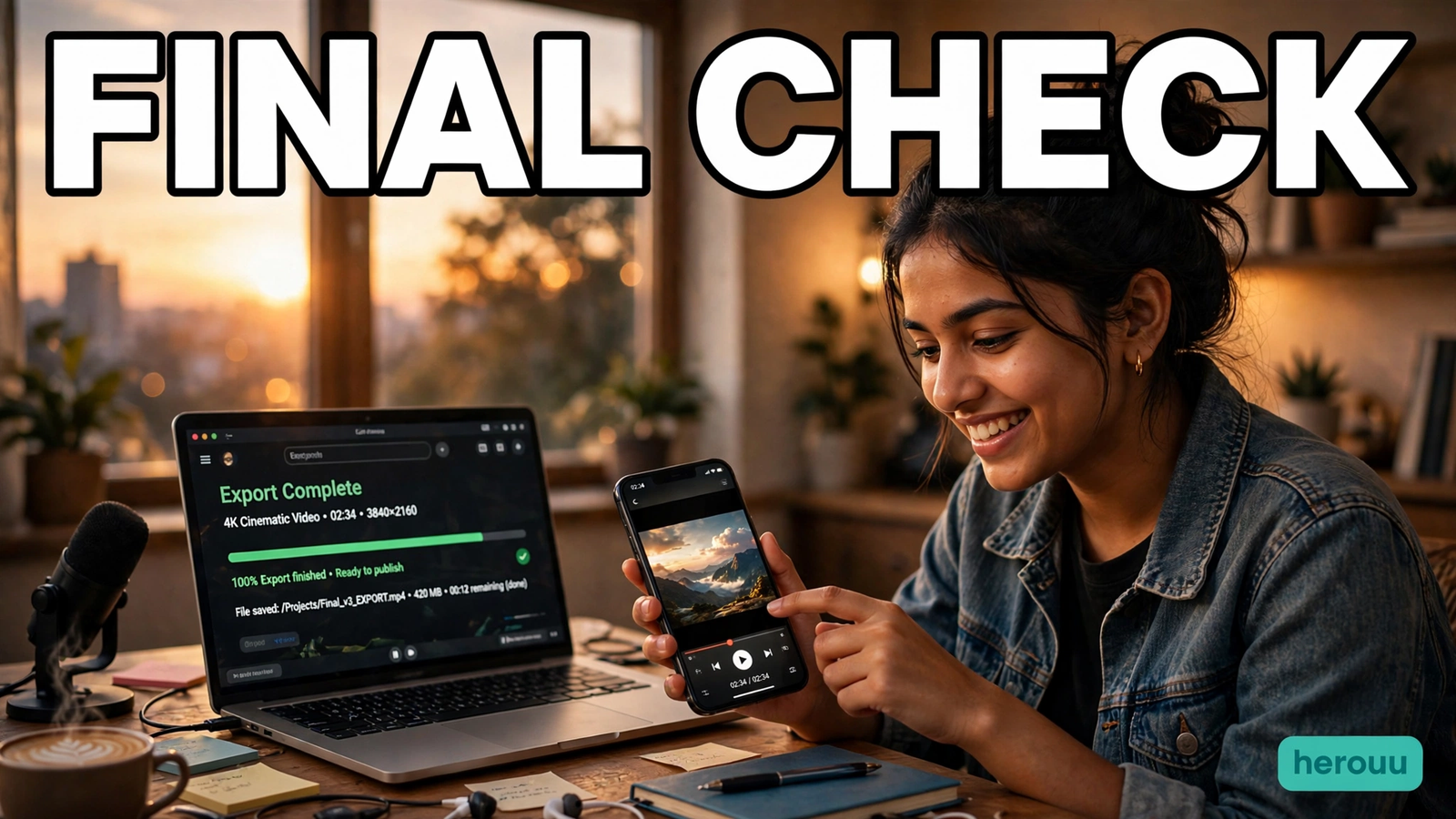
- Tap Export, choose Manual mode, and pick 1080p and 30fps for a normal reel, or 4K if your phone supports it. Then tap Export and wait for it to save to your album.
Template ideas
These five ideas are original starting points, not ready-made files. Use one as a plan for your own clips, or as the base for a VN cinematic template you build yourself in VN. Copy the idea you like and follow its notes.
Idea 1: Golden hour walk
A slow walk through a street or park in the last hour before sunset, when warm light and long shadows do most of the work.
Copy this idea:
Golden hour walk: 6 clips, 2 to 3 seconds each. Start with a wide shot of the street, then feet walking, then a side view of the person, then the sky, and end on the person walking away. Use a warm filter, lower the saturation a little, and add a slow push-in on the last clip.
Idea 2: Slow morning at home
A quiet morning told in small details: steam from tea, light through a window, hands on a cup, and a slow pan across the room.
Copy this idea:
Slow morning at home: 7 clips, 2 seconds each. Open with light on the wall, then tea being poured, then hands holding the cup, then the window, then a slow pan of the room, and close on the cup from above. Use a soft filter, keep the brightness low, and cut on the quiet parts.
Idea 3: City lights at night
A night walk through a lit street or market, where neon signs, car lights, and reflections give it a film feel.
Copy this idea:
City lights at night: 6 clips, 3 seconds each. Start with a wide shot of the street, then a close shot of a sign, then moving car lights, then a reflection in a puddle, then a person walking under the lights, and end on the skyline. Use a cool filter with a little extra contrast, and keep the clips steady.
Idea 4: Hills and road trip
A short road trip edit built from the journey itself: roads, hills, clouds, and the view from the window.
Copy this idea:
Hills and road trip: 8 clips, 2 to 3 seconds each. Open with the road ahead, then hills in the distance, then clouds moving, then the view from the car window, then a roadside stop, then the valley below, and end on the road disappearing into the hills. Use a teal and warm filter, with a slow zoom on the widest shots.
Idea 5: Quiet portrait film
One person, soft light, and no rush. This works for birthdays, a friend’s reel, or a simple personal film.
Copy this idea:
Quiet portrait film: 5 clips, 3 to 4 seconds each. Start with the person looking away, then a close shot of hands or a smile, then the person walking in soft light, and end on the person looking at the camera. Use a warm filter, lower the contrast slightly, and keep the music soft.
Tips
- Shoot more clips than you need. Ten good clips give you choice, and you can drop the weak ones.
- Keep the camera still or move it very slowly. A fast pan looks rushed, while a slow move feels like a film shot.
- Use one filter for the whole VN cinematic template. Mixing filters makes the colour jump between clips, and that breaks the movie feel at once.
- Leave space at the top and bottom of each clip before you add the black bars, or faces and text near the edge get covered.
- Watch the video once with the sound off. If it still feels calm and clear, the edit is working.
- Save the project before you export. If the export fails, the saved project lets you fix it in minutes.
Common problems and fixes
| Problem | Likely cause | Fix |
|---|---|---|
| The video looks like a normal clip, not a film | Filter is too light and clips move too fast | Use a stronger warm or teal filter in your VN cinematic template, slow the clips, and add the black bars |
| Colours change between clips | Different filters or light in each clip | Apply the same filter to all clips and adjust brightness to match |
| The black bars cover faces or text | Subject is too close to the top or bottom edge | Crop the clip or reframe it so faces sit in the middle third |
| The template will not let you change a clip or the frame | The creator did not enable Allow to Edit or Allow to Change Frame | Pick another VN cinematic template, or rebuild the idea as your own project in VN |
| The export looks blurry | Export resolution is low or the source clips are low quality | Export in Manual mode at 1080p or 4K, and use your best quality clips |
| Music does not match the cuts | Clips were placed without checking the beat | Move clips a little so each cut lands on a beat or a pause in the track |
Frequently asked questions
What is a VN cinematic template?
A VN cinematic template is a ready-made editing layout in the VN app with preset transitions, beat markers, text styles, and filter effects. You replace the sample clips with your own videos, and the template keeps the pacing and colour style. It suits travel reels, evening walks, and short films.
Is a VN cinematic template free to use?
Yes, VN is a free app with no watermark, and its template library, filters, and LUTs are included in the free version according to the app listing. Templates shared by other creators may have their own limits or costs, so check the template page before you download one.
How do I make my video look cinematic in VN?
Pick steady clips shot in good light, apply one warm or teal filter to all of them in your VN cinematic template, lower the saturation a little, and add slow movement with keyframes. Then add black bars at the top and bottom for the wide frame. Calm music and slow cuts finish the look.
What is the best filter for a cinematic look in VN?
There is no single best filter for a VN cinematic template, because the right one depends on your light and subject. A warm filter suits golden hour and skin tones, while a teal filter suits night streets and travel. Try two or three and use the one that keeps skin natural on every clip.
How do I add black bars in VN?
VN does not publish a one-tap letterbox button, so use a workaround. Add a black overlay image or a sticker bar at the top and bottom of the frame, and check the preview so faces and text are not covered. Keep the bars the same size on every clip.
Can I change the clips in a VN cinematic template?
Yes, in most templates you can tap a clip and use Replace to swap it for your own video, and change the filter, crop, and volume of each clip. Full timeline editing, like changing the clip order or transitions, is only possible when the creator enabled the Allow to Edit setting.
Why does my cinematic video look dark after the filter?
Film-style filters often lower brightness and raise contrast, which can make a clip look too dark. Open Adjust on the clip and raise the brightness a little, then lower the contrast slightly. If the clip was shot in low light, pick a brighter one or shoot again in better light.
What export settings should I use for a cinematic reel?
For Instagram Reels and YouTube Shorts, export at 1080p and 30fps, which keeps the file small and the quality clean. If your clips were shot in 4K, you can export at 4K from VN’s Manual mode. Higher settings improve quality but make larger files and slower uploads.
Can I use a VN cinematic template on iPhone and Android?
Yes, VN works on both Android and iPhone, and templates, filters, and exports work the same way on both. The app is free on the Play Store and the App Store, with no watermark on exports. Menu names can differ between versions, so update the app if a button looks different.
Conclusion
A VN cinematic template does the heavy lifting, but the movie look still comes from your own clips, light, and patience. Shoot steady, keep one filter across the whole video, add the black bars, and check the final export before you post. Try the golden hour walk first, then browse the Vn Code Template category for your next edit.
Related reading
- VN Zoom In Template: Easy Zoom Effect Guide
- VN Transition Template: Easy Smooth Transitions Guide
- VN Beat Sync Template: Easy Music Beat Guide
- VN Slow Motion Template: Easy Slow Motion Guide
About herouu
herouu shares free templates, photo prompts, and video editing ideas for everyday creators. Every guide is written in simple English, uses only free tools, and is tested in the app first.
Disclaimer
This guide is based on the official VN help pages and app listing as checked on 8 November 2026. App features, menu names, and template availability can change, so check the official VN app or help page for the latest details. VN does not officially publish a named cinematic template collection or a one-tap letterbox tool, and this guide has no template code, download link, or QR code.
Sources
- VN Help, How to Use VN Templates? — https://vlognow.me/help/templates/use-template/
- VN on Google Play — https://play.google.com/store/apps/details?id=com.frontrow.vlog
- VN on the App Store — https://apps.apple.com/us/app/vn-photo-video-editor/id1343581380
- Filmora, Discover 40+ Stunning VN Templates to Elevate Your Videos in 2026 — https://filmora.wondershare.com/video-editor/vn-video-editor-templates-free-download.html
- VN Codes, How to Use VN Templates and QR Codes in VN Editor — https://vncodes.in/how-to-use-vn-templates-qr-codes-in-vn-editor/
Details not officially announced: VN has not published a named cinematic template collection, a one-tap letterbox button, or a list of cinematic filters. The letterbox method here is a workaround using an overlay or sticker bar. Template availability, pricing, and editing limits are set by each template creator.