
A capcut blur effect template is the fastest way to give a phone video a soft, clean background while the person in front stays sharp. You build it once from your own clip, using two layers, a blur effect, and CapCut’s background removal. This guide shows the steps on phone and desktop, five template ideas to copy, and the fixes beginners hit most. Menu names change with app updates, so check the official CapCut help page.

At a glance
- A capcut blur effect template uses two copies of the same clip: the lower copy blurred, the upper copy cut out so only the person stays sharp.
- It suits talking-head reels, vlogs, and product demos where a busy room distracts from the speaker.
- Blur styles include Halo Blur, Pixel Blur, and Vertical Blur. Try each one and keep the best.
- On a phone, a moving face needs mask keyframes, because the mobile app has no mask tracking. On desktop, Track mask follows the face.
- CapCut does not blur a background in one tap. The two-layer setup is the method its guides describe.
Quick Overview
| Topic | capcut blur effect template |
|---|---|
| Category | Capcut Template |
| App / Tool | CapCut app on phone, or CapCut desktop editor |
| Skill Level | Beginner |
| Time Needed | 15 to 25 minutes |
| Media Needed | 1 video clip of your own, 5 to 30 seconds |
| Cost / Free Features | Blur effects and Remove BG are free in the app, per CapCut’s guides. Some styles may vary by version or plan. |
What you will make
One clip is enough to build a capcut blur effect template you can reuse. Pick the idea that fits your video.
| Template idea | Best for | Clips needed |
|---|---|---|
| Talking-head reel, soft background | Reels and Shorts | 1 talking clip |
| Face blur for privacy | Vlogs and group clips | 1 clip with a face to hide |
| Blur transition | Reels and travel videos | 2 clips |
| Soft blur intro | Product videos | 1 opening clip |
| Blur outro with text | End screens | 1 closing clip |

Before you start
A little prep makes the blur look clean. The two-layer method works best when the person is easy to separate from the room behind them. This capcut blur effect template assumes you have one steady clip of your own.
| What you need | Why it matters |
|---|---|
| CapCut app, updated | The steps use the current Effects, Mask, and Remove BG menus |
| Your own video clip | Use only clips you filmed or have permission to use |
| Space behind you | A step or two of space helps the cutout find clean edges |
| Plain light on the face | Even light keeps the cutout off your hair and hands |
| Free storage on your phone | CapCut needs room for the project and the export |
Film against a busy background in a different colour from your clothes. Keep the camera still, or use a small tripod.
How to make a capcut blur effect template in CapCut
These steps follow the method CapCut’s own guides describe for a capcut blur effect template. Phone and desktop use the same idea with different buttons.
- Open CapCut, tap New project, pick your clip, and tap Add. Set the ratio: 9:16 for a reel or Short, 16:9 for YouTube.
- Duplicate the clip. Long-press it, tap Duplicate, and place the copy directly above the original so both layers line up.
- Select the lower copy. Tap Effects, then Video effects, search for Blur, and pick Halo Blur or Pixel Blur. Drag the effect bar to cover the whole clip.
- Set the blur strength. Move the intensity slider until the background is soft but you can still tell what the room is. The middle is a good start.
- Select the upper copy. Tap Cutout or Remove BG, choose Auto removal, and wait while CapCut separates you from the background. This keeps the person sharp.
- Play the first few seconds and look at the edges. Hair, glasses, and hands are where the cutout slips. If the edges flicker, raise the blur a little.
- To blur a face instead, add the same clip again as an overlay and apply Blur to the overlay only. Open Mask, choose Circle, and size it over the face with a margin.
- To follow a moving face on your phone, add a position keyframe on the mask at the first frame, move a few frames forward, drag the circle to the new position, and add another keyframe. Repeat until the face leaves the frame. On desktop, use Track mask.
- To fade blur in or out, trim the blur effect bar shorter than the clip. CapCut does not let you keyframe a blur effect itself, so trimming the bar is the way to do it.
- Add text or stickers last. Text placed before the blur can end up under a blurred layer and look soft.
- Export and check the saved file. Play it from start to end before you post it. Check every face, every edge, and the first and last frames.
If a step looks different on your phone, use the closest matching menu name. The two-layer order never changes: blurred copy below, sharp cutout above.
CapCut Blur Effect Template: 5 Copy-Paste Ideas
Copy one idea and follow its steps with your own clip. Each idea below is a capcut blur effect template you can reuse, not a file to download. You build each one inside CapCut.
Use this capcut blur effect template for a talking-head reel. Duplicate your clip into two layers. On the lower copy, open Effects, then Video effects, and apply Halo Blur at medium strength. On the upper copy, open Remove BG and choose Auto removal. Check the hair edges, add captions, then export.
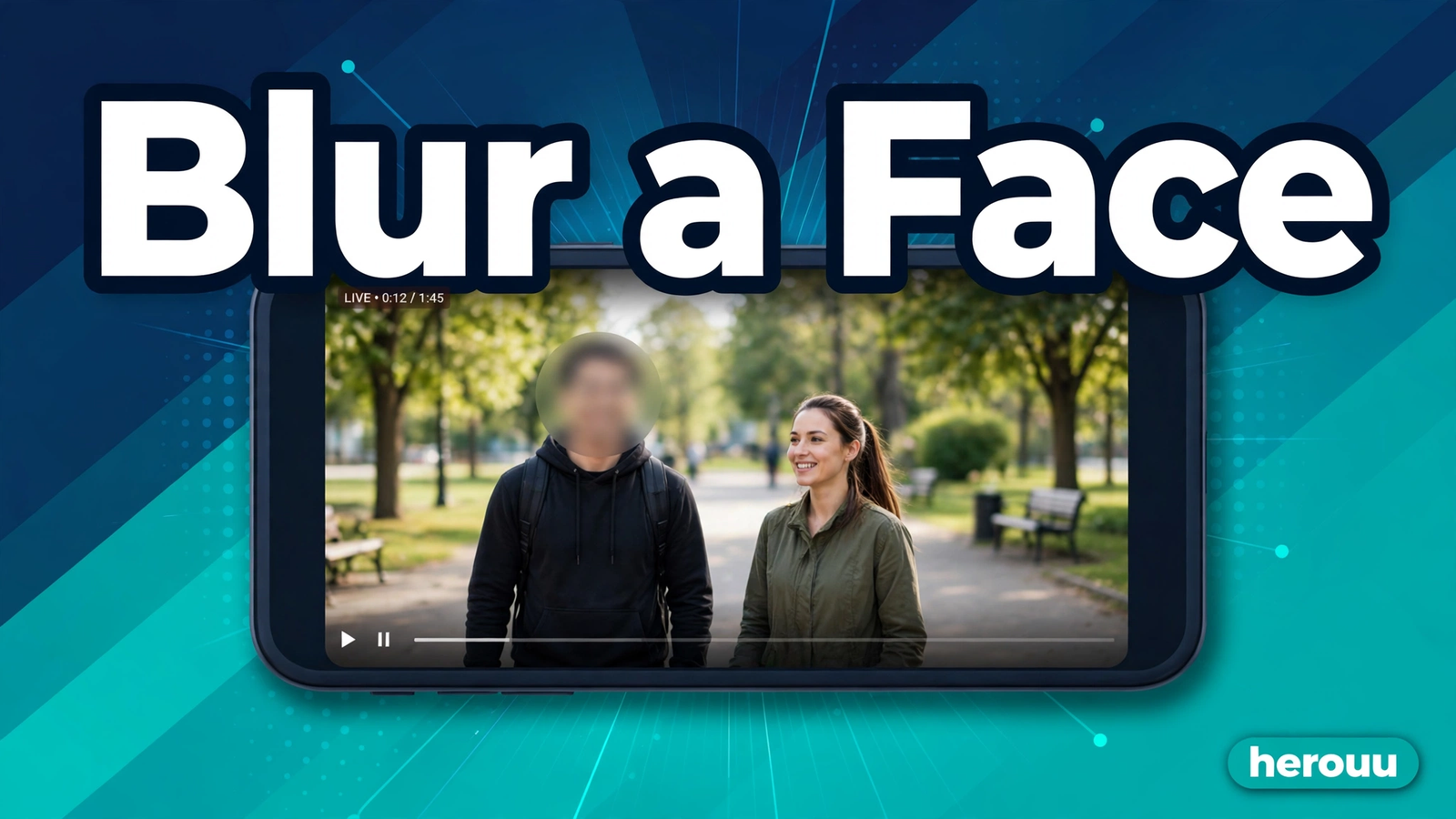
Use this capcut blur effect template when a stranger walks into your vlog or a friend asks not to be shown. Add the same clip again as an overlay and line it up exactly. Apply Blur to the overlay only. Open Mask, choose Circle, and place it over the face with a margin. Add position keyframes as the face moves, then watch the export to check no frame slips.
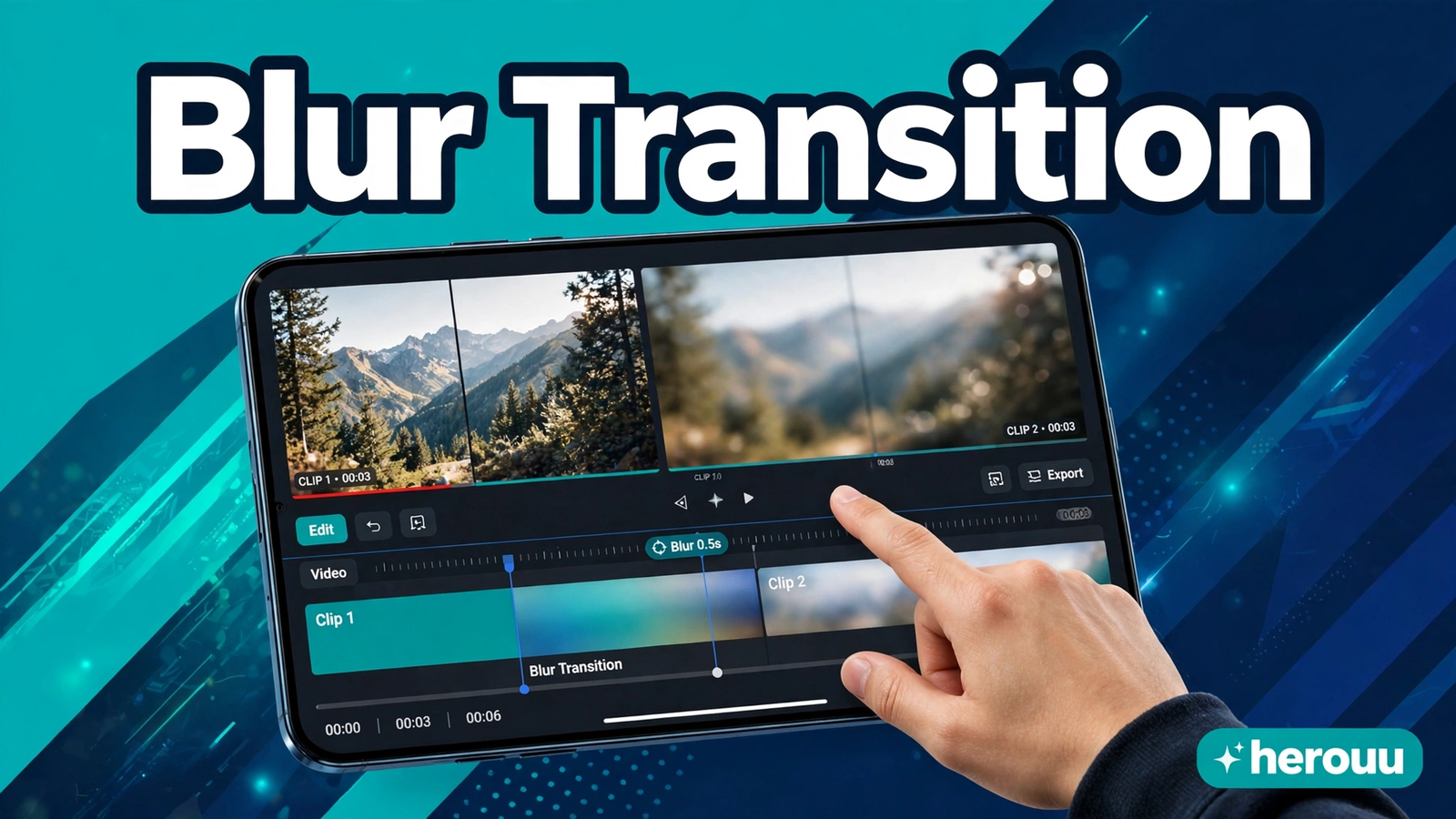
Use this capcut blur effect template to move from one scene to the next. Place your two clips side by side. At the end of the first clip, add a Blur effect and trim its bar to the last half second. Do the same at the start of the second clip. The picture softens, then sharpens. Keep the blur short so the cut still feels quick.
Use this capcut blur effect template for the first three seconds of a product video. Start with a close-up of your product, softened with a light Blur effect. Then cut to the same shot sharp, with the product name as text on screen. Keep the blur light so viewers can still tell what the product is.
Use this capcut blur effect template for the last three seconds of a reel. Freeze the last second of your clip and apply a strong Blur effect. Add your text on top, such as Follow for more or Link in bio. The soft background makes the text easy to read. Keep it on screen long enough to read twice.
Tips that make your blur look clean
Small choices in filming and strength make the biggest difference to the final look of a capcut blur effect template.
- Keep the blur in the middle range. A very strong blur turns the background into flat colour, while a very light blur leaves faces readable.
- Film with space behind you. One or two steps from the wall help Auto removal find your edges.
- Check the hair first. Flyaway hair is where most cutouts fail. If the edges shimmer, tie your hair back, or raise the blur.
- Use one blur style per video. Mixing Halo, Pixel, and Vertical Blur in one reel looks messy.
- Test on a five-second clip before you edit a long video. Build the template once on a short test, then use the same settings on the full clip.
Common problems and fixes
Most blur problems come from layer order, strength, or the cutout. Work through the table before you start again.
| Problem | Likely cause | Fix |
|---|---|---|
| The whole video is blurred | The blur sits on the top layer, with no cutout above it | Put the blurred copy below, the cutout copy above |
| The person looks blurred too | The upper copy is missing or the cutout failed | Check the upper layer is the sharp original, then retry Auto removal |
| Edges around hair flicker | The cutout struggles with fine hair or busy light | Raise the blur, use plain light, or tie hair back |
| The face blur slips off as the person moves | Keyframes are too far apart, or the tracker lost the face | Add a keyframe every few frames, or re-run Track mask on desktop |
| Text on screen looks soft | The text sits under a blurred layer | Move the text to the very top of the timeline |
| The video lags while you edit | Two layers plus blur is heavy for an old phone | Lower preview quality, close other apps, or edit on desktop |

Frequently asked questions
Is the capcut blur effect template free to use in CapCut?
Yes, the blur effects and the Remove BG tool are free in the CapCut app, according to CapCut’s own guides. You build the template yourself from your own clip, so there is nothing to buy. Some styles may vary by app version or plan.
How do I blur the background but keep the person sharp?
Duplicate your clip so you have two layers. Apply a Blur effect to the lower copy, then open Remove BG and choose Auto removal on the upper copy. The upper copy keeps only the person, and the blurred copy shows through behind them.
Can I blur only one face in a group video?
Yes. Add your clip again as an overlay and apply the Blur effect to the overlay only, then open Mask and choose Circle. Place the circle over the one face to hide and leave the others sharp. One mask covers one face.
Why is my whole video blurred instead of just the background?
The blur is on the wrong layer, or the sharp layer above it is missing. The blurred copy must sit below, and the Auto removal copy must sit above it, lined up frame for frame. If the layers are swapped, the blur covers everything.
Can I use a capcut blur effect template for a moving face on my phone?
Yes, but you move the mask by hand. The phone app has no mask tracking, so add a position keyframe on the mask at the first frame, then move a few frames forward and drag the circle to the new position. Repeat until the face leaves the frame.
Which blur style should I choose: Halo, Pixel, or Vertical Blur?
It depends on the mood of your video. Halo Blur gives a soft glow and suits beauty and talking-head reels. Pixel Blur turns the area into blocks and suits hiding text or a number plate. Try all three and keep the best one.
Does the blur effect work on photos in CapCut too?
Yes. Add your photo to the timeline, open Effects, then Video effects, and search for Blur. The same capcut blur effect template trick works: blur the lower copy and keep the sharp photo above it. Background Blur also fills empty space when a photo does not fit the ratio.
Why does Remove BG cut off hair or hands?
Auto removal finds edges by contrast, and fine hair, fast-moving hands, and clothes that match the background confuse it. Film with plain light and keep a gap between you and the background. In a capcut blur effect template, stronger blur also hides small edge mistakes.
Can I save my blur setup and reuse it for the next video?
CapCut has no official one-tap save for a capcut blur effect template, so save the project itself and duplicate it for the next video. Open the finished project, replace the old clip on both layers with the new clip, and keep the blur settings.
Conclusion
A capcut blur effect template is a simple two-layer setup: a blurred copy below, a sharp cutout above, and a mask when you need to hide one spot. Build it once on a short test clip, check the edges and the exported file, then reuse it for every reel.
Related reading
These capcut blur effect template guides use the same idea: your own clips, simple steps, and a check of the finished video.
- CapCut Flash Effect Template
- CapCut Green Screen Template
- CapCut Slow Motion Template
- Browse all CapCut guides in the Capcut Template category
About herouu
herouu is a free resource for everyday creators. It shares capcut blur effect template guides and simple how-tos for VN, CapCut, and AI apps, in plain English for phone users.
Disclaimer
This guide is based on the official CapCut help pages available at the time of writing. Features and menu names may change, so verify the latest details in the official CapCut app or help page.
Sources
- CapCut, How to Blur Background in CapCut — https://www.capcut.com/resource/how-to-blur-background-in-capcut
- CapCut, How to Blur Videos in CapCut — https://www.capcut.com/resource/how-to-blur-videos-in-capcut
- CapCut, Blur Video Background Online — https://www.capcut.com/tools/blur-video-background
- CapCut Guide, How to Blur a Video Background in CapCut — https://capcutguide.com/blur-background-capcut/
- CapCut Guide, How to Blur a Face in CapCut — https://capcutguide.com/how-to-blur-face-in-capcut/
- CreateThat, How to Blur on CapCut — https://www.createthat.ai/blog/how-to-blur-on-capcut
- Blur.me, How to Blur on CapCut — https://www.blur.me/blog/how-to-blur-on-capcut/
Details not officially announced: whether every blur style is free in all CapCut versions and plans, and the exact export resolutions on each device, are not published in one place.