
A vn retro film template can turn a plain phone clip into a warm, old-film video in a few minutes. You pick a warm filter, add grain and a soft frame, then finish with retro music and simple text. This guide shows the full method in the VN app, with five template ideas you can copy and reuse. App screens change with updates, so check the official VN help page if a menu looks different. Build your own vn retro film template from scratch, or follow one of the five ideas below.

At a glance
- Start with a warm filter in VN, lower saturation a little, and add grain for the old-film feel. A vn retro film template works best when the filter stays light and skin tones stay natural.
- Pick clips with soft daylight and simple backgrounds. Fast action hides the effect.
- Add a 4:3 frame or black bars, a light leak or dust overlay, and a date stamp.
- Keep each clip 2 to 4 seconds, so the reel feels like old home-movie footage. This vn retro film template style suits travel, family, and festival clips.
- Export in 1080p at 30 fps for Reels and Shorts. VN is free with no watermark, per official listings.
Quick Overview
| Topic | vn retro film template, vintage look guide |
|---|---|
| Category | Vn Code Template |
| App / Tool | VN Video Editor app (Android and iOS) |
| Skill Level | Beginner |
| Time Needed | 20 to 30 minutes for one short reel |
| Media Needed | 4 to 6 short video clips of your own |
| Cost / Free Features | Free in VN, no watermark, per official listings. Some filters may be Pro. |
What you will make
You do not need an old camera to get the old-film look. One vn retro film template built in VN can cover five moods, from a soft 70s home movie to a grainy 90s camcorder clip. Pick the mood that fits your clips and follow the matching idea below. Every idea is a complete vn retro film template plan, not a download link or a code.
| Video idea | Best for | Clips needed |
|---|---|---|
| 70s home movie | Family clips and old memories | 5 clips, warm light |
| 90s camcorder | Birthday and school memories | 4 clips, indoor light |
| Retro travel diary | Trips, streets, and markets | 6 clips, daylight |
| Vintage festival look | Diwali, weddings, and fairs | 5 clips, evening light |
| Black and white classic | Portraits and slow moments | 4 clips, soft light |
Before you start
Get your clips ready before opening VN. A little prep keeps the colour even across the whole video, which is what makes the retro look feel real instead of random.
| What you need | Why it matters |
|---|---|
| VN app, latest version | Filter, Adjust, and overlay tools live in the app |
| 4 to 6 of your own clips | Short clips with steady light give the cleanest look |
| 1 to 2 GB free space | VN needs room to preview and export |
| A music track you can use | Use VN’s built-in music or licensed audio |
| A steady hand or tripod | Shaky clips fight the slow retro mood |
Shoot in daylight when you can. Harsh midday sun blows out warm tones, and very dark clips turn muddy once you add grain. If your clips come from different days, pick ones with similar light.
How to build a retro film look in VN
These steps build one vn retro film template in VN from your own clips. Menu names can change with app updates, so use the closest option on your screen.
- Open VN and start a new project. Tap the plus button, choose New Project, and import your clips in order.
- Set the canvas to 9:16 for Reels and Shorts. Tap the ratio option and pick 9:16 so the video fits a phone screen.
- Trim each clip to 2 to 4 seconds. Tap a clip, drag the edges, and cut the dull ends. Short clips keep the reel moving like old home-movie footage.
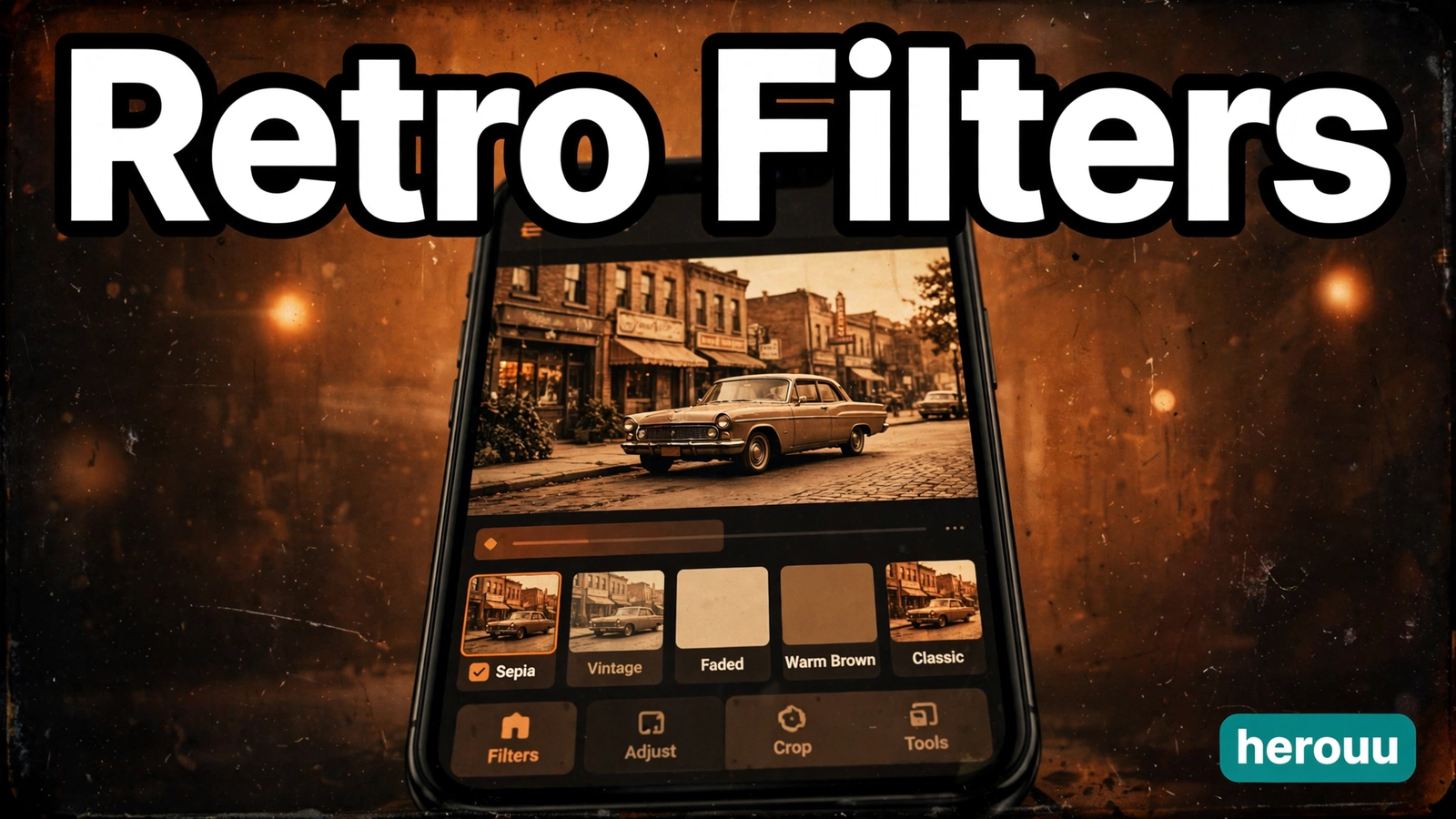
- Tap a clip, then open Filter. VN’s help pages say filters are preset styles you apply in one tap, with intensity adjustable after. Pick a warm, faded film or vintage filter at 60 to 70 percent intensity so faces stay natural.
- Open Adjust on the same clip. Lower saturation a little, warm the temperature, lift the shadows, and pull contrast down a touch. VN’s Adjust panel covers exposure, contrast, brightness, saturation, vibrance, temperature, highlights, and shadows.
- Copy the filter and Adjust settings to the other clips. Use the copy or paste style option if your version shows it, or repeat steps 4 and 5.
- Add a film grain or dust overlay. Open Effects or the overlay menu, find a grain, dust, or old film effect, place it above your clips, and lower its opacity until the grain is visible but not noisy.
- Add a frame. Use a 4:3 crop, black bars, or a film frame overlay so it reads as old footage. Keep faces inside the frame.
- Add retro text. Tap Text, choose a typewriter or serif style, and add a short line such as a place name or a year. Keep it small, in a corner, and on screen for 2 to 3 seconds.
- Add music. Tap Music or Audio, pick a slow retro tune from VN’s library, or add your own licensed track. Lower the volume so it sits under the video, and trim it to end with the last clip. This is where a vn retro film template gets its mood, so pick music that matches the era, not the loudest track.
- Preview the whole video, then export. Watch it once from the start, check colour, grain, and text, then export at 1080p, 30 fps. Save the project in VN to reuse the look later.
VN Retro Film Template: 5 Copy-Paste Ideas
Each idea below is a complete vn retro film template plan: filter, grain, frame, music, and clip order. Copy the plan and swap in your own clips. These are editing plans, not codes or download links, and VN has no official retro film template code for them, so check the app for the closest filter names.
Warm faded filter at 65 percent, saturation down, temperature warm. Light grain with a few dust specks, 4:3 frame with soft rounded corners. Slow acoustic guitar or soft piano. Clip order: house wide shot, close-up of faces, hands at work, walking shot, laughing shot at the end. This vn retro film template plan suits family clips and old memories.
Slightly cool filter with a VHS feel, contrast down, brightness up. Medium grain with a date stamp in the corner, 4:3 frame with black bars. Lo-fi pop or a soft 90s tune. Clip order: cake close-up, friends laughing, dancing shot, group photo, blowing out candles to end. This plan suits birthday and school clips.
Warm golden filter at 60 percent, vibrance up, highlights down. Light grain, no heavy dust, thin black bars top and bottom. Mellow travel guitar music. Clip order: street wide shot, market close-up, food shot, walking feet, sunset to close. This vn retro film template plan suits trips and city walks.
Rich warm filter, saturation near normal, temperature warm, shadows lifted. Soft grain with a light leak in one corner, full 9:16 frame, thin borders. Festive instrumental music, low volume. Clip order: lights wide shot, decorations close-up, people smiling, food, fireworks or lamps at the end. This vn retro film template plan suits Diwali, weddings, and fairs.
Black and white filter at full strength, contrast up, shadows down. Fine grain, no colour, 4:3 frame. Slow piano music. Clip order: portrait close-up, hands or details, slow walking shot, quiet moment. This vn retro film template plan suits portraits and slow, calm clips.


Tips that make your retro video look real
Small changes in the filter and grain make a big difference to the final video.
- Keep the filter light. A vn retro film template fails when the filter is so strong that faces turn orange or grey. If skin looks wrong, lower the intensity first.
- Match the light across clips. One cloudy clip among sunny clips stands out once the filter is on, so pick clips from the same time of day.
- Use grain last, and keep it subtle. Grain should feel like old film, not a dirty screen. If you see the grain more than the subject, lower the opacity.
- Let the music set the pace. Cut to the beat, but keep the cuts soft. Hard jump cuts break the retro mood.
- Test the look on one clip first. Build the full vn retro film template on one clip, export a short preview, and watch it on your phone before you edit the rest.
- Save the look as a preset. VN lets you save colour settings as a preset, per its help pages, so save your retro grade for your next reel.
Common problems and fixes
Most problems come from a filter that is too strong, grain that is too heavy, or clips that do not match. Fix colour first, then grain.
| Problem | Likely cause | Fix |
|---|---|---|
| The video looks orange | Warm filter too strong | Lower intensity to 50 to 60 percent and cool the temperature |
| Grain looks like noise | Overlay opacity too high | Lower the opacity and use fine grain instead of heavy grain |
| Clips do not match in colour | Clips shot in different light | Apply the same filter and Adjust values to all clips |
| Text is hard to read | Text too small or low contrast | Use a larger size and a dark shadow, and keep text in a plain area |
| Music ends too early | Track shorter than the video | Loop the track, or trim the video to match the music length |
| Export looks dull | Export settings too low | Export at 1080p and 30 fps, then check it on your phone |
| The vintage look vanishes after export | Filter applied to one clip only | Check every clip and re-apply the filter where missing |
Frequently asked questions
Is a vn retro film template free in VN?
Yes. VN is free with no watermark, according to its official listings, and its built-in filters and Adjust tools cover the whole retro look here. Some advanced filters may be Pro, so check the app if a filter asks for payment.
Do I need a VN code or QR code for a retro film look?
No. You build the look from filters, Adjust, and overlays inside VN, so no code or QR is needed. Some creators share VN codes online, but this guide does not use one, and VN has not published an official retro film template code, so check the app first.
Which filter is best for a retro film look in VN?
Pick a warm, faded filter from the film or vintage group at 60 to 70 percent intensity. Filter names change with app versions, so try two or three and keep the one where skin tones stay natural. A light filter with warm temperature beats a heavy one every time.
How do I add film grain in VN?
Open the Effects or overlay menu on your timeline and look for grain, dust, or old film effects. Place the overlay above your clips in your vn retro film template, stretch it across the whole video, and lower the opacity until the grain is visible but soft.
Why does my retro video look orange?
The warm filter is too strong, or the temperature is too high. Lower the intensity to 50 to 60 percent, cool the temperature, and check the result on your phone. Skin tones are the best test: if faces look orange, the grade is too warm.
Can I use a vn retro film template for Instagram Reels?
Yes. Build on a 9:16 canvas, keep each clip 2 to 4 seconds, and export at 1080p and 30 fps. The retro look suits Reels, Shorts, and WhatsApp status videos. Keep the grain light, since heavy grain looks noisy on a small phone screen.
What music suits a retro film video?
Slow acoustic, soft piano, lo-fi, or gentle instrumental music suits a vn retro film template best. Pick music that matches the era, keep the volume low, and trim it to end with the last clip. Use VN’s built-in music or a track you have the right to use.
Can I save my retro look and reuse it?
Yes. VN lets you save colour settings as a preset, according to its help pages, so a vn retro film template you build once can be reused on your next video. You can also save the whole project in VN, duplicate it, and swap in new clips.
Will the retro look work on dark or night clips?
It can, but dark clips turn muddy once you add grain and lower the contrast. Lift the shadows and brightness a little first, keep the grain very light, and test one clip before you edit the rest. Daylight or soft evening light is cleanest.
Conclusion
A vn retro film template is a simple way to give your phone clips a warm, old-film feel without an old camera or a paid app. Start with one clip, set the filter and grain, then build the rest around it. Try the 70s home movie idea first, then browse the Vn Code Template category.
Related reading
These VN guides use the same idea: your own clips, one clear look, and a check before export.
- VN Cinematic Template: Easy Movie Look Guide
- VN Travel Template: Easy Travel Video Guide
- VN Freeze Frame Template: Easy Stop Motion Guide
- Browse all VN guides in the Vn Code Template category
About herouu
herouu is a free resource for everyday creators, with VN and CapCut guides and AI photo prompts in plain English for phone users.
Disclaimer
This guide is based on the official VN help pages at the time of writing. Features and menu names may change, so verify the latest details in the official app or help page.
Sources
- VN Help Center, Filters — https://vlognow.me/blog/features/filters/
- VN Help Center, Image and Clip Adjustment — https://vlognow.me/help/getting-started/img-clip-adjust/
- Filmora, Vintage Video Effect: How to Add Vintage Filter to Videos — https://filmora.wondershare.com/video-effects/add-vintage-effect.html
- Filmora, Mastering the Art of Old Film Video Overlay — https://filmora.wondershare.com/basic-video-editing-tips/old-film-overlay.html
- PromptSeen, Viral 1980s Reel Editing VN Code Template — https://promptseen.com/viral-1980s-reel-editing-vn-code-template/
- Beverly Boy, How to Achieve a Vintage Effect in Editing — https://beverlyboy.com/filmmaking/how-to-achieve-a-vintage-effect-in-editing/
Details not officially announced: no official retro film template code or QR is published by VN, and vintage filter names vary by app version. Check the official app or help page.