
AI podcast video editing turns a plain audio podcast into a video people can watch, with captions, clips, and a clean layout. This guide shows the whole process in simple steps, using your own recording and tools on your phone or computer. Check the official help page of the app you use first, because menu names can change.
At a glance
- Goal: Turn one podcast episode into a watchable video with captions and short clips, using AI podcast video editing.
- Best for: Beginners who already record a podcast and want to post it on YouTube, Instagram, or TikTok.
- Main idea: In AI podcast video editing, let AI handle the transcript, captions, and rough cuts, then fix the parts it gets wrong by hand.
- Time: About 45 to 60 minutes for one short episode, plus the time the AI tool takes to transcribe.
- Watch out for: Wrong names in captions, long pauses, and captions too small to read on a phone.
Quick Overview
| Item | Details |
|---|---|
| Topic | AI podcast video editing |
| Category | Ai Video Editing |
| App or Tool | CapCut, Descript, or an audio-to-video AI tool, plus your podcast audio |
| Skill Level | Beginner friendly |
| Time Needed | About 45 to 60 minutes for one short episode |
| Media Needed | Your own podcast audio or video, a cover image, and your own photos if you want them |
| Cost or Free Features | Basic editing and captions are often free; some AI features may be marked premium, so check your app before you plan around them |
What you will make
You will make a video version of your podcast: a full episode for YouTube, or short clips for Reels and TikTok. The video shows your cover art or your face, a moving waveform, and captions that follow your voice, so viewers can follow it with the sound off.
AI podcast video editing is useful because most people find new shows on video apps, not in podcast apps. A short clip with captions can bring a new listener to the full episode. You do not need a camera crew or a studio. A clear recording, a simple layout, and honest captions are enough to start with AI podcast video editing.
Before you start
Pick one episode for your AI podcast video editing, not your whole back catalogue. A short episode, or one strong part of a long episode, is the best first test. Save the original audio before you edit.
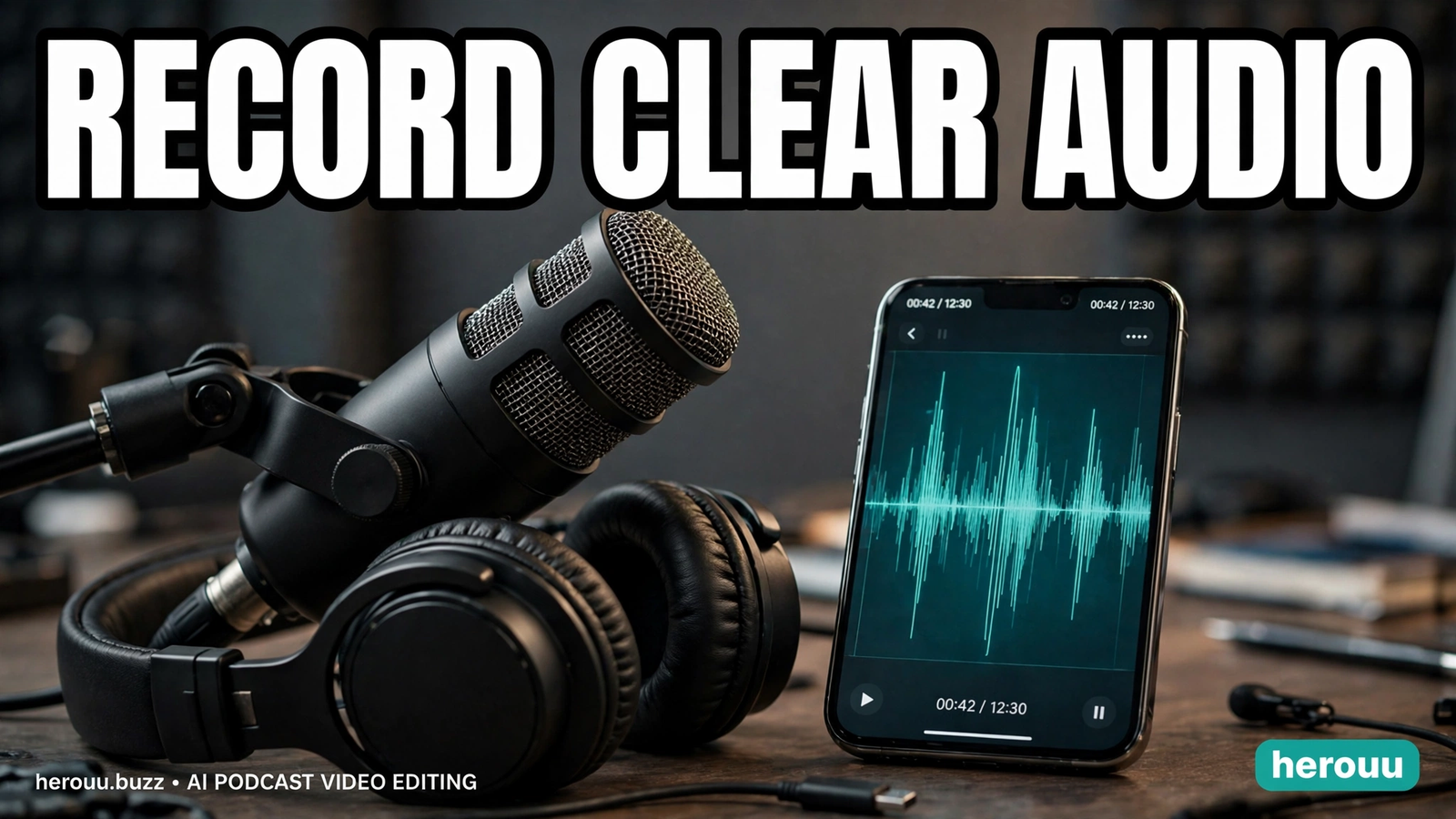
You need a recording that is easy to hear. If the room echo is strong or two voices talk over each other, AI tools will struggle with the transcript. Record in a quiet room, close to the microphone, and check your storage first, because a video project takes more space than the audio alone.
| Requirement | What to check |
|---|---|
| Audio file | MP3, WAV, or M4A, clear voice, no clipping |
| App | CapCut or Descript installed and updated, or an audio-to-video AI tool you already use |
| Storage | Enough free space for the project and the exported video |
| Cover art | One square image, your own art or a simple title card |
Steps: AI podcast video editing in order
Follow these steps for AI podcast video editing in order. Each one fixes one part of the video, so you do not have to guess everything at once.
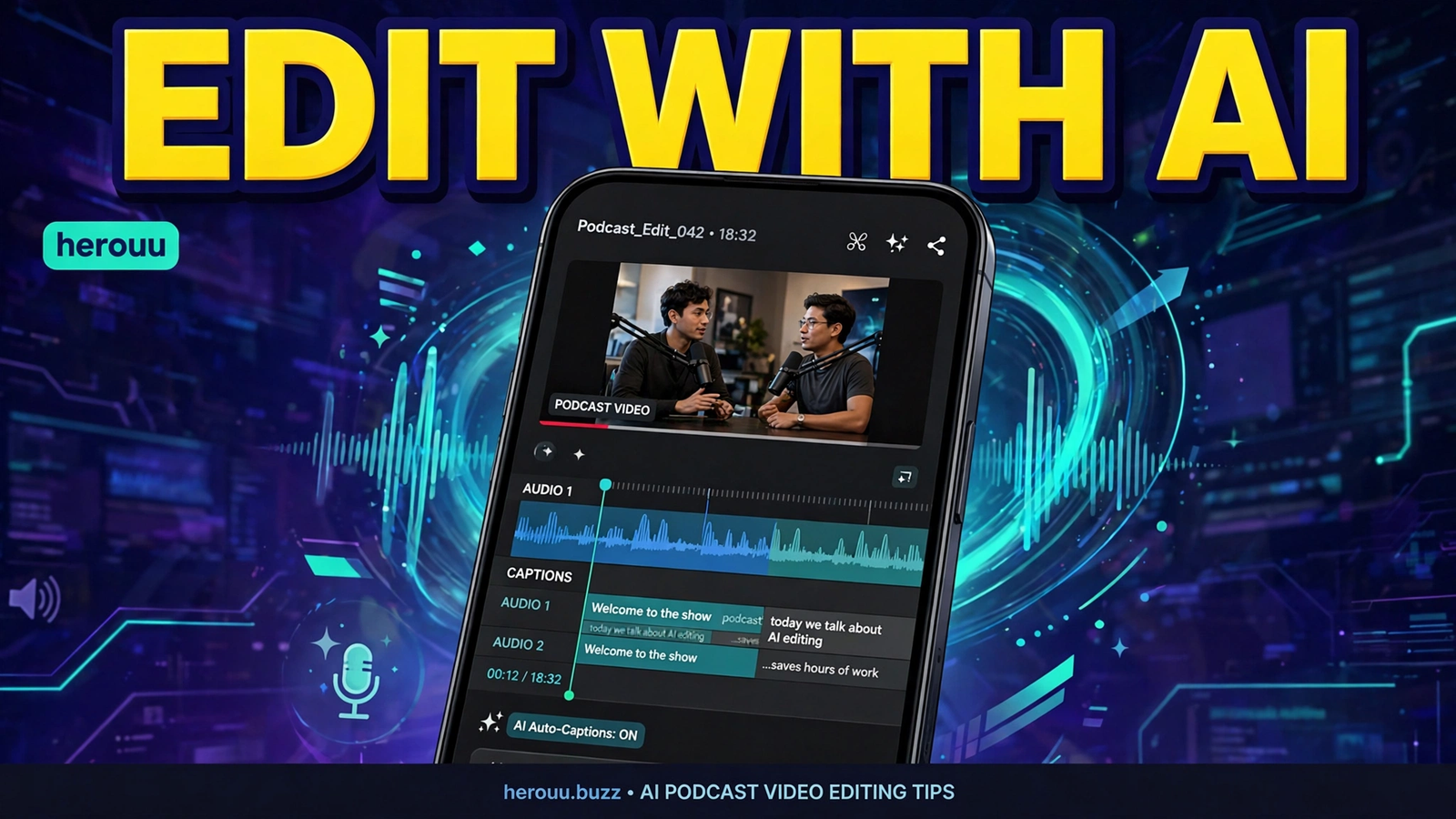
- Choose your episode and your goal. Decide if you want a full episode video or short clips. For Reels and TikTok, pick one strong moment of 30 to 60 seconds.
- Import your audio or video. Open your editing app for AI podcast video editing, start a new project, and import the podcast audio file, or the video file if you filmed the recording. Put it on the timeline first, then check the sound plays through without a gap.
- Let the AI make a transcript. Use transcription to turn speech into text. In CapCut, open Text, then Auto captions, pick the language, and tap Generate. In Descript, import the file and wait.
- Fix the transcript before you trust it. Read the transcript for AI podcast video editing and correct names, places, and words the AI misheard. This matters most in the first 30 seconds, where new viewers decide to stay. Fix your show name and your guest’s name first.
- Cut long pauses and filler words. Use the transcript to delete long silences, repeated words, and false starts. In Descript, delete the words in the transcript and the audio goes with them. In CapCut, split the clip at the pause and delete that part. Keep cuts small, so the talk does not sound rushed.
- Pick your video layout. Choose one simple layout for AI podcast video editing and keep it for the whole video. For an audio-only podcast, use cover art, a waveform, and captions. For a filmed podcast, use the camera footage with captions at the bottom.
- Add captions and check them on a phone. Turn on captions and pick a large, clear font with strong contrast. Watch the video on your phone, not only on a computer. If a caption is too small, too fast, or hidden, make it bigger or move it up.
- Add a title, a hook, and an end card. Put the episode title on screen in the first three seconds, add one short hook line that says what the listener will learn, and end with a simple card for AI podcast video editing that says where to find the full episode.
- Cut short clips from the best moments. Search the transcript for a strong line or a clear answer. Make a clip of 30 to 60 seconds around it. One episode can give you three or four clips.
- Preview the whole video with sound on. Watch your AI podcast video editing result from start to finish on your phone. Listen for a sudden change in volume, a cut that sounds abrupt, and a caption that does not match the voice. Fix one problem at a time. Do not export until the preview feels smooth.
- Export in the right size for each place. Export a wide 16:9 video for YouTube, and a tall 9:16 video for Reels and TikTok. If your app can export the same project in both sizes, use that. If not, make the wide version first, then a tall version from the same best clip. Check the file before you post it.
- Post it and write a clear caption. Upload the video where your listeners already are, and write a short caption for your AI podcast video editing post that says the topic and the guest in plain words. Add a link to the full episode where the platform allows it.
AI podcast video editing ideas
Use these ideas as starting points for your own episodes. This guide gives you no template file and no download link, because your video is built from your own recording.
1. Full episode video for YouTube
Turn the whole episode into a video with cover art, a waveform, and captions.
Full episode video: cover art, waveform, and captions for the whole talk, with one title card at the start and one end card at the finish.
2. One strong answer clip
Pick one question and one clear answer, and cut a clip of 30 to 60 seconds around it.
Answer clip: one question, one clear answer, 30 to 60 seconds, with a title that names the answer and captions checked line by line.
3. Audiogram with a moving waveform
Make a short video from audio alone, with a waveform, cover art, and captions. Use it when you did not film the recording.
Audiogram: cover art, moving waveform, and captions over the audio, 30 to 60 seconds, with the strongest line from the episode as the hook.
4. Story clip with a clear beginning
Pick a short story from the episode, with a beginning, a middle, and a clear end. Cut it as one clip, with simple captions.
Story clip: one short story from the episode, beginning to end, 45 to 90 seconds, with simple captions and no extra effects.
5. Guest introduction clip
Make a short clip that introduces your guest and the topic in their own words, using the first clear minute where the guest says who they are.
Guest clip: the guest introduces themselves and the topic in their own words, 30 to 60 seconds, with their name on screen and captions checked.
Tips

- Record with captions in mind. Speak clearly and leave a short pause between ideas. In AI podcast video editing, the AI will transcribe you better, and the captions will be easier to read.
- Fix names first. A wrong guest name in the first caption is the mistake viewers notice first. Correct names before you fix anything else.
- Keep one layout per video. A steady layout with the same font and caption position looks calm and professional, even with simple tools.
- Cut for the ear, not only for the eye. If a cut sounds abrupt, add a tiny gap or a soft fade.
- Make the first three seconds count. Put the strongest line at the start, so a viewer who is scrolling stops to watch.
Common problems and fixes
| Problem | Likely cause | Fix |
|---|---|---|
| Captions spell names wrong | AI misheard a name or a place | Correct the transcript first, then regenerate the captions from the fixed text |
| Video feels slow | Long pauses and filler words were kept | Delete long silences and repeated words in the transcript, then check the sound again |
| Captions are too small on a phone | Font size was set on a computer screen | Make the font bigger, use strong contrast, and preview on a phone before export |
| Audio sounds uneven | Speakers were at different distances from the mic | Use the app’s noise or level tool if it has one, and keep the volume steady across speakers |
| Export looks blurry | Export size was too low for the platform | Export at the highest quality your app offers for that size, and check the file before posting |
| Clips get few views | Hook was weak or the title did not name the topic | Start the clip with the strongest line, and name the topic in the title and caption |
Frequently asked questions
Can I turn an audio-only podcast into a video without filming anything?
Yes. You can make a video from audio alone with cover art, a moving waveform, and captions. AI podcast video editing tools can build this layout from your audio file, and you can check the captions before you export. You do not need camera footage.
Do I need a paid app for AI podcast video editing?
Not always. Basic editing, captions, and export are often free in apps like CapCut, and some AI tools offer a free trial or a free tier. Some features, such as advanced captions, may be marked premium. Check the official app page before you plan around a feature.
How long should a podcast video clip be for social media?
A clip of 30 to 60 seconds works well for Reels and TikTok, because it is long enough for one clear idea and short enough to watch to the end. A story clip can run 45 to 90 seconds, and a full episode video can be as long as the episode.
Why do my captions have so many mistakes?
Captions go wrong when the audio is unclear, when two people talk at once, or when names are unusual. A quiet room, a close microphone, and a corrected transcript fix most errors. Always read the transcript first, and fix names first.
Can I edit a podcast by editing the transcript?
Yes, in tools like Descript you can delete words in the transcript and the audio goes with them. This makes it easy to cut pauses and filler words. You still need to listen to the result, because a cut that looks fine in text can sound abrupt.
What is an audiogram, and when should I use one?
An audiogram is a short video made from audio, with a waveform, cover art, and captions on screen. In AI podcast video editing, use one when you did not film the recording, or when you want a quick clip for social media. It is a simple way to share a strong moment without a full video edit.
How do I make captions easy to read on a phone?
Use a large, bold font with strong contrast, keep each caption short, and place it where app buttons do not cover it. Watch the video on your phone before you export, and make the font bigger if you have to squint.
Should I post the full episode or only short clips?
Post both when you can. The full episode belongs on YouTube, where people watch longer videos. Short clips belong on Reels and TikTok, where they can bring new listeners to the full episode. Each clip should point back to the full episode in its caption, so new viewers know where to hear the whole talk.
Can AI pick the best clips from my episode for me?
Some AI tools can suggest strong moments from a transcript, such as a clear answer or a quotable line. These are a starting point, not a final choice. Always watch the clip yourself, check the captions, and make sure it makes sense on its own before you post it.
Conclusion
AI podcast video editing is a simple way to give your podcast a second life on video. Start with one episode, let the AI make the transcript and captions, fix the mistakes by hand, and post one short clip before you try a full episode video. Try one idea from this guide today.
Related reading
- AI Travel Reels: Easy Video Editing Step by Step Guide
- AI Cooking Reels Editing: Easy Step by Step Guide
- AI Product Video Editing: Easy Step by Step Guide
- AI Voiceover for Reels: Easy Step by Step Guide
- Morning Routine Reel Editing: Easy Step by Step Guide
About herouu
Herouu shares free, simple guides for creators, including AI podcast video editing, templates, photo prompts, and video editing ideas.
Disclaimer
App features, plans, and limits may change with updates. This guide is based on the official help pages and the apps as available at the time of writing. Check the official help page before an important project. It provides no template file, code, or download link.
Sources
- CapCut Auto Caption app help, https://www.Capcut.Com/tools/auto-caption-app
- CapCut, How to Record a Podcast, https://www.capcut.com/resource/how-to-record-a-podcast
- Pictory, Repurpose Podcast to Video with AI, https://pictory.ai/blog/repurpose-podcast-to-video-ai
- Descript Audiogram Maker, https://www.staging.descript.com/tools/audiogram-maker
- Filmora, Podcast Glow-Up: How to Turn Your Podcast into a Video with AI, https://filmora.wondershare.com/audio-editing/podcast-to-video.html
Details not officially announced: exact free limits and prices for each AI tool were not confirmed and are not stated in this guide. Check the official app or help page for current plans and limits.