
A CapCut green screen template lets you replace a plain green background with any photo or video, right inside CapCut on your phone. You record yourself in front of a green cloth or wall, remove the green with the Chroma key tool, and place a new scene behind you. This guide shows the full process in simple steps. It suits beginners, students, shop owners, and anyone who makes short videos for Instagram, YouTube Shorts, or WhatsApp. Check the latest CapCut version first, because menu names can change.
At a glance
- A CapCut green screen template is a style of edit, not a file you download. You build it yourself in CapCut with your own clips.
- You need a green background, one clip of yourself, and one background photo or video.
- CapCut’s Chroma key tool sits under Remove BG, and it is described as free.
- The edit takes about 20 to 30 minutes once your clips are ready.
- No template code, download link, or QR code is needed.
Quick Overview
| Item | Details |
|---|---|
| Topic | CapCut green screen template |
| Category | Capcut Template |
| App or Tool | CapCut (phone, desktop, web) |
| Skill Level | Beginner |
| Time Needed | 20 to 30 minutes |
| Media Needed | Green screen clip plus one background photo or video |
| Cost | Free; Chroma key is described as free |
What you will make
A green screen edit can look like a weather report, a travel video, or a product demo. Each CapCut green screen template idea below uses the same basic steps.
| Idea | Best for | Clips needed |
|---|---|---|
| Weather report | News style reels and school projects | Talking clip, sky or city photo |
| Travel swap | Holiday videos and dream trip reels | Clip of you, travel photo or video |
| Product demo | Small shops and online sellers | Clip holding product, shop or plain background |
| Gaming reaction | Gamers and streamers | Face clip, gameplay recording |
| Dance stage | Dancers and music reels | Dance clip, stage or concert video |
Before you start
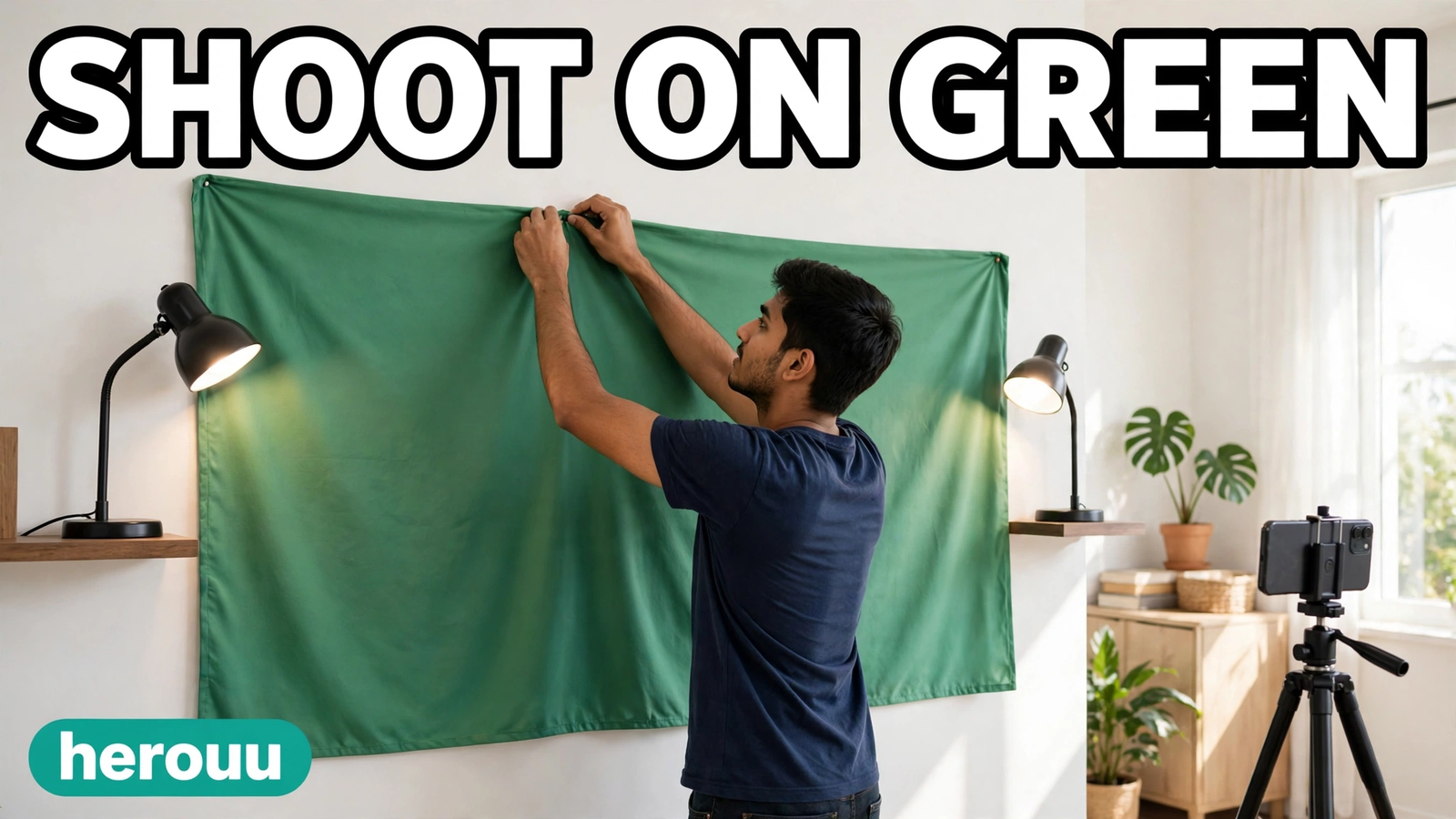
You do not need costly gear. A plain green bedsheet works well if it is flat, with no wrinkles that catch light. Hang it on a wall and stand about one metre in front of it, so your shadow stays off the cloth.
Wear any colour except green. If you wear green, CapCut may remove parts of your shirt too. Avoid shiny fabric, because it reflects green light.
Light the cloth evenly. Two lamps, one on each side, work better than one bright light from above.
Record your CapCut green screen template clips in a quiet place, with your phone on a tripod or a stack of books. Film in the highest quality your phone allows, and keep the camera still.
| Requirement | What to check |
|---|---|
| Phone | CapCut app installed and updated |
| Storage | At least 1 GB free for clips and export |
| Background | Plain green cloth or wall, smooth, evenly lit |
| Clips | Your own green screen video and background photo or video |
| Skill | Basic CapCut use, such as adding clips |
Steps in CapCut
Follow these steps on your phone to build your CapCut green screen template. The desktop path follows step 8.
- Open CapCut and tap New project. Choose your background photo or video first, then tap Add. It goes on the main track.
- Tap Overlay, then Add overlay, and choose the clip of you in front of the green background. It appears above the main track.
- Drag the overlay so it starts at the same point as the background clip. Pinch it to fit the screen, or drag a corner to size it.
- Tap the overlay clip to select it, then tap Cutout, or Remove BG if your version shows that name. Menu names can change, so check the official CapCut help page if yours looks different.
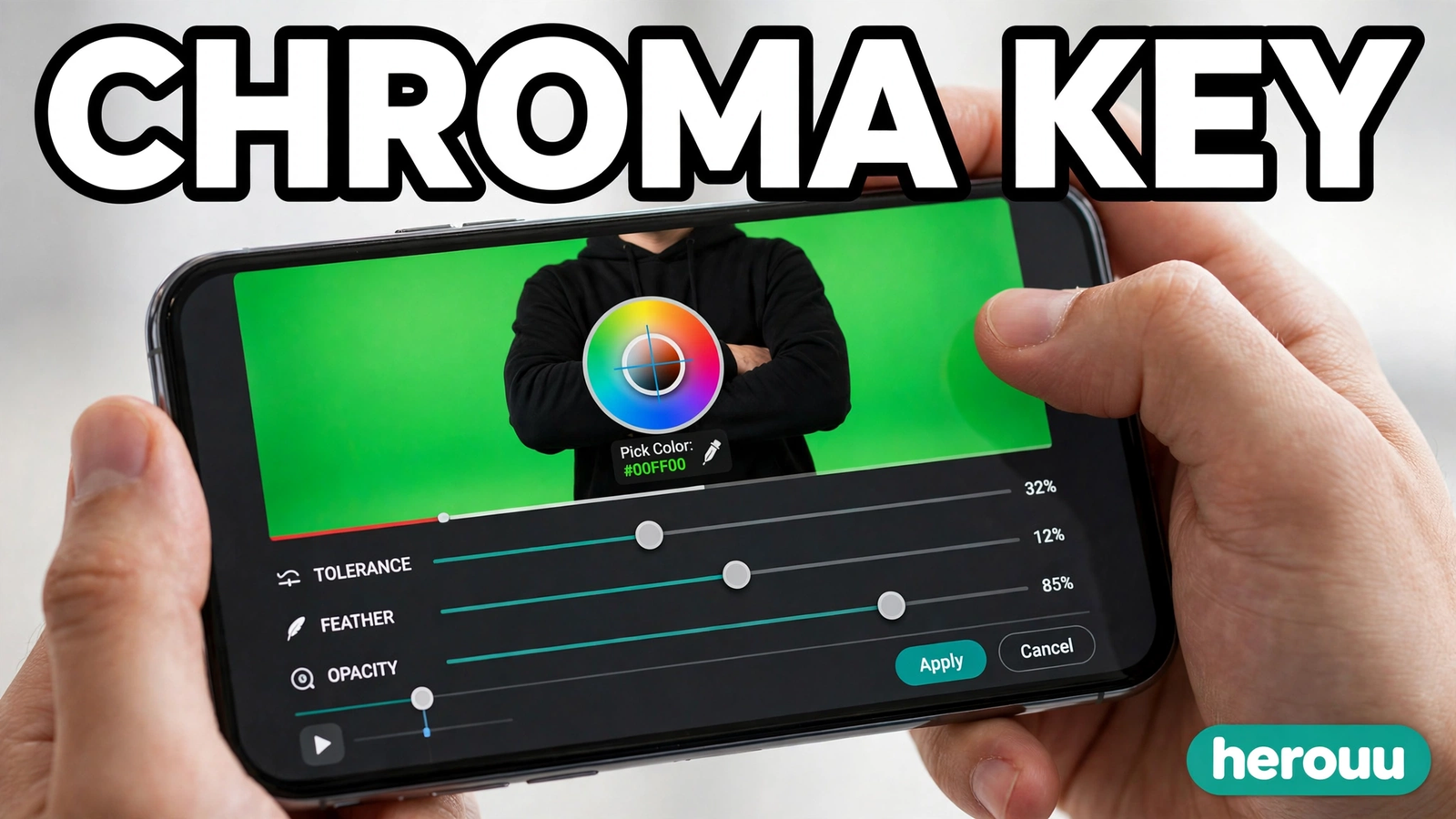
- Tap Chroma key and a colour picker circle appears on your video.
- Move the picker onto the green area and tap to pick that shade. The green should vanish at once and your background should show through.
- Move the Strength or Intensity slider slowly until the green fringe around your hair and shoulders fades, then use the Shadow slider to soften the outline.
- Play the video from the start and watch for green patches near your hands or hair. If you see any, tap the picker again and choose a slightly different shade.
- Add text, stickers, or music to your CapCut green screen template if your video needs them. Keep text short so it does not cover your face.
- Tap the export arrow at the top right. Choose 1080p and 30 frames per second, then save the video and share it to Instagram Reels, YouTube Shorts, or WhatsApp.

On a computer
On CapCut desktop, add your background clip to the timeline first, then the green screen clip as an overlay above it. Select the overlay, open the Video panel, and choose Remove BG, then Chroma key. Pick the green colour, adjust Strength and Shadow, and export the same way.
Template ideas
These five original ideas follow the same green screen steps above, with a small change to the background or style. Copy the idea text into your notes and set it up with your own clips. There is no file to download and no code to enter.
Idea 1: Weather report
Record yourself pointing to one side, as if a weather map is beside you. Use a sky or city photo behind you and add a short line such as “Today’s weather” at the top. This CapCut green screen template idea suits school projects and news style reels. Keep gestures slow so the key stays clean.
Copy this idea:
Weather report: talking clip in front of green, sky or city photo behind, short title at the top, calm voiceover, 1080p export.
Idea 2: Travel swap
Film yourself waving or walking in place in front of the green cloth. Place a travel photo or a slow video of a beach, mountain, or city street behind you, with soft music and a place name in plain text. This CapCut green screen template idea suits dream trip reels and holiday wishes.
Copy this idea:
Travel swap: clip of you waving in front of green, travel photo or video behind, place name in plain text, soft music, 1080p export.

Idea 3: Product demo
Hold your product in front of the green cloth and talk about it in a short clip. Put a plain colour background or a photo of your shop behind you, with the product near the centre so it stays sharp. This CapCut green screen template idea suits small sellers who want a clean product video without a studio.
Copy this idea:
Product demo: clip holding the product in front of green, plain colour or shop photo behind, product near the centre, short voiceover, 1080p export.
Idea 4: Gaming reaction
Record your face while you play a game, with a green cloth behind you. Put gameplay on the main track and your face clip as a small overlay in one corner, so it does not cover the game. This CapCut green screen template idea suits reaction videos. Record face and gameplay together so they stay in sync.
Copy this idea:
Gaming reaction: face clip in front of green as a small corner overlay, gameplay on the main track, reactions in sync, 1080p export.
Idea 5: Dance stage
Dance in front of the green cloth and place a stage or concert video behind you. Choose a background with moving lights, and time your dance to the music before you record. This CapCut green screen template idea suits dancers and music reels. Keep the stage video a little dark so you stay the focus.
Copy this idea:
Dance stage: dance clip in front of green, stage or concert video behind, dance timed to the music, subject bright and central, 1080p export.
Tips
- Iron or steam the green cloth before you record. Wrinkles make dark patches that Chroma key cannot remove.
- Keep a small gap between you and the cloth. Standing too close throws your shadow on the green.
- Use daylight from a window if you have no lamps. Face the window so your face is bright and the light falls evenly on the cloth.
- Record a short test clip for your CapCut green screen template first. Check the key before the full video, so you do not waste time on a bad setup.
- Pick a background that matches your lighting. A dark night scene behind a bright subject looks fake.
- Save your project in CapCut before you export, so you can finish the edit later if the app closes.
Common problems and fixes
Most CapCut green screen template problems come from light or clothing.
| Problem | Likely cause | Fix |
|---|---|---|
| Green edges around hair or shoulders | Strength too low, or uneven light | Raise Strength slowly, then smooth the edge with Shadow |
| Parts of your shirt vanish | You wore green or a near-green colour | Change clothes and record again |
| Background looks patchy | Wrinkles or shadows on the cloth | Flatten the cloth, move the lamps to the sides, and pick the green again |
| Video flickers during playback | Background and overlay clips have different frame rates | Export both clips at the same frame rate, such as 30 fps |
| Subject looks pasted on | Background light does not match the light on you | Choose a background with similar brightness, or soften the key with Shadow |
| Green spill on your skin | You stood too close to the cloth | Step further from the cloth and add light on your face |
Frequently asked questions
Is a CapCut green screen template free to make?
Yes, you can make a CapCut green screen template yourself with the free Chroma key tool in CapCut. CapCut’s own guide describes Chroma key as free, under Remove BG on desktop and Cutout on mobile. You only need your own clips and a green background.
Where is Chroma key in CapCut on a phone?
On a phone, add your green screen clip as an overlay, tap it, then open Cutout or Remove BG from the bottom menu. Tap Chroma key and use the colour picker on the green area. Menu names can change between versions, so check the official CapCut help page if you cannot find it.
Where is Chroma key in CapCut on a computer?
On CapCut desktop, select the overlay clip, open the Video panel, and choose Remove BG, then Chroma key. Pick the green colour and adjust Strength and Shadow. The desktop steps match the phone steps, so the same idea works on both devices.
What is the difference between Chroma key and Auto removal?
Chroma key removes one colour you pick, usually green, and works best with a flat green cloth. Auto removal is a separate AI tool that cuts out the subject without a green background. Use Chroma key in your CapCut green screen template when you have a green screen, and Auto removal when you do not.
Can I use a green wall instead of a green cloth?
Yes, a plain green wall works for a CapCut green screen template if the paint is even and light falls flat across it. A wall with patches, posters, or shadows will leave marks in the key. A cloth is easier, because you can hang it flat and iron out wrinkles first.
Why does my green screen look bad even after I pick the colour?
The most common reason is uneven light on the green background. Wrinkles, shadows, and bright spots make the green look like many colours, so one pick cannot remove them all. Flatten the cloth, light it from both sides, and pick again.
Can I change the background to a video, not just a photo?
Yes. In a CapCut green screen template you can put any video on the main track and your green screen clip above it as an overlay. A slow moving video, such as waves or city traffic, makes the scene feel real. Keep the background simple so it does not pull focus from you.
Do I need a green screen template code or download?
No. A CapCut green screen template here means a style of edit you build yourself in CapCut with your own clips. No template code, download link, or QR code is given here, because none is needed to make the edit.
What frame rate should I export at?
Export at 30 frames per second in 1080p for most reels and Shorts. This matches how most phones record and keeps the file size fair. If your clips were recorded at 60, export at 60, but keep both clips at the same rate.
Conclusion
A CapCut green screen template is one of the simplest ways to make your videos look like they were shot in a studio. Record in front of a flat green background, remove the green with Chroma key, place your own scene behind you, and export in 1080p. Try the weather report idea first. Then browse the Capcut Template category on herouu.buzz for more guides.
Related reading
These guides build on the same skills as this CapCut green screen template:
- CapCut Slow Motion Template: Easy Smooth Slow Guide
- CapCut Auto Captions Template: Easy Subtitle Guide
- CapCut Text Animation Template: Easy Animated Text Guide
- CapCut Photo Slideshow Template: Easy Photo Video Guide
- Perfect Skin Tones in CapCut: A Simple Guide
About herouu
herouu.buzz shares free templates, photo prompts, and video editing ideas for everyday creators. Every guide is written in simple English, with steps you can follow on your phone. Browse the categories to find your next edit idea.
Disclaimer
This guide is based on CapCut’s official help pages. CapCut may change menus, names, or free features in later versions, so check the official CapCut app or help page for the latest details.
Sources
- CapCut — Chroma key green screen guide: https://www.capcut.com/resource/chroma-key-green-screen
- Velosofy — How to use green screen overlays in CapCut: https://www.velosofy.com/blog/how-to-use-green-screen-overlays-in-capcut
- Video Wizard Tools — Edit green screen in CapCut: https://videowizardtools.com/edit-green-screen-in-capcut/
Details not officially announced: no template codes, download links, or prices are given here, because CapCut does not publish a template code for a green screen edit. The menu name can differ between versions; check the official CapCut help page if your screen looks different.