
A capcut flash effect template is the quickest way to add a bright camera-style flash between two clips in CapCut. The screen goes white for a split second, the scene changes, and the cut feels sharp instead of flat. This guide shows you how to build that flash in the CapCut app on your phone, with five ready template ideas you can copy and use with your own clips. It works for Reels, Shorts, birthday videos, dance edits, and travel clips. Before you start, update CapCut, because menu names can change between updates.
At a glance
- A flash transition is a short white burst that hides the cut between two clips.
- You can add it from the Transitions menu or from Video Effects.
- A capcut flash effect template like the ones below needs only 2 to 6 clips.
- Keep the flash short, about 0.3 to 0.5 seconds, so it feels sharp and not harsh.
- Flashes are free in most cases, but a few presets may show a Pro badge.
- Rapid flashing can affect viewers with photosensitive epilepsy, so use it sparingly.
Quick Overview
| Topic | Details |
|---|---|
| Topic | CapCut flash effect template guide |
| Category | Capcut Template |
| App/Tool | CapCut mobile app (Android and iOS) |
| Skill Level | Beginner |
| Time Needed | 10 to 20 minutes |
| Media Needed | 2 to 6 short video clips or photos |
| Cost/Free Features | Free in most cases; some presets may need Pro |
What you will make
A capcut flash effect template is a small plan for your edit: which clips to use, where the flash lands, and what happens right after it. Pick one idea, gather the clips, then follow the steps.
| Flash idea | Best for | Clips needed |
|---|---|---|
| Birthday Flash Pop | Birthday reels and party videos | 3 clips |
| Dance Beat Flash | Dance and beat-sync reels | 4 clips |
| Travel Snap Flash | Travel and holiday montages | 5 clips |
| Before After Flash | Makeup, outfit, and room makeovers | 2 clips |
| Product Pop Flash | Small shops and product reels | 3 clips |
Before you start
Before you build a capcut flash effect template, get these things ready. You do not need a paid plan for the basic flash, but check for a Pro badge on any preset before you use it.
| What you need | Why it matters |
|---|---|
| CapCut app, latest version | Menu names and effect lists change between updates |
| 2 to 6 clips, shot in the same ratio | Mixed ratios make the flash look uneven |
| 500 MB free space | Flash effects and exports need room to render |
| A short music track or beat sound | The flash lands best on a beat |
| A tripod for dance clips | Shaky clips make the flash feel messy |
Shoot in vertical 9:16 for Reels or Shorts, and keep beat-edit clips between 1 and 3 seconds long. If you use photos, pick bright ones, because the white flash washes out a dark photo.
Steps to add a flash effect in CapCut
Follow these steps in order. They are written for the CapCut mobile app, so check the official CapCut help page if a menu name looks different on your phone.
- Open CapCut and update it first from the Play Store or App Store. An old version may not show the flash options in this guide.
- Tap New project and pick 2 to 6 clips in the order you want them to play. Tap Add to place them on the timeline.
- Drag clips left or right until the story flows. Trim the start and end of each clip so no dull footage is left in.
- To add a cut in the middle of a clip, move the playhead to the frame, tap the clip, then tap Split.
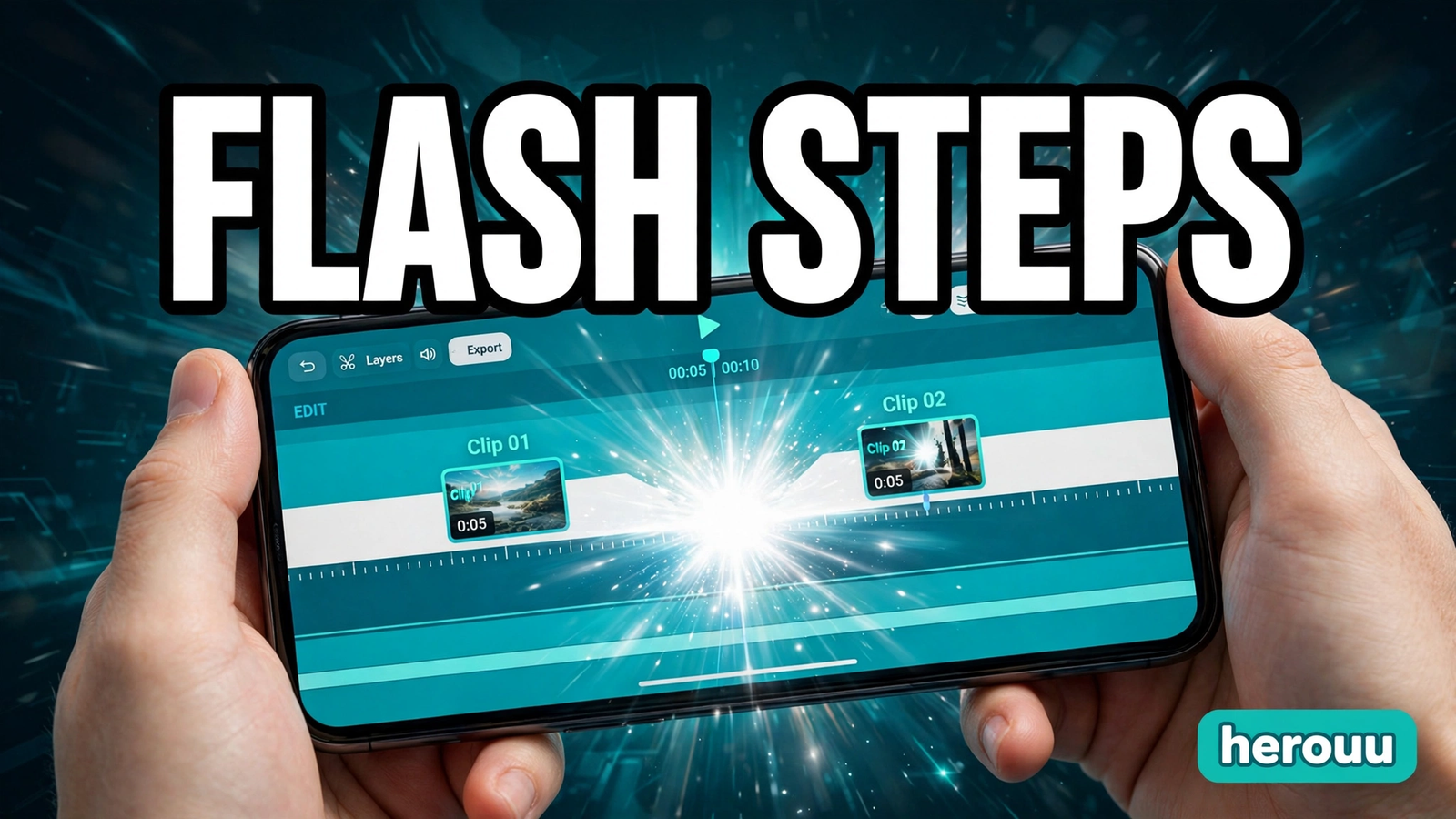
- Tap the small white icon between two clips. It sits right on the cut. If you cannot see it, pinch to zoom in.
- Find Flash or White Flash. Look in Basic first, then check Overlay or Lights. This is the heart of the capcut flash effect template, so preview a few styles before you pick one.
- Set the duration to about 0.3 to 0.5 seconds. Shorter feels sharp and longer feels heavy, so preview it first.
- Tap the check mark to apply it. The icon between the clips changes to show the flash is in place.
- Repeat for the other cuts, but add a flash only where the beat or the scene changes. Leave some cuts plain.
- Try the video effect version of the capcut flash effect template for a single clip. Tap Effects, then Video effects, then Light, and look for Flash. Drag it over the clip and trim it to the moment.
- Add a soft sound on the flash. Tap Audio, then Sounds, and search for a whoosh or pop sound. Place it exactly on the flash.
- Preview the whole video and export. Watch it from start to finish on your phone. If it feels right, tap Export, pick 1080p, and save it.
On a computer, open the Transitions tab in CapCut desktop and drag a flash preset onto the cut. In the web editor, split your video into two parts and choose a flash style from Transitions.

Capcut flash effect template ideas to copy
These five capcut flash effect template ideas are original plans you can build yourself in CapCut. Copy the one you like, swap in your own clips, and change the timing to match your music.
Use this capcut flash effect template idea for a birthday reel. Clip 1: the birthday person walking in, 2 seconds. Flash. Clip 2: friends clapping, 2 seconds. Flash. Clip 3: the cake with candles, 3 seconds. Add a soft pop sound on the second flash. Total length under 10 seconds.
Use this capcut flash effect template idea for a dance reel. Clip 1: starting pose, 1 second. Flash on the first beat drop. Clip 2: the first move, 2 seconds. Flash on the next beat. Clip 3: a spin or jump, 2 seconds. Flash. Clip 4: final pose, hold for 2 seconds. Time every flash to the beat.
Use this capcut flash effect template idea for a travel montage. Clip 1: a train window or road, 2 seconds. Flash. Clip 2: street food close-up, 2 seconds. Flash. Clip 3: a temple, beach, or mountain, 3 seconds. Flash. Clip 4: laughing with friends, 2 seconds. Flash. Clip 5: a sunset, hold for 3 seconds.
Use this capcut flash effect template idea for a makeover reel. Clip 1: the before shot, plain and still, 2 seconds. Flash, a touch longer at 0.5 seconds. Clip 2: the after shot, same angle and light, 3 seconds. Shoot both clips from the same spot so only the subject changes.
Use this capcut flash effect template idea for a small shop reel. Clip 1: the product on a plain table, 2 seconds. Flash. Clip 2: a hand picking it up, 2 seconds. Flash. Clip 3: the product in use, close and bright, 3 seconds. Add the shop name as a short text line on the last clip.
Tips

A capcut flash effect template works best when the flash feels planned, not random.
- Keep the flash short. A flash of 0.3 to 0.5 seconds feels sharp. Anything longer looks like a mistake and washes out the first frame of the next clip.
- Put the flash on the beat. Find the beat drop and drag the cut so the flash lands exactly on it. A flash half a beat late feels off, even when the viewer cannot say why.
- Use one flash style per video. Mixing a white flash, a glitch flash, and a light leak in one reel looks messy. Pick one style and use it at every cut.
- Watch the brightness on faces. A flash over a bright outdoor shot is fine, but over a dark indoor clip it can blow out skin tones. Shorten the flash or lower the brightness if that slider is available.
- Preview on your phone, not just in the editor. The editor preview is small and the flash can look softer than it really is. Play the exported video full screen before you post it.
- Add a warning when you use many flashes. If your video has several flashes in a row, write “flash warning” in the caption or show it at the start of the video.
Common problems and fixes
Most capcut flash effect template problems have a simple cause. Check this table before you redo the whole edit.
| Problem | Likely cause | Fix |
|---|---|---|
| Flash option is missing | Older app version, or a different region or rollout | Update CapCut, then check Transitions under Basic or Lights |
| Flash looks too harsh | Duration too long, or brightness too high | Shorten the flash to 0.3 seconds and lower the brightness if you can |
| Flash does not show after export | Effect layer trimmed shorter than the cut, or an app glitch | Check the effect covers the cut, restart CapCut, and export again |
| Video lags after adding flashes | Too many effects on a low-end phone | Remove extra effects, close other apps, and test an export at 720p |
| Pro badge on the flash preset | That preset needs a paid plan | Pick a free flash preset, or use the white overlay method from the steps |
| Flash lands off the beat | Cut placed before or after the beat | Drag the cut to the exact beat drop and preview from a few seconds earlier |
FAQ
What is a flash effect in CapCut?
A flash effect is a short burst of bright white light on screen. In CapCut you can use it as a transition between two clips or as a video effect over one clip. It hides the cut and adds energy to dance, travel, and birthday edits.
Is the flash transition free in CapCut?
Most flash transitions in CapCut are free, and you can use them without paying. A few presets carry a Pro badge, which means that preset needs a paid plan. If you see a badge, pick a different flash preset or use the white overlay method in this guide.
Where is the flash transition in CapCut?
Open your project, place two clips side by side, and tap the small white icon between them on the timeline. That opens the Transitions menu. Look for Flash or White Flash under Basic, or check Overlay and Lights if your version lists it there. Tap it and set the duration.
Can I change the flash colour in CapCut?
A capcut flash effect template usually uses the standard white flash, because CapCut does not officially list a colour setting for the flash transition. The exact options can change with the app version, so check the transition panel after you add it. For a coloured flash, use a coloured overlay clip and fade it with keyframes.
How long should a flash transition be?
Keep a capcut flash effect template between 0.3 and 0.5 seconds for most edits. A shorter flash feels sharp and clean, while a longer one can look harsh and wash out faces. For a big reveal, 0.5 seconds works well. Always preview the full video before you export.
Can I use the flash effect on photos?
Yes. Add your photos to the timeline just like video clips, then tap the icon between two photos and choose the flash transition. Photo slideshows use the same Transitions menu as video. Keep each photo on screen for 1 to 3 seconds. Put the flash on the beat of your music.
Why is my flash transition not showing?
The two clips are usually not touching on the timeline, so there is no cut for the transition to sit on. Move the clips together with no gap and try again. If it still fails, update CapCut and restart the project. A capcut flash effect template can also break when the effect layer is trimmed shorter than the cut.
Can I use a flash effect on CapCut PC or web?
Yes, the desktop and web editors also have transitions. On desktop, open the Transitions tab and drag a flash preset onto the cut between two clips. On the web editor, split your video into two parts, open Transitions in the sidebar, and choose a flash style. The names can differ slightly from this capcut flash effect template guide for mobile.
Is a flash effect safe for viewers?
A single short flash is fine for most viewers, but rapid flashing can trigger seizures in people with photosensitive epilepsy. Avoid fast repeated flashes and keep the effect short. If your video has several flashes in a row, add a clear flash warning in the caption.
Conclusion
A capcut flash effect template is a simple plan: two clips, one bright flash, and a cut that lands on the beat. Try one capcut flash effect template idea today, starting with the Birthday Flash Pop if you are new to it. Keep the flash short, preview before you export, and browse the Capcut Template category for more guides.
Related reading
For more edits like this capcut flash effect template, try these guides:
- CapCut Slow Motion Template: Easy Smooth Slow Guide
- CapCut Auto Captions Template: Easy Subtitle Guide
- CapCut Green Screen Template: Easy Chroma Key Guide
- Browse all CapCut guides in the Capcut Template category
About herouu
herouu is a free resource for everyday creators, with simple, original guides on templates, photo prompts, and video editing.
Disclaimer
App features and menu names can change with updates. These steps are based on the CapCut app and help pages as checked while writing, so please verify the latest options in the official CapCut app or help page before you edit.
Sources
- CapCut, Free Video Transitions (official) — https://www.capcut.com/tools/free-video-transitions
- CapCut, Epic Transitions Template Tutorial (official) — https://www.capcut.com/resource/epic-transitions-template-tutorial
- CapCut Guide, How to Add Transitions in CapCut — https://capcutguide.com/capcut-transitions/
- Alphr, How to Add a Flash in CapCut — https://www.alphr.com/capcut-how-to-add-flash/
- Edit Guides, Glare Effect Transitions in CapCut — https://www.editguides.com/glare-effect-transitions-step-by-step-guide-in-capcut/
- CapCutTemp, Flash Warning CapCut Template — https://capcuttemp.net/flash-warning-capcut-template/
Not officially announced: the exact category name for the Flash transition (Basic, Overlay, or Lights) varies by app version and region; CapCut lists no colour setting for the flash transition; template availability varies by region, platform, and version.