
A VN freeze frame template is the easiest way to stop time in your reel and make one moment stand out. You pick a frame from your own clip and hold it still for a second or two. The effect looks fancy, but you can build it in VN Video Editor in about ten minutes, free and with no watermark. This guide gives you the steps, five ideas to copy, and fixes for common mistakes. If a menu looks different after an update, check the official VN app or help page.
At a glance
A freeze frame is one still image taken from your clip and held on screen while the video pauses. VN’s official Play Store listing says Freeze Frame creates a time freeze effect by selecting and tapping a video frame, lasting about 1.5 seconds by default. You can change the length, move the still frame, and add text, a filter, or music. A VN freeze frame template is a ready plan for that moment: which frame to freeze, how long to hold it, and what to add.
Quick Overview
| Item | Details |
|---|---|
| Topic | VN freeze frame template guide |
| Category | Vn Code Template |
| App or tool | VN Video Editor (free, no watermark) |
| Skill level | Beginner |
| Time needed | 10 to 15 minutes |
| Media needed | One of your own clips |
| Cost | Free |
What you will make
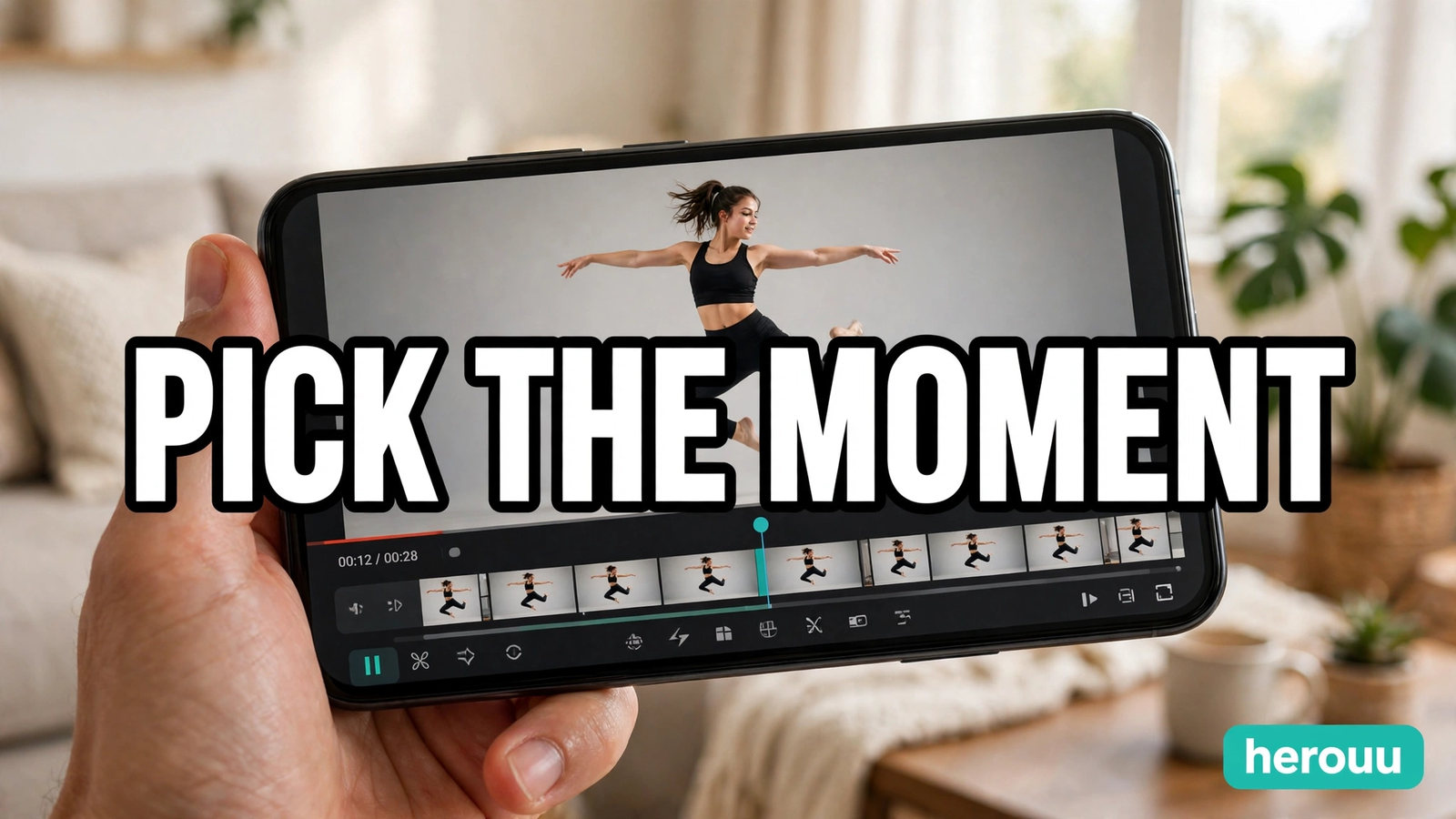
A freeze frame works best when the frozen moment means something. A jump at its peak, a held dance pose, or a funny face all give the viewer a reason to stop. Every VN freeze frame template below uses one clip, one freeze, and one small extra.
| Idea | Best for | What you need |
|---|---|---|
| Sports jump | Cricket, football, basketball, gym reels | A jump or shot at its peak |
| Dance pose | Dance and trend reels | A dance move with a clear pose |
| Travel jump | Holiday reels | A jump with a nice view behind you |
| Product reveal | Small business reels | A product held up to the camera |
| Funny reaction | Comedy reels | A big, clear reaction face |
Before you start
Get three things ready before you build your first VN freeze frame template. First, install VN Video Editor from the Play Store or App Store. VN is free with no watermark, so exports stay clean. Second, shoot or pick one clip with a clear peak moment. A jump, a spin, a catch, or a laugh all work. The clip should be steady and well lit, because the frozen frame is a still photo taken from your video. A dark or shaky clip gives you a dark or blurry still. Third, keep about 500 MB of free space on your phone, and do not delete the original clip until the export is done. On an old or slow phone, close other apps first. Menu names can change between versions, so if a button moved, look for the same word.
Steps to make a VN freeze frame template in VN
Follow these steps in order to build your VN freeze frame template. Each one is a single action.
Step 1. Open VN and tap the plus button to start a new project. Pick your clip and tap the arrow to add it to the timeline.
Step 2. Watch the clip once and note the best moment: the top of the jump, the sharpest pose, or the funniest face. Do not freeze yet.
Step 3. Drag the playhead to the exact frame you want to freeze, moving slowly, frame by frame. That frame becomes your still image, so take a few seconds to get it right.
Step 4. Tap the clip on the timeline, then find Freeze or Freeze Frame in the menu and tap it. VN turns that frame into a still image. This one tap is the heart of the VN freeze frame template.
Step 5. VN’s still image lasts about 1.5 seconds by default. Drag its edges to make it longer or shorter. For most reels, 1 to 2 seconds feels right. Longer than that, and viewers wonder if the video stopped.
Step 6. Add a slow zoom so the still frame feels alive, not stuck. Select the still image, add a keyframe at the start and one at the end, and make the end frame slightly larger. A zoom of 10 to 20 percent is enough.
Step 7. Add text on the frozen frame. Tap Text, type two to five words, and place them clear of the face and main subject. Short lines work best, like “Wait for it”.
Step 8. Add a transition into and out of the freeze in your VN freeze frame template. Tap the small box between clips and pick one under half a second, so the freeze feels like a pause, not a new scene.
Step 9. Add music and a filter if you want them. Pick a song that fits the mood and keep the volume low. Skip heavy filters on the frozen frame, because they make skin look strange.
Step 10. Play the whole video from the start. Check the freeze lands on the right frame, the text is readable, and the video resumes smoothly. Then export your VN freeze frame template video in 1080p at 30 frames per second and save it to your gallery.

Template ideas you can copy
These five ideas are ready plans, not files to download. There is no VN template code or link for a freeze frame, because VN does not publish one. Build each idea yourself in VN with your own clip. Copy the plan and change the words to fit your video.
Idea 1: The sports jump freeze
Clip: you jumping to catch a ball. Freeze: the highest point of the jump, arms stretched out. Hold: 1.5 seconds. Text: “Caught it!” Extra: slow zoom in, then cut back as you land.
Idea 2: The dance pose freeze
Clip: a dance step ending in a clear pose. Freeze: the final pose, one arm up and a smile. Hold: 2 seconds. Text: “Pose check”. Extra: a light filter and a small zoom.
Idea 3: The travel jump freeze
Clip: you jumping with a beach, mountain, or city view behind you. Freeze: the top of the jump. Hold: 1.5 seconds. Text: the place name, like “Goa mornings”. Extra: keep the still frame bright and skip the filter.
Idea 4: The product reveal freeze
Clip: your hand lifting a product toward the camera. Freeze: the moment the product is fully in view and sharp. Hold: 2 seconds. Text: the product name and one benefit, like “Handmade soap”. Extra: zoom in on the product, not your hand.
Idea 5: The funny reaction freeze
Clip: a friend reacting to a surprise. Freeze: the widest eyes or the biggest laugh. Hold: 1 second. Text: “His face says it all”. Extra: keep it short, because a funny face held too long stops being funny.
A VN freeze frame template works in all five ideas because the method stays the same. Only the clip, the moment, and the words change.

Tips to make your freeze frame look clean
A good VN freeze frame template is built on small habits that make the freeze look planned instead of like a glitch.
Pick a sharp frame. If the frame is blurry, move the playhead one or two frames back or forward. The next frame is often much sharper.
Freeze at the peak, not before it. A jump frozen halfway up looks like a mistake; at the top, it looks planned.
Keep the hold short. One to two seconds is the sweet spot for most reels. Short holds feel punchy; long holds feel like the video broke, and viewers swipe away.
Zoom gently. A slow zoom of 10 to 20 percent keeps the still frame alive. Zooming too far in makes the image soft.
Put text where the eye is not busy. A plain patch of sky, wall, or ground makes text easy to read.
Common problems and fixes
Most VN freeze frame template problems come from five small issues. Each one below has a simple cause and a quick fix.
Problem: The frozen frame looks blurry.
Likely cause: the frame you picked was mid-motion, so the camera caught movement blur.
Fix: move the playhead one or two frames and freeze again. If every nearby frame is blurry, reshoot in better light.
Problem: The freeze lasts too long and viewers swipe away.
Likely cause: the still image is set to 3 seconds or more, which feels like a stuck video.
Fix: drag the edges of the still image to shorten it to 1 to 2 seconds.
Problem: The text is hard to read on the frozen frame.
Likely cause: the text sits over a busy part of the image.
Fix: move the text to a plain area, use a bold font, and add a dark outline or a semi-transparent box behind the words.
Problem: The video stutters when the freeze ends.
Likely cause: the transition after the still image is too long.
Fix: use a short transition under half a second, or a plain cut, so your VN freeze frame template resumes cleanly.
Problem: The exported video looks dull or low quality.
Likely cause: the export was saved at a low resolution, or the clip was dark.
Fix: export in 1080p at 30 frames per second. If the clip is dark, add brightness before you freeze, not after.
Frequently asked questions
Q1: What is a VN freeze frame template?
A VN freeze frame template is a ready plan for stopping one moment in your video inside VN Video Editor. You pick a frame from your own clip, turn it into a still image, and hold it for one to two seconds. Then add text, a slow zoom, or music.
Q2: Is the freeze frame effect free in VN?
Yes. Freeze Frame is part of the free VN Video Editor, and VN’s official listing says the app has no watermark. You do not need to pay for any extra feature to freeze a frame, add text, or export the video. If VN changes its free features later, the official app page will show it.
Q3: How long should a freeze frame last?
For a VN freeze frame template, one to two seconds works for most reels. A one-second hold feels quick and punchy, which suits comedy and dance. A two-second hold suits a product reveal or a travel view, where the viewer needs time to read. Any longer feels like the video stopped by mistake, so keep it short.
Q4: Why does my frozen frame look blurry?
The frame you picked for your VN freeze frame template was caught mid-motion, so the camera recorded blur. Move the playhead one or two frames and freeze again. The sharpest frame is usually right before or after the peak moment. Shooting in bright light also helps, because the camera records less blur.
Q5: Can I add text on a frozen frame in VN?
Yes. Select the still image in your VN freeze frame template, tap Text, and type your words. Keep it to five words or fewer, use a bold font, and place it on a plain part of the image. A dark outline or a semi-transparent box behind it makes it easy to read.
Q6: Does a freeze frame need a template code or download link?
No. There is no official VN template code or download link for a freeze frame. Any site that offers one is not giving you a real VN feature. Build the effect yourself in VN with your own clip. The five ideas here are plans to copy and build, not files to download.
Q7: Which videos suit a freeze frame best?
Clips with a clear peak moment suit it best. Jumps, dance poses, sports shots, product reveals, and big reactions all work well, because the viewer can see why the video stopped. Slow, flat clips with no clear moment do not suit it. If you cannot point to one best second, pick a different clip.
Q8: How do I export my freeze frame video for Instagram Reels?
Preview your VN freeze frame template once, then export in 1080p at 30 frames per second, which suits Instagram Reels and YouTube Shorts. Save it to your gallery and upload it as a reel. Keep the original clip until the export is done, so you can fix the timing if the freeze lands wrong.

Conclusion
A VN freeze frame template is one of the simplest effects that still makes a reel look planned and professional. You need one clip, one good frame, and a few minutes. Try the sports jump or the funny reaction idea first. Both are easy to shoot and hard to get wrong. Then browse the Vn Code Template guides on herouu for more ideas.
Related reading
These VN guides use the same steps and ideas, so a VN freeze frame template pairs well with them.
- VN Transition Template: Easy Smooth Transitions Guide
- VN Zoom In Template: Easy Zoom Effect Guide
- VN Cinematic Template: Easy Movie Look Guide
- VN Beat Sync Template: Easy Beat Matching Guide
- VN Slow Motion Template: Easy Smooth Slow Guide
About herouu
herouu is a free guide site for everyday creators. We write simple, step-by-step guides for VN templates, AI photo prompts, CapCut templates, and AI video editing, so you can make better reels and photos on your phone for free. Every guide, including this VN freeze frame template guide, uses original ideas you build yourself, with no copied text and no fake links.
Disclaimer
This guide is based on VN’s official Play Store listing and the steps as written here. App menus and free features can change with updates, so verify the latest details in the official VN app or help page. Your results depend on your own clips and phone, and this guide promises no views, reach, or income.
Sources
- VN Video Editor, Google Play Store listing: https://play.google.com/store/apps/details/VN_Video_Editor_Maker?id=com.frontrow.vlog&hl=en_US
- Filmora, “Freeze Frames Effect App”: https://filmora.wondershare.com/basic-video-editing/freeze-frames-effect-app.html
Details not officially announced: no official VN template code, download link, or QR code exists for a freeze frame effect, and VN has not published an official freeze frame template file. This guide describes ideas you build yourself in the app.