
At a glance
The CapCut mirror effect template is a simple way to flip a clip left to right and build a mirrored video from footage you already have. You pick one clip, tap Mirror, and the whole frame flips in one move. From there, keep it as a quick fix, or duplicate the clip and place the two halves side by side for a twin look for Reels and Shorts.
Quick Overview
| Topic | Detail |
|---|---|
| Topic | CapCut mirror effect template |
| Category | Capcut Template |
| App | CapCut app (Android and iPhone) |
| Skill Level | Beginner |
| Time Needed | 5 to 10 minutes |
| Media Needed | 1 or 2 short phone clips |
| Cost | Free for the basic Mirror tool |
What you will make
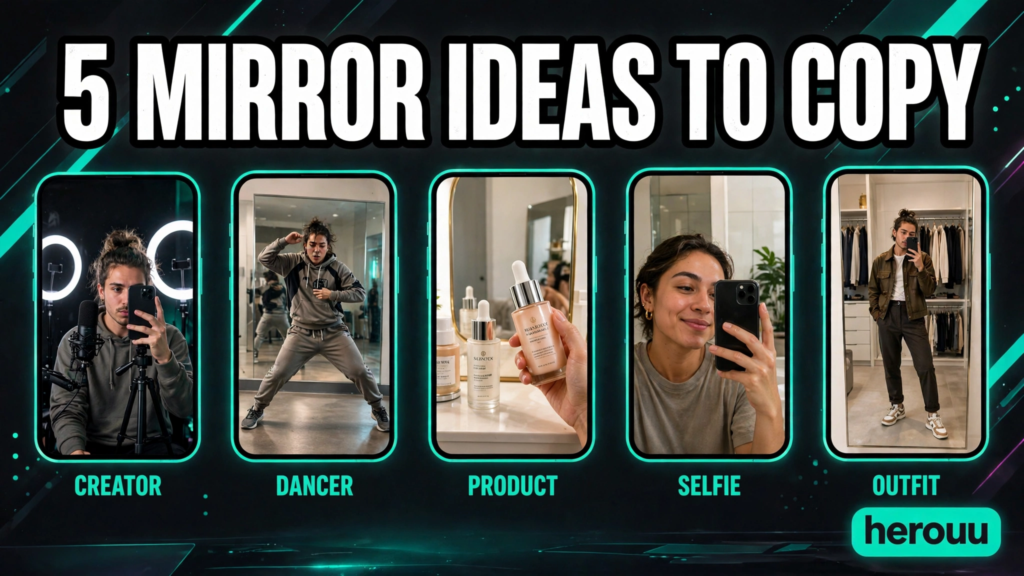
A CapCut mirror effect template gives you a ready plan for a mirrored video, not a file to download. You follow the same mirror move each time and change the clip, the timing, or the layout to suit your idea. The table shows five kinds of videos that work well with it, and how many clips each needs.
| Idea | Best for | Clips needed |
|---|---|---|
| Twin talk | Comedy and chat Reels | 1 clip, used twice |
| Mirror dance | Dance Reels | 1 clip |
| Product flip | Product Reels | 1 or 2 clips |
| Selfie fix | Vlogs | 1 clip |
| Before and after mirror | Beauty Reels | 1 clip, used twice |
Before you start
A little prep makes your CapCut mirror effect template edit smoother. Shoot in good light with the phone held steady, and keep the subject near the centre so the flip looks natural. If you plan a side by side mirror, leave empty space on one side for the second half. Update CapCut first, and keep 500 MB free so the export does not stop halfway.
| Requirement | What you need |
|---|---|
| App | CapCut app, latest version from your app store |
| Phone | Android or iPhone with free storage |
| Clip | Your own video, 5 to 30 seconds |
| Format | Vertical 9:16 for Reels and Shorts |
| Skill | Basic CapCut use, like trimming |
Steps to make your CapCut mirror effect template
Step 1: Open CapCut and start a new project
Open CapCut and tap New project. Pick the clip you want to mirror from your gallery and tap Add. CapCut places it on the timeline.
Step 2: Trim the clip to the part you need
Tap the clip, then drag the white handles at each end to cut what you do not need. Keep it short, around 5 to 15 seconds, because a CapCut mirror effect template works best when the viewer sees the effect at once. Tap play to check it.
Step 3: Open the Transform menu
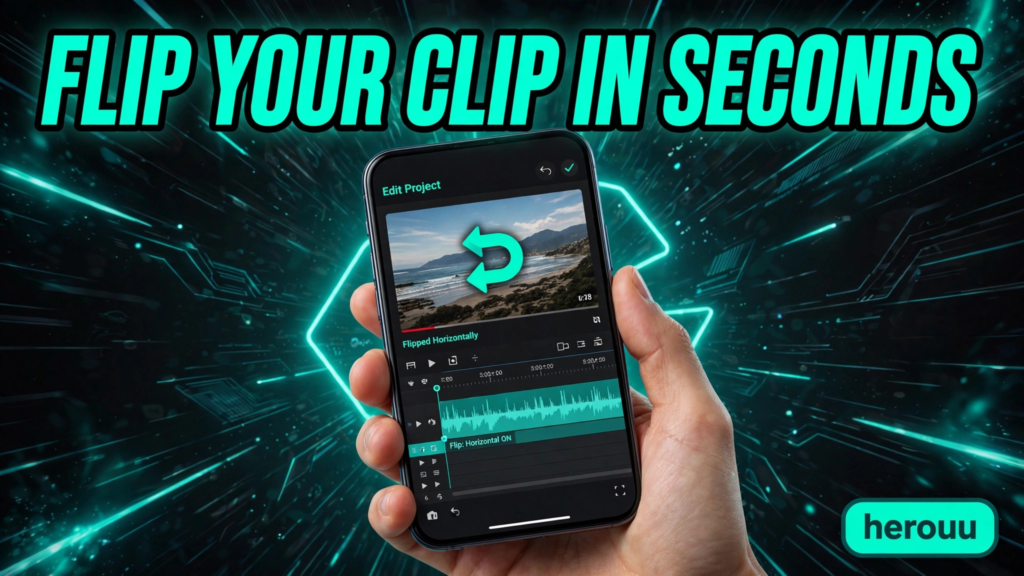
Tap the clip again so it stays selected, then look at the toolbar at the bottom. Tap Edit if you see it, then tap Transform. This menu holds the tools that change a clip’s shape and direction, and the Mirror button lives here.
Step 4: Tap Mirror to flip the clip
Tap Mirror in the Transform menu. The whole clip flips left to right at once, so a person on the left now stands on the right. Play it, and tap Mirror again to undo it. This one tap is the heart of the CapCut mirror effect template.
Step 5: Check any text in the frame
Mirroring flips everything in the picture, including words on a shirt, a sign, or a product pack. Watch the clip once for backwards writing. If the text matters, use the unmirrored clip, or crop the shot so the words sit outside the frame.
Step 6: Duplicate the clip for a two sided look
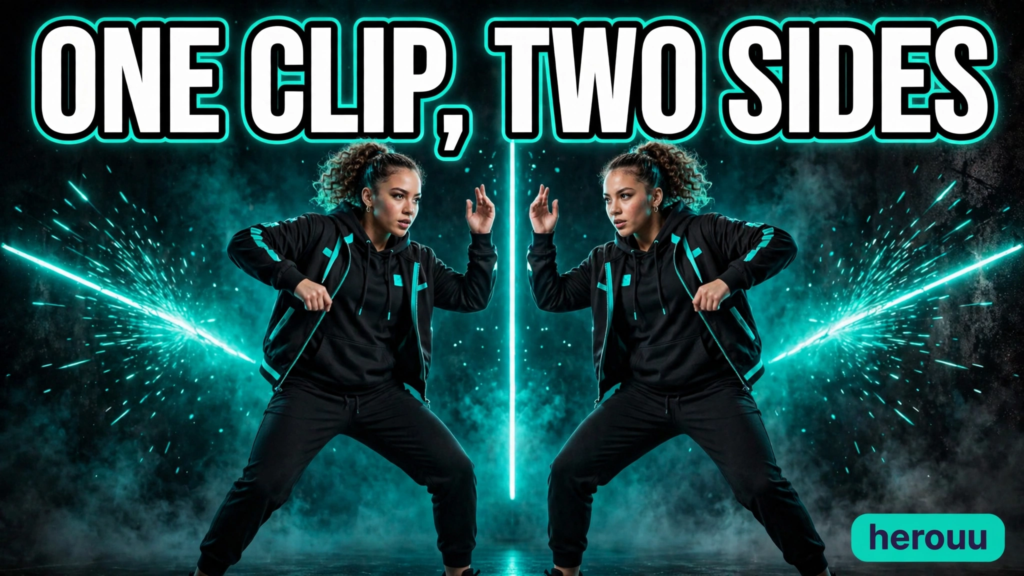
If you want the classic CapCut mirror effect template look, tap the clip, then tap Duplicate in the bottom toolbar. You now have two copies. Keep one as it is, and mirror only the second, so the two halves face each other.
Step 7: Place the two copies side by side
Select the second copy, tap Overlay, then drag it to the track above the first clip. Pinch the preview to shrink it, then drag it to one half of the screen. Do the same with the first clip on the other half. A neat centre line makes the mirror look clean.
Step 8: Line up the centre with the Mask tool
Tap the overlay clip, tap Mask, and choose Split. Drag the split line to the centre so each half shows only one copy. Play the video and adjust the line until the join looks smooth. If it still shows, nudge one clip slightly left or right.
Step 9: Add text and captions after mirroring
Add titles or captions only after mirroring, because text you add in CapCut sits on its own layer and will not flip. Tap Text, type your words, and place them clear of the centre line. Keep captions short and plain.
Step 10: Preview and export in 1080p
Play the whole video and watch for slips in timing, a crooked centre line, or backwards text. When you are happy, tap the export arrow at the top right, pick 1080p, and save the video. Test export a short clip first to avoid exporting twice.
Template ideas
The five blocks below are starting points, not files to download.
Idea 1: Twin Talk
Film yourself talking to the camera, duplicate the clip, mirror one copy, and place the halves side by side so two versions of you seem to chat. Record the two lines separately for the best timing.
Idea 2: Mirror Dance
Film a short dance move, mirror it, and cut between the normal and mirrored versions on each beat. Keep the camera still and the dancer centred so the flip looks clean.
Idea 3: Product Flip
Film a product sliding in from the left, then mirror it so a second copy slides in from the right. Put the halves together for a neat, symmetrical reveal.
Idea 4: Selfie Fix
Use the CapCut mirror effect template to flip a selfie video that came out the wrong way round, such as a clip where you point at text behind you and it reads backwards. Mirror once, check the text, and export.
Idea 5: Before and After Mirror
For this CapCut mirror effect template idea, film one outfit or makeup look, duplicate the clip, and mirror one copy. Place them side by side with a short caption, so viewers compare the same moment from two sides.
Tips
Shoot with your CapCut mirror effect template in mind, and the edit gets easier. A plain background helps, because a busy room makes the join stand out, while a clean wall or open sky hides it. Hold the phone still or use a small tripod, since even a slight shake shows up twice with two copies side by side. Mirror only the part that needs it, and split the clip first. Try the CapCut mirror effect template on a short test clip before a full edit, so you can see how the flip changes the shot. When you add music, pick a beat that lands on the flip, since a small sound cue makes the mirror moment feel planned.
Common problems and fixes
| Problem | Likely cause | Fix |
|---|---|---|
| Text reads backwards after mirroring | Mirror flips all words | Use the unmirrored clip, or crop the words out and add captions after mirroring |
| I cannot find the Mirror button | Menu names differ by app version | In your CapCut mirror effect template project, select the clip, open Edit, then Transform, and swipe the toolbar to find Mirror |
| The two halves do not line up | Centre line off, or clips differ in size | Use Mask, then Split, drag the line to the centre, and match both clips in size |
| One side plays out of sync | The duplicate was trimmed after copying | Trim before duplicating, or trim both copies to the same length |
| The export looks blurry | Low export resolution or low quality source | Export at 1080p from the highest quality clip on your phone |

Frequently asked questions
What is a CapCut mirror effect template?
A CapCut mirror effect template is a ready plan for flipping a clip left to right in CapCut, usually by duplicating the clip and mirroring one copy. It is not a file you download. You build it yourself in the app with the Mirror tool, following the steps in this guide.
Is the mirror effect free in CapCut?
Yes, the basic Mirror tool is free in the CapCut app. You can flip a clip, duplicate it, and export it without paying. Some filters, effects, and music may need a paid plan, so check the label on any extra item before you add it.
Where is the Mirror button in the CapCut app?
Tap the clip on the timeline, then open Edit and tap Transform. The Mirror button sits in that menu on most versions of the app. If you cannot see it, swipe the bottom toolbar sideways.
Can I mirror only part of a video?
Yes. Tap the clip, move the playhead to where the mirrored part starts, and tap Split. Do the same at the end of that part. Then select only that middle piece and tap Mirror, while the rest stays as it was.
Why does my text look backwards after mirroring?
Mirroring flips the whole frame, so any writing in the shot also flips and reads backwards. This is normal and not a fault in the app. Use the unmirrored clip when the words matter, or crop them out and add fresh text after mirroring.
How do I make a two sided mirror video with one clip?
Duplicate the clip, mirror the second copy, and add it as an overlay above the first. Shrink both copies and place one on each half of the screen, then use Mask and Split to line up the centre. Play it to check the join looks smooth.
Does mirroring lower video quality?
No, mirroring in a CapCut mirror effect template does not lower the quality of your video. It only flips the picture left to right. Quality drops come from other causes, such as a low export resolution or a low quality source clip, so export at 1080p.
Can I use a CapCut mirror effect template on a PC?
Yes, CapCut on a computer has a Mirror tool too. Select the clip on the timeline and click Mirror in the toolbar above it. The steps are close to the mobile version, but the menus sit in different places, so check the official CapCut guide for desktop.
What size should I export a mirror video for Instagram Reels?
For a CapCut mirror effect template video, export vertical 9:16 at 1080p, which is 1080 by 1920 pixels, for Reels, TikTok, and Shorts. This size fills a phone screen and keeps the join sharp. If you plan to post on YouTube too, export a 16:9 copy as well.
Conclusion
A CapCut mirror effect template is one of the quickest ways to make an ordinary clip look new: one tap flips the frame, and a duplicate gives you a two sided video. Try one of the five ideas above on a clip you already have. When you are ready for more, browse the Capcut Template guides on herouu.buzz.
Related reading
- CapCut Split Screen Template: https://herouu.buzz/capcut-split-screen-template-guide/
- CapCut Overlay Template: https://herouu.buzz/capcut-overlay-template-guide/
- CapCut 3D Zoom Template: https://herouu.buzz/capcut-3d-zoom-template-guide/
- Browse all Capcut Template guides: https://herouu.buzz/category/capcut-template/
About herouu
herouu.buzz shares free, original guides for creators who edit videos and make AI images on their phones, written in simple English with steps you can follow on your own clips.
Disclaimer
This guide is based on the CapCut help pages and guides in the sources below, and on the steps as written here. CapCut updates its app often, so a menu name or button place may change. Check the official CapCut app or help page for the latest steps. herouu.buzz is not linked to CapCut.
Sources
- CapCut, How to Mirror a Video on CapCut: https://www.capcut.com/resource/how-to-mirror-videos-on-capcut
- CapCut, How to Easily Flip a Video on Different Devices: https://www.capcut.com/resource/how-to-flip-videos
- CapCut, How To Mirror A Video: A Simple Step-by-Step Guide: https://www.capcut.com/resource/how-to-mirror-a-video
- Lilach Bullock, CapCut Mirror: How to Mirror a Video: https://www.lilachbullock.com/how-to-mirror-video-on-capcut/
- VideoProc, How to Use CapCut: https://www.videoproc.com/video-editor/how-to-use-capcut.htm
No template code, download link, QR code, price, or feature here was invented. Details not officially announced are not stated as facts.