
At a glance
A VN neon effect template gives your video a bright neon glow without starting from zero each time. You pick a dark clip, add a glow filter and bright colour, then save the settings. This VN neon effect template works best for dance reels, night walks, bike clips, and party videos. First setup takes 20 minutes, reuse about 5.
Quick Overview
| Topic | Details |
|---|---|
| Topic | VN neon effect template |
| Category | Vn Code Template |
| App | VN Video Editor |
| Skill Level | Beginner |
| Time Needed | 20 minutes first time, 5 minutes to reuse |
| Media Needed | 1 to 3 of your own clips, shot at night |
| Cost | Free with the VN app; some advanced filters are Pro |
What you will make
You will make a reusable VN neon effect template in VN for your own clips. The glow comes from a dark background, one bright colour, and soft light around your subject. Pick the idea below that fits your clip best.
| Idea | Best for | Clips needed |
|---|---|---|
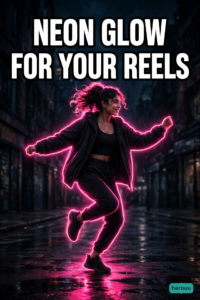
| Neon outline dancer | Dance reels and music videos | 1 dark room dance clip |
| Neon sign text | Name reveals and channel intros | 1 night street clip |
| Neon night walk | Travel and city reels | 2 to 3 night street clips |
| Neon bike glow | Bike and car reels | 1 night bike clip |
| Neon party flash | Birthday and party reels | 2 to 3 short party clips |
Before you start
A neon glow needs darkness, so shoot at night or in a dim room. Pick one bright colour before you open the app. A tripod helps for dance clips, but you can also rest the phone against a wall.
| Requirement | Details |
|---|---|
| App | VN Video Editor, updated to the latest version |
| Clips | Your own low-light clips, 5 to 30 seconds each |
| Storage | 500 MB free for the project and export |
| Skill | Basic VN skills: trimming clips and adding text |
| Colour | One neon colour: pink, cyan, violet, or green |
Steps to make your VN neon effect template
Step 1: Open VN and start a new project
Open VN and tap plus to start a new project. Choose clips shot in low light, because bright daylight washes the glow out. Tap Next to open the timeline.
Step 2: Trim the clips to the best moments
Tap a clip and drag its edges to cut the dull parts. Keep only the moments where your subject moves well. For a reel, aim for 15 to 30 seconds in total.
Step 3: Darken the clip so the glow can stand out
Select a clip and open Adjust. Lower the brightness a little and raise the contrast a little. This step is the base of your VN neon effect template.
Step 4: Apply a filter and set its strength low
Open the Filter panel and try the built-in filters one by one. Look for a cool or cinematic style. Set the strength to about 40 to 60 percent, not full, so the clip keeps its detail. You can adjust intensity after applying a filter, and import .cube LUT files for your own look.
Step 5: Add a glow overlay on a second track
Tap Overlay and add a second layer. This can be neon lights, a glowing shape, or a plain colour layer. Stretch it to match your main clip, then lower its opacity to about 30 to 50 percent. Try the Lighten blend mode if your VN version shows it.
Step 6: Add neon text with a bright colour
Tap the Text track or the T button and type a short word, such as your name or the song line. Pick a bold font, large size, and bright colour like pink or cyan. Two or three words glow better than a full sentence.
Step 7: Make the text glow with a duplicate layer
Copy the text layer and place it exactly behind the first one. Make the copy slightly larger with lower opacity, so it forms a soft halo. This is the simplest way to fake a neon sign in VN. If the glow looks messy, reduce the size gap.
Step 8: Animate the glow with keyframes
Select the text or overlay and add a keyframe at the start. Move a little forward, add a second keyframe, and change the opacity slightly. VN animates the change between the two keyframes, so the glow in your VN neon effect template can pulse or fade in. Keep the movement small.
Step 9: Add music and match the cut to the beat
Add music from your own library or VN’s built-in sounds, then mark the beats where the song hits hard. Cut your clips on those beats so the glow pops with the music. This makes a simple clip feel like a real music video.
Step 10: Save the look and export in high quality
Before you export, save your filter and colour settings as a preset, and save the project as a custom VN neon effect template. Then export at the highest quality your phone handles, up to 4K at 60fps. Watch the exported video once.
Template ideas
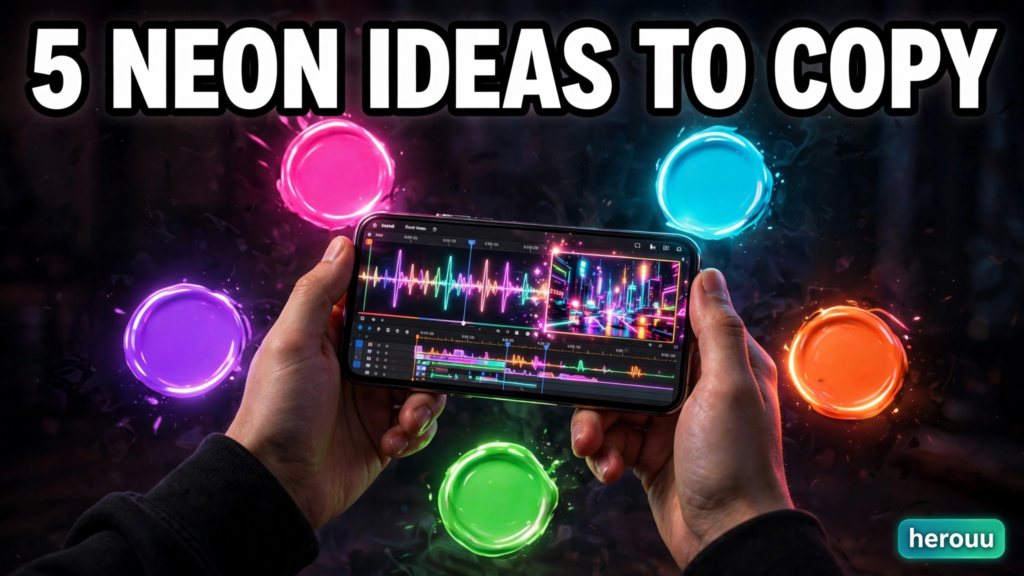
The five blocks below are starting points, not files to download.
Idea 1: Neon Outline Dancer
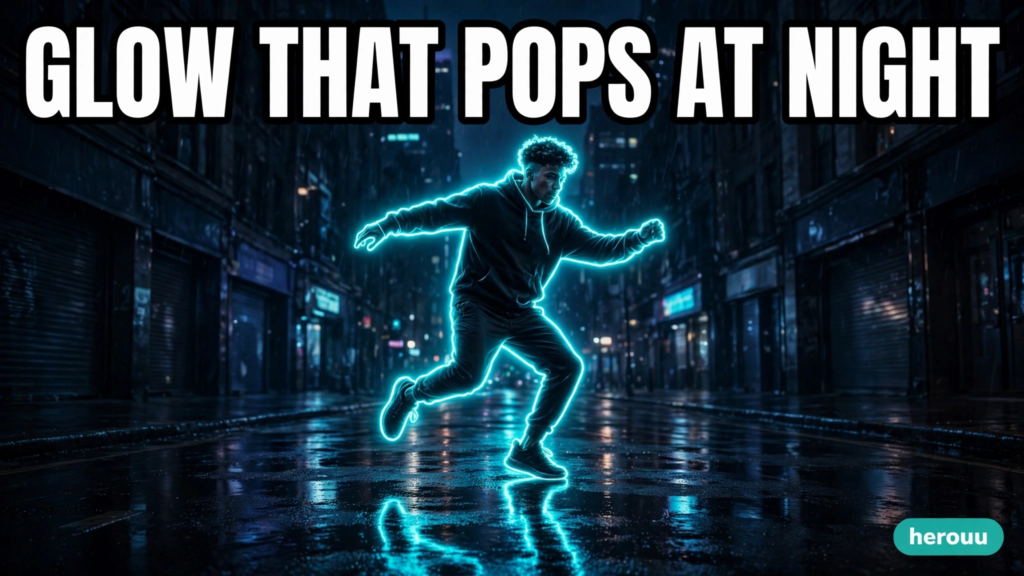
Dark room, one dancer, cyan outline glow around the body. Use a low brightness base, a cool filter at 50 percent, and glowing text with the song line.
Idea 2: Neon Sign Name Reveal
Night wall, your name in big pink glowing letters. Use the duplicate text layer trick for the halo, add a slow fade-in, and keep the background almost black.
Idea 3: Neon Night Walk
Three night street clips, violet glow, one colour through the whole video. Build this VN neon effect template once with a violet filter and low opacity overlay, then reuse it on every walk.
Idea 4: Neon Bike Glow
One bike clip at night, green glow along the bike edges. Darken the clip, add a green overlay at low opacity, and cut on the beat as the bike passes the camera.
Idea 5: Neon Party Flash
Short party clips, orange and pink glow, fast cuts on the beat. Use a warm filter, a bright overlay flash on each beat, and one glowing word on screen.
Tips
Shoot in the dark on purpose, because neon glow is really about contrast. A clip shot under a street light or in a dim room glows far better than one shot in daylight, and no filter can fix a washed-out clip. Pick one neon colour for the whole video, because pink plus cyan plus green in one reel looks messy, while one colour looks planned. Test the glow at normal screen brightness, since most people watch that way. Save your finished VN neon effect template as a preset the moment you like it, because the exact values are easy to forget. Keep your text short and large, since long glowing text is hard to read on a small screen. Finally, watch your exported video once before posting to catch a flicker, a dull patch, or drifting text.
Common problems and fixes
| Problem | Likely cause | Fix |
|---|---|---|
| Glow looks dull and grey | Clip too bright or filter strength too low | Lower brightness, raise contrast and overlay opacity |
| Text glow looks messy | Copy layer too big or misaligned | Line the layers up and shrink the size gap |
| Colours differ after export | Low export quality or different screen | Export at top quality and check on another phone |
| Video lags while editing | Too many layers or a long timeline | Remove unused layers, trim clips, close other apps |
| Look differs on next video | Settings not saved as a preset | Save filter and colour settings as a preset first |
Frequently asked questions
Is there a built-in Neon template in VN?
No, VN does not list a built-in template named Neon in its official feature pages, so do not search the app for that exact name. A VN neon effect template is a look you build yourself with filters, colour settings, text, and overlays. Check the official VN help page for the latest list.
Is the VN neon effect template free to make?
Yes, you can build this neon look with the free VN app using filters, text, overlays, and keyframes. VN says the app is free with no watermark, with a wide range of free filters. Some advanced filters are Pro, so check the price inside the app first.
Which colour works best for a neon glow in VN?
Pink, cyan, violet, and green work best because they stay bright against a dark background. Pick one colour for the whole video and use it for the text, overlay, and glow. One strong colour looks clean, while three or four colours usually look messy.
Can I use the VN neon effect template for dance reels?
Yes, dance reels suit this look very well, because the dancer moves against a dark background. Shoot in a dim room or at night, keep the camera steady, and cut on the music beat. A cyan or pink glow around a dancer stands out on Reels.
How do I make neon text glow in VN?
Type short text in a bold font and a bright colour, then copy the text layer and place the copy behind it. Make the copy slightly larger with lower opacity so it forms a soft halo. This duplicate layer trick is the easiest glow method in a VN neon effect template, and keyframes can make the glow pulse gently.
Why does my neon effect look dull after export?
The most common reason is low export quality or a clip that was too bright to start with. Export at the highest quality your phone handles well, up to 4K at 60fps. If it still looks dull, lower the brightness and raise the contrast, then export again.
Can I save my VN neon effect template for later use?
Yes, VN lets you save filter and colour settings as presets, and it offers custom templates you can reuse across projects. Save the look as soon as you like it, and name the preset clearly, such as Neon Pink Night. Then apply it to your next clips.
Does the neon look work on photos too in VN?
Yes, VN also works as a photo editor, and you can add text, stickers, and filters to a photo in the same way. A dark photo with one bright glowing word works well as a reel cover. Keep the text large and short so it stays readable on a small phone screen.
What kind of clips suit a neon glow best?
Night streets, dim rooms, dance clips, bike rides, and party videos suit a VN neon effect template best. The key is a dark background with one clear subject and one bright colour. Bright daylight clips, busy markets, and pale walls do not suit this look, because the glow needs darkness.
Conclusion
A VN neon effect template is simple once you see it as three parts: a dark clip, one bright colour, and a soft glow. Build it once, save it as a preset, and reuse it on your next reel. Try one of the five VN neon effect template ideas above today, then browse the Vn Code Template guides on herouu.buzz.
Related reading
- VN Glitch Effect Template: https://herouu.buzz/vn-glitch-effect-template-guide/
- VN Cinematic Template: https://herouu.buzz/vn-cinematic-template-guide/
- VN Colour Grading Template: https://herouu.buzz/vn-colour-grading-template-guide/
- Browse all Vn Code Template guides: https://herouu.buzz/category/vn-code-template/
About herouu
herouu.buzz shares free, original guides for creators who edit videos and make AI images on their phones, in simple English with steps you can follow on your own clips. Every guide comes from research and tested steps, so you can learn without paying for a course.
Disclaimer
This guide is based on the official VN app pages and sources below. VN updates its app often, so filter names and menu positions may change. Check the official VN help page before you edit. herouu.buzz is not linked to VN, VlogNow, or Ubiquiti Labs in any way.
Sources
- VN Filters, official VN site: https://vlognow.me/blog/features/filters/
- VN: Photo and Video Editor, Apple App Store: https://apps.apple.com/nz/app/vn-photo-video-editor/id1343581380?platform=ipad
- VN: Photo and Video Editor, Google Play: https://play.google.com/store/apps/details/VN_Video_Editor_Maker_VlogNow?id=com.frontrow.vlog&hl=en_CA
- How to Add Custom Filters in the VN App, Filmora: https://filmora.wondershare.com/video-editing-tips/add-custom-filters-in-vn.html
- Neon glow effect guide, Morphic: https://morphic.com/resources/vfx/neon-glow-effect
No template code, download link, QR code, price, or feature in this guide was invented. Details not officially announced are not stated as facts.