
At a glance
What you will make: Romantic engagement portraits from your own couple photo: a golden hour portrait, a ring close-up, and a save-the-date card.
Best for: Couples who want lovely engagement photos for Instagram, WhatsApp, or a save-the-date card.
Time needed: About 15 to 20 minutes for your first photo, and 5 minutes for each one after that.
Cost: Free with a Google account in Gemini and with a free ChatGPT account, though daily limits can change.
Quick Overview
| Topic | Details |
|---|---|
| Topic | AI photo prompts for engagement pictures |
| Category | Ai Photo Prompt |
| App or Tool | Google Gemini or ChatGPT |
| Skill Level | Beginner, no editing skill needed |
| Time Needed | 15 to 20 minutes for the first photo |
| Media Needed | One clear couple photo |
| Cost or Free Features | Free with a Google or ChatGPT account, limits may apply |
What you will make
With AI photo prompts for engagement pictures, you can make several styles from the same starting photo. Each style below suits a different use. Pick one first and try it before you make the rest.
| Idea | Best for |
|---|---|
| Golden hour meadow portrait | Instagram post and profile picture |
| Ring close-up | Announcement post and WhatsApp status |
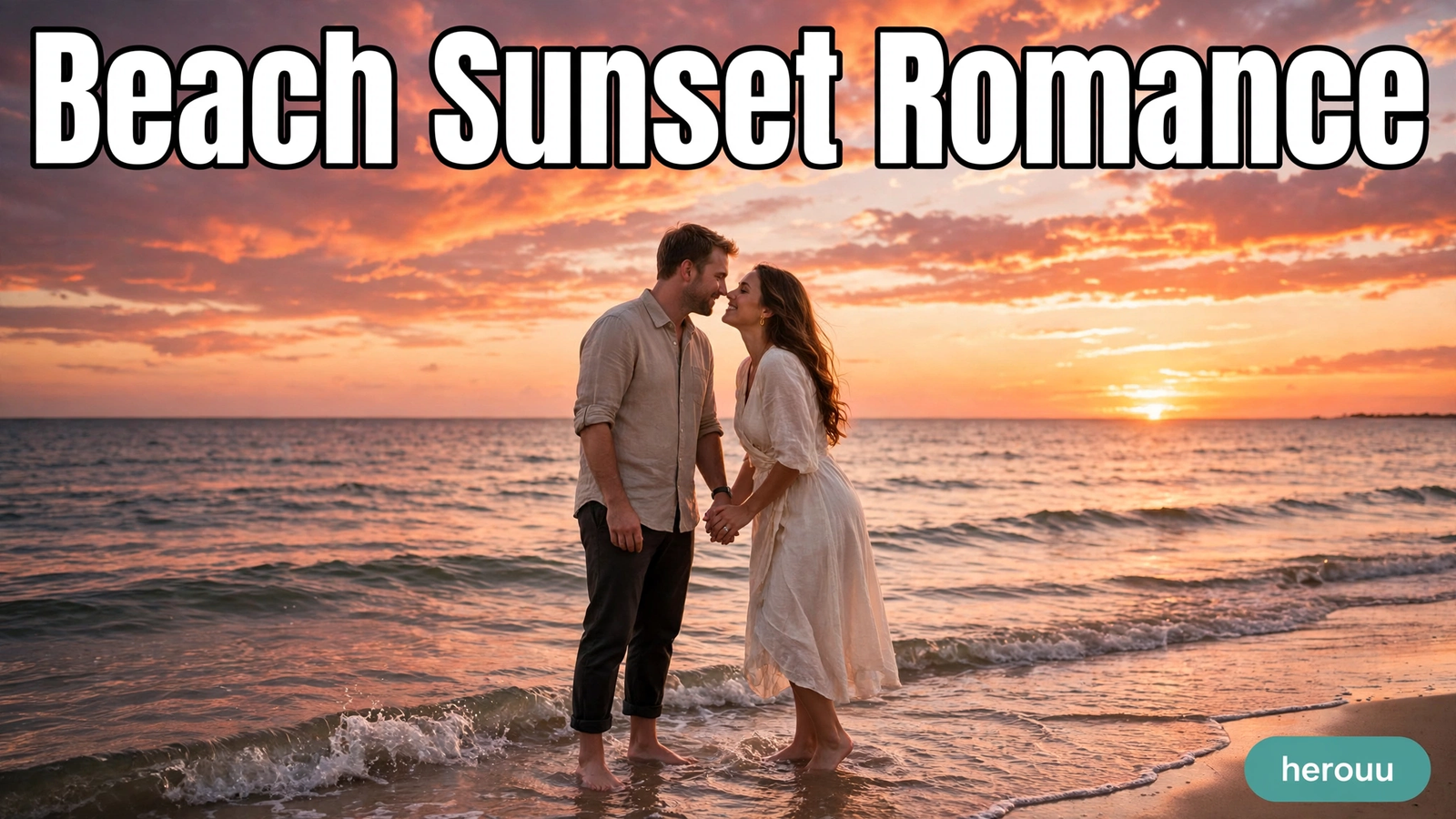
| Beach sunset embrace | A soft, dreamy feed post |
| Rooftop fairy lights | Evening announcement and story |
| Save-the-date card | Card and invitation |
Before you start
A good result starts with a good photo. The AI tool can change the background, the light, and the clothes, but it cannot fix a blurry or dark face. Use a daylight photo where both of you look at the camera, because AI photo prompts for engagement pictures need a sharp starting photo.
Use only photos you have the right to use: your own photos, or photos the two of you agree to edit. Do not upload someone else’s photo without permission. The result is an AI image, not a real photograph, so do not present it as a real shoot photo.
| What you need | Why it matters |
|---|---|
| Gemini app or ChatGPT app | Both edit your photo from a prompt |
| A Google account or ChatGPT account | To sign in and save images |
| One clear couple photo | Clear faces give the most natural result |
How to use AI photo prompts for engagement pictures
Follow these steps in order to use AI photo prompts for engagement pictures. They work in both Gemini and ChatGPT.
Step 1: Pick your best couple photo
Choose a photo where both faces are clear, well lit, and facing the camera. Daylight photos work best. Avoid group photos and sunglasses.
Step 2: Open Gemini or ChatGPT
Open gemini.google.com or the Gemini app and sign in. In the app, choose Create images from the tools menu. In ChatGPT, open a new chat. AI photo prompts for engagement pictures are free in both apps, though daily limits can change.
Step 3: Upload the photo and say who is who
Upload your couple photo, then tell the app who is who, for example, “The woman on the left is me, and the man on the right is my fiance.” Without this line, the app can swap your faces.
Step 4: Paste a prompt
Pick one of the five prompts below and paste it with your photo. AI photo prompts for engagement pictures work best unchanged on the first try. Small changes are fine, like naming the dress colour.
Step 5: Check the faces, hands, and ring
Look closely before you save it. Check both faces first, then the hands. AI tools often get fingers wrong, and a ring should sit on the correct finger.
Step 6: Fix small problems and compare versions
If something is wrong, do not start over. Stay in the same chat and ask for one fix at a time, for example, “Keep everything the same, but make the ring clearer.” Then ask for two or three versions and keep the most natural one.
Step 7: Save in high quality and share
On the Gemini website, hover over the image and tap Download full size. In the app, touch and hold the image and tap Save. In ChatGPT, tap the image and use the download option. Save the best version to your phone, and keep a second one for a different crop.
5 original engagement photo prompt ideas
Each prompt starts by asking the app to keep both faces the same as in your photo. Copy one, paste it with your photo, and change only the small details in brackets.
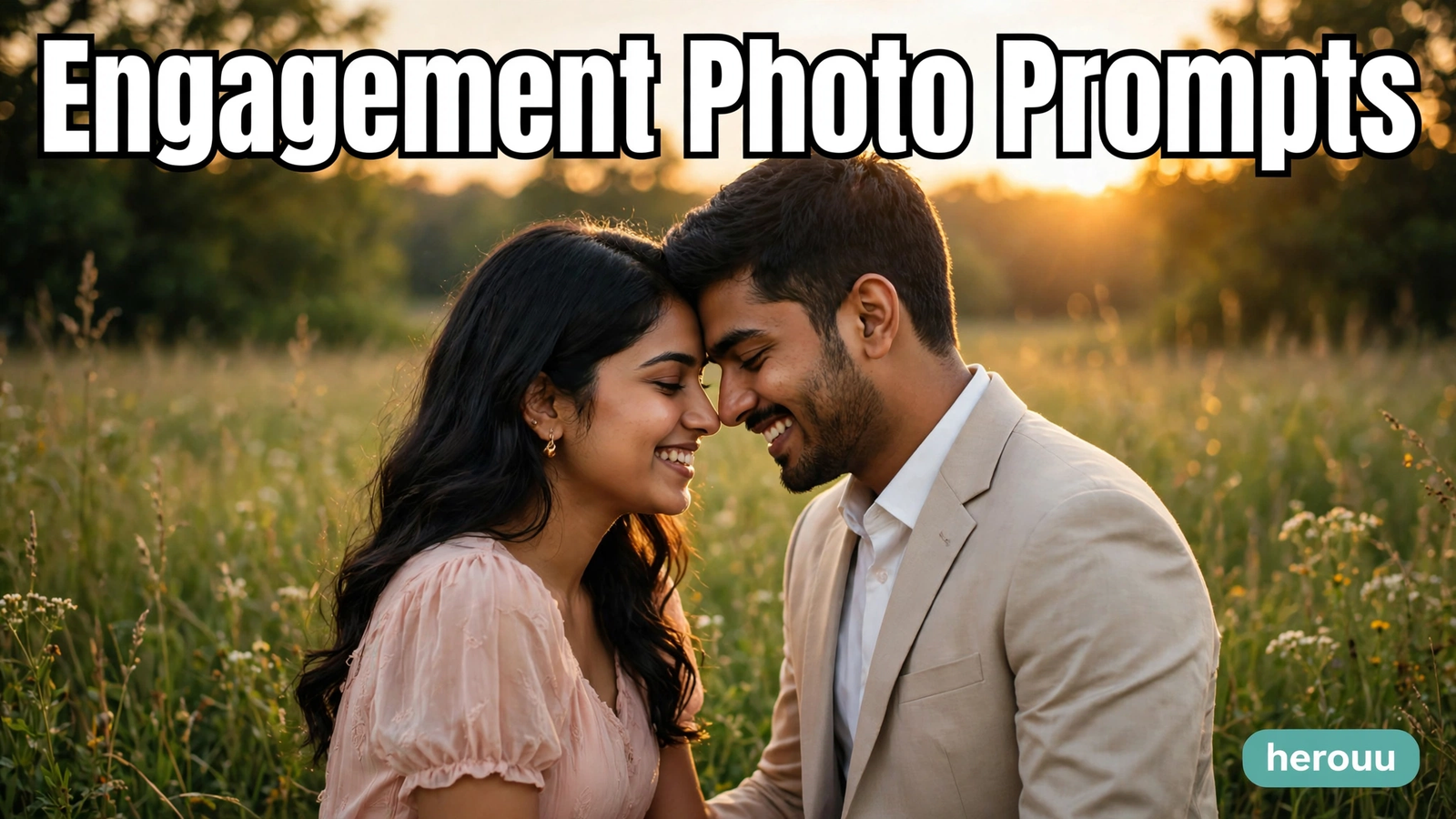
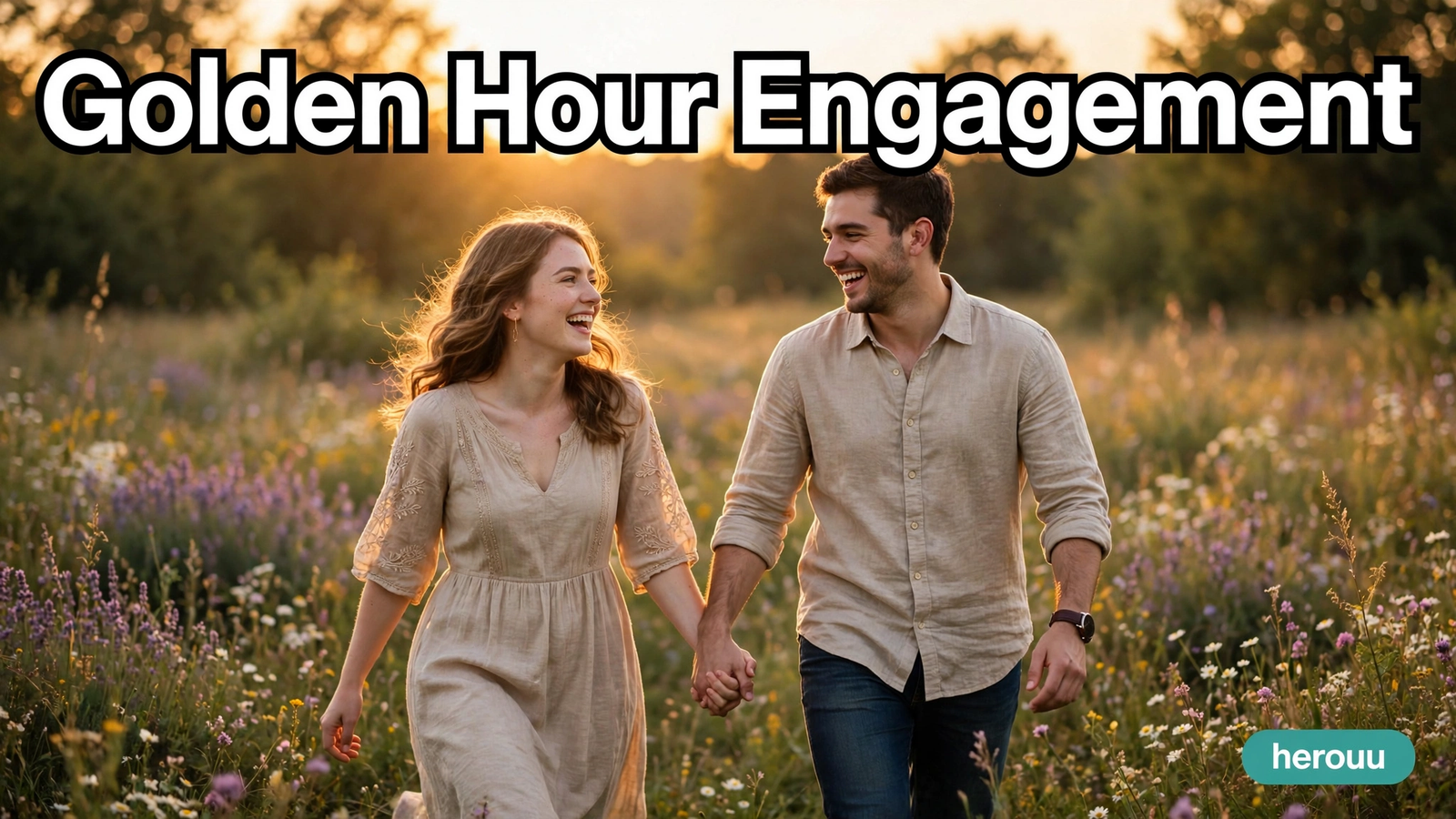
1. Golden hour meadow portrait
A warm portrait for your main announcement post.
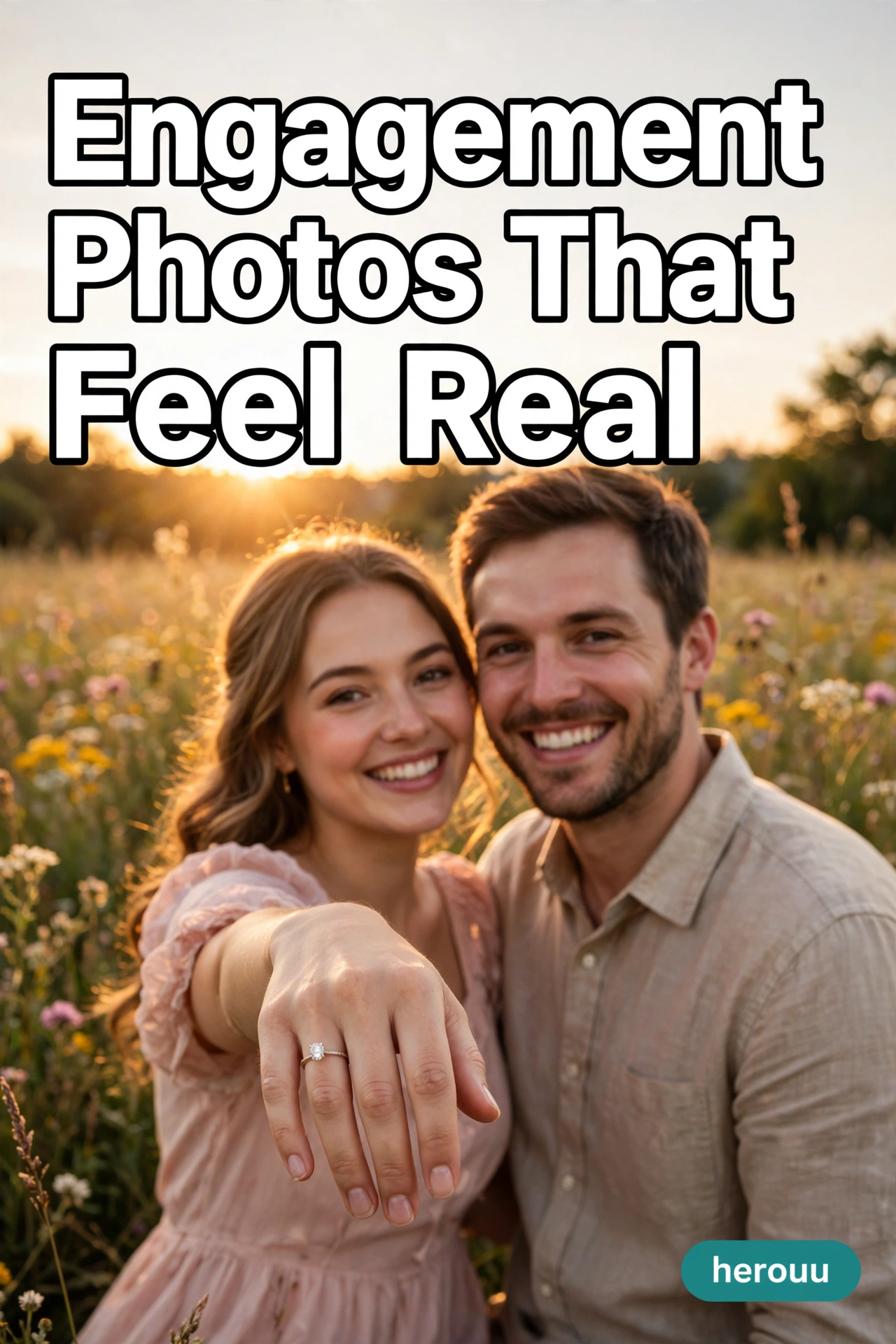
Turn this photo into a romantic engagement portrait in a wildflower meadow at golden hour. Keep both faces, hairstyles, and skin tones exactly as in the photo. The couple stands forehead to forehead, smiling softly in warm low sunlight. She wears a [blush dress], he wears a [beige suit]. Photorealistic skin, warm film colours.
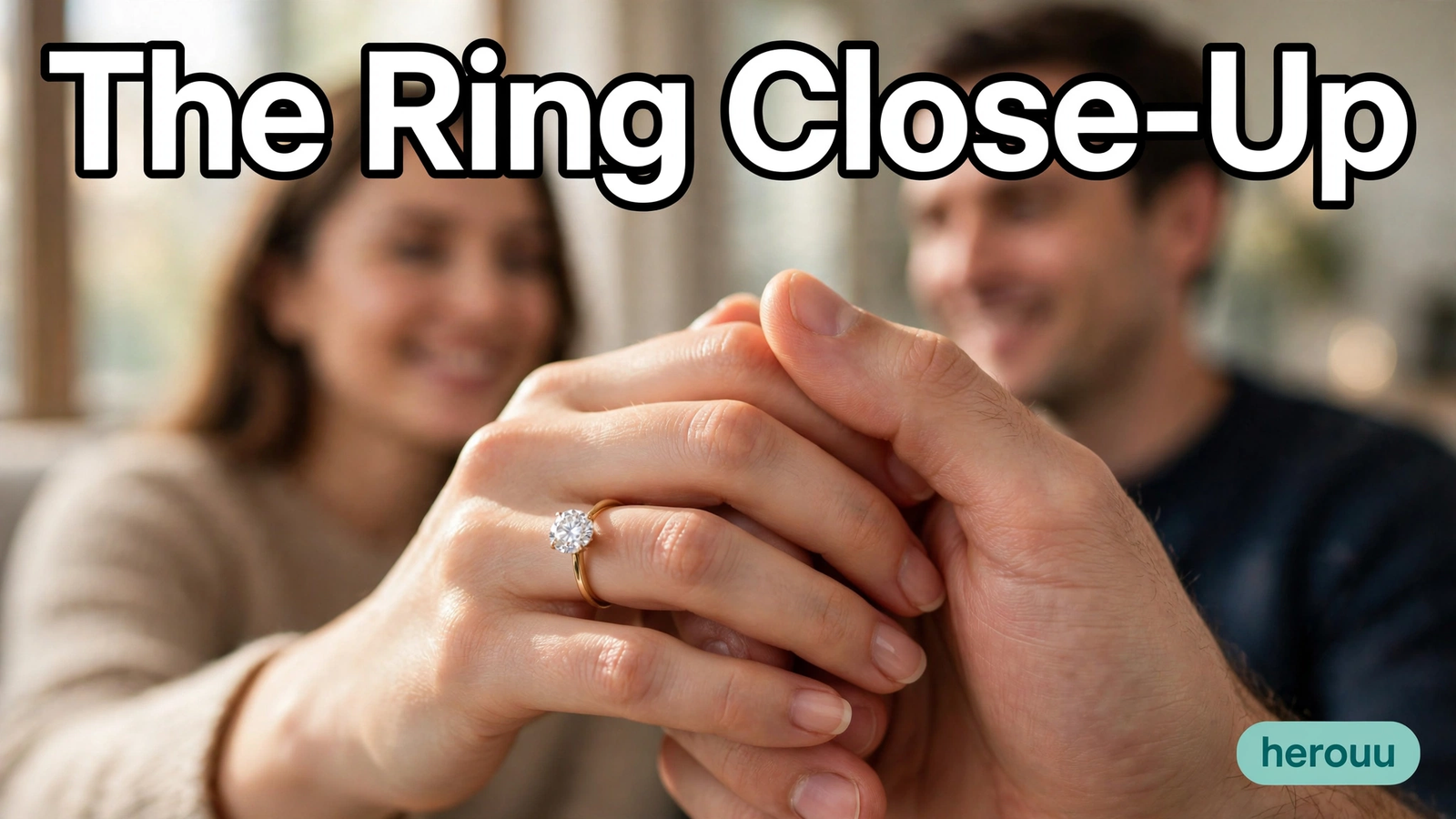
2. Ring close-up
A close shot of the ring, with both of you softly blurred behind.
Make a close-up engagement photo from this photo, focused on the couple’s gently held hands, showing a solitaire diamond ring on her left ring finger. Keep both faces exactly as in the photo, softly blurred behind, both smiling. Soft window light, natural skin texture, crisp ring sparkle, creamy bokeh, photorealistic.
3. Beach sunset embrace
A soft, dreamy shot for a feed post.
Turn this photo into a beach engagement portrait at sunset. Keep both faces and hairstyles exactly as in the photo. The couple stands barefoot at the water’s edge, holding hands and leaning in for an almost-kiss under a warm orange and pink sky. She wears a [white dress], he wears a [linen shirt]. Soft pastel colours, photorealistic.
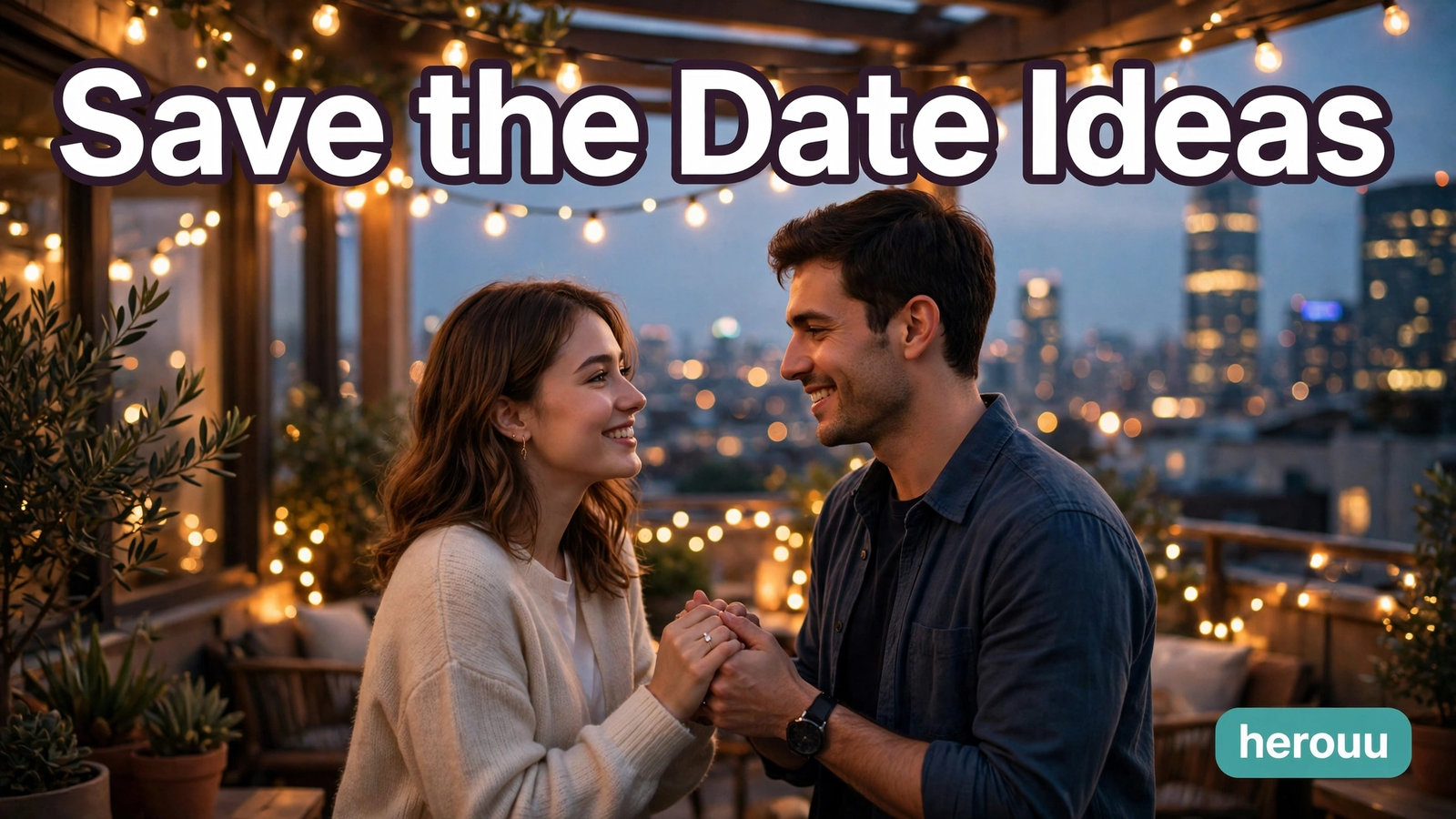
4. Rooftop fairy lights
A warm evening look for a story or announcement.
Turn this photo into a romantic engagement portrait on a rooftop terrace at dusk, under warm fairy lights. Keep both faces, hairstyles, and skin tones exactly as in the photo. The couple holds hands and smiles at each other, with soft city lights behind them. She wears a [cream knit top], he wears a [dark shirt]. Warm golden light, photorealistic.
5. Save-the-date card
A clean portrait with space to add your date later.
Turn this photo into a save-the-date engagement portrait. Keep both faces and hairstyles exactly as in the photo. Place the couple on the right side of the frame, smiling softly at the camera, in a bright garden with soft morning light. Leave the left half as blurred greenery with space for text. She wears a [pastel dress], he wears a [light shirt]. Photorealistic.
Tips for better engagement photos
These tips make AI photo prompts for engagement pictures work better on the first try.
Use one clear, front-facing photo. For AI photo prompts for engagement pictures, use a photo where both of you face the camera. Side profiles make the faces drift.
Name who is on the left and right. Say it in every first message, so the app does not guess.
Describe the pose as positions, not feelings. “Romantic” is not a pose. “Forehead to forehead, holding hands” is one. Say where each person stands and where the hands go.
Keep one place and one light. A meadow at sunset or a rooftop at dusk is enough. Mixing two places or three lights often looks odd.
Make three versions, then check the best one at full size. The first version shows what to fix, the second is usually the best, and the third is a backup. Zoom in on the hands, the ring, and the hair before you post it.
Common problems and fixes
AI photo prompts for engagement pictures usually fail in the same few ways. Here are the most common ones.
| Problem | Likely cause | Fix |
|---|---|---|
| Faces look like different people | Photo was dark, turned away, or low quality | Use a clear daylight photo and add “keep both faces exactly as in the photo” |
| Hands look wrong or have extra fingers | Hands are hard for AI tools to draw | Ask for one fix, like “fix the hands”, or crop the hands out |
| Ring is missing or on the wrong finger | Prompt did not name the ring clearly | Name the hand and finger, such as “solitaire ring on her left ring finger” |
| Photo looks too smooth or plastic | Prompt asked for too much perfection | Add “natural skin texture” and avoid the word flawless |
| App refuses to edit a photo of real people | The app’s safety rules for real faces | Try a simpler edit or a different photo, and check the app’s help page |
Frequently asked questions
Can AI make engagement photos from my own photo?
Yes. With AI photo prompts for engagement pictures, upload your own couple photo to Gemini or ChatGPT and ask it to restyle the scene while keeping both faces the same. Use a clear, front-facing photo. The app keeps your faces only when you tell it to.
Which app is best for engagement photo prompts, Gemini or ChatGPT?
Both work well, and the best one is the one you already use. Gemini is handy with a Google account, and ChatGPT is handy if you already chat there. Try the same AI photo prompts for engagement pictures in both apps and keep the best version.
Will the AI keep our faces the same?
It can, but only if you ask clearly. AI photo prompts for engagement pictures work best when you add “keep both faces exactly as in the photo” and say who is on the left and right. Still, check every result.
Are AI engagement photos free to make?
Yes. AI photo prompts for engagement pictures are free to try with a Google account in Gemini and with a free ChatGPT account. Daily limits can change, and some options may sit behind a paid plan. Check the official help page for the current limits.
Can I use AI engagement photos for a save-the-date card?
Yes. Use the save-the-date prompt in this guide, which leaves one side empty for your date and names. Add the text later in Canva, and check it fits before you print or share the card with your family and friends.
How do I write a good engagement photo prompt?
For AI photo prompts for engagement pictures, describe six things in order: who is in the photo, the place, the pose, the light, the clothes, and the mood. Keep it to a few short sentences and add “keep both faces exactly as in the photo” at the start. A short prompt with one place and one light works best.
Why does the ring look wrong in my AI photo?
Rings are small and detailed, so AI tools often blur or misplace them. Name the ring clearly, such as “solitaire diamond ring on her left ring finger”, and zoom in to check it. If it still looks wrong, ask for one fix or crop the ring out.
Can I make engagement photos without uploading my photo?
Yes, you can ask for a brand new image from text alone, but it will show two strangers, not you. That works for a mood board, not a personal announcement. AI photo prompts for engagement pictures need your own photo as the base.
Is it okay to share AI engagement photos on Instagram?
Yes, for personal posts it is fine, but be honest that the image is AI made. AI photo prompts for engagement pictures make creative portraits, not real shoot photos, and Instagram may label AI images. Avoid using them for any official document.
Conclusion
AI photo prompts for engagement pictures make warm, romantic portraits from a photo you already have. Pick your clearest couple photo, use one of the five prompts in this guide, and check the faces, hands, and ring before you share it. Try one prompt today, then browse herouu.buzz for more ideas.
Related reading
These guides use the same tools as AI photo prompts for engagement pictures, so try them next.
- AI Photo Prompts for Wedding Pictures – Try the same style for your wedding photos.
- AI Photo Prompts for Couple Portraits – More portrait ideas for couples.
- AI Photo Prompts for Anniversary Pictures – The same style for your first anniversary photos.
- AI Photo Prompts for Sunset Pictures – Golden hour ideas for engagement portraits.
- AI Photo Prompts for Travel Pictures – Romantic travel photos with the same tools.
About herouu
herouu.buzz shares free templates, photo prompts, and video editing ideas for everyday creators. Every guide is written in simple English, uses free tools where possible, and shows the steps on a phone. Browse the Ai Photo Prompt category for more ideas, including AI photo prompts for engagement pictures.
Disclaimer
This guide is based on the official Gemini and ChatGPT help pages and the steps as written here. App features, limits, and prices may change, so verify the latest details from the official app or help page. AI images are made-up, not real photographs, so check faces, hands, and rings before you share them. Do not upload photos of other people without permission.
Sources
- Google Docs Help – Generate an image with Gemini
- gHacks – Gemini AI Photo Editing and Image Generation Guide
- OpenAI Help Center – ChatGPT image generation help pages
- Media.io – Gemini AI Engagement Photo Prompt ideas
- PromptHackers – AI Photo Prompts for Couples
- Techpresso Academy – 30 ChatGPT Engagement Photo Prompts
Not officially announced: the exact daily image limits in Gemini and ChatGPT free plans change over time. Check the official help pages for the current limits. No template code, download link, price, or paid feature is claimed here.