
At a glance
An unboxing video is a short clip of you opening a product for the first time. AI video editing for unboxing videos means letting CapCut do the slow jobs, like captions and trimming pauses, while you keep control of the story. Film in one clean setup.
Quick Overview
| Topic | Detail |
|---|---|
| Topic | AI video editing for unboxing videos |
| Category | Ai Video Editing |
| App or Tool | CapCut (mobile, desktop, web) |
| Skill Level | Beginner |
| Time Needed | 45 to 90 minutes |
| Media Needed | Your own unboxing clips |
| Cost | Free in CapCut; some AI features may be Pro |
What you will make
You will make a short vertical unboxing video, around 30 to 60 seconds, with a clear hook, a reveal, captions, and a simple ending. This kind of AI video editing for unboxing videos works for Reels, Shorts, and TikTok, and the same steps work for YouTube.
| Idea | Best for | Clips needed |
|---|---|---|
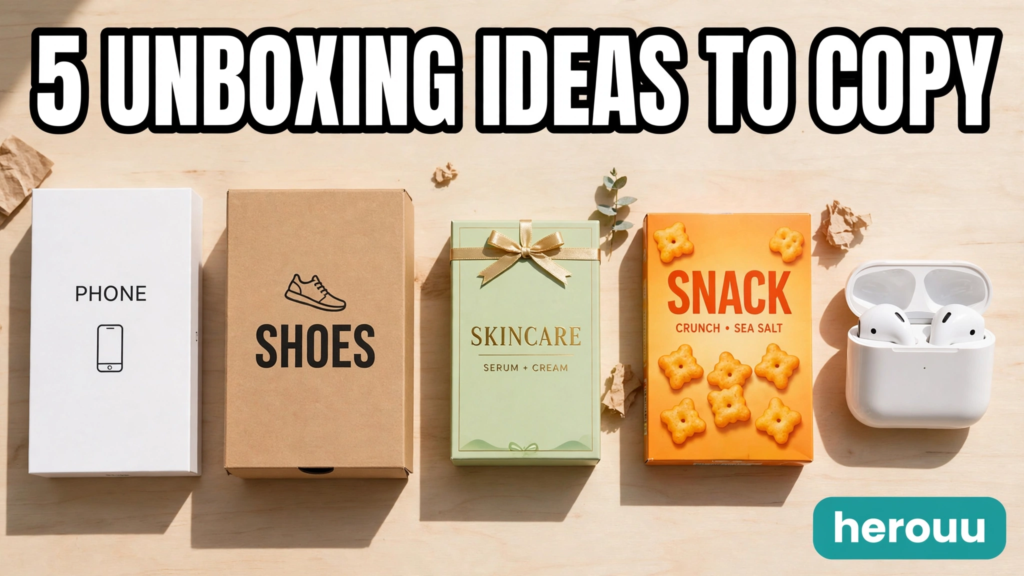
| Phone unboxing | Tech fans, first look | 5 clips |
| Shoes unboxing | Fashion and sneaker fans | 4 clips |
| Skincare unboxing | Beauty and gifting | 4 clips |
| Food box unboxing | Snacks, hampers, subscriptions | 5 clips |
| Gadget unboxing | Earbuds, watches, accessories | 4 clips |
Before you start
A little planning saves more time than any editing trick, and that is where AI video editing for unboxing videos starts. Clear a table, pick one clean background, and keep the box, scissors, and your phone within reach. Film near a window so light falls on the box from the side, and keep the room quiet so your voice stays clear.
| Requirement | What you need |
|---|---|
| Phone | Any phone that records 1080p |
| App | CapCut installed and updated |
| Storage | At least 2 GB free space |
| Light | Daylight from a window or a ring light |
| Support | A tripod or a stack of books |
| Sound | Quiet room; optional earphone mic |
Steps for AI video editing for unboxing videos
Step 1: Decide the story in one line
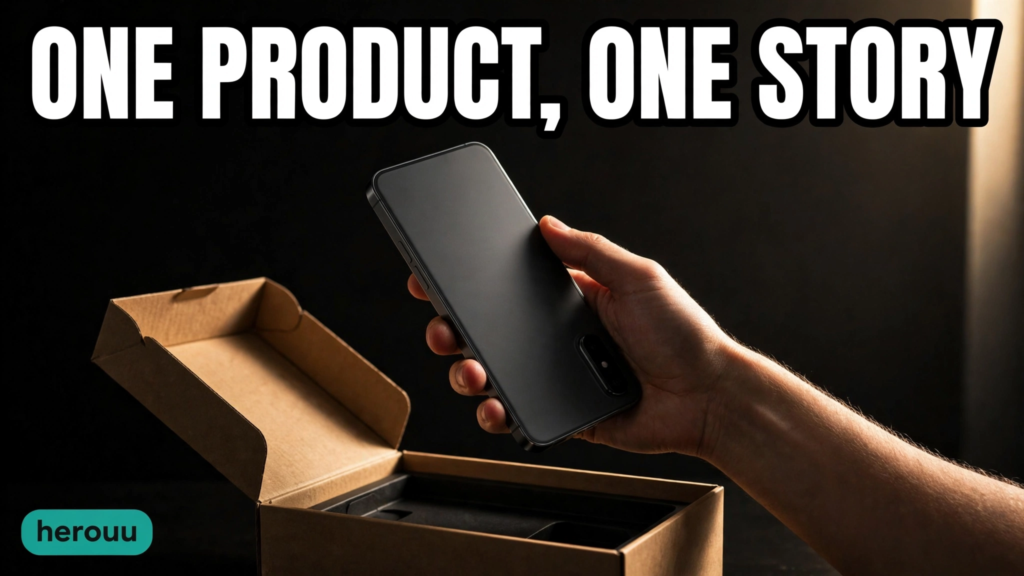
Write one line that says what the viewer gets, such as “new budget earbuds, first look and sound test.” Every clip should serve that line. If a shot does not help the story, skip it.
Step 2: Plan five shots before you press record
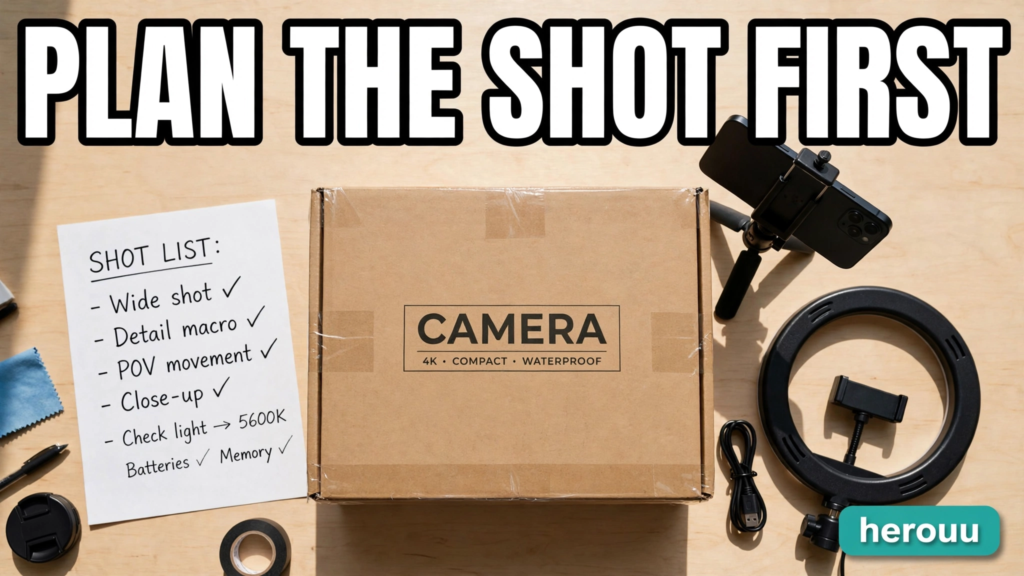
Plan the sealed box, the seal breaking, the lid opening, the product reveal, and the full layout at the end. Note the five shots on your phone, so you do not miss the reveal, which you cannot film again once the box is open.
Step 3: Set up light, background, and framing
Put the phone on a tripod or a stack of books so both hands stay free. In AI video editing for unboxing videos, frame in vertical 9:16 for Reels and Shorts, and leave space above the box for captions. Film a ten second test clip to check light and focus.
Step 4: Film the unboxing in one calm take
Film each shot in order and keep the camera still. Let the packaging sounds play, and speak slowly. Do not restart for small mistakes, because you can cut them out later. If you fumble a shot, pause and film it again.
Step 5: Import the clips into CapCut and make a new project
Open CapCut, tap New project, and select your clips in the order you filmed them. In AI video editing for unboxing videos, the import order matters, so lay them on the timeline as listed in your shot list. Watch it once before you cut.
Step 6: Cut the rough version with a simple rule
Trim the start of every clip, and cut pauses longer than half a second with no sound or action. Keep the lid opening and the reveal at full speed. In AI video editing for unboxing videos, this rough cut is the backbone, so aim for 45 to 60 seconds.
Step 7: Generate auto captions and fix the mistakes
Open Captions, choose Auto captions, pick your language, and tap Generate. CapCut turns your speech into timed blocks you can edit and style. Check the product name and brand words first, because AI gets those wrong most often. Split blocks that run too long.
Step 8: Add text callouts for the details that matter
In AI video editing for unboxing videos, add short text on screen for the key feature or the thing inside the box that viewers always ask about. Keep each callout to three or four words and one bold style, and place them where they do not cover the product. Two or three callouts are enough.
Step 9: Add music low and keep the real sounds
For AI video editing for unboxing videos, pick a calm track from CapCut’s music library and lower its volume so it sits under your voice and the packaging sounds. The paper and lid sounds are part of the fun. Cut on the beat only at the reveal.
Step 10: Review on your phone and export
Watch the full video once on your phone, and check the captions match your words, the product stays in frame, and no text is cut off. This check is part of AI video editing for unboxing videos, not an extra step. Export in 1080 x 1920, then watch the file once more before you post it.
Workflow ideas
The five blocks below are starting points, not files to download.
Idea 1: Phone unboxing in 30 seconds
Sealed box on the table, break the seal, lift the phone out, show the screen lighting up, then lay the phone, cable, and case in a row.
Idea 2: Shoes unboxing with a close-up finish
Open the shoe box slowly, pull out the tissue paper, hold up one shoe, zoom in on the logo and sole, then place both shoes side by side.
Idea 3: Skincare unboxing for gifting
Show the gift box, open the lid, take out each bottle one by one, read the labels aloud, then arrange the full set on a plain cloth.
Idea 4: Food box unboxing with a taste moment
Cut the tape, lift the lid, show every snack, taste one item on camera, then show the full spread from above with the box label in view.
Idea 5: Gadget unboxing with a quick test
Open the box, take out the gadget and its cable, switch it on, show one real feature working, then end with the gadget in your hand. A simple first project for AI video editing for unboxing videos.
Tips
Film the sealed box first, before you touch anything, because that shot sets up the whole video and you only get it once. Keep your hands in frame when you open the box, since viewers watch your hands as much as the product. Speak the product name clearly at the start so the auto captions pick it up right, and say it the same way each time. In AI video editing for unboxing videos, clean audio saves more time than any effect, so if your room is noisy, record a short voiceover after filming. Save your best caption style as your usual look, so your next video takes half the time. When a clip looks dull, try a slow zoom in on the product instead of a flashy effect.
Common problems and fixes
| Problem | Likely cause | Fix |
|---|---|---|
| Captions spell the product name wrong | AI mishears brand and model words | Tap the caption block and retype the name |
| Video feels slow and boring | Long pauses and a late reveal | Cut long pauses and move the reveal earlier |
| Product looks dark or dull | Light behind the box, not on it | Move beside a window so light falls on the box |
| Text covers the product | Callouts placed over the middle of the frame | Move text to the top or bottom |
| Export looks blurry | Low export resolution or shaky footage | Export at 1080 x 1920 and use a tripod |

Frequently asked questions
Can I edit an unboxing video on my phone with CapCut?
Yes, you can edit a full unboxing video on your phone with CapCut, and AI video editing for unboxing videos works well on the phone app. Import your clips, trim them, generate auto captions, add a few text callouts, and export in vertical 1080 x 1920.
How long should an unboxing video be?
For AI video editing for unboxing videos aimed at Reels, Shorts, and TikTok, aim for 30 to 60 seconds, because most viewers decide in the first few seconds whether to keep watching. For YouTube, 5 to 10 minutes works with real details. Keep the reveal early.
Do I need a paid CapCut plan for AI video editing for unboxing videos?
No, the basic workflow here uses free tools in CapCut, including trimming, auto captions, text, and music. Some caption styles may carry a Pro mark, so test one short export first. If CapCut asks for a subscription, switch that feature to a free one.
How do I make my unboxing video look professional?
Use a clean table, steady light from a window, and a tripod so the camera does not shake. Film in 1080p or better, keep the background simple, and cut out dead pauses. Honest first impressions and clear captions matter more than fancy effects, so let the product lead.
What is the best way to film an unboxing video?
Film vertically in 9:16, with the phone on a tripod and both hands free. Start with the sealed box, open it slowly, and film close-ups of the product. Shoot extra close-ups as you go, because you cannot repackage the box.
Should I use music in an unboxing video?
Yes, but keep the music low so your voice and the packaging sounds stay clear. The paper, tape, and lid sounds are part of what viewers enjoy, so let them come through. Pick a calm track, and only cut on the beat at the reveal.
How do I add captions to my unboxing video?
Open Captions in CapCut, choose Auto captions, pick the language you spoke, and tap Generate. This is the easiest part of AI video editing for unboxing videos: CapCut turns your speech into timed blocks you can edit and move. Check the product name first, split long blocks, and preview on your phone before you export.
Can AI edit my unboxing video for me?
AI can do the slow parts, like captions, trimming pauses, and removing backgrounds, but it cannot plan your story or pick your best shots. Film real clips in a clear order, then let CapCut’s AI tools speed up the edit. The best results in AI video editing for unboxing videos come from real footage plus AI help.
What should I show first in an unboxing video?
Show the sealed box in the first three seconds, with the label facing the camera. Tell the viewer what is inside, then open the box without delay. A fast start keeps people watching, and the reveal is the moment your video is built around.

Conclusion
AI video editing for unboxing videos is a simple habit once you follow the same order each time: plan five shots, film cleanly, cut the rough version, add captions and callouts, and export. Try it with your next order or gift, and browse the Ai Video Editing guides on herouu.buzz.
Related reading
- AI Video Editing for Beauty Reels: https://herouu.buzz/ai-video-editing-beauty-reels-guide/
- AI Video Editing for Fashion Reels: https://herouu.buzz/ai-video-editing-fashion-reels-guide/
- AI Video Editing for Fitness Reels: https://herouu.buzz/ai-video-editing-fitness-reels-guide/
- Browse all Ai Video Editing guides: https://herouu.buzz/category/ai-video-editing/
About herouu
herouu.buzz shares free, original guides for creators who edit videos and make AI images on their phones, written in simple English with steps you can follow. Every guide is written from real app steps and checked against official help pages.
Disclaimer
This guide is based on the sources below and on CapCut’s help pages as they appeared at the time of writing. Apps update often, and menu names and free features can change, so check the official CapCut app or help page. herouu.buzz is not linked to CapCut.
Sources
- CapCut Help, Automatic Captions: https://www.capcut.com/resource/how-to-generate-automatic-captions-and-correct-recognition-errors
- CapCut, Auto Captions AI Video Editor: https://www.capcut.com/resource/auto-captions-ai-video-editor
- CapCut, Remove Background From Photo Fast: https://www.capcut.com/ideas/remove-image-background/remove-background-from-photo-fast
- Sprites, How to Make an Unboxing Video With AI: https://www.sprites.ai/how-to/make-unboxing-video-with-ai
- Backstage, Unboxing Videos Explained: https://www.backstage.com/magazine/article/unboxing-videos-explained-78455/
- vidIQ, How to Make an Unboxing Video: https://vidiq.com/blog/post/make-youtube-unboxing-video/
No template code, download link, QR code, price, or feature in this guide was invented. Details not officially announced are not stated as facts.