
AI photo prompts for pet pictures turn a normal photo of your dog or cat into a cute studio portrait, a golden hour outdoor shot, or a festive look in a few minutes. You upload one clear photo of your pet, type a short prompt, and the AI app makes the new picture for you.
This guide is for everyday creators in India who want sweet pet pictures for Instagram, WhatsApp status, or a birthday post. You do not need a camera or editing skills, just a phone and one good photo of your pet. App features change often, so check the official app or help page for the latest steps.

At a glance
- Upload one clear photo of your pet and describe the picture you want in plain words.
- Always add a line that keeps your pet’s face, fur, and markings the same.
- AI photo prompts for pet pictures work best in Gemini and ChatGPT, which both let you edit an uploaded photo.
- Start with one change at a time, such as a new background or warm light.
- Check eyes, whiskers, and fur closely before you post, because AI often gets small details wrong.
- Keep the result honest: AI pictures carry an invisible watermark in Gemini, and they are edited photos, not real camera shots.
- Save your best AI photo prompts for pet pictures in a note, so you can reuse them for your next pet photo.
Quick Overview
| Topic | Detail |
|---|---|
| Topic | AI photo prompts for pet pictures |
| Category | Ai Photo Prompt |
| App/Tool | Gemini app or gemini.google.com, ChatGPT app or website |
| Skill Level | Beginner, no editing skill needed |
| Time Needed | 10 to 20 minutes for your first picture |
| Media Needed | 1 clear photo of your pet, face and eyes visible |
| Cost/Free Features | Free image editing with daily limits in both apps; exact limits are not published, so check the app |
What you will make
You can make many kinds of pet pictures from one photo. These ideas show what AI photo prompts for pet pictures can do with a single clear photo. The table below shows the most loved ideas and what each one needs.
| Idea type | Best for | Photos needed |
|---|---|---|
| Studio portrait | Profile picture, print, gift | 1 clear front photo, pet looking at the camera |
| Golden hour outdoor | Instagram post, reel cover | 1 photo with the full face visible |
| Festive look | Diwali, birthday, or festival post | 1 photo, pet calm and sitting |
| Funny costume portrait | Family group chat, status | 1 photo, ears and face clear |
| Sleeping or cosy look | Soft, warm post for a lazy day | 1 photo, pet resting or lying down |
| Action shot in a park | Energetic dog post | 1 sharp photo, pet standing or walking |

The studio portrait is the easiest place to start with AI photo prompts for pet pictures. It needs only a plain background and soft light, so the AI has little to get wrong. Outdoor and action shots look grand, but the AI must rebuild fur, legs, and grass, and that is where mistakes show up first.
Before you start
A good result starts with a good photo. If the first photo is dark or blurry, the AI will guess, and the guess will look wrong. Take two minutes to pick the right one first.
| Requirement | What to check |
|---|---|
| Pet photo | Clear, bright, face and both eyes visible, no hands or people in the frame |
| Pet age and look | Note the breed, coat colour, and any special mark to name in the prompt |
| App | Gemini or ChatGPT installed and signed in on your phone |
| Internet | Stable connection, because the picture is made on the app server |
| Storage | Free space to save the result on your phone |
| Age rule | Gemini photo editing is for adults only, 18 years or older, as per Google help; ChatGPT image editing is open on its plans, free included |
AI photo prompts for pet pictures work with your own pet photos only. Most AI photo prompts for pet pictures need only one photo, so you do not need a big album. Do not use a photo of someone else’s pet or a picture you found online. The AI needs your pet’s real face, fur, and markings to keep the result looking like your pet.
How to use AI photo prompts for pet pictures
Follow these steps in order to use AI photo prompts for pet pictures well. Do one change at a time so you can see what worked and what needs a fix.
- Open the Gemini app or gemini.google.com, or open ChatGPT on your phone or in a browser.
- Start a new chat so the old pictures do not mix with this one.
- Tap the plus or attach button and upload your clearest photo of your pet.
- Type one of the AI photo prompts for pet pictures from this guide, or write your own in plain words. Start with the change you want, then add the keep line that protects your pet’s face, fur, and markings.
- Send the prompt and wait for the picture. Do not send a second prompt while the first one is working.
- Look at the result at full size. Zoom in on the eyes, whiskers, ears, and paws.
- If one thing is wrong, reply in the same chat with a small fix, such as “keep this background, fix the left ear to match the original photo.”
- When you are happy with the result of your AI photo prompts for pet pictures, download the picture in full size and save it to your phone.
If the result looks nothing like your pet, do not keep fixing it in the same chat. Start a new chat with a sharper photo and a shorter prompt. Long prompts with five changes at once confuse the app and change the face too.
Prompt ideas
These five AI photo prompts for pet pictures are original and ready to copy. Swap the breed, colour, or setting for your own pet. Each one starts with the photo and ends with a line that keeps your pet looking like itself.

Use my uploaded photo of my dog. Keep my dog’s face, fur colour, and markings exactly the same. Show my dog running through green grass in a park at golden hour, warm sunlight on the fur, happy and playful, photorealistic pet photo, no text, no watermark.
Use this one for an active dog. It works best when the first photo shows the dog standing or walking, so the AI can see the body shape clearly.
Use my uploaded photo of my cat. Keep my cat’s face, eyes, whiskers, and fur markings exactly the same. Make a clean studio portrait with a soft grey background, gentle light from the left, sharp whiskers, calm and royal look, photorealistic, no text, no watermark.
This is the safest prompt for cats. Cats sit still in photos, a plain background leaves little room for error, and it also makes a fine profile picture.
Use my uploaded photo of my pet. Keep my pet’s face, fur, and markings exactly the same. Show my pet sleeping on a soft cream blanket near a sunny window, warm morning light, peaceful and cosy, photorealistic, no text, no watermark.
A sleeping pose hides small mistakes well, because most of the body is tucked under the blanket.
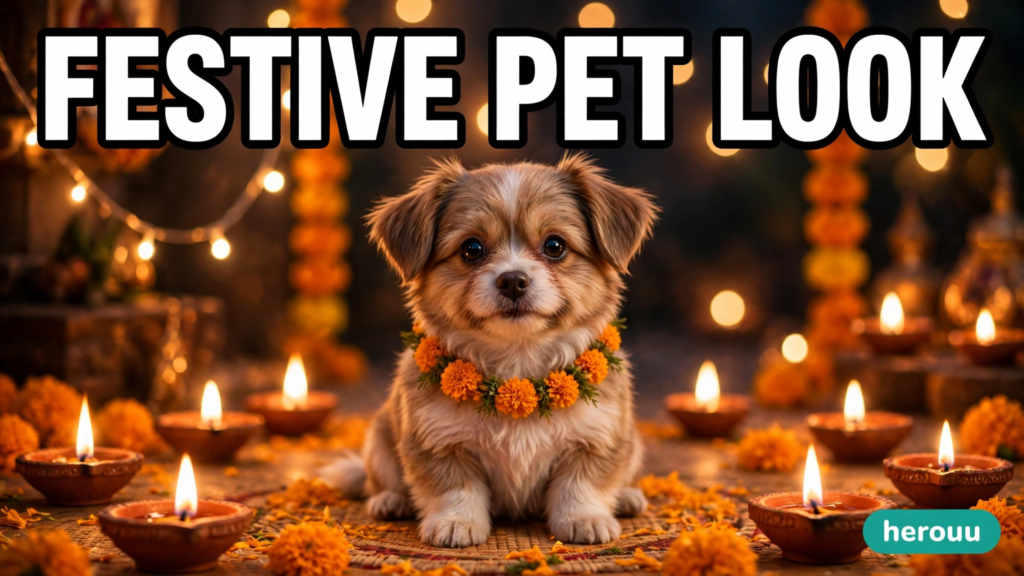
Use my uploaded photo of my pet. Keep my pet’s face, fur, and markings exactly the same. Add a small marigold flower garland around the neck, warm diya lights softly blurred in the background, festive and joyful, photorealistic, no text, no watermark.
Festive AI photo prompts for pet pictures are popular in India, but keep the costume light. A garland or a small scarf works far better than a full outfit, which often changes the shape of the pet’s body.
Use my uploaded photo of my pet. Keep my pet’s face, fur, and markings exactly the same. Dress my pet in a simple royal velvet cape, sitting in a warm old-style room with soft lamp light, classic oil painting style, photorealistic, no text, no watermark.
This one is fun for birthdays and family posts. If the cape covers the chest oddly, reply “make the cape smaller and show the front paws clearly” and the AI will try again.
Tips
These tips make AI photo prompts for pet pictures work better on the first try.
- Pick a photo taken in daylight. A bright photo gives the AI clear fur and eye detail to hold on to, and the result looks more real.
- Name the breed and coat colour in the prompt. “Brown Labrador with a white patch on the chest” keeps the AI closer to your pet than “my dog” alone.
- Ask for the eyes by name. Add “catchlight in both eyes” to your prompt, and the eyes look alive instead of flat and dull.
- Keep the background simple, a plain wall, a park, or a soft blur, so your pet stays the star of the picture.
- Change one thing per reply. If the background is right but the ear is wrong, fix only the ear, because a short fix works better than a fresh long prompt.
- Save every version you like from your AI photo prompts for pet pictures. The app may not keep old results forever, so download the good ones first.
Common problems and fixes
AI photo prompts for pet pictures go wrong in the same few ways. Most have a simple fix, and a better first photo prevents half of them.
| Problem | Likely cause | Fix |
|---|---|---|
| Face looks like a different pet | No keep line, or the first photo was blurry | Start a new chat, use a sharp front photo, and add “keep my pet’s face, fur, and markings exactly the same” |
| Eyes look dull or uneven | Light not described in the prompt | Add “catchlight in both eyes, soft light from the left” and retry |
| Whiskers bent or missing | Small detail lost in a busy scene | Use a plain background and ask for “sharp whiskers, clear fur detail” |
| Extra legs or paws | Action pose with fast movement | Use a sitting or sleeping pose, or ask for “all four paws clearly visible on the ground” |
| Fur looks plastic and smooth | Prompt asked for a beauty or cartoon look | Add “photorealistic, natural fur texture, individual fur strands” |
| Background has strange text or people | Prompt left the background open | End the prompt with “no text, no watermark, no extra people” |
FAQ
1. Can I make AI pet pictures for free?
Yes, both Gemini and ChatGPT offer free image editing with daily limits. The exact number of free pictures changes, and it is not published on one fixed page, so check the app before you start. When the free limit ends for the day, wait or try the other app.
2. Which app is better for pet pictures, Gemini or ChatGPT?
Both work well, and the best choice depends on your photo. Gemini edits with its Nano Banana image model and keeps the shape of your photo. ChatGPT also lets you select one part of the photo and change only that part. Try the same prompt in both and keep the better result.
3. How do I keep my pet looking like itself?
Add one clear line to every prompt: “Keep my pet’s face, fur, and markings exactly the same.” Use a sharp front photo where both eyes are visible. If the face still changes, start a new chat with a clearer photo instead of fixing the same picture again and again.
4. Can I use AI photo prompts for pet pictures of cats and dogs?
Yes, the same method works for dogs, cats, and other pets. Cats need extra care with whiskers and eye shape, because small errors show up fast on a cat’s face. Dogs need care with legs and paws in running poses. Use the prompt that fits your pet’s pose.
5. Why do the eyes look wrong in my AI pet picture?
Eyes go wrong when the light is not described, because the AI has to guess where the light comes from. Add “catchlight in both eyes” and name the light direction, such as soft window light from the left. Then zoom in and check both eyes before you post.
6. Can I make a festive pet picture for Diwali?
Yes, and it is one of the most shared pet looks in India. Use the festive prompt in this guide, keep the costume light with a marigold garland, and keep real diyas away from your pet when you take the first photo. The AI adds the lights; your pet stays safe.
7. Will people know my pet picture is made with AI?
Gemini adds an invisible SynthID watermark to pictures it creates or edits, so the picture can be identified as AI made. It is honest to say the picture is AI edited when you share it, especially if it shows a place or outfit your pet never had.
8. Can I print my AI pet picture?
Yes, if the file is sharp at full size. Download the full-size picture and zoom in to check the eyes, whiskers, and fur before you print. If it looks soft or blurry at full size, make a new one from a sharper first photo instead of printing a weak file.
9. What photo works best for AI pet prompts?
A bright, sharp photo taken in daylight works best. Your pet should face the camera, both eyes should be visible, and the face should fill a good part of the frame. Avoid dark rooms, moving pets, and photos where a hand or a person covers part of the face.
Conclusion
AI photo prompts for pet pictures are a simple way to make cute, share-worthy pictures of your dog or cat without a studio or editing skills. Pick one clear photo, copy one prompt from this guide, and keep the keep line in every try. Share your best result, and tell a friend how AI photo prompts for pet pictures made it. Then browse the Ai Photo Prompt category on herouu.buzz for more ideas to try next.
Related reading
These guides pair well with AI photo prompts for pet pictures.
- AI Photo Prompts for Solo Portraits
- AI Photo Prompts for Family Portraits
- AI Photo Prompts for Birthday Pictures
- Festival AI Photo Prompts
- How to Write a Clear AI Photo Prompt That Matches Your Idea
About herouu
herouu.buzz shares free, simple guides for everyday creators in India, including AI photo prompts for pet pictures, video templates, and easy editing ideas you can follow on your phone. Every guide is written in plain English and tested.
Disclaimer
This guide to AI photo prompts for pet pictures is based on the official Gemini and ChatGPT help pages and the guides listed in the sources below. App features, free limits, and age rules may change, so verify the latest details from the official app or help page before you start.
Sources
These sources shaped the steps and fixes in this guide to AI photo prompts for pet pictures.
- Google Gemini help, gemini.google.com (photo editing steps, 18 years or older rule for image editing, SynthID watermark)
- OpenAI ChatGPT help, help.openai.com (image editing, selection tool, edits may extend beyond the selected area)
- Image Prompt Vault, imagepromptvault.com/pet-ai-photo-prompts (pet prompt styles and the identity keep line idea, rewritten in our own words)
- PicassoIA blog, blog.picassoia.com (pet portrait styles and the five-part prompt structure, rewritten in our own words)
- Whizi, whizi.io/resources/edit-photos-with-ai (Gemini and ChatGPT edit steps and free limits, rewritten in our own words)
Details not officially announced: the exact daily free image limits for Gemini and ChatGPT are not published on one fixed page, so this guide states no number. Check the app for the current limit.