
At a glance
AI video editing for beauty reels keeps the focus on the look while the app handles small jobs. CapCut can write captions from your voice, reframe a clip, and help with light retouching. A good beauty reel is short and bright, with one look per reel, so viewers see the change clearly and read the words without strain.
Quick Overview
| Topic | Details |
|---|---|
| Topic | Beauty reel editing with AI tools |
| Category | Ai Video Editing |
| App | CapCut |
| Skill Level | Beginner |
| Time Needed | 45 to 90 minutes for one reel |
| Media Needed | 6 to 10 short clips of your look |
| Cost | Free tools in CapCut; some vary by version |
What you will make
You will make one short vertical reel that shows a single beauty look from start to finish. AI video editing for beauty reels helps here because the captions and framing do much of the heavy work, so you can focus on the makeup, hair, or nails. Pick a look you can finish in one sitting and keep the background tidy.
| Idea | Best for | Clips needed |
|---|---|---|
| Makeup transformation before and after | Beginners | 6 clips |
| Skincare routine step by step | Routine fans | 7 clips |
| Hair styling quick change | Hair videos | 6 clips |
| Nail art close-up | Detail shots | 8 clips |
| Get-ready-with-me morning look | Daily vlogs | 9 clips |
Before you start
Gather everything before you open the app. AI video editing for beauty reels goes faster when the clips are already shot and the products are in reach. Charge your phone, clear some storage, and wipe the camera lens with a soft cloth, since a dirty lens often makes a makeup reel look dull. Shoot near a window in daylight if you can, or use a ring light in front of you.
| Requirement | What you need |
|---|---|
| Phone | Any recent Android or iPhone |
| App version | Latest CapCut from the official app store |
| Light | Daylight near a window or a ring light |
| Storage | At least 1 GB free for clips and export |
| Clips | Your own clips, shot vertical in 9:16 |
| Skill | Basic phone use |
Steps for AI video editing for beauty reels
Follow the steps in order, and do not skip ahead to music or captions before the clips are trimmed.
Step 1: Plan the reel
Decide on one look and write the order in a few short lines. A makeup reel might run bare face, base, eyes, lips, then the finished look, while a skincare reel might run cleanser, toner, serum, moisturiser, then sunscreen. Pick a song first, because the beat shapes clip length. Aim for 15 to 30 seconds in total.
Step 2: Shoot the clips
Film in vertical 9:16 and keep the phone steady. AI video editing for beauty reels works best when the clips are already close and clear, so move the phone nearer for makeup detail instead of zooming in. Shoot each step as its own clip of three to five seconds, holding still for a second at each end.
Step 3: Import and trim
Open CapCut, start a new project, and import your clips in order. AI video editing for beauty reels starts with a tidy timeline, so drag the ends of each clip to cut shaky starts. Cut on the action, such as the moment a brush touches the skin.
Step 4: Add auto captions
Auto captions are the simplest AI tool to start with. AI video editing for beauty reels often uses captions because many people watch Reels with the sound off. Open the project and go to Captions, under Text on some versions. Choose Auto Captions, pick the language you spoke in, and tap Generate. CapCut writes timed captions from your voice.
Step 5: Fix caption words
Read every caption line. CapCut can mishear product names and words spoken over music, so tap a caption and fix wrong words in Edit captions. If many lines are wrong, mute the music track and generate the captions again.
Step 6: Style captions
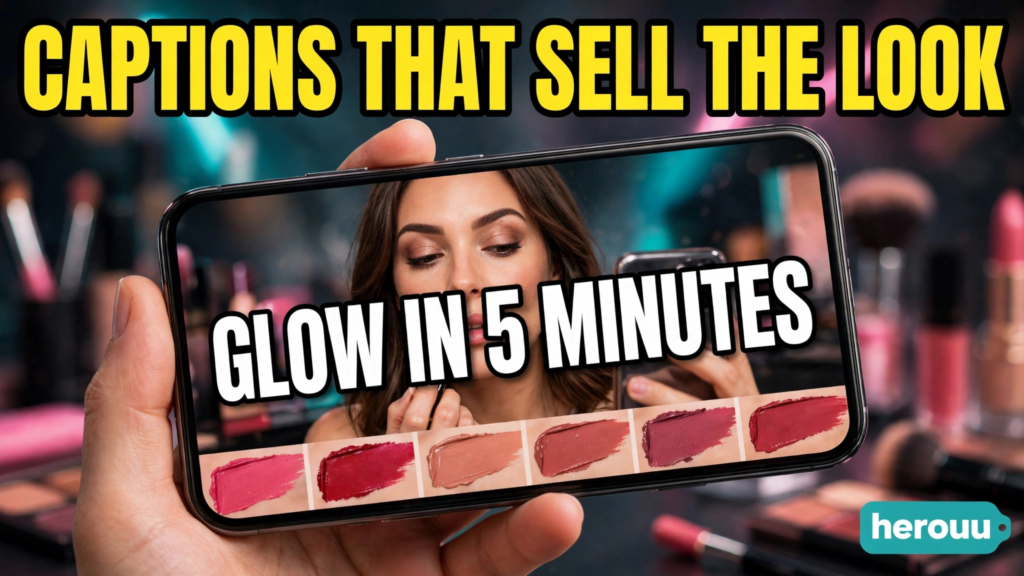
Choose one clean font and one size for the whole reel. AI video editing for beauty reels looks tidy when the words sit in the same place on every clip, so put captions in the middle of the frame, not at the very bottom. The bottom of a Reel is covered by the app’s caption, username, and buttons. Add a soft outline so white text stays readable.
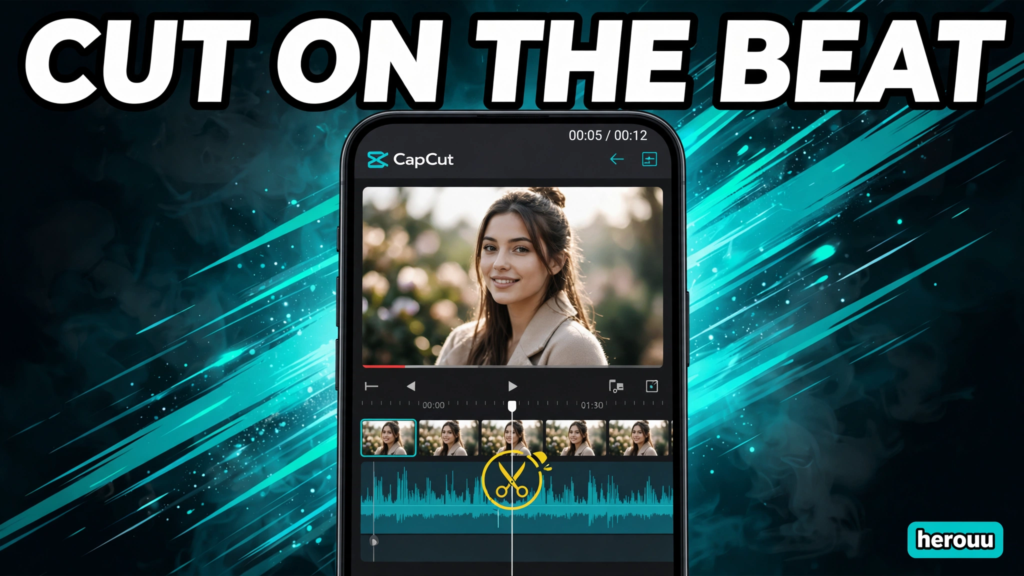
Step 7: Add music and cut on the beat
Pick a song that fits the look. A soft song suits skincare, while a faster song suits a quick transformation. AI video editing for beauty reels feels smooth when each new clip starts on a beat, so move the cuts to match the music. Use clips of one to two seconds on a fast beat, and lower the music under spoken parts.
Step 8: Retouch lightly
CapCut includes AI portrait and retouch tools, plus background removal and auto reframe in some versions. Which tools are free can vary by version and region, so check the app on your phone. Use retouch lightly and keep the real texture of the makeup visible. Heavy smoothing hides the detail viewers came to see.
Step 9: Pick a cover frame
Choose the frame that shows the finished look best. AI video editing for beauty reels still needs a strong cover, because it is what people see on your profile grid. A clear close-up in good light works well. In CapCut you can set the cover from a frame in your video, though the menu name may differ by version.
Step 10: Preview the whole reel
Watch the reel on your phone, with sound on and then with sound off. AI video editing for beauty reels is easy to check this way: captions should be correct, music should land on the cuts, and no text should sit under the app buttons. If a step is hard to see, swap in a closer clip.
Step 11: Export in 1080p
Export the reel at 1080p for a sharp picture on Reels. AI video editing for beauty reels ends with this choice at export: pick burn-in captions to bake the words into the picture, which is best for Reels, TikTok, and Shorts. Some versions also offer editable or sidecar captions. Keep captions inside the safe zone and watch the file in your gallery before you post it.
Reel ideas
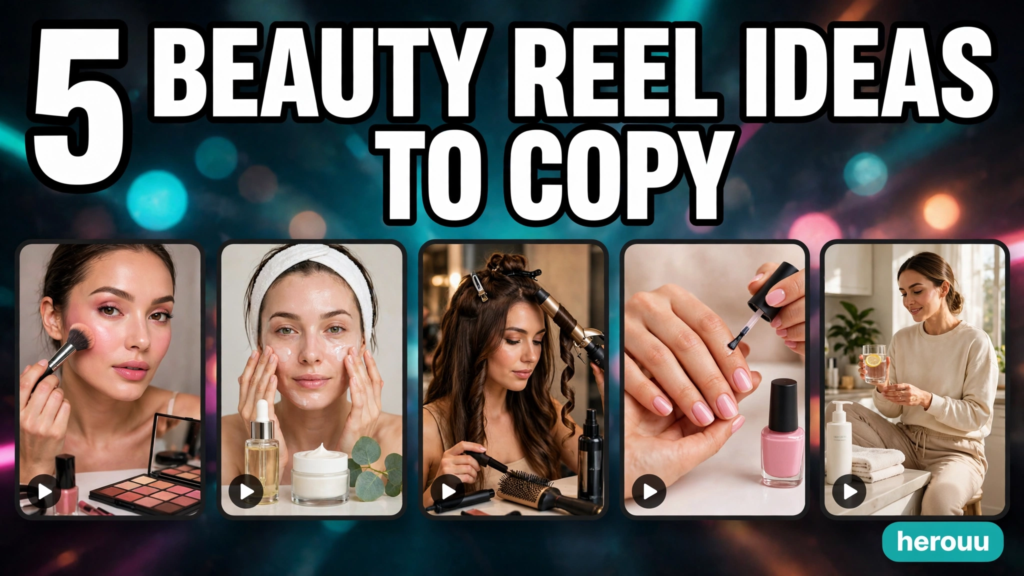
These five ideas use your own clips. AI video editing for beauty reels gives you the same simple base for each one, so copy an idea and change the look. No code or link is needed for any of them.
Idea 1: Soft glam in 20 seconds
Recipe: bare face clip, base clip, eye makeup clip, lipstick clip, finished look clip. Captions name each step briefly. Music is soft, with cuts on the beat.
Idea 2: Five step skincare morning
Recipe: cleanser clip, toner clip, serum clip, moisturiser clip, sunscreen clip. Captions list each product type only. Music is calm and gentle.
Idea 3: Hair change with one transition
Recipe: before hair clip, brush clip, styling clip, turn to camera clip. Captions say what changed in plain words. Music has a clear beat.
Idea 4: Nail art close-up
Recipe: clean nails clip, base coat clip, colour clip, detail art clip, top coat clip. Captions stay short so the nails stay visible. Music is light.
Idea 5: Get ready with me
Recipe: morning light clip, outfit clip, makeup clip, hair clip, final mirror clip. Captions sound like you are talking to a friend. Music is cheerful.
Tips
AI video editing for beauty reels gets easier when the filming is right.
Shoot in daylight when you can. A window in front of you gives soft, even light and shows true colours better than yellow room light. At night, place a ring light in front of you, slightly above eye level.
Film the close-ups closer than you think you need. Makeup detail disappears fast on a small phone screen, and a tight shot of the eyes or lips shows far more.
Say the step out loud as you film it. Short spoken lines make auto captions far more accurate than silent clips with music only, so speak slowly and name product types plainly.
Keep the background plain. A clean wall or plain curtain keeps the eye on the look, so move bottles and clutter out of the frame before you press record.
Save a version without music. Keep a copy with captions and no music track, so you can swap the song later if a sound is removed. It takes a minute now and saves a full re-edit later.
Post the reel and read the comments. Viewers often ask which step a shade belongs to or how long a look took, so answer in plain words and use those questions for your next reel.

Common problems and fixes
AI video editing for beauty reels can hit the same few snags, and the table lists the fix that works first.
| Problem | Likely cause | Fix |
|---|---|---|
| Captions have wrong words | Music playing over your voice | Mute the music track, generate captions again, then fix words in Edit captions |
| Text is hidden at the bottom | Captions in the app button area | Move captions to the middle of the frame, inside the safe zone |
| Makeup looks dull on camera | Weak light or dirty lens | Clean the lens, shoot near a window, or add a ring light |
| Reel feels slow | Clips are too long for the song | Trim each clip to one or two seconds and cut on the beat |
| Export looks blurry | Low export setting or heavy zoom | Export at 1080p and film close-ups instead of zooming in |
Frequently asked questions
What is the best app for AI video editing for beauty reels?
CapCut is a good place to start for AI video editing for beauty reels, with auto captions, auto reframe, background removal, and retouch tools in one app. Which tools are free can vary by version and region, so check the app. Start with captions and trimming, then try one new tool per reel.
How long should a beauty reel be?
A beauty reel works best at 15 to 30 seconds, long enough for one look and short enough to hold attention. A makeup change can fit in 20 seconds with five short clips, while skincare may need the full 30 seconds. If the reel runs longer, cut a clip or drop a step.
Do I need a ring light to shoot a beauty reel?
No, you do not need a ring light to start. Good daylight near a window is often better and costs nothing, so sit facing the window. A ring light helps at night or in a dark room. Place it in front of you, slightly above eye level.
How do I add auto captions in CapCut?
Open your project in CapCut and go to Captions, under Text on some versions. Choose Auto Captions, pick the language you spoke in, and tap Generate. CapCut listens to the voice and writes timed captions. AI video editing for beauty reels needs this check too: read every line and fix wrong words in Edit captions.
Why are my CapCut captions wrong?
Music over your voice is the most common cause, along with fast speech and unusual product names. Mute the music track and generate the captions again if many lines are wrong. Speak slowly and say each step in short, clear words. Always read the captions once before you export.
Should captions be burned into a beauty reel?
Yes, burn-in captions suit beauty reels well because the words stay on the video. At export, choose burn-in captions so the words are baked into the picture, which is best for Reels, TikTok, and Shorts. Keep the words inside the safe zone so the app buttons do not cover them.
Can I edit a beauty reel for free?
Yes, you can edit a beauty reel for free with the tools in CapCut. AI video editing for beauty reels can stay free because auto captions, trimming, music, and basic retouching are available without paying. Which tools are free can vary by version and region, so check the app first.
How do I make makeup detail clear on camera?
Move the phone closer instead of zooming in, and film in good daylight or with a ring light. Hold each close-up steady for three to five seconds so the viewer can see the colour. Clean the lens and keep the background plain, so the makeup stays the focus.
How often should I post beauty reels?
Two or three reels a week is a steady pace for most creators. It gives you time to plan one look, film it well, and edit it without rushing, and posting daily is not needed if the quality drops. Watch which looks get saved and shared, then film more in that style.
Conclusion
AI video editing for beauty reels is simple once you follow the same order every time: plan one look, shoot it in good light, check your captions, cut the music on the beat, and export at 1080p. Try one reel from the ideas above, then browse the Ai Video Editing category on herouu.buzz for more guides.
Related reading
- AI Video Editing for Fashion Reels
- AI Video Editing for Fitness Reels
- AI Video Editing for Instagram Reels
- CapCut Auto Captions Template
- Browse all Ai Video Editing guides
About herouu
herouu.buzz shares free, original guides for creators who edit videos and make AI images on their phones. Every guide is written in simple English, with steps you can follow on your own clips.
Disclaimer
This guide is based on the sources listed below. CapCut updates its app often, so menus may change. Check the official CapCut app or help page for the latest steps. herouu.buzz is not linked to CapCut.
Sources
- CapCut, “Auto Captions AI Video Editor”, https://www.capcut.com/resource/auto-captions-ai-video-editor
- CapCut, “How to Use CapCut on PC & Mac”, https://www.capcut.com/resource/how-to-use-capcut-on-pc
- Saqqa Academy, “How to add auto captions to an AI video in CapCut, and fix the wrong words”, https://saqqaacademy.com/blog/capcut-auto-captions-ai-video
No template code, download link, QR code, price, or feature in this guide was invented. Details not officially announced are not stated as facts.