
AI video editing for fashion reels helps you turn simple outfit clips into a clean, stylish reel without spending hours on the timeline. You do not need a studio, a camera crew, or any editing experience. With CapCut and VN on your phone, AI tools can cut your clips to the beat, add captions, and change the background, while you focus on the outfits. App menus change between versions, so check the official CapCut or VN help page if a button looks different.
At a glance
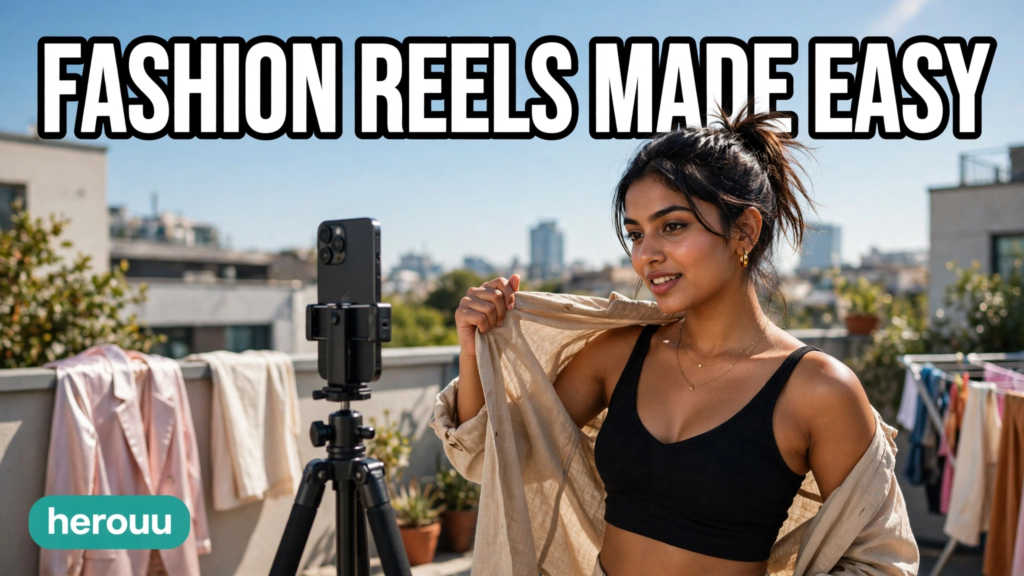
A fashion reel is a short vertical video, usually 15 to 30 seconds long, where the outfit is the main subject. AI video editing for fashion reels works best when you plan the song first and let the AI handle the first rough cut. Pick one song, shoot short clips for each outfit, and let CapCut Auto Cut place the first cuts on the beat. Then check the cuts, add captions, and export in vertical 9:16 at 1080p.
Quick Overview
| Topic | Details |
|---|---|
| Topic | AI video editing for fashion reels |
| Category | Ai Video Editing |
| App or Tool | CapCut mobile or desktop, VN mobile |
| Skill Level | Beginner, no editing experience needed |
| Time Needed | 30 to 45 minutes for your first reel |
| Media Needed | 4 to 8 short clips of your own outfits and one song |
| Cost or Free Features | Free to install and edit; some AI features may be marked Pro |
What you will make
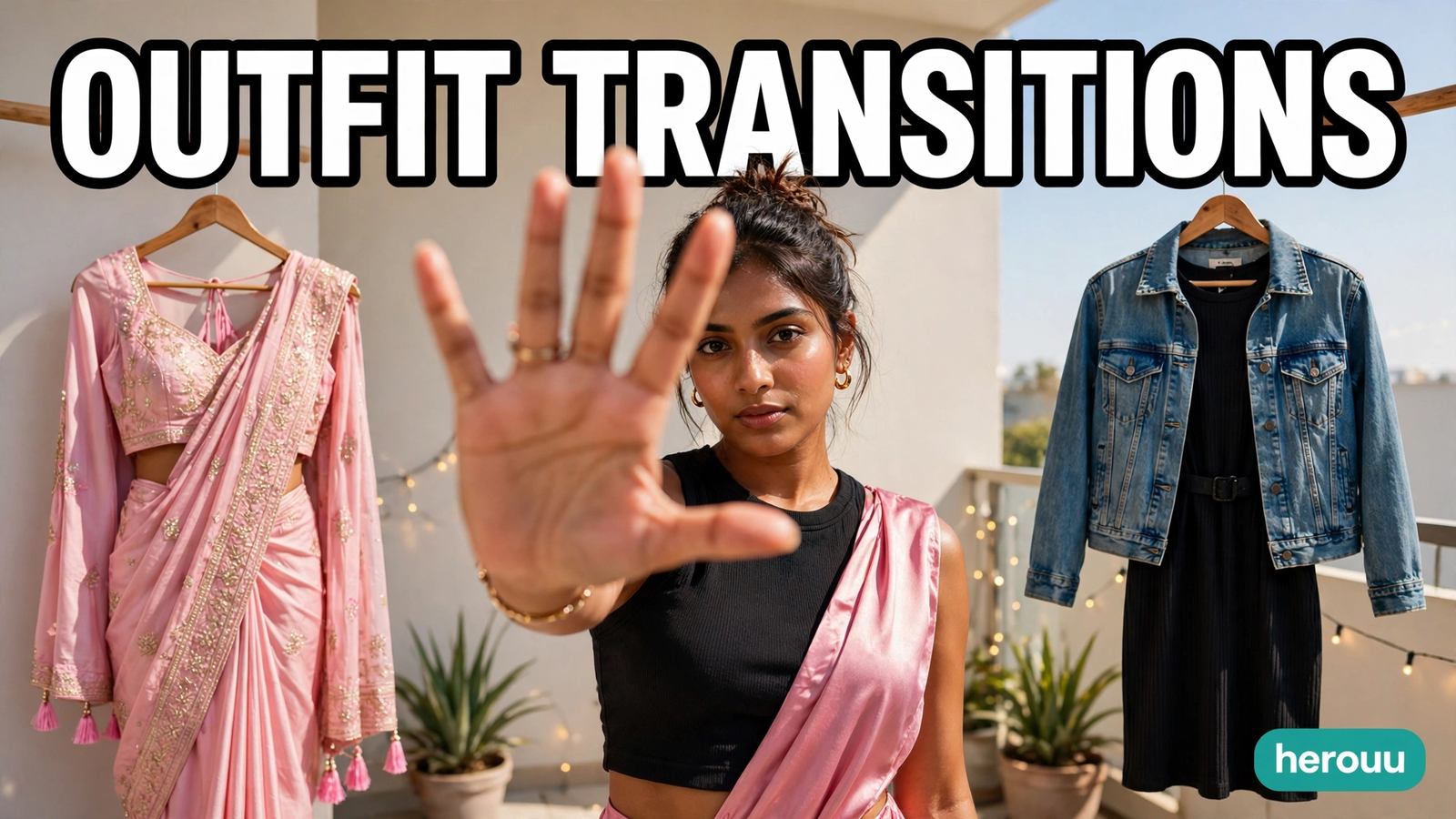
You will make one fashion reel from your own clips. A lookbook reel shows several outfits in a row. An outfit transition reel changes the look in one move. A get ready with me reel shows the steps before the final look.
| Idea | Best for | Clips needed |
|---|---|---|
| Outfit transition reel | Changing looks in one move | 3 to 4 outfit clips, same spot |
| Lookbook reel | Showing 3 or 4 outfits in a row | 1 clip per outfit, 3 to 4 clips |
| One outfit, three places | Showing one look in different spots | 3 clips, one per place |
| Get ready with me reel | Makeup, hair, and outfit steps | 5 to 6 short clips in order |
| Boutique showcase reel | Shops and sellers showing new stock | 4 to 6 product and outfit clips |
With AI video editing for fashion reels, one afternoon of filming gives you enough clips for two or three reels.
Before you start
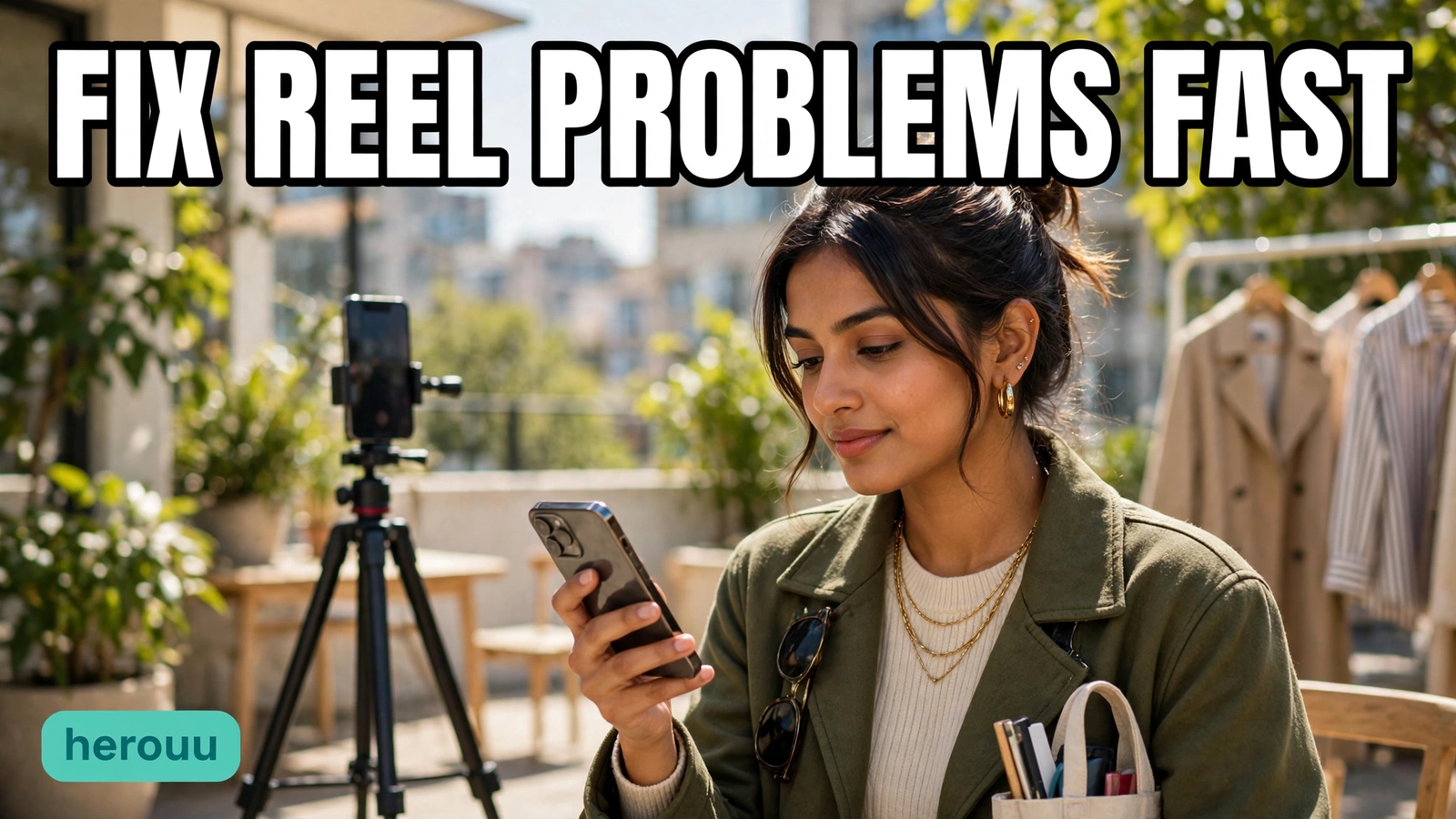
Before you start, film all your clips in one session, in the same light, from the same spot. Daylight near a window works best, with the light on you, not behind you. Keep the phone still on a tripod or a steady shelf, and mark your standing spot with tape so every outfit starts from the same place. Use your own clips and a song you have the right to use, such as a track from the CapCut music library.
| Requirement | What you need |
|---|---|
| Phone or computer | Android phone, iPhone, or CapCut desktop |
| Apps | CapCut and VN installed and updated |
| Clips | 4 to 8 vertical clips, 2 to 5 seconds each |
| Song | One track from CapCut or your own recording |
| Light | Daylight or a steady lamp, same for all clips |
| Storage | At least 1 GB free before you export |
| Internet | Needed for the music library and AI tools |
Steps: use AI video editing for fashion reels in CapCut and VN
Step 1: Plan the outfits and pick one song
Choose three or four outfits and lay them out before you film. Pick one song and listen to it right through. Note where the beat drops, because that is where your outfit changes should land. A song with a clear, steady beat is easier to cut to.
Step 2: Film each outfit from the same spot
Put the phone on a tripod or a shelf at chest height, in vertical 9:16, and do not move it between outfits. Stand on your tape mark, film the full movement, and hold the pose for one second. Change outfits, stand on the same mark, and film the same movement again.
Step 3: Import your clips into CapCut
Open CapCut and start a new project. Add your outfit clips in order, then add your song to the audio track. Watch each clip once and trim the half second where you step into frame. Keep only the clips you plan to use, so AI video editing for fashion reels stays quick.
Step 4: Let Auto Cut build the first draft
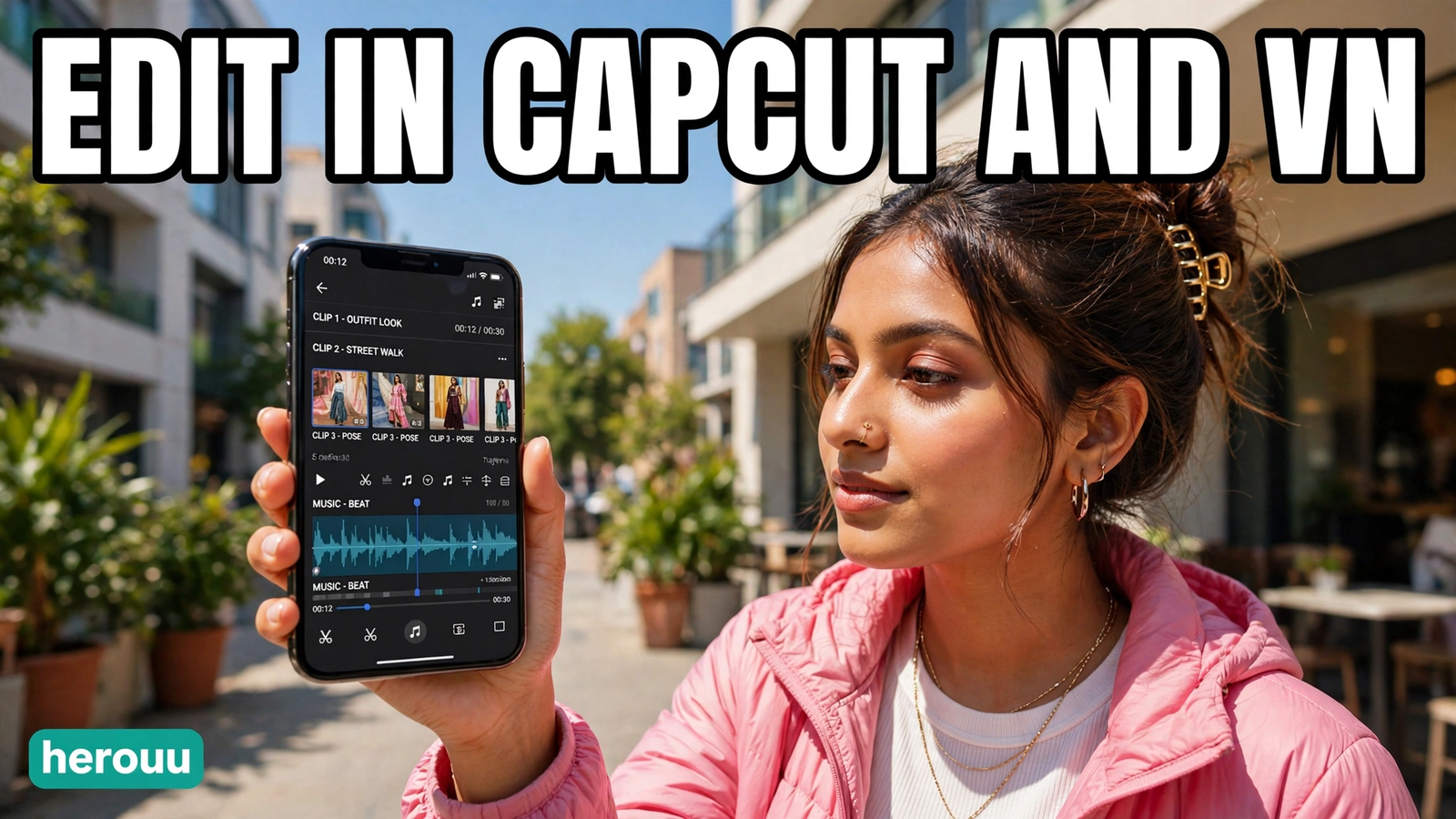
Find Auto Cut in the AI tools area of CapCut. It may appear as Beat Cut or Smart Trim. Choose Beat Sync, so CapCut cuts your clips to the music beat. This is the heart of AI video editing for fashion reels: the app places cuts near the beats it detects. Tap Generate and play it once, with the sound on.
Step 5: Fix the cuts and set the transitions
Play the draft again and watch where each outfit changes. In AI video editing for fashion reels, a good change lands on a downbeat, the strong beat you can tap your foot to. If a cut lands late, drag the clip edge to the nearest beat marker. For a hand cover, cut where your palm fills the frame.
Step 6: Change the background with AI cutout
If your room looks messy, change the background without a green screen. In VN, add your clip as an overlay, tap Cutout, then tap Remove Background, and let the AI find your shape. In CapCut, use the background removal tool. Put a clean photo or a plain colour behind you, and check the edges of your hair.
Step 7: Add auto captions and hook text
Choose auto captions if your reel has speech, such as a short voiceover about the outfit. Pick the language you spoke in and read every line to fix wrong words. If your reel has only music, skip auto captions and add short text by hand. For AI video editing for fashion reels, put the hook on screen in the first two seconds, in large text with a dark outline.
Step 8: Check the colour and export at 1080p
Play the whole reel once with sound on, then once with sound off. Check that every outfit is in frame and no caption is cut off at the edges. Apply one filter to the whole reel for a warmer or cooler look. Then tap Export, choose 1080p and 30 frames per second, and keep the aspect ratio at 9:16.
5 fashion reel editing recipes
Use these recipes as starting points. Each one is a short plan you can copy and keep while you edit.
Outfit transition reel: film 3 outfits from the same spot with the phone fixed in place. End each clip with your palm covering the lens and start the next with your palm pulling away. Cut every change on the beat. Length 15 seconds. Export 9:16 at 1080p.
Lookbook reel: film 4 outfits, one clip of 3 seconds each, walking towards the camera in the same place. Use CapCut Auto Cut with Beat Sync to cut each change on the beat. Add the outfit name as large text on each clip. Length 20 seconds. Export 9:16 at 1080p.
Get ready with me reel: film 6 short clips in order, makeup, hair, jewellery, shoes, and the final outfit. Trim the pauses, use auto captions if you speak, and add a short speed ramp before the final reveal. Length 25 seconds. Export 9:16 at 1080p.
One outfit, three backgrounds reel: film the same outfit in 3 places, or film once and use AI cutout in VN to change the background twice. Use a plain colour, a street photo, and a cafe photo behind you. Cut on the beat at each change. Length 15 seconds. Export 9:16 at 1080p.
Boutique showcase reel: film 5 clips of new stock, one outfit per clip, with a close-up of the fabric in two of them. Add the shop name only as on-screen text you type yourself. Use auto captions for your voiceover and end on your best-selling piece. Length 20 seconds. Export 9:16 at 1080p.
Try one recipe first and watch the result on your phone. If the transition feels late, move the cut one beat earlier rather than adding more effects. In AI video editing for fashion reels, a clean cut on the beat beats three stacked effects.
Tips
For AI video editing for fashion reels, shoot each outfit as its own clip instead of one long take. Short clips give Auto Cut clean pieces to work with.
Film all your outfits in one session. Daylight changes over an hour, and a reel looks wrong when the light jumps from bright to dull between outfits.
Lock focus and exposure before you film. Tap and hold on your phone screen where you will stand, so the camera does not readjust between clips.
Keep one caption style and one filter for the whole reel. It looks like a series when the text and colour stay the same, and messy when every clip has a different style.
Add captions only where they add something, such as the outfit name or the shop name. Too much text pulls the eye away from the clothes.
Export a test copy at 1080p and watch it on your phone with sound. Small timing mistakes are obvious on a phone and easy to miss on a computer.
Common Problems
Most problems with AI video editing for fashion reels come from a camera that moved, weak light, or a cut that landed off the beat.
| Problem | Likely cause | Fix |
|---|---|---|
| The outfit change looks jumpy | The phone moved or your position changed between clips | Mark your spot with tape and do not touch the phone |
| Cuts land off the beat | The app detected weak beats, or the song has a soft intro | Add beat markers by hand and drag each clip edge to the nearest marker |
| The background cutout looks rough | Weak light or a busy background behind you | Film against a plain wall with good light and re-run the cutout |
| Auto Cut is missing from the app | You are on CapCut Web, or your app version is old | Use the CapCut mobile or desktop app and update it |
| Captions have wrong words | Auto captions misheard the speech or the song | Edit each caption by hand and pick the right caption language |
| The reel looks blurry after upload | Export resolution was set below 1080p | Export at 1080p and shoot new clips in good light |
FAQ
These are the questions people ask most about AI video editing for fashion reels.
Is AI video editing for fashion reels free in CapCut?
CapCut is free to install, and the basic editing tools, Auto Cut, and auto captions are available in the app. Some AI features may carry a Pro label in some versions or regions. CapCut has not published one fixed list of free limits, so check your own app first.
Which app is best for AI video editing for fashion reels, CapCut or VN?
CapCut is the best starting point, because Auto Cut, auto captions, and background removal sit in one app. VN is a strong free second option, and its Auto Cutout and AutoCut tools suit background changes and beat-synced edits. Try both on one reel and keep the one that feels faster.
How long should a fashion reel be?
For AI video editing for fashion reels, 15 to 30 seconds works best. That length fits one song section, keeps the energy high, and gives you enough beats for four to eight clean cuts. Longer reels need more outfits and more variety, or viewers stop watching.
How do I film an outfit transition so it looks smooth?
Fix the phone on a tripod or a shelf and do not move it between outfits. Stand on the same marked spot, end each clip in the middle of one movement, such as a hand over the lens or a spin, and start the next clip at the same point. Then cut the change on the beat.
Can I change the background of my fashion reel without a green screen?
Yes, you can. VN Auto Cutout and CapCut background removal use AI to find your shape and remove the background without a green screen. Film against a plain background in good light for the cleanest edge, then place a photo or a plain colour behind you and check the hairline.
Do I need a tripod to shoot a fashion reel?
A tripod helps, but you do not need one for AI video editing for fashion reels. Rest your phone on a shelf, a stack of books, or any steady surface at chest height. What matters is that the phone does not move and the framing stays the same across every outfit clip.
Can auto captions work on a fashion reel with only music?
Auto captions are made for speech, so a reel with only music may produce no useful captions or may invent words from the song. If your reel has no speech, skip auto captions and add short on-screen text by hand, such as the outfit name or the name of a look.
What export settings should I use for a fashion reel?
Export in vertical 9:16 at 1080p, with the frame rate your clips were shot in, usually 30 frames per second. This matches how reels play on a phone and keeps the video sharp. Check the export screen first, because the app may remember a lower setting from your last project.
Can I use trending music in a fashion reel?
Use audio from Instagram’s own music library when you upload, or a track from the CapCut music library, because those tracks are cleared for reels. Audio from other apps can disappear after posting if the licence changes. If a track matters, add it inside Instagram so it stays attached.
Conclusion
AI video editing for fashion reels gives you a fast first cut, and your own check on the beat gives you the finished reel. Plan the outfits, film from one fixed spot, let Auto Cut place the first cuts, and fix the timing by hand. Try one recipe above with a song you like, export at 1080p, and post it.
Related reading
More guides on AI video editing for fashion reels:
- AI Video Editing for Dance Reels: Easy Step by Step Guide
- AI Video Editing for Fitness Reels: Easy Step by Step Guide
- AI Video Editing for Instagram Reels: Easy Step by Step Guide
- AI Video Editing for Birthday Videos: Easy Step by Step Guide
- Ai Video Editing category
About herouu
herouu.buzz shares free templates, photo prompts, and video editing ideas for everyday creators, including AI video editing for fashion reels. Every guide is written in simple English, with steps you can follow on your phone and ideas you can copy and use right away.
Disclaimer
This guide to AI video editing for fashion reels is based on the official CapCut help pages and the guides listed in the sources below. App features, menus, and free limits may change between versions and regions. Check the official app or help page for the latest details. herouu.buzz is not connected to CapCut, VN, Instagram, or Meta.
Sources
- CapCut Help, How to Use Auto Cut, https://www.capcut.com/help/how-to-use-auto-cut — Auto Cut on mobile and desktop, not CapCut Web; Beat Sync mode.
- CapCut, Top 6 Free AI Video Tools for Creators with Auto Captions, https://www.capcut.com/resource/6-best-free-AI-video-tools?from_page=a1.b5.0.0&enter_from=relate_article — auto captions, background removal, and beat detection.
- VN Video Editor, How to Use Cutout in VN Video Editor, https://www.vnvideoeditor.com/cutout-in-vn-video-editor/ — Auto Cutout and Chroma Key steps.
- EasyReels, Outfit transition reel: how to film and cut one, https://easyreels.io/blog/outfit-transition-reel — fixed camera, matching movement, and cutting on the beat.
- Apple App Store, VN: Photo & Video Editor, https://apps.apple.com/us/app/vn-photo-video-editor/id1343581380 — Auto Captions, Video/Photo Cutout, AutoCut, and BeatsClip.
- Details not officially announced: the exact free limits for Auto Cut, auto captions, and AI background removal, and the availability of the AI text-prompt mode by version and region. Check the official CapCut app or help page for your version.