
AI photo prompts for nature pictures help you turn an ordinary photo into a calm green forest scene, a misty mountain view, or a bright flower field, without leaving your phone. This guide shows you how to use AI photo prompts for nature pictures in Gemini and ChatGPT, step by step, with five ready prompts you can copy. It suits beginners, Instagram creators, and anyone who wants fresh nature photos for a profile or a reel cover. Check the official help page first, because menus and free limits can change.

At a glance
AI photo prompts for nature pictures are short instructions you give to Gemini or ChatGPT with your own photo. The app keeps you in the picture and changes only the place around you. Ask for a forest, a lake, a meadow, or a waterfall, and pick the light you want. Most tries take two to five minutes, and you need no editing skills. Free limits differ by account.
Quick Overview
| Topic | Detail |
|---|---|
| Topic | AI Photo Prompts for Nature Pictures: Easy Green Guide |
| Category | Ai Photo Prompt |
| App or Tool | Google Gemini or ChatGPT |
| Skill Level | Beginner |
| Time Needed | 10 to 20 minutes |
| Media Needed | One clear photo |
| Cost or Free Features | Free image creation and editing, with limits |
What you will make
You can place yourself in five simple looks with AI photo prompts for nature pictures. Each one works best with a clear photo taken in daylight. Pick the look that fits your mood, then use the matching prompt below.
| Idea | Best for | Photo needed |
|---|---|---|
| Misty forest path | Calm profile pictures | Full or half body photo |
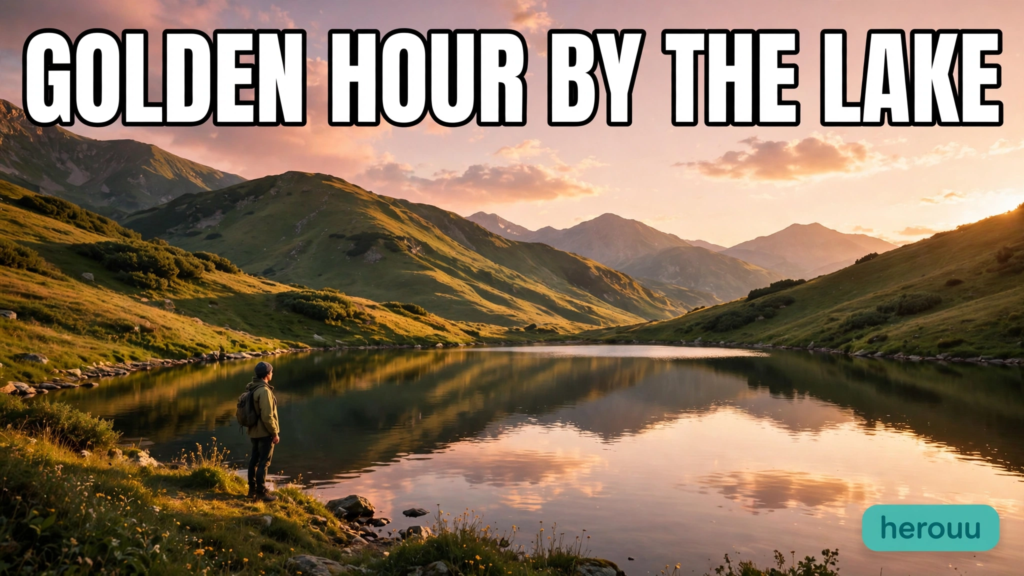
| Mountain lake at golden hour | Travel posts | Standing photo, clear face |
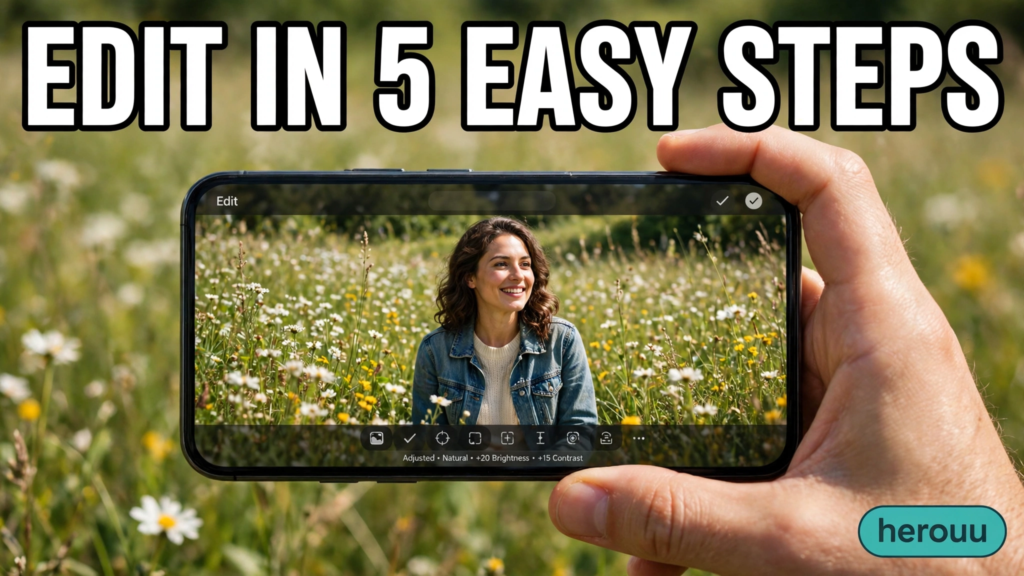
| Wildflower meadow | Bright, happy posts | Smiling photo |
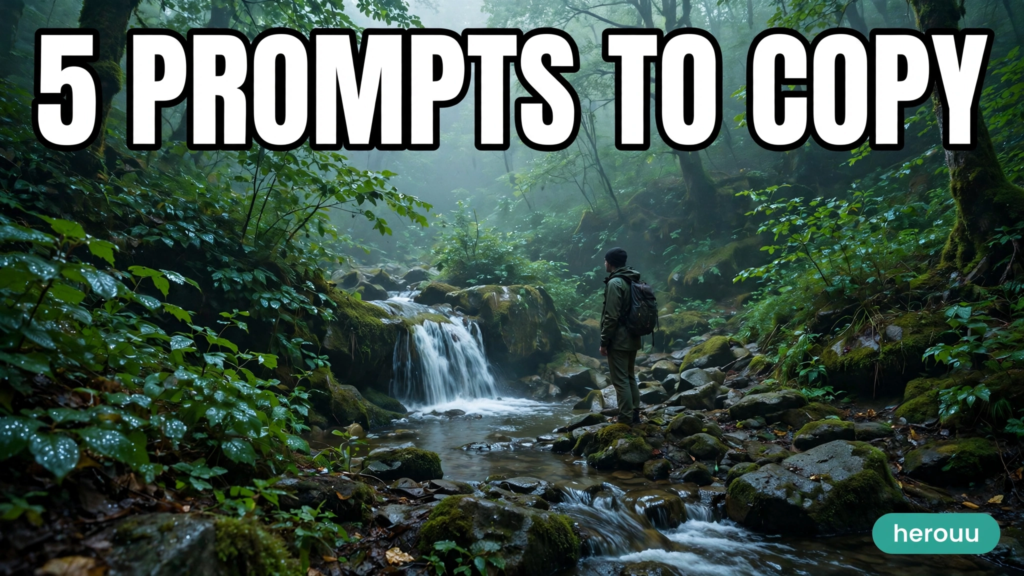
| Forest waterfall | Fresh nature reels | Photo with space around you |
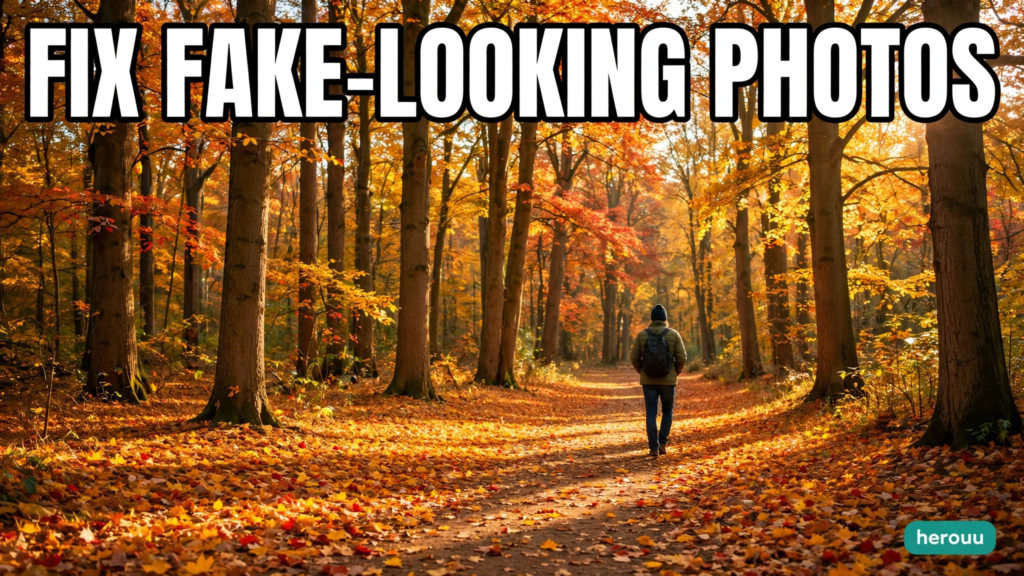
| Autumn leaf path | Warm autumn photos | Photo in simple clothes |
Before you start
You need only three things to try AI photo prompts for nature pictures: the Gemini or ChatGPT app on your phone, one clear photo, and a simple idea of the scene you want. A sharp photo gives a much better result than a dark or blurry one. If your photo is too dark, take a new one near a window or outside in soft daylight. Save a copy of your original first.
| Need | What to check |
|---|---|
| Phone | Android or iPhone with the app installed |
| Account | A Google account, or a ChatGPT account |
| Photo | Clear and bright, JPG or PNG |
| Internet | Stable data or Wi-Fi |
| Age | Gemini editing needs you to be 18 or older |
Steps
Follow these steps in order to use AI photo prompts for nature pictures. They work in both apps, though the buttons may look slightly different.
- Pick your best photo. Choose a clear photo with soft light and your face easy to see. Avoid dark shadows on the face or a busy crowd behind you.
- Open Gemini or ChatGPT. Open the app and sign in. On the web, Gemini runs at gemini.google.com and ChatGPT at chatgpt.com.
- Upload your photo. In Gemini, open Create images and attach your photo. In ChatGPT, tap the plus sign, choose Add photos and files, and pick your photo.
- Decide on one change only. Ask for one scene at a time, such as a green forest or a mountain lake. Ask for five changes at once, and the app often gets one of them wrong.
- Paste a prompt from this guide. Copy one of the five AI photo prompts for nature pictures below, paste it under your photo, and send it. Wait for the image to appear before you send anything else.
- Look closely at the first result. Check the face, the hands, and the edges where you meet the new background. If the face looks different, ask the app to keep it the same.
- Ask for one small fix at a time. Send short follow ups, such as “make the light softer”. One fix per message keeps the picture steady. If the scene feels flat, change only the light or the season.
- Save the version you like best. Download the image and compare it with your original photo. Keep the best one, and keep the original too, so you can try another scene later.
5 nature picture prompt ideas
These five AI photo prompts for nature pictures are original and ready to copy. Each one keeps you the same and changes only the place around you. Change the season or the light for a different feel.
Prompt 1: Misty forest path
Use the uploaded photo. Keep the person’s face, pose, clothes and body exactly the same. Place the person on a quiet path in a lush green forest with tall trees, soft morning mist, and gentle sunlight. Match the light on the face to the soft forest light. Photorealistic, calm green colours, natural skin texture, no text, no watermark.
This suits a calm, fresh profile picture, because the mist softens the background and keeps your face the focus.
Prompt 2: Mountain lake at golden hour
Use the uploaded photo. Keep the person’s face, pose and clothes exactly the same. Place the person beside a calm mountain lake at golden hour, with green hills and a soft pink sky. Warm gentle light on the face, soft reflection in the water, photorealistic, peaceful mood, no text, no watermark.
Golden hour light suits travel posts and warm feeds. If the sky looks too pink, ask for a softer sky next time.
Prompt 3: Wildflower meadow
Use the uploaded photo. Keep the person’s face, pose and clothes exactly the same. Place the person standing in a bright wildflower meadow with soft green grass, white and yellow flowers, and a clear blue sky. Bright natural daylight, fresh colours, photorealistic, no text, no watermark.
Use it for bright, happy posts and spring wishes. A smiling photo works best in strong light and fresh colours.
Prompt 4: Forest waterfall
Use the uploaded photo. Keep the person’s face, pose and clothes exactly the same. Place the person near a small waterfall in a green forest, with soft mist in the air and wet green leaves around. Cool soft light, natural colours, photorealistic, no text, no watermark.
It gives a cool, fresh look for nature reels and monsoon posts. If the water looks too smooth, ask for more detail in the waterfall.
Prompt 5: Autumn leaf path
Use the uploaded photo. Keep the person’s face, pose and clothes exactly the same. Place the person on a path covered with golden and red autumn leaves, with tall trees and warm afternoon light. Warm soft colours, gentle shadows, photorealistic, no text, no watermark.
Autumn colours suit warm, soft photos for seasonal posts. Keep your clothes simple, so the leaves and the light carry the colour.
Tips
These tips fix the most common mistakes with AI photo prompts for nature pictures.
Start with a sharp photo. A clear photo keeps your face true to the original. A blurry photo lets the app guess, and the face often changes.
In AI photo prompts for nature pictures, name the light. Words such as golden hour, soft morning light, or cool mist tell the app what mood you want. Light changes the feel of a nature picture more than any other word.
Keep the subject in one place. Ask the app to keep your pose, clothes, and body the same. Then only the background changes, and the photo looks real.
Ask for no text and no watermark. AI tools sometimes add random letters to a picture. Add “no text, no watermark” at the end of every prompt to keep the image clean.
Try one prompt per chat. A fresh chat gives a cleaner result than a long chat full of old tries. If a prompt fails twice, start a new chat.
Common problems with AI photo prompts for nature pictures
Most problems have a simple cause. Check the table below before you try again.
| Problem | Likely cause | Fix |
|---|---|---|
| The face looks different | The prompt did not say to keep the face the same | Add “keep the person’s face exactly the same” and try in a new chat |
| Colours look too bright | Too many colour words in the prompt | Keep only two or three colours, such as green, soft gold, and blue |
| The background looks pasted on | The light on the face does not match the scene | Ask the app to match the light on the face to the new scene |
| Random text appears in the image | The prompt did not block text | Add “no text, no watermark” and regenerate the image |
FAQ
What are AI photo prompts for nature pictures?
They are written instructions you give to Gemini or ChatGPT with your own photo. The app reads your words, keeps you in the picture, and places you in a forest, near a lake, or in a flower field. You describe the scene, the light, and the colours, and the app makes a new image from them.
Can I use AI photo prompts for nature pictures for free?
Yes, both Gemini and ChatGPT offer image creation on their free plans, so you can try them without paying. Free use has limits, and the exact daily number is not fixed in the official help pages. If you hit a limit, the app will tell you when you can try again.
Which app is better for nature photo prompts, Gemini or ChatGPT?
Both apps can make good nature photos. Gemini edits your photo through its image tools, and ChatGPT lets you upload a photo and describe the change in chat. Try the same AI photo prompts for nature pictures in both apps, then keep the one that keeps your face truer.
How do I keep my face the same in a nature photo edit?
When you use AI photo prompts for nature pictures, start by asking to keep your face, pose, and clothes exactly the same, and change only the background. Use a clear, bright photo, and change one thing at a time. If the face still shifts, start a new chat and upload the original again.
Why does my nature photo look fake after editing?
A photo looks fake when the light on your face does not match the new scene. With AI photo prompts for nature pictures, ask the app to match the light on your face to the scene, and use only two or three colours. Soft light, such as morning mist or golden hour, hides small mismatches better than harsh light.
Can I make a nature wallpaper with AI photo prompts?
Yes. AI photo prompts for nature pictures can make a wallpaper when you ask for a wide picture with no person in it, such as a misty forest or a mountain lake. Add the size to the prompt, such as 16:9 for a desktop screen or 9:16 for a phone. Save the best result and set it as your wallpaper.
What size should I ask for in a nature photo prompt?
For Instagram posts, ask for a square or 4:5 picture. For a phone wallpaper, ask for a tall 9:16 picture. For a desktop wallpaper or a YouTube thumbnail, ask for a wide 16:9 picture. Both apps can make images in different aspect ratios, so name the size in your prompt when you use AI photo prompts for nature pictures.
Do I need my own photo, or can AI make a nature picture from text only?
You do not need your own photo. AI photo prompts for nature pictures also work from text alone: ask for a misty forest at dawn with no people in it. Your own photo is only needed when you want yourself in the scene. Text only pictures work well for wallpapers and reel covers.
Can I use AI nature photos on Instagram and Pinterest?
Yes, photos made with AI photo prompts for nature pictures can go on Instagram and Pinterest, and many creators post them. Use your own photo as the base, and do not pass an AI picture off as a real photo of a place you visited. A short “made with AI” note keeps things honest.
Conclusion
AI photo prompts for nature pictures make it easy to place yourself in a green forest, beside a quiet lake, or in a bright flower field, using only your phone and one clear photo. Start with the misty forest prompt, check the face and the light, and fix one small thing at a time. Then browse the Ai Photo Prompt category on herouu.
Related reading
- AI Photo Prompts for Sunset Pictures: Easy Golden Hour Guide
- AI Photo Prompts for Profile Pictures: Easy Bright Guide
- AI Photo Prompts for Anniversary Pictures: Easy Romantic Guide
- AI Photo Prompts for Travel Pictures: Easy Bright Guide
- Browse all guides in the Ai Photo Prompt category
About herouu
herouu is a free library of simple, original guides for creators, written in plain English with clear steps and honest limits.
Disclaimer
This guide is based on the official Gemini and ChatGPT help pages and the steps as written here. Features and free limits may change, so verify from the official app or help page.
Sources
- OpenAI Help Center, Images in ChatGPT
- OpenAI Help Center, ChatGPT Image Inputs FAQ
- Google Cloud Documentation, Edit images with Gemini
- OpenArt, Nature Prompts: 15 AI Prompts for Backgrounds and Photos
- Latest AI Prompts, 25 Best AI Prompts for Nature Photography
Details not officially announced: the exact daily free image limits for Gemini and ChatGPT are not fixed in their help pages and vary by account, so this guide states no number. Menu labels may differ by app version.