
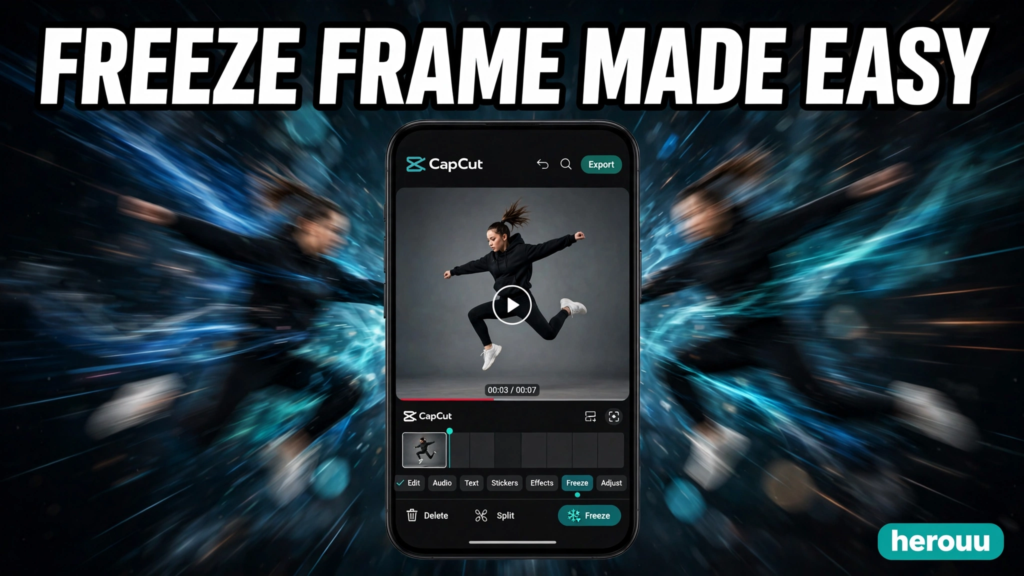
A CapCut freeze frame template is the quickest way to pause your video on one perfect moment and hold it still while the music plays on. The action stops, the viewer looks at one face, one jump, or one product, and then the video starts again. This guide shows you two ways to do it: use a ready template, or freeze a frame yourself with the Freeze tool. Both work in the free CapCut app.
At a glance
A freeze frame holds one frame of your video still for a few seconds. The picture stops, but the music keeps playing, so the pause feels planned. In a CapCut freeze frame template, that still moment is built in for you, or you can make it yourself in under a minute.
Quick Overview
| Topic | Details |
|---|---|
| Topic | CapCut freeze frame template and manual Freeze tool |
| Category | Capcut Template |
| App | CapCut (mobile app, free version) |
| Skill Level | Beginner |
| Time Needed | 10 to 20 minutes for your first edit |
| Media Needed | 1 to 3 clips and one music track |
| Cost | Free; some templates may show a Pro label |
What you will make
A CapCut freeze frame template works best on short videos where one moment deserves a pause. Picture a dance reel that stops on the highest jump, or a travel clip that holds on a sunset view. Pick one idea from the table, try it with your own clips, and change the hold time until it feels right.
| Idea | Best for | Clips needed |
|---|---|---|
| Freeze on the highest jump | Dance and fun reels | 1 jump clip |
| Hold on a smiling face | Birthday and family reels | 2 celebration clips |
| Pause before the reveal | Product and unboxing reels | 2 product clips |
| Freeze the goal moment | Sports and cricket reels | 1 clip of the goal |
| Hold the sunset view | Travel and nature reels | 2 travel clips |
Before you start
Install or update CapCut before you build a CapCut freeze frame template. Menu names move between versions, so if a button looks different on your phone, check the official CapCut help page for the newest layout instead of guessing.
Use your own clips, shot in good light. A freeze frame shows one still picture, so a blurry or dark frame looks bad when it stops. Pick a clip where the best moment is sharp.
Pick your music first if you want sound under the freeze. The picture stops but the audio keeps playing, so a song with a steady beat works well. Free music inside CapCut is simplest, and it avoids copyright trouble when you post.
Check your phone storage too. CapCut keeps a copy of your project while you edit, so clear a little room first.
| Requirement | What you need |
|---|---|
| Phone | Android or iPhone with CapCut installed |
| Clips | Your own videos, 5 to 15 seconds each |
| Music | One track, optional |
| Storage | At least 500 MB free space |
| Export | 1080p for a clean still frame |
Steps to make your CapCut freeze frame template
Step 1: Start a new project
Open CapCut and tap New Project. Choose the clip you want to freeze and tap Add. The clip now sits on the timeline, ready to edit.
Step 2: Find the frame to freeze
Play the clip and watch for the moment you want to hold. Drag the playhead slowly until it sits on that exact frame. Zoom into the timeline with two fingers if the frame is hard to land on.
Step 3: Try the template route
For the quick route to a CapCut freeze frame template, tap Templates at the bottom of the CapCut home screen. Search for “freeze frame”, preview a few results, and tap Use template on one that fits your clip. Then replace the sample clips with your own videos.
Step 4: Replace the template clips
After you pick a template, CapCut asks you to add your clips. Tap each slot, choose your own video, and trim it to fit. Never use a template code, download link, or QR code from a random page. Use only templates inside the CapCut app.
Step 5: Preview and export the template
Tap Preview and watch the full video. Check that the freeze lands on the moment you wanted and no clip looks stretched. If it looks good, tap Export. If not, swap a clip or pick another template.
Step 6: Open the Freeze tool
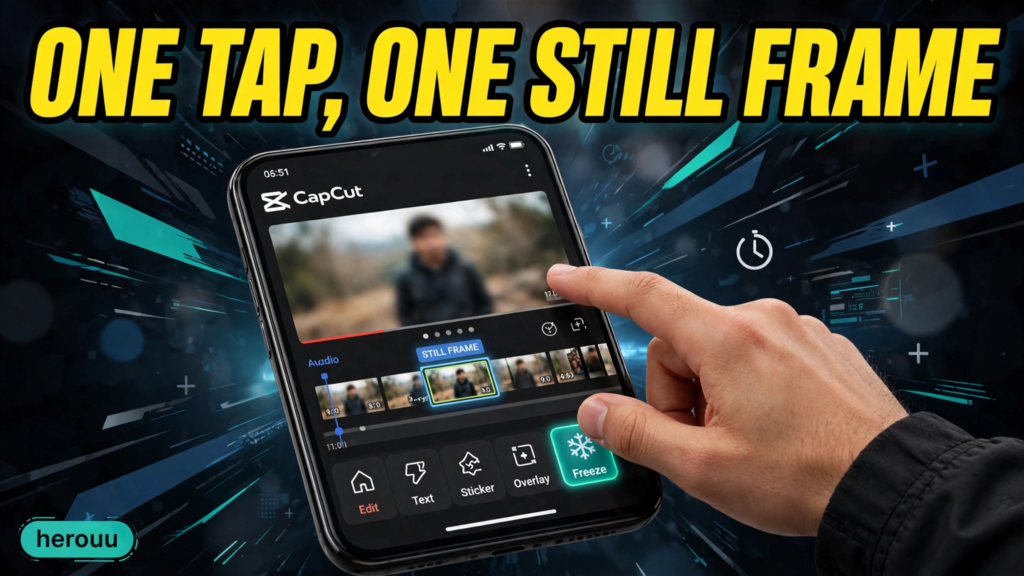
For full control over your CapCut freeze frame template, build the freeze yourself. Tap the clip on the timeline, then look for Freeze in the bottom toolbar. On some versions it sits under Edit, so swipe along the toolbar if you cannot see it at first.
Step 7: Freeze the frame
Move the playhead to the exact frame you want to hold, then tap Freeze. CapCut inserts a still image of that frame into your timeline. Some versions start the still at about three seconds, so change it to suit your video.
Step 8: Set how long the freeze lasts
Tap the still segment and drag its edges to make it longer or shorter. Two to three seconds is enough for most reels. A longer hold feels boring, and viewers swipe away before the video starts again.
Step 9: Split the clip if the freeze sits in the wrong place
If the still appears a little early or late, undo it and move the playhead first. You can also split the clip at the freeze point, so the video stops and restarts cleanly. Play from a few seconds before the freeze to check the join.
Step 10: Add text, zoom, or an effect on the still
A still frame in a CapCut freeze frame template is a good place for words. Tap Text and add a short caption, or add a slow zoom with keyframes so the frozen picture moves a little. One short line of text and one effect is enough.
Step 11: Export at 1080p
Tap Export at the top right and choose 1080p resolution. The still frame stays sharp at 1080p, and the file stays a fair size. Watch the saved video once before you post it.
Template ideas
These five CapCut freeze frame template ideas are original starting points you can search for or build yourself. Each block gives a search term and a short recipe for the manual route. Copy the one you like and use your own clips.

Idea 1: Freeze on the highest jump
Search: freeze frame jump
Recipe: One jump clip. Freeze the peak for 2 seconds, add the word “Wow” on the still.
Idea 2: Hold on a smiling face
Search: freeze frame smile
Recipe: Two celebration clips. Freeze the biggest smile for 3 seconds, add a birthday caption.
Idea 3: Pause before the reveal
Search: freeze frame reveal
Recipe: Two product clips. Freeze the closed box for 2 seconds, then cut to the open product.
Idea 4: Freeze the goal moment
Search: freeze frame sports
Recipe: One sports clip. Freeze the goal for 2 seconds, add the score as text on the still.
Idea 5: Hold the sunset view
Search: freeze frame travel
Recipe: Two travel clips. Freeze the best view for 3 seconds, add the place name on the still.
Tips

Pick a sharp frame. Scrub slowly and stop where the face is clear and the picture is not blurred. A blurry still looks like a mistake, while a sharp one looks planned.
Keep the freeze short. In a CapCut freeze frame template, two to three seconds is enough for the viewer to get the point. Longer holds feel like the video has stopped by accident.
Leave empty space for text. A frame with sky, a wall, or a plain background gives you room for a caption. A busy frame leaves nowhere to put words.
Freeze just before a change. Put the still right before a cut, a reveal, or a punchline. The pause builds a little wait, and the next clip feels stronger.
Match the freeze to the music. In a CapCut freeze frame template, the picture stops but the song plays on, so freeze on a beat or a quiet gap. A freeze in the middle of a loud lyric feels off.
Save your project before you export. Tap the back arrow and let CapCut save the draft, so a failed export does not force a restart.
Common problems and fixes
If your CapCut freeze frame template does not look right, the table below covers the most common causes.

| Problem | Likely cause | Fix |
|---|---|---|
| Freeze button is missing | Menu moved in your app version | Update CapCut, then swipe the bottom toolbar after tapping the clip |
| Still looks blurry | The frozen frame had motion blur | Move the playhead a little to a sharper frame |
| Freeze lands on the wrong moment | Playhead was not on the right frame | Undo, zoom in, and place the playhead again |
| Video jumps when it restarts | Clip edges do not line up | Trim the clip edges around the still |
| Export stops or fails | Low storage or a long project | Free up space and export at 1080p |
Frequently asked questions
What is a CapCut freeze frame template?
A CapCut freeze frame template is a ready-made edit inside CapCut that pauses your video on one frame and holds it still for a few seconds. You open the Templates tab, pick one, replace the sample clips with your own videos, and export. It saves time when you want a frozen moment without building it yourself.
Is the CapCut freeze frame template free?
Most freeze frame templates in CapCut are free, and the Freeze tool itself is free too. Some templates carry a Pro label and need a paid plan. CapCut does not publish one fixed price list in every version, so check the template page in your app first. If a template asks for payment, pick a free one instead.
How do I freeze a frame in CapCut on my phone?
Open your clip in CapCut and move the playhead to the frame you want to hold. Tap the clip, then tap Freeze in the bottom toolbar, or under Edit in some versions. CapCut inserts a still image of that frame. Drag its edges to set how long the freeze lasts.
How long should a freeze frame last?
For a CapCut freeze frame template, two to three seconds works for most short videos. That is enough time for the viewer to see the moment and read any text on it. Longer holds feel like the video has stopped by accident. If your still carries a caption, three seconds is a good starting point.
Why is there no Freeze button in my CapCut app?
The Freeze button moves between app versions, so it may sit under Edit or further along the bottom toolbar. Update CapCut, tap your clip, and swipe along the toolbar. If a CapCut freeze frame template still shows no Freeze option, check the official CapCut resource page for the newest layout.
Can I add text to a freeze frame in CapCut?
Yes. The still segment behaves like any other clip on the timeline, so you can add text, stickers, filters, or a slow zoom on top of it. In a CapCut freeze frame template, one short caption works best. Keep the words big and few, so they are easy to read on a phone screen.
Does the music stop during a freeze frame?
No, the music keeps playing while the picture stays still. Only the video pauses, so the freeze feels like a planned beat in the song. In a CapCut freeze frame template, freeze on a beat or a quiet gap in the music, rather than in the middle of a loud line.
Can I use more than one freeze frame in a video?
Yes, you can freeze as many frames as you like, but one or two per short video is enough. A CapCut freeze frame template with too many stops feels slow and viewers swipe away. Pick only the strongest moments, and let the rest of the video play at normal speed.
What export settings should I use for a freeze frame video?
For a CapCut freeze frame template, export at 1080p so the still frame stays sharp. This keeps the file a fair size for Instagram, YouTube Shorts, and WhatsApp. A higher resolution makes a bigger file and a slower export, and most phone screens show no real gain from it.
Conclusion
A CapCut freeze frame template gives you a quick start, and the Freeze tool gives you full control over the exact frame and how long it holds. Pick a sharp frame, keep the freeze to two or three seconds, and add one short caption. Try one idea from this guide today, and browse the Capcut Template category on herouu.buzz.

Related reading
- CapCut 3D Zoom Template: Easy 3D Zoom Video Guide
- CapCut Blur Effect Template: Easy Blur Background Guide
- CapCut Lyric Video Template: Easy Lyrics Video Guide
- Browse all Capcut Template guides
About herouu
herouu.buzz shares free, original guides for creators who edit videos and make AI images on their phones. Every guide is written in simple English, with steps you can follow on your own clips.
Disclaimer
This guide is based on the official CapCut resource page and trusted creator guides. CapCut updates its app often, so menus may change. If a step looks different on your phone, check the official CapCut app or help page. herouu.buzz is not linked to CapCut.
Sources
- CapCut, “An Easy Guide to Create a Stunning iMovie Freeze Frame Effect” — https://www.capcut.com/resource/master-imovie-freeze-frame
- FlexClip, “How to Freeze a Video Frame – Freeze Frame Effect Online” — https://www.flexclip.com/learn/freeze-frame-video.html
- Wondershare Repairit, “Freeze Frame CapCut: A Simple Trick to Improve Video Engagement” — https://repairit.wondershare.com/video-device-issue/freeze-frame-capcut.html
- Wondershare Filmora, “Capcut Freeze Frame: Steps to Create Freeze Frame Effect in Capcut” — https://filmora.wondershare.com/basic-video-editing/capcut-freeze-frame.html
- Lilach Bullock, “How to Freeze Frame in CapCut: Steps and Tips (2026)” — https://www.lilachbullock.com/how-to-freeze-frame-in-capcut/
No template code, download link, QR code, price, or feature in this guide was invented. Details not officially announced are not stated as facts.