
A CapCut lyric video template turns a song into a video where the words appear on screen in time with the music. You pick a look, add your own clips or photos, and let the lyrics carry the video. This guide shows the full process on your phone and on desktop. It suits singers, cover artists, and song reel makers. Check the latest CapCut app version and official help page before you start, because menu names can change.

At a glance
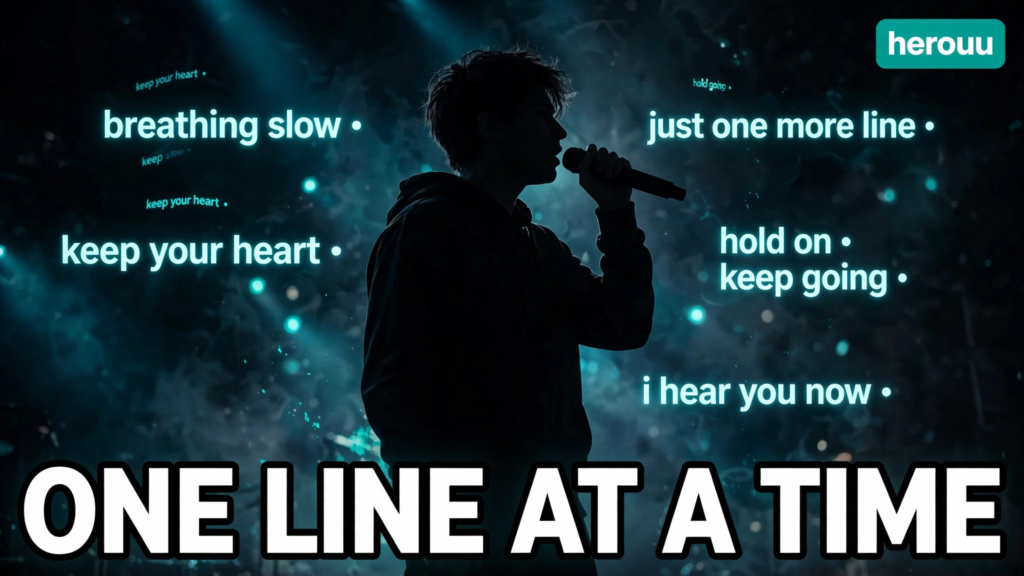
A CapCut lyric video template is a simple idea done well. The song plays, and one or two lines show at a time. The words change as the singer moves to the next line.
CapCut gives you two ways to build one: start from a ready CapCut lyric video template and swap in your own media, or start from a blank project and add the lyrics with Auto lyrics or by typing each line. The template route is faster. The blank route gives you more control over fonts, colours, and timing.
Auto lyrics listens to the vocal and places the words on the timeline. CapCut says it supports eight languages. Still read every line after it is made, because sung words are often misheard.
You do not need a paid plan for the basic steps in this guide. Some lyric styles may carry a Pro mark, and that varies by version and region. CapCut has not published a fixed list of which styles are free, so check inside your own app first. If a style asks you to upgrade, pick a free one or type the lyrics by hand.
Quick Overview
| Topic | Detail |
|---|---|
| Topic | CapCut lyric video template |
| Category | Capcut Template |
| App or Tool | CapCut mobile, desktop, or web |
| Skill Level | Beginner |
| Time Needed | 30 to 60 minutes |
| Media Needed | Song audio file, 3 to 6 clips or photos, lyric sheet |
| Cost or Free Features | Free to start; some styles may show a Pro mark |
What you will make with a CapCut lyric video template
A CapCut lyric video template is not one fixed look. It is a starting point. You keep the timing and text style, and change the media, song, and colours to fit your video. Pick the shape that fits your song.
| Idea | Best for | Clips or photos needed |
|---|---|---|
| One line at a time | Slow songs and covers | 3 calm clips |
| Big chorus words | Reels and Shorts | 4 to 5 clips |
| Photo slideshow | Birthday and tribute songs | 6 to 8 photos |
| Karaoke highlight | Sing-along videos | 2 to 3 clips |
| Dark cinematic | Sad and lofi songs | 3 moody clips |
Before you start your CapCut lyric video template
Get your material ready before you build your CapCut lyric video template. You need the song as an audio file on your phone or computer, and the words written out in the right order. A typed lyric sheet lets you check the auto lyrics line by line instead of trusting your memory.
Use only a song you have the right to post: your own recording, a cover you made, or a track with clear permission. A song pulled from another video can get your post muted or removed.
Keep your clips short and steady. Shaky clips pull attention away from the words. Hold the phone still and leave space in the middle of the frame for the text. Lyrics over a busy face or bright sky are hard to read.
| Need | What to prepare |
|---|---|
| App | Latest CapCut app installed |
| Song | Audio file of the song, saved on your device |
| Lyrics | Full lyric sheet, typed in the correct order |
| Media | 3 to 8 clips or photos that match the mood |
| Storage | At least 1 GB free space for the project and export |
| Skill | Basic phone use |
Steps
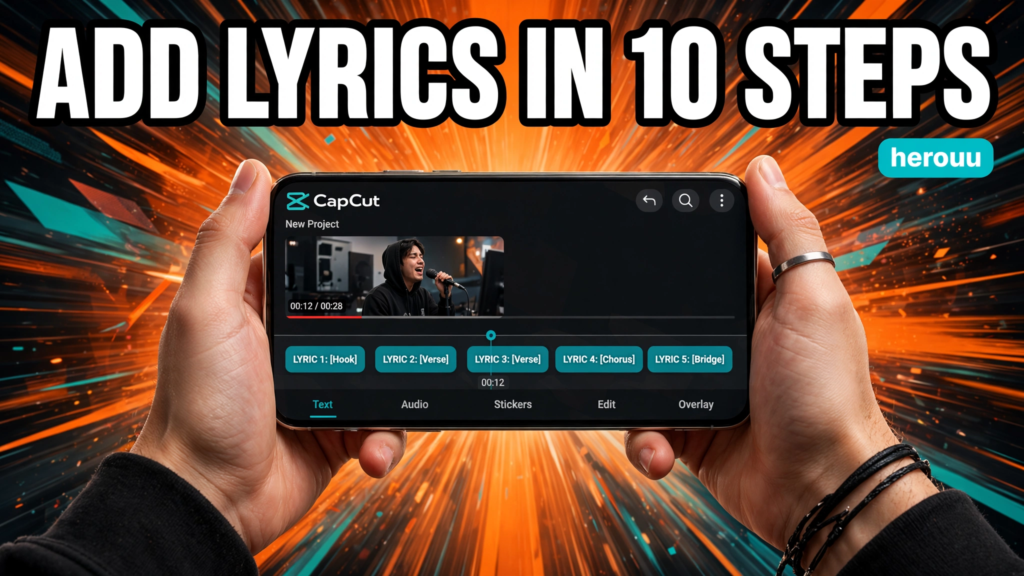
Follow these steps in order to build your CapCut lyric video template. Menu names match the current CapCut app and desktop editor in CapCut’s own guides. If a name looks different, look for the nearest match under Captions or Text.
- Open CapCut, start a new project, and import your clips or photos. Drag them onto the timeline in order.
- Add your song to the timeline, under the video track, and line up its start with the first clip. Trim the clips to the part of the song you want.
- Choose your route. For a CapCut lyric video template, open Templates, search for lyric, and pick a look. For a blank build, stay in your project and go to Captions.
- If you picked a CapCut lyric video template, tap Use template. Replace each sample clip or photo with your own media, then change the words to your song lyrics.
- If you build from blank, tap Captions, then Auto lyrics. Pick the song language and a lyric style, then tap Generate lyrics. CapCut places the words on the timeline.
- Read every lyric line against your lyric sheet and tap a line to fix a wrong word. Split a long line into two shorter lines so each fits on screen.
- Set the timing. Drag the edge of each lyric block so it starts when the singer starts the line and ends just before the next line. Play it and watch two or three lines in a row.
- Style the text. Pick a bold font, a readable size, and a colour that stands out from the background. Add a dark shadow or solid box behind the words if the background is bright or busy.
- Add one gentle animation, such as a short fade in, and keep it the same for every line. A different effect on each line looks messy and makes the words harder to follow.
- Preview your CapCut lyric video template with sound, then export it at 1080p and the frame rate your clips were shot in, usually 30 frames per second. Watch it once before you post it.
5 lyric video template ideas
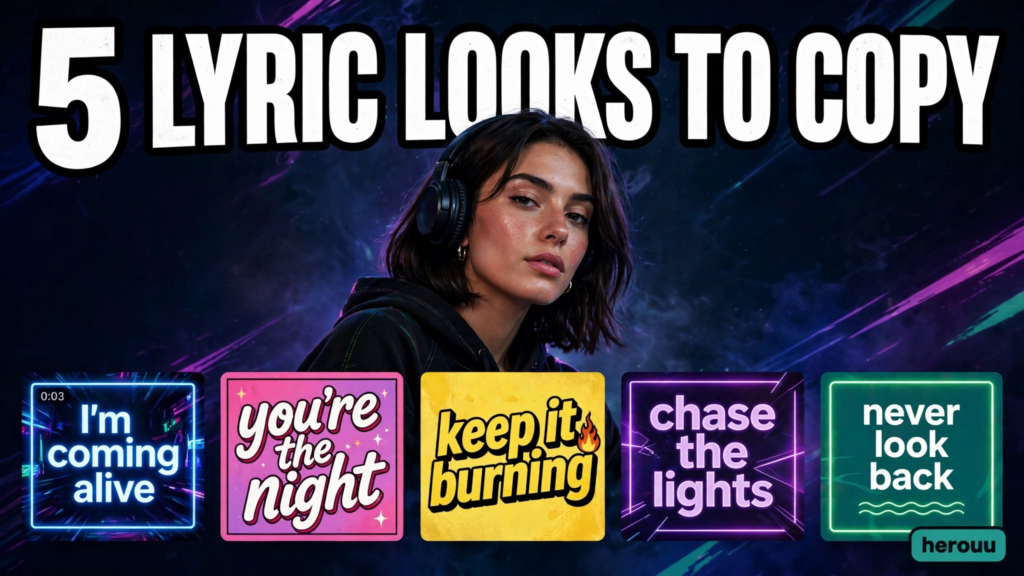
These five CapCut lyric video template ideas are looks you build in CapCut with your own clips. They are not download links or template codes. Each one describes the song type, lyric style, colours, timing, and background in plain words, so you can copy the idea and make it your own.
Soft love song: white bold lyrics centred on screen, one short line at a time, warm sunset photos behind the words, gentle fade in, soft pink and gold colours, calm timing that follows the singer.
Energetic dance reel: big yellow lyrics with a dark outline, two words highlighted in the chorus, fast cuts between dance clips, bright colours, quick timing that lands on the beat.
Sad song: pale blue lyrics in a clean font, slow fade between lines, dark rainy clips or a plain dark background, soft white glow behind the text, timing that leaves a pause after each line.
Karaoke sing-along: large white lyrics at the bottom of the screen, the current word highlighted in yellow, plain clips of the singer, steady timing, no extra effects.
Photo memory: cream coloured lyrics over old photos, one photo per line, slow zoom on each photo, soft brown and cream colours, gentle timing so each line can be read.
Pick one idea and build the whole video around it. Changing the style halfway through is the most common reason a lyric video looks unfinished. If you are unsure, start with the soft love song look or the karaoke look. Both are easy to read and work for many songs.
Tips
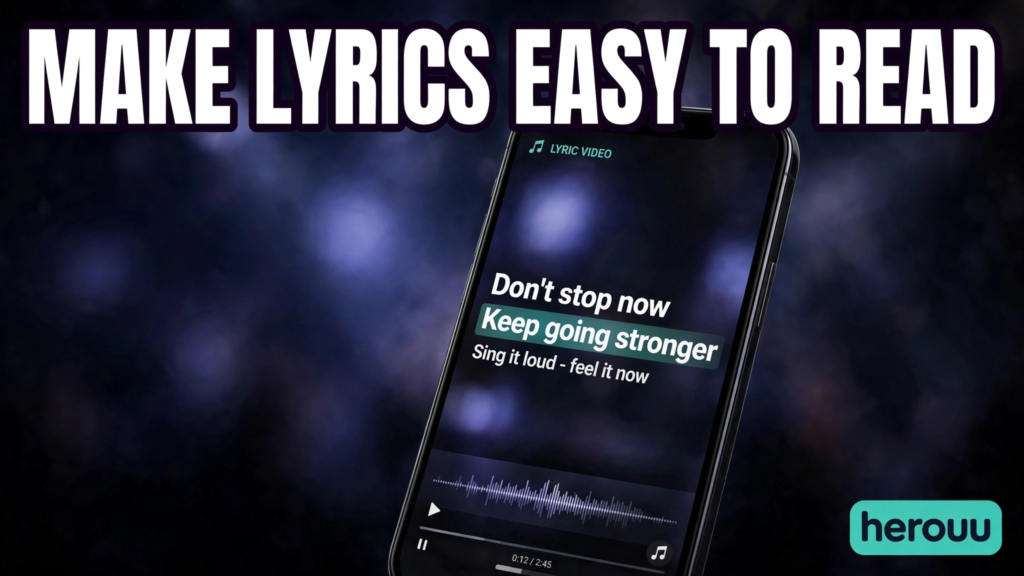
Keep the words big. Lyrics are read on a phone held at arm’s length, often without sound at first. Two short lines beat one long line that runs off the edge.
Put the lyrics in the same place on every frame. Viewers learn where to look in the first few seconds, and moving the text forces them to search the screen while the song moves on.
Use contrast before decoration. Plain white on a dark background reads better than a fancy font that blends into the clip. Add a shadow or dark strip behind the text before you try a new font.
Let the background stay quiet. A busy clip fights the words, so slow it down, darken it, or blur it a little so the lyrics sit clearly on top.
Check the chorus of your CapCut lyric video template first. Most viewers decide in the first ten seconds whether to keep watching, and many reels only use the chorus. Get the chorus lines right, then fix the verses.
Save the style of your CapCut lyric video template once it works. When you find a font, size, and colour that reads well, use the same settings next time. Your viewers will start to recognise your videos, and your editing will get faster.
Common Problems
| Problem | Likely cause | Fix |
|---|---|---|
| Auto lyrics shows wrong words | Sung words misheard, or the vocal is quiet under music | Retype each wrong line from your lyric sheet |
| Lyrics appear too early or too late | The lyric block starts before the singer starts the line | Drag the block edge so it starts with the vocal |
| Words are hard to read | Bright or busy background behind light text | Add a dark shadow behind the text, or darken the clip |
| Auto lyrics option is missing | Menu names differ by version, or the feature is not on your device | Look under Captions and Text, update the app, and type lyrics by hand |
| Export looks blurry | Low export resolution or low quality source clips | Export at 1080p and use the best quality clips you have |
FAQ
Can I make a lyric video in CapCut for free?
Yes, you can start a CapCut lyric video template for free. Add your song, type the lyrics by hand, style the text, and export the video without paying. Some lyric styles may show a Pro mark, so check the style you want before you build the whole video around it.
How do I add lyrics to a video in CapCut?
Open your project, add your song to the timeline, then go to Captions and choose Auto lyrics. Pick the song language and a lyric style, then tap Generate lyrics. You can also type each line by hand with the Text tool if you prefer full control.
What is a CapCut lyric video template?
A CapCut lyric video template is a ready-made lyric look inside CapCut with the text style, timing, and animation already set. You open it, swap in your own clips, and change the words to your song lyrics. It saves time, but you still need to check the words and the timing.
Why are my auto lyrics wrong in CapCut?
Auto lyrics listens to the vocal and guesses the words, so it can mishear sung words, names, and fast lines. Background music and low vocal volume make it worse. Keep your lyric sheet beside you and retype the wrong words by hand before you export.
How do I sync lyrics with the music in CapCut?
Play your CapCut lyric video template and watch where each line starts. Drag the edge of each lyric block so it begins when the singer starts the line and ends just before the next line. Check two or three lines in a row, and fix the chorus first, since most viewers hear that part.
Which font is best for lyric videos in CapCut?
A bold, clean font works best for lyric videos. It stays readable on a small phone screen and holds up over moving clips. Avoid thin or fancy fonts for the main lyrics. Pick one font for the whole video and use size and colour to highlight the chorus.
Can I use any song in a CapCut lyric video?
You can edit with any song on your own device, but posting it is a separate matter. Use your own recording, a cover you made, or a track you have clear permission to share. A song you do not have rights to can be muted or removed after you post it.
What size should a CapCut lyric video be?
Use vertical 9:16 for a CapCut lyric video template on Instagram Reels, YouTube Shorts, and TikTok, with an export of 1080p. That size fills a phone screen and keeps the lyrics large. Use horizontal 16:9 only for a full YouTube video. Pick the size before you place the lyrics.
How long should a lyric video be?
A CapCut lyric video template for a reel should be 15 to 60 seconds and usually covers one chorus or verse. A full lyric video runs the whole song, often two to four minutes. Short is better for a first video, because it is easier to keep the timing tight and the words correct.
Conclusion
A CapCut lyric video template gives you a fast start, but the words and the timing are what make the video work. Pick one idea, check every lyric against your lyric sheet, and keep the text big. Try it with one song today, then browse the Capcut Template guides on herouu.
Related reading
- CapCut Overlay Template: Easy Picture in Picture Guide
- CapCut 3D Zoom Template: Easy 3D Photo Guide
- CapCut Split Screen Template: Easy Side by Side Guide
- CapCut Blur Effect Template: Easy Blur Background Guide
- Browse all guides in the Capcut Template category
About herouu
herouu is a free library of simple, original guides for creators, written in plain English with steps you can follow.
Disclaimer
This guide is based on the official CapCut help pages and resource guides listed below. CapCut features, menu names, and free and Pro availability may change with app updates. Check the official CapCut app or help page for the latest details before you start.
Sources
- CapCut Top 5 AI Lyric Video Generators
- CapCut How to Make a Lyric Video for YouTube with Live Footage
- CapCut Automatic Captions: Generate and Fix Recognition Errors
- CapCut Lyric Video Templates with Festival Energy
- CapCut Create Festival-Ready Lyric Videos with CapCut
Details not officially announced: which lyric styles are free and which carry a Pro mark in each app version and region. CapCut has not published one fixed list, so check inside your own app. No template code, download link, QR code, or price is given here, because none was officially published for these looks.