
A VN blur effect template turns a busy background into a soft blur while your subject stays sharp, and you can build it in the VN app in a few minutes. This guide shows the full method step by step, with five original blur looks to copy and reuse for reels, vlogs, and product videos. Check the latest VN app version first, because menu names can change.
At a glance
A VN blur effect template is a saved way of working in VN, not a single button. You use VN’s Blur tool, BG blur, masks, and keyframes to soften the background and keep the subject in focus. It suits talking-head videos, product clips, dance reels, and wedding highlights.
Quick Overview
| Item | Detail |
|---|---|
| Topic | VN blur effect template |
| Category | Vn Code Template |
| App | VN Video Editor (Android and iOS) |
| Skill level | Beginner |
| Time needed | 15 to 25 minutes |
| Media needed | Your own video clips |
| Cost | Free |
What a VN blur effect template really is
Here is the honest part. VN does not ship a built-in template literally named “Blur” that you open with one tap, and no official VN help page lists one. What VN does give you is a Blur tool with four styles, a background blur control, masks, and keyframes. Together, those tools are your VN blur effect template. Build the look once, save the project, and reuse it.
VN’s official help page describes the Blur tool plainly. Base blurs the whole clip evenly. Horizontal stretches the blur sideways for motion. Vertical stretches it up and down. Radioactive spreads a radial blur from a movable centre point. The same page explains the BG control: pick Image, then adjust Blur.
What you will make
Blur is not one look, so pick a style for your VN blur effect template before you start. A soft background blur hides a messy room or a crowded street and makes the viewer look at the person speaking. A full-frame blur is softer and suits title text. Motion blur and radial blur are stronger, so use them for short moments.
| Look | Best for | Clips needed |
|---|---|---|
| Soft background blur | Talking-head reels and vlogs | 1 clip |
| Dreamy full-frame blur | Song intros and dreamy edits | 1 clip |
| Directional motion blur | Dance and travel transitions | 2 clips |
| Radial spotlight blur | Product and food close-ups | 1 clip |
| Blur that fades in and out | Cinematic openings | 1 clip |
Before you start
Get three things ready first. Update the app from the Play Store or App Store so the menus match this guide. Pick a clip where the subject stands away from the background, because blur needs real distance behind them. Keep at least 1 GB of storage free and close other heavy apps, since a full phone is the most common reason exports fail.
| Need | What to check |
|---|---|
| VN app | Latest version from the official store |
| Clip | Subject stands away from the background |
| Storage | At least 1 GB free on the phone |
| Phone | Charged, other heavy apps closed |
How to build a VN blur effect template in VN
Steps one to five make a simple full blur. Steps six to ten build the background blur of this VN blur effect template and keep your subject sharp. The last two steps fade the blur and save the project.
Step 1: Start a new project. Open VN, tap the plus icon, tap New Project, and pick your clip. Choose 9:16 for a reel or Short, or 16:9 for YouTube.
Step 2: Trim the clip. Drag the ends to keep only the part you want. A short, tight clip blurs better. Tap the tick.
Step 3: Open the Blur tool. Tap the clip in the timeline, then tap Blur below. You will see four styles: Base, Horizontal, Vertical, and Radioactive.
Step 4: Pick a blur style. For a first try, pick Base for an even, soft blur. Pick Horizontal or Vertical for movement, and Radioactive to spread the blur from one point.
Step 5: Set the blur strength. Move the slider until the blur looks soft but the subject stays clear. Around 40 to 60 percent works for most clips. Tap the tick.
Step 6: Duplicate the clip. Tap the clip, open its menu, and tap Duplicate. The bottom copy becomes the blurred background of your VN blur effect template, and the top copy stays sharp.
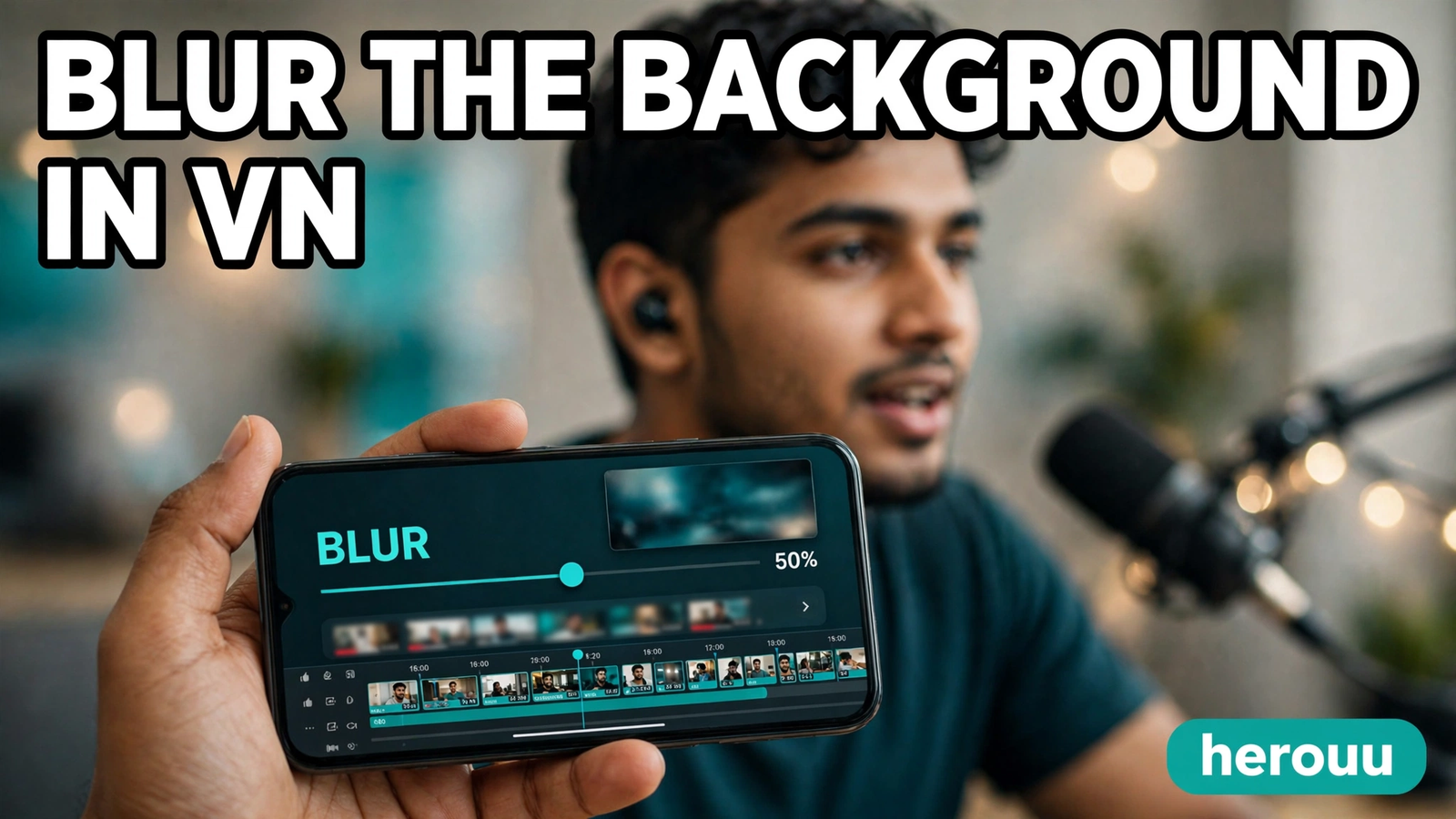
Step 7: Blur the bottom layer. Select the bottom clip. Tap BG, then Image, and move the Blur slider to about 60 percent.
Step 8: Mask the top layer. Select the top clip and tap Mask. Pick a shape that fits: a circle or oval for a face, a rectangle for a full person. Drag it over your subject.
Step 9: Feather the mask edge. A hard mask edge looks cut out. Raise the feather until the subject melts into the blurred background.
Step 10: Play the whole clip. Watch from start to end. If your subject moves, add a keyframe at the start, move the playhead to the end, and drag the mask to follow.
Step 11: Fade the blur in or out. For a cinematic opening in your VN blur effect template, set blur to 100 percent on the first frame, add a keyframe one second in, and drop it to your normal level.
Step 12: Save the project. Tap the project menu and save. Next time, open this project, replace the clips, and export. That saved project is your VN blur effect template.
5 original VN blur effect template ideas
These five VN blur effect template ideas are original and use only VN’s free tools. Copy the setup that fits your video, change the numbers to suit your clip, and save the result to reuse.
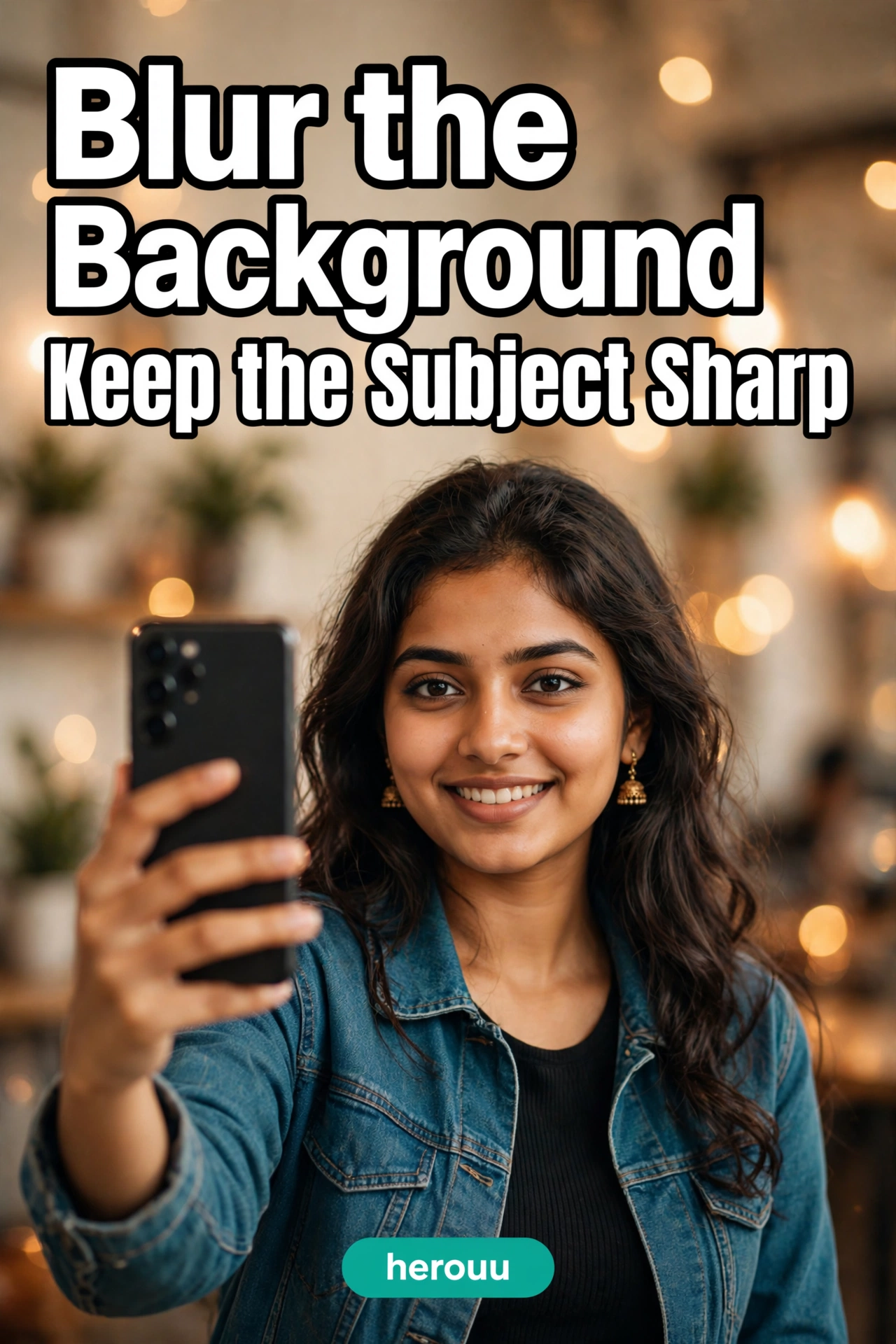
1. Clean talking-head blur
Use this for study tips, coaching reels, and talk-to-camera videos. Duplicate the clip, blur the bottom layer at 55 percent, and mask the top layer with a tall oval around your head and shoulders. Keep the feather high and add one line of text at the top.
Talking-head blur: duplicate clip, bottom BG blur 55%, top oval mask on head and shoulders, high feather, 9:16, one text line.
2. Dreamy song intro blur
Use this for the first two seconds of a song reel or birthday video. Apply Base blur at 100 percent, add a keyframe at two seconds, and drop the blur to zero, so the video opens soft and snaps sharp on the beat. Add title text while the frame is blurred.
Song intro blur: Base blur 100% at start, keyframe at 2 seconds, blur to 0%, title text over blurred frames, sharp on the beat.
3. Street food spotlight blur
Use this for food stalls and market videos. Duplicate the clip, blur the bottom layer at 65 percent, and mask the top layer with a circle over the vendor or dish. Pick Radioactive blur centred on the food, so a busy market feels calm.
Food spotlight blur: duplicate clip, bottom Radioactive blur 65% centred on the dish, top circle mask on vendor or food, market softens around it.
4. Dance motion blur
Use this for a dance hook or a fast transition. Apply Horizontal blur at 50 percent to the last half second of the first clip, then cut to the second clip with the blur fading out over its first half second. Keep the direction the same.
Dance motion blur: Horizontal blur 50% on last 0.5 seconds of clip one, fading out over first 0.5 seconds of clip two, same direction both sides.
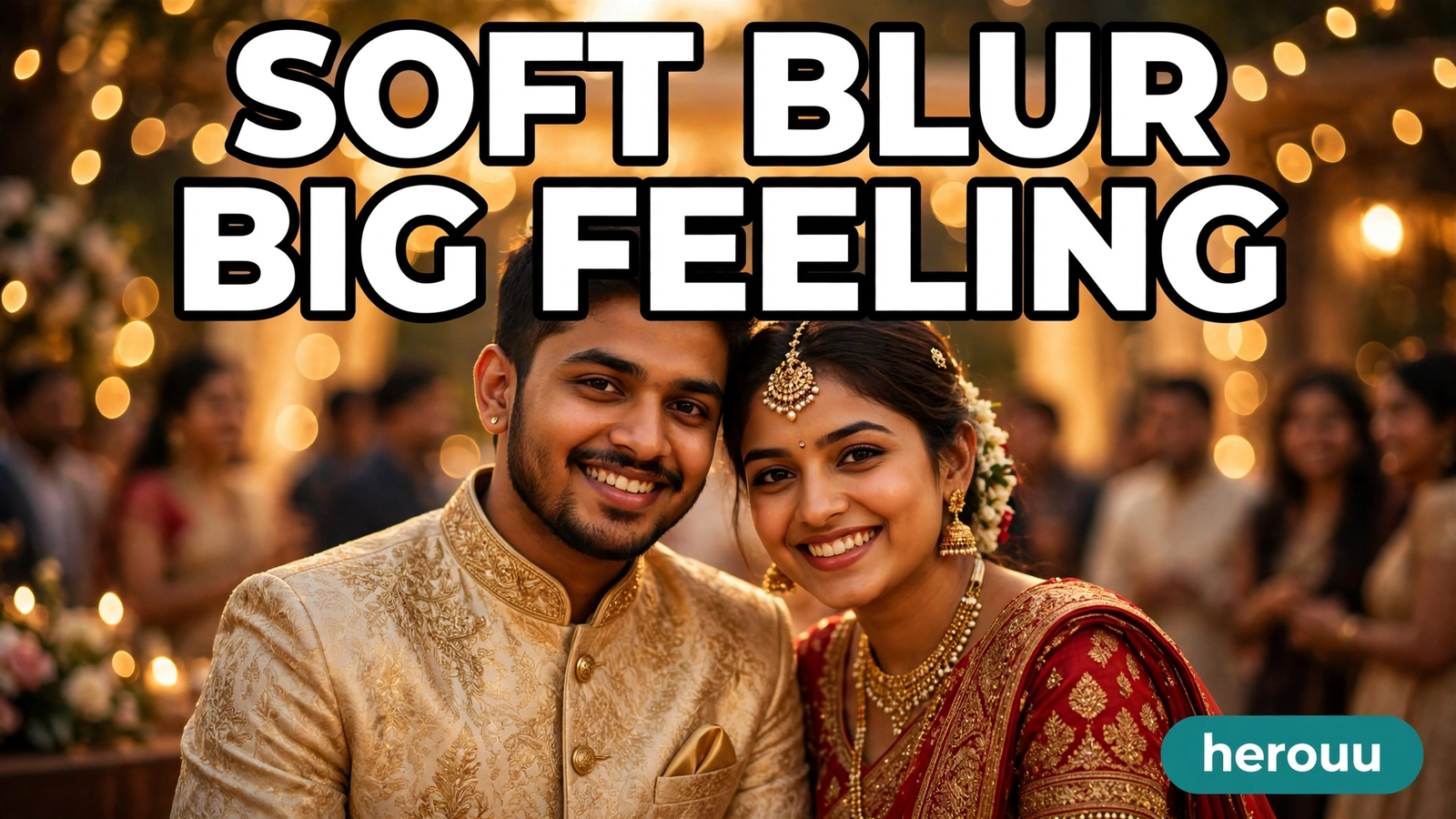
5. Wedding glow blur
Use this for wedding highlights and couple reels. Duplicate the clip, blur the bottom layer at 45 percent, and mask the top layer with a wide oval over the couple. Keep the blur gentle, so the video feels warm, not foggy. Add soft music and one text line.
Wedding glow blur: duplicate clip, bottom Base blur 45%, top wide oval mask over couple, gentle blur, soft music, one short text line.
Tips for a clean blur
Start soft. A blur of 40 to 60 percent looks professional, while 90 percent looks like a mistake unless you are hiding something.
Keep the subject still when you can. A mask follows a still subject easily, but a walking subject needs keyframes every second or two.
Blur the background, not the face. If the face goes soft, the viewer stops watching, so check the eyes at full screen before you export.
Match the blur to the light. A bright clip can take a stronger blur, but a dark clip turns muddy fast, so keep the blur low.
Use one blur style per video. Mixing Base, Horizontal, and Radioactive in one short video looks messy.
Export once and check the file. Play it on your phone before you post. The preview inside VN can look sharper than the final file.
Common problems and fixes
Most blur problems have a one-tap fix. The table below covers the ones that come up most often with this VN blur effect template.
| Problem | Likely cause | Fix |
|---|---|---|
| Whole video is blurry | Blur applied to the only layer | Duplicate the clip, blur the bottom only |
| Face looks soft | Blur too strong or mask too small | Lower blur, enlarge the mask |
| Hard edge around the person | Mask feather too low | Raise the feather until the edge melts |
| Mask lags behind movement | No keyframes on the mask | Add keyframes at the start and end |
| Blur changes after export | Preview is sharper than the file | Export, watch the file full screen first |
| VN lags while editing | Storage full or clip is 4K | Free storage, close apps, edit a 1080p copy |
| Blur tool is missing | Clip not selected or app is old | Tap the clip first, update VN |
Frequently asked questions
What is a VN blur effect template?
A VN blur effect template is a reusable way of building a blur look in VN, using the Blur tool, BG blur, masks, and keyframes. VN has no built-in template named “Blur”, so build the look once and save it to reuse.
How do I blur the background in VN?
Duplicate your clip, blur the bottom layer with BG Image blur at about 60 percent, then mask the top layer around your subject with a circle or oval. Feather the edge, then play the clip to check the subject stays sharp.
Is the blur effect in VN free?
Yes, the Blur tool, BG blur, masks, and keyframes are part of the free VN app, and every step in this guide uses only free tools. No paid feature is needed. If a menu looks different, update VN from the official store.
Which blur style should I use in VN?
Use Base for an even, soft blur in most videos. Use Horizontal or Vertical for a sense of movement, such as a dance transition. Use Radioactive when the blur should spread out from one point, such as a product in the centre.
How do I blur only a face in VN?
Duplicate the clip and blur the bottom layer, then mask the top layer with a small circle over the face and add keyframes so the mask follows it. Keep the blur near 80 percent when your VN blur effect template needs to hide a face fully.
Can I blur a moving object in VN?
Yes. Duplicate the clip, blur the bottom layer, and mask the top layer over the object with a shape that fits it. Add keyframes at the start and end of the movement and drag the mask to follow the object as it moves.
Why is my whole video blurry in VN?
You probably applied Blur to your only layer instead of duplicating the clip first. Undo the blur, duplicate the clip, blur only the bottom layer, and mask the top layer around your subject. That simple order keeps the subject sharp while the background stays soft.
Does VN have a blur template code or QR code?
No official VN blur template code or QR code is published on VN’s help pages, and this guide does not invent one. Build the blur look with the steps above and save the project as your own reusable VN blur effect template.
How do I save a blur template in VN for later?
Finish the blur edit, then save the project in VN as your VN blur effect template instead of deleting it. When you want the same look again, open the saved project, replace the clips, and export. Your masks and keyframes stay in place.
Conclusion
A VN blur effect template is not a download or a code. It is a simple method you build once in VN: duplicate the clip, blur the background, mask the subject, and save the project. Try the talking-head blur first, then another idea.
Related reading
- VN Neon Effect Template: Easy Neon Glow Guide
- VN Colour Grading Template: Easy Colour Look Guide
- VN Aesthetic Template: Easy Aesthetic Video Guide
- VN Glitch Effect Template: Easy Glitch Video Guide
- VN Retro Film Template: Easy Vintage Look Guide
About herouu
herouu.buzz shares free templates, photo prompts, and video editing ideas for everyday creators. Every guide is written in simple English and kept honest. Browse the Vn Code Template category for more VN guides, including more VN blur effect template ideas.
Disclaimer
This guide is based on VN’s official help pages and the steps as written here. VN updates its app often, so menus can change. If a step looks different, check the official VN help page. No template code, download link, or QR code is provided here.
Sources
- VN Help Center, Image and Clip Adjustment
- VN Video Editor, How To Blur Video in VN Video Editor
- VN Videos Editor, How to Apply Blur Effects in VN App
Not officially announced: VN publishes no built-in template named “Blur” and no official blur template code or QR code. The five ideas here are original.