AI video editing for makeup reels is the fastest way to turn raw makeup clips into a clean, watchable reel on your phone. This guide shows you the workflow: plan the look, film it well, cut it with AI tools, add captions and music, fix the colour, and export for Instagram Reels. You do not need a computer, paid software, or editing experience. One honest note first: no app ships a ready-made “makeup reels” template, so this guide builds the look yourself with AI tools. Check the help page if a menu name looks different.
At a glance
Makeup reels work best when the first two seconds show the change: bare skin to finished look, a swatch, or bold lips. AI video editing for makeup reels takes over the slow jobs, like typing captions and cutting dead pauses. With AI video editing for makeup reels, plan one idea per reel, film each step as a separate clip, and keep it between 15 and 30 seconds.
Quick overview
| Item | Details |
|---|---|
| Topic | AI video editing for makeup reels |
| Category | Ai Video Editing |
| App / Tool | CapCut or VN (free), phone camera |
| Skill Level | Beginner |
| Time Needed | 30 to 45 minutes per reel |
| Media | 5 to 8 short clips of your makeup steps, plus one finished-look photo |
| Cost | Free: auto captions, beat sync, filters, trim, speed; some AI effects and music are paid |
What you will make
Pick one idea per reel: one clear idea keeps the edit simple and the viewer watching, which is where AI video editing for makeup reels works best.
| Reel idea | Best for | Clips needed |
|---|---|---|
| Before-after transition | A full glam change | 2 clips: bare face, finished look |
| Product swatch close-up | Lipstick, blush, eyeshadow | 3 clips: hand, arm and lip swatches |
| Get-ready-with-me timelapse | Daily routine, event prep | 5 to 6 clips: one per step, sped up |
| Tutorial with captions | One technique, like winged liner | 4 clips: intro, steps, final look |
| Trend lip-sync look | Trending audio, makeup reveal | 2 clips: makeup, lip-sync |
| One product, three looks | One product, different ways | 3 clips: one look per style |
Start with the before-after transition: film your bare face for two seconds, then the finished look from the same angle. Tutorials take longer but earn the most saves.
Before you start
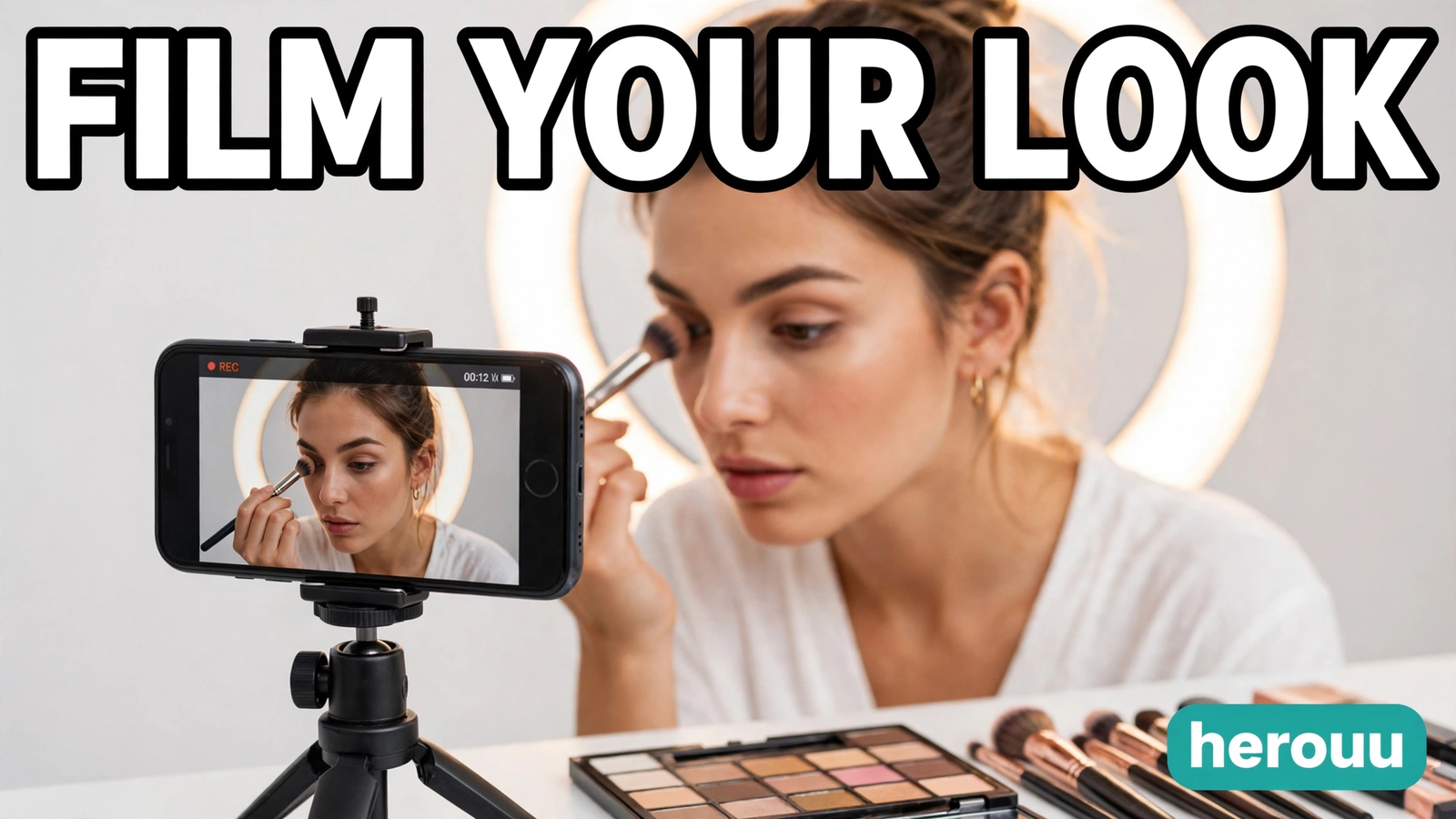
For AI video editing for makeup reels, you need CapCut or VN installed and updated, your own clips filmed in vertical 9:16, at least 2 GB free, and a quiet place for voiceover. Film near a window or with a ring light: good light matters more than any filter. Wipe the lens, set the phone on a tripod, and lock exposure by tapping and holding on your face. Film each step as its own clip.
| Requirement | What you need |
|---|---|
| Phone | Android or iPhone that records 1080p |
| App | CapCut (v12 or later for Auto Cut) or VN, free |
| Storage | At least 2 GB free |
| Light | Window light or a ring light, facing you |
| Internet | Needed for AI captions and background removal |
| Skill | Basic phone use |
CapCut’s Auto Cut needs version 12 or later and is still rolling out by region. If it is missing, update the app and check Templates again. VN lists auto captions and AI cutout as free, but check the app, because free and paid features change between versions.
AI video editing for makeup reels: step by step
Follow these steps in order.
- Plan the look on paper: the one idea, the step order, and the hook for the first two seconds.
- Set up your spot and film the hook: face a window or ring light and record the bare face for two to three seconds.
- Film each step as its own clip: foundation, eyes, blush and lips. Keep the phone in the same spot.
- Film the final look: five seconds of finished makeup, turning slowly to both sides. This clip closes the reel.
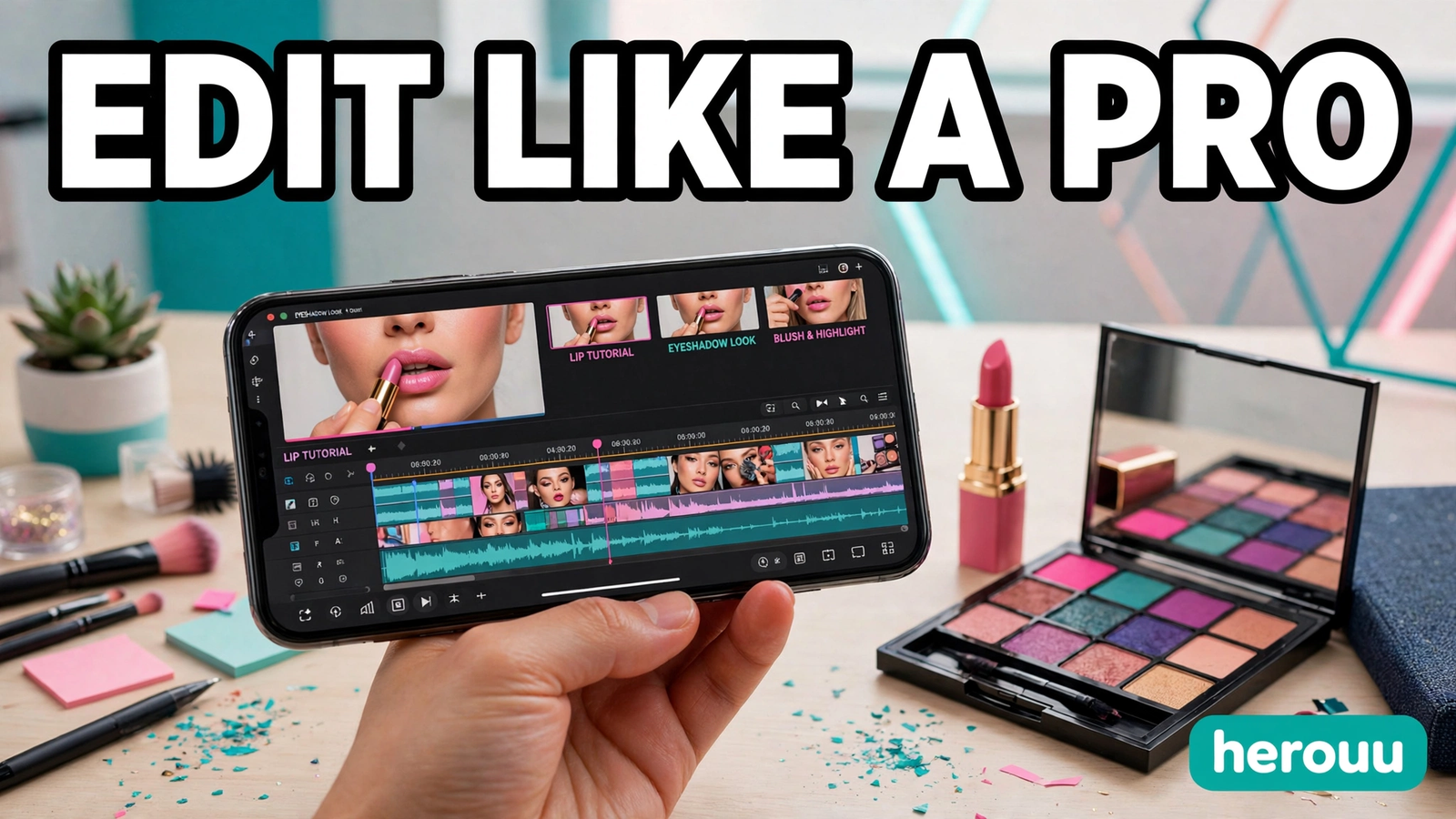
- Open CapCut or VN and start your AI video editing for makeup reels project. Choose the 9:16 canvas, import your clips in order, and delete out-of-focus clips.
- Trim the dead ends: cut the first and last half second of every clip, where your hand reaches for the phone.
- Arrange the clips in story order: hook first, then the steps, then the final look. Use a simple cut between before and after.
- Speed up the slow steps: raise foundation or blending clips to 1.5x or 2x. In AI video editing for makeup reels, timelapse makes slow steps watchable.
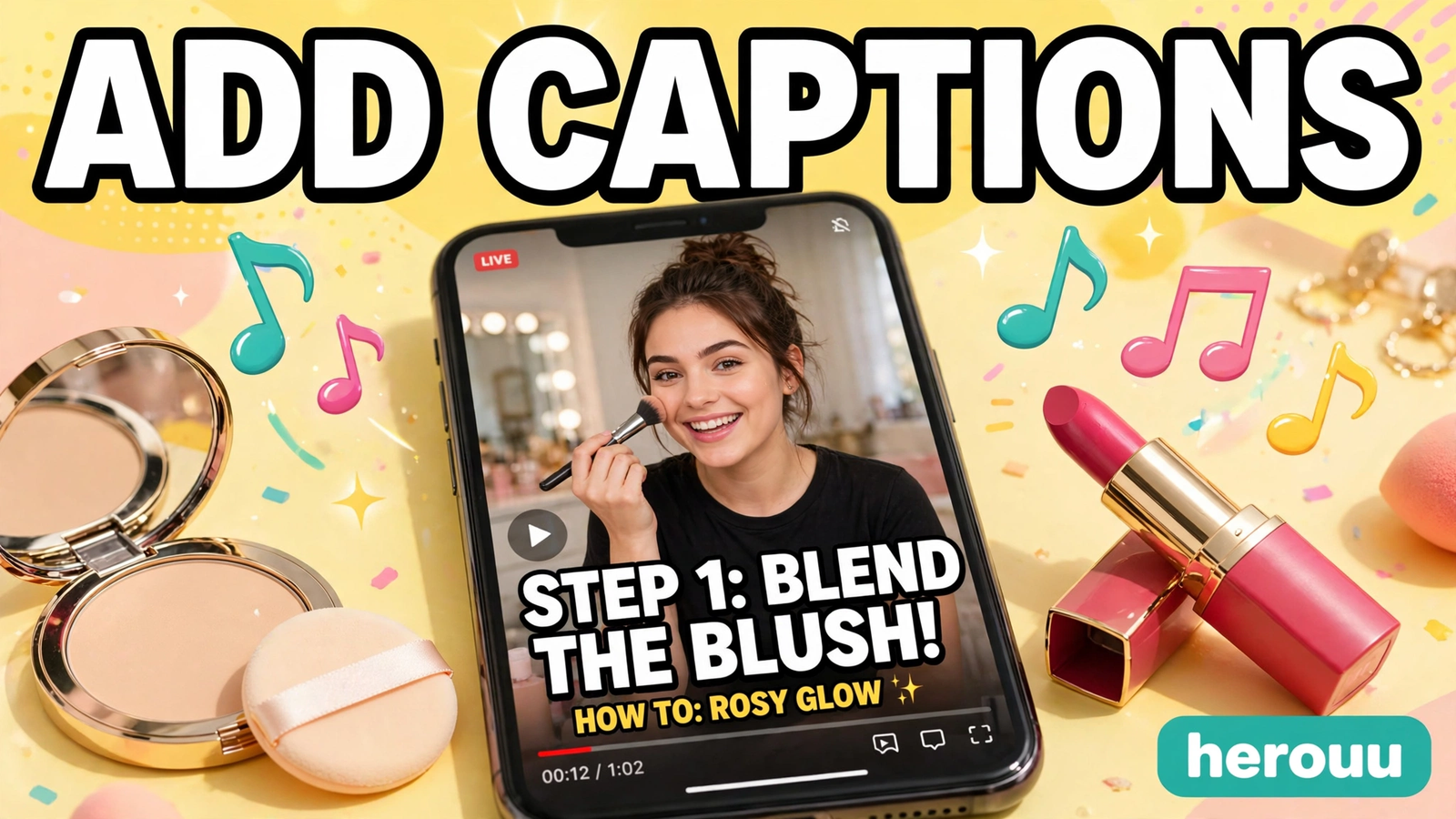
- Generate auto captions, the biggest time saver in AI video editing for makeup reels. In CapCut, tap Text, then Auto Captions and Start. In VN, open Text and tap Auto Captions. Read every caption: AI mishears shade names.
- Add music and sync it to the beat. Pick a trending sound or import your own audio, then use Beat Sync in CapCut or beat markers in VN. Cuts on the beat feel polished.
- Fix colour and skin tone gently. Raise brightness if the room was dark, add warmth, and use a light beauty filter at low strength. Keep skin tone honest: a filter that changes your shade draws complaints.
- Add text overlays for product names. Show the product and shade name on screen for two seconds. Keep text in the centre safe area, away from Instagram buttons.
- Preview the whole reel twice: once with sound, once on mute. Check captions match the words, the music is not louder than your voice, and no text sits under the buttons.
- Export for Reels at 1080 by 1920, 30 frames per second, MP4 format. Save it, upload it to Instagram Reels, and pick the finished-look frame as the cover.
AI prompt and editing ideas
Use these five original ideas for AI video editing for makeup reels, and change the words to match your own products.
Write a 20 second makeup reel script for a soft pink blush look. Start with a bare face hook, show three quick steps, and end with the finished look. Keep every line under six words.
Turn my makeup tutorial audio into short on-screen captions. Use simple words, one idea per caption, and mark where the product name appears.
Suggest five hook lines for a before-after makeup reel. Each hook must fit in the first two seconds and name one clear change, like bold lips.
Plan a 15 second get-ready-with-me reel for a wedding guest look. List the clips in order, each clip length, and where the music beat falls.
Write three caption options for a lipstick swatch reel. Each must name the shade, say who it suits, and ask viewers one question.
These prompts work in a chatbot such as Gemini or ChatGPT, or as a checklist. Never paste AI text into your reel unread: AI tools invent shade names.
Tips
Film swatches in daylight with no filter: viewers judge a shade by what they see. AI video editing for makeup reels cannot fix a wrong shade, and a filtered swatch looks pretty and wrong.
Record your voiceover after the edit. Watch the finished cut once, then record while it plays, so your words match the clips.
Keep captions in the middle of the screen. Instagram covers the bottom with buttons and the top with the username.
Save one clean frame of the finished look before you export. Use it as the reel cover or a Pinterest pin.
Post the reel the same day you film it. Makeup trends move fast, and a Monday trend is late by Friday.
Check your reel on a second phone before you post it. Colours and text size look different on another screen, and in AI video editing for makeup reels a quick check catches unreadable text.
Common problems and fixes
These fixes cover the problems that come up most in AI video editing for makeup reels.
| Problem | Likely cause | Fix |
|---|---|---|
| Captions have wrong words | AI misheard a product or shade name | Tap the caption and fix it |
| Skin looks orange or grey | Filter too strong, or warm room light | Lower the filter below 30 percent, then fix warmth in Adjust |
| Cuts fall off the beat | Beat Sync used the wrong section | Delete the sync, add markers by hand, and drag cuts to them |
| Video looks blurry after upload | Exported below 1080p | Export at 1080 by 1920, 30 fps, and upload on Wi-Fi with high quality upload on |
| Background looks messy | Clutter behind you in the frame | Blur it with VN Cutout or CapCut, or re-film against a plain wall |
| App has no Auto Cut option | Old app version, or the feature has not reached you | Update CapCut, restart the phone, and check Templates, then AI Creation |
Frequently asked questions
Can I use AI to edit makeup reels on my phone?
Yes, you can. CapCut and VN both run on Android and iPhone, and their AI tools handle captions, background removal, beat sync and smart cuts. You do not need a computer. Film in good light and let AI handle the routine work.
Which app is best for AI video editing for makeup reels?
CapCut suits beginners: Auto Cut, auto captions and beat sync sit in one app and the free version covers the basics. VN suits creators who want finer control, with auto captions, AI cutout and keyframe tools. Try both, keep the easier one.
How do I add auto captions to a makeup tutorial reel?
For AI video editing for makeup reels, open your project in CapCut, tap Text, then Auto Captions, choose your language, tap Start. In VN, open Text and tap Auto Captions instead. The app writes captions from your audio in seconds. Read every line, fix product names.
How long should a makeup reel be?
Keep it between 15 and 30 seconds. That fits one look, three to five steps and a clear ending. A before-after reel can work in 10 seconds. A full tutorial can run to 45 seconds, but only if every step adds something.
How do I keep skin colour natural while editing a makeup reel?
Film in daylight or with a ring light, and keep filters at low strength. Raise brightness if the room was dark, and adjust warmth slowly. Compare the clip with your real skin. If the shade differs from the real product, lower the filter.
Can I remove the background from a makeup reel without a green screen?
Yes. VN’s AI Cutout tool detects the person and removes the background, with no green screen needed, which is handy for AI video editing for makeup reels. CapCut also offers background removal. Both need a clear subject and decent light, so check the result.
What export settings should I use for Instagram Reels?
Export at 1080 by 1920 pixels, 9:16 vertical, 30 frames per second, as MP4 with H.264 video. Instagram lists a minimum of 720 pixels and 30 frames per second, but 1080p stays sharper. Upload on Wi-Fi with high quality upload on.
Do I need to pay for AI editing features in CapCut or VN?
No, not to start. Auto captions, beat sync, trimming, filters and background removal are free, though some effects and music are paid in CapCut. VN is free with no watermark. Check the app before you pay: free and paid features change often.
How do I sync makeup reel cuts to music beats?
Add your song, then run Beat Sync in CapCut or beat markers in VN. The app marks the strong beats. Drag each clip change onto a marker, so the look changes with the music. Watch it twice and nudge any late cut.
Conclusion
AI video editing for makeup reels is a skill you build one reel at a time, not a template you download. Film in good light, let AI handle captions and timing, and keep the colour honest so viewers trust what they see. Try the before-after idea today, and browse the Ai Video Editing guides on herouu.buzz.
Related reading
More AI video editing for makeup reels guides:
- AI Video Editing for Beauty Reels
- AI Video Editing for Fashion Reels
- AI Video Editing for Fitness Reels
- AI Video Editing for Unboxing Videos
- AI Video Background Removal Guide
About herouu
herouu.buzz shares free templates, photo prompts and video editing ideas for everyday creators, including AI video editing for makeup reels. Every guide is written in simple plain English and tested on a phone, to help you create your next reel without expensive tools.
Disclaimer
This guide is based on official app help pages and the steps written here. App features and free or paid limits change with updates, so verify the latest details from the official CapCut or VN app or help page before you pay.
Sources
- CapCut Help: How to Use Auto Cut
- CapCut Help: Why Can’t I Use Auto Cut
- VN: How to Use Cutout in VN
- VN: App Store listing (auto captions, cutout, 4K)
- Revid: Instagram Reels Resolution 2026
Details not officially announced: no app publishes a built-in “makeup reels” template, so this guide presents a build-it-yourself workflow for AI video editing for makeup reels. CapCut Auto Cut varies by region and version, and free versus paid limits change.