
A VN aesthetic template gives your everyday phone clips a soft, calm, dreamy look in a few minutes. This guide is for creators in India who post Reels, Shorts, and status videos and want that clean, Pinterest-style feel without learning a hard editor.
At a glance
An aesthetic video is not about fancy effects. It is about light, colour, and calm cuts.
Quick Overview
| Topic | VN aesthetic template |
|---|---|
| Category | Vn Code Template |
| App or Tool | VN Video Editor, free on Android and iPhone |
| Skill Level | Beginner |
| Time Needed | 15 to 25 minutes |
| Media Needed | 5 to 8 short clips or photos |
| Cost or Free Features | Free; filters, text, transitions, and export included |
What you will make
A VN aesthetic template is a ready style you apply to your own clips, not a project you download from someone else. You build the look once in VN, then reuse it for any reel. Pick the look below that fits your clips, then follow the steps.
| Look | Best for | Clips needed |
|---|---|---|
| Soft Morning Glow | Morning routines, chai, light | 5 short clips |
| Dreamy Sunset Reel | Travel, evening walks | 6 short clips |
| Clean Minimal Vlog | Daily vlogs, desk, home | 5 short clips |
| Vintage Soft Film | Old photos, memories | 6 photos |
| Pastel Day Out | Cafe visits, friends | 6 short clips |
Before you start
Good clips matter more than any filter. Shoot in daylight or near a window, keep your phone steady, and wipe the lens first, because a smudged lens makes every clip dull. Pick clips that share the same light, so the filter looks even.
You also need free space on your phone, because VN saves a copy of your project while you edit. Close other heavy apps before you export, so VN does not slow down.
| Need | What to check |
|---|---|
| VN app | Latest version from your app store |
| Phone storage | At least 500 MB free space |
| Clips | 5 to 8 clips, 2 to 5 seconds each |
| Photos | Clear, bright photos if you use stills |
| Music | A calm song, or your own audio |
Steps
Follow these steps in order to build your VN aesthetic template.
Step 1: Open VN and start a new project
Open VN and tap the plus button. Tap New Project, pick your clips in the order you want them, then tap Next. Your clips sit on the timeline, and the preview plays at the top.
Step 2: Set the video size to vertical
Aesthetic reels are made for phones, so use vertical 9:16. Tap the ratio setting and pick 9:16 if it is not already set. This keeps your video full screen on Reels and Shorts.
Step 3: Trim every clip to 2 to 3 seconds
Tap a clip and drag the yellow handles at each end to cut off the weak parts. Keep only the best 2 to 3 seconds of each clip. Short clips keep the video moving, and a VN aesthetic template works best when no clip stays on screen too long.
Step 4: Apply one soft filter to all clips
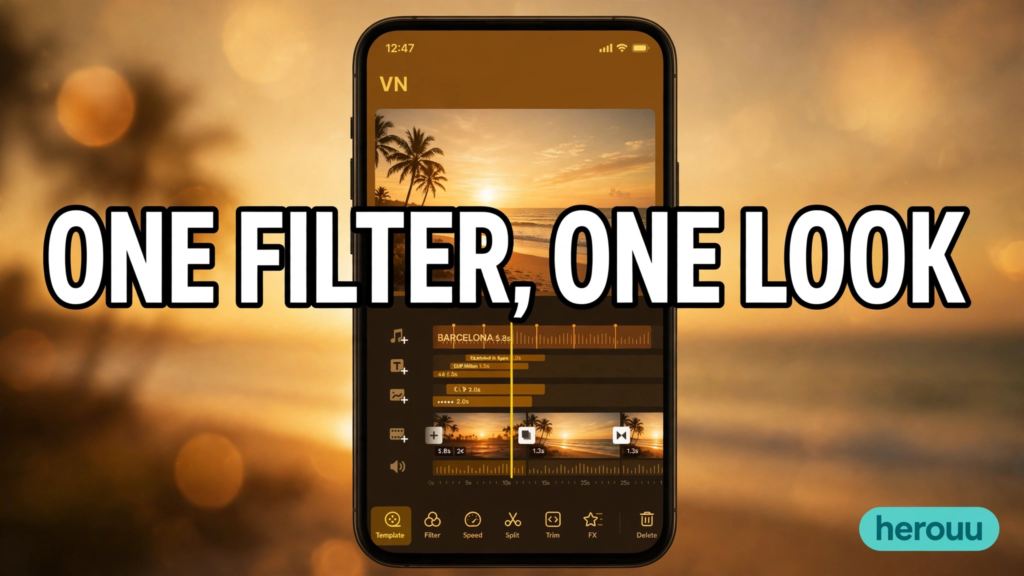
Tap a clip, then tap Filter in the toolbar. Pick one soft, warm filter for your VN aesthetic template and use it on every clip. That makes the video feel like one calm piece, not a mix of random shots. Lower the filter strength to about 60 to 70 percent, so colours stay natural and skin tones do not look orange.
Step 5: Adjust light and colour
Tap Adjust on a clip and change brightness, contrast, and saturation by small amounts. Raise the brightness a little, lower the contrast a little, and keep saturation near normal. Warm the colour slightly if your clips look cold, and use the same values on every clip.
Step 6: Add a slow zoom to each clip
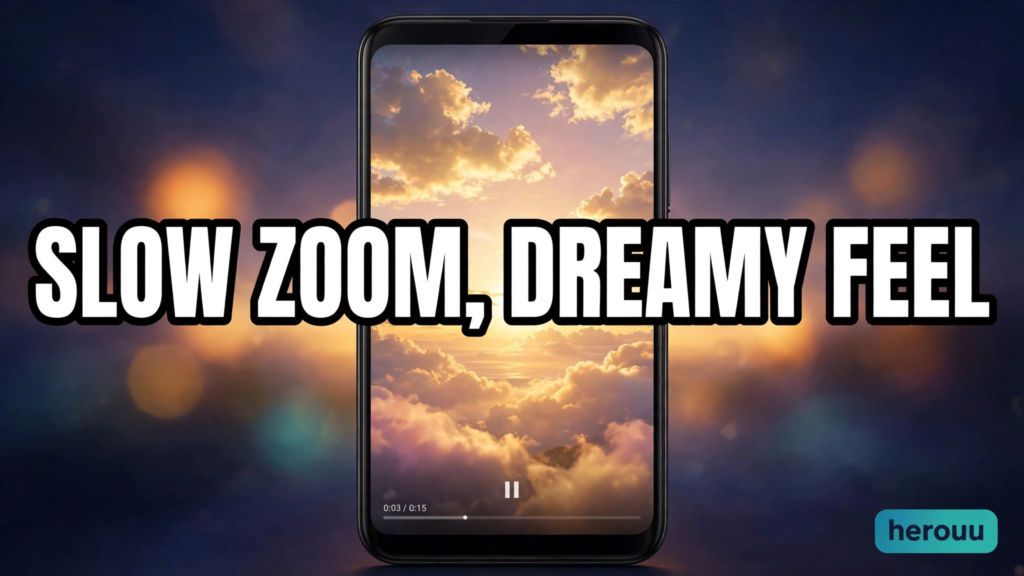
Tap a clip, then use keyframes to add a slow zoom. Place one keyframe at the start and one at the end, then make the end frame slightly bigger. Play it back and check the zoom feels slow and smooth.
Step 7: Add soft transitions between clips
Tap the small icon between two clips and choose Fade or a soft dissolve. Use the same transition everywhere, kept short at about half a second. One calm transition repeated through the video looks neat and professional.
Step 8: Add simple text in a clean font
Tap Text and type a short line, such as a place name or a single feeling word. Pick a clean, simple font and keep the text white and small. Put it near the bottom or top of the frame. Two or three short lines in the whole video are enough.
Step 9: Add music, check, and export
Tap Music and add a calm song that matches your clips. Lower the volume a little, so it sits behind the video instead of shouting over it. Watch the full video once and fix
5 aesthetic template ideas
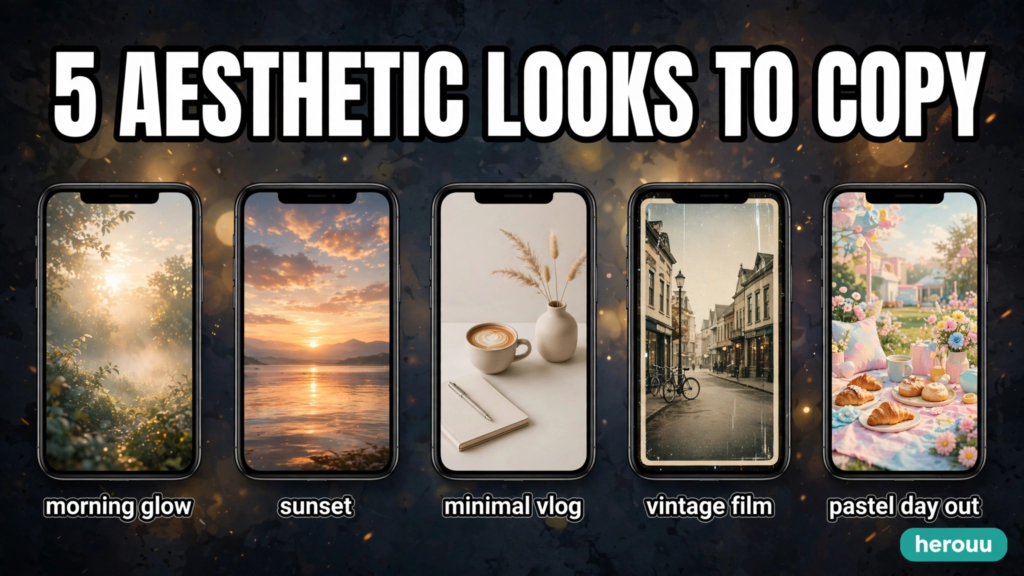
These five VN aesthetic template ideas are original looks you can build in VN with your own clips. Copy one, follow it, and change the clips and colours to fit your day.
Soft Morning Glow: 5 clips of morning light, chai, and a window view. Warm soft filter at 60 percent, raised brightness, slow zoom on each clip, calm piano music, one short white text line.
Dreamy Sunset Reel: 6 clips of the sky, roads, and evening walks. Warm golden filter at 65 percent, low contrast, soft fade transitions, slow lofi music, small white text with the place name.
Clean Minimal Vlog: 5 clips of your desk, study table, or home corner. Bright clean filter at 55 percent, natural colours, no heavy effects, gentle music, simple white text for each moment.
Vintage Soft Film: 6 old photos or memory clips. Warm vintage filter at 70 percent, a little grain if your VN version has it, slow zoom on each photo, soft old-style music, one short text line per photo.
Pastel Day Out: 6 clips from a cafe, a walk with friends, or shopping. Light pastel filter at 60 percent, soft pink and cream tones, quick 2 second cuts, cheerful soft music, playful small white text.
Pick one idea and use it as it is for your first video. Once you see how the filter, zoom, and text work together, change one thing at a time, such as the music or text colour, until the look feels like yours. That is how a VN aesthetic template becomes your own style.
Tips
Shoot near a window or outdoors in the morning or evening. Harsh midday sun makes faces look hard, while soft light does half the work for you.
Use only one filter in your VN aesthetic template video. Mixing filters makes the colours fight each other, and the video loses its calm feel.
Keep your text short. One or two words per screen is enough, and viewers read it without pausing the video.
Leave space around your text. Keep it away from the edges, so Instagram or YouTube does not cover it with buttons.
Save your VN aesthetic template project in VN before you export. To reuse the look, open the saved project, swap in new clips, and export again. VN also lets you share a finished project as a template.
Check your video on your phone screen, not only in the app preview. Colours can look different once saved, so watch the exported file before you post it.
Common Problems
These fixes solve most VN aesthetic template problems.
| Problem | Likely cause | Fix |
|---|---|---|
| Video looks too dark after export | Clips were shot in low light | Raise brightness in Adjust, and shoot in daylight next time |
| Filter looks different on each clip | Clips were shot in mixed light, or the filter strength varies | Use the same filter and strength on every clip |
| Text is hard to read | Text is too small, or sits on a busy part of the clip | Make the text bigger and place it on a plain area |
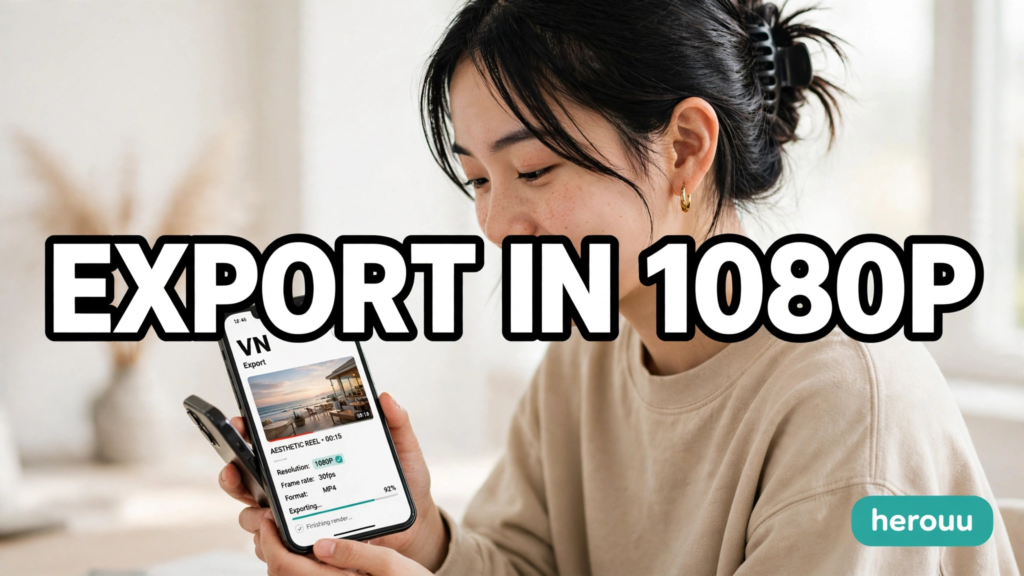
| Export looks blurry | Export was set to a low resolution | Export again at 1080p |
| Music is too loud or missing | Music volume is too high, or the track did not load | Lower the volume, and re-add the track if it plays silent |
FAQ
What is a VN aesthetic template?
A VN aesthetic template is a soft, calm editing style in the VN Video Editor app. It uses one gentle filter, slow zooms, soft transitions, and simple text to give ordinary clips a dreamy, Pinterest-style feel. You build it with your own clips and reuse it for many reels.
Is VN Video Editor free for aesthetic videos?
Yes, VN Video Editor is free to install and use on Android and iPhone. Filters, text, transitions, speed tools, and export are included without payment, based on the app’s own listings and guides. Some extra effects or stickers may vary by version, so check the app first.
Do I need a VN code to make an aesthetic video?
No, you do not need a VN code for this guide. A VN code imports a ready project made by another creator, but here you build the look yourself from a new project. That way you control the clips, colours, and text, and you learn the tools for next time.
Which filter is best for an aesthetic look in VN?
There is no single official best filter, because the right choice depends on your light. Pick one soft warm filter for your VN aesthetic template, use it on all your clips at 60 to 70 percent strength, and test two or three filters on the same clip. Keep the one that looks calm and natural.
How long should an aesthetic reel be?
Keep it between 15 and 30 seconds for Reels and Shorts. Five to eight clips of 2 to 3 seconds each give you that length. A short reel holds attention better, and the soft look works best when it ends before the viewer gets bored.
Can I make an aesthetic video with photos only?
Yes, photos work well for this style. Use 6 to 8 clear, bright photos and give each one a slow zoom with keyframes, so the still image feels alive. Add the same filter to every photo in your VN aesthetic template, keep the text short, and add calm music.
Why does my aesthetic video look dull after export?
The most common reason is low light in the original clips, because no filter can add light that was never there. Another reason is a low export resolution. Raise the brightness in Adjust, export at 1080p, and shoot your next clips in daylight or near a window.
Can I use my own music in a VN aesthetic video?
Yes, VN lets you add your own audio, as well as music from inside the app. Keep the volume low so the music stays soft behind the video. Only use music you have the right to post, because film or album songs can be muted or blocked on some platforms.
How do I save my aesthetic edit as a template in VN?
Save the finished project in VN first, so you can open it again and swap in new clips. VN also lets you share a project as a template for other creators to fill with their own media. Check the official VN help page for the exact steps, as menus change with updates.
Conclusion
A VN aesthetic template is just a calm filter, a slow zoom, and simple text, applied with care to your own clips. Pick one idea from this guide, build it in VN today, and post your first soft, dreamy reel. Then browse the Vn Code Template category on herouu for more looks to try.
Related reading
These herouu guides use the same VN tools as this VN aesthetic template.
- VN Text Effect Template: Easy Text Video Guide
- VN Shake Effect Template: Easy Shake Video Guide
- VN Mask Effect Template: Easy Mask Transition Guide
- VN Retro Film Template: Easy Vintage Look Guide
- Vn Code Template category
About herouu
herouu is a free library of simple, original guides for creators. Every guide is written in plain English and shows you how to make videos, photos, and templates on your phone, without paid tools.
Disclaimer
This guide is based on the official VN help pages and the steps in this article. VN app features and menus may change with updates, so verify from the official VN app or help page if a step looks different on your phone.
Sources
- VN official help, How to Use VN Templates
- TechLokesh, How to Use VN Video Editor in India: Beginner Guide 2026
- Filmora (Wondershare), How to Add Custom Filters in the VN App
- Kannada Information, How to Make a Video Using VN Code
- Pinterest idea page, Vn template qr code (351k people searched this)
Details not officially announced: VN does not publish a list of best aesthetic filters, so the filter choices and strength values here are my own suggestions to test. VN does not publish a step-by-step aesthetic look, so the steps in this VN aesthetic template guide are built from the app’s documented tools. Free-feature limits may vary by app version, so check the VN app if a tool behaves differently.